What Minecraft to Download on Mac: Java Edition vs Bedrock
Discover which Minecraft edition to download on Mac, compare Java Edition and Bedrock, and follow a clear install path from the official launcher. Includes performance tips and cross‑play guidance.


On a Mac, the recommended starting point is Minecraft Java Edition, installed via the official launcher from minecraft.net. Java Edition offers robust mod support, a wide range of servers, and cross‑platform play with other Java players. Bedrock Edition is not officially supported on macOS, so Mac users typically choose Java Edition unless they need Bedrock for cross‑play on non‑Mac devices.
Understanding Mac Compatibility and Edition Options
For Mac users, the most reliable and flexible path to Minecraft is the Java Edition, downloaded and run through the official launcher. macOS supports the Java-based desktop client well, and Java Edition is renowned for its broad mod ecosystem and server compatibility. Bedrock Edition, by contrast, is designed for Windows, consoles, and mobile devices, and macOS does not offer a native Bedrock client. This distinction matters if you want features like cross‑platform play with consoles or mobile devices, or if you plan to use mods and Java-specific world types. According to Craft Guide, Mac players often prioritize Java Edition for its modding flexibility and robust server ecosystem, which remains the most endorsed route on desktop Macs. Craft Guide analysis also notes that the Java launcher tends to be the most straightforward way to stay up to date with game patches and community builds, especially on macOS.
If you’re new to Minecraft on Mac, start with Java Edition to get the broadest compatibility and the richest add‑on ecosystem, then explore Bedrock only if your needs change (for example, if you must play with friends on non‑Java platforms).
Tools & Materials
- Mac computer with macOS (latest recommended)(Ensure your macOS version is supported by the current Minecraft launcher.)
- Stable internet connection(Needed to download the launcher and game updates.)
- Minecraft official launcher(Download from minecraft.net and install the Java Edition launcher.)
- Storage space(Allow several gigabytes for the launcher, game data, and backups.)
- Optional: separate Java runtime (legacy setups)(Newer launcher bundles a compatible JRE; only needed if you’re using an older setup.)
Steps
Estimated time: 30-45 minutes
- 1
Decide edition
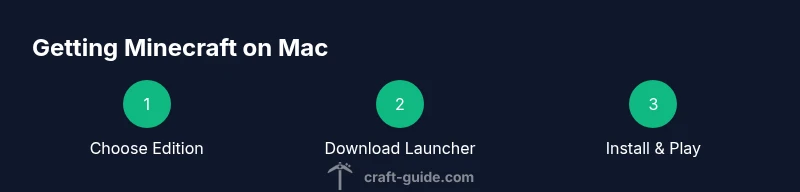
Identify whether you want Java Edition (best for mods and servers) or Bedrock (cross‑play on other platforms). On Mac, Java Edition is typically the default choice because Bedrock lacks native macOS support. If you anticipate playing with friends on Windows or consoles, consider needs for cross‑platform play before committing.
Tip: If you’re unsure, choose Java Edition first to test server support and mod availability. - 2
Download the official launcher
Visit minecraft.net and download the official Minecraft Launcher for macOS. The launcher will manage game versions, updates, and profiles. Do not download from third‑party sites to avoid malware or tampered builds.
Tip: Use a secure browser and enable two‑factor protection on your Mojang/Microsoft account. - 3
Install and launch
Open the downloaded file and install the launcher. Sign in with your Microsoft account, which is required for game access and cloud saves. The launcher will present available editions; select Java Edition to proceed.
Tip: If the launcher prompts for updates, allow them to install before first play. - 4
Choose Java Edition and install
From the launcher, pick Java Edition and click Install. The process retrieves the game files and creates a playable profile. You can create multiple profiles for modded vs. vanilla play.
Tip: Consider keeping a vanilla profile first to avoid conflicts when trying new mods. - 5
Configure settings and memory
In launcher settings, adjust graphics and performance options. Allocate a reasonable amount of RAM (start with 2–4 GB if possible) and enable a balanced view distance to maintain smooth play on mid‑range Macs.
Tip: Too little RAM causes stuttering; too much may slow down your system if other apps run concurrently. - 6
Launch and explore
Start with a fresh world to test performance. If you plan to use mods, install compatible mod loaders (like Forge or Fabric) in a separate profile and test compatibility before expanding worlds.
Tip: Back up saves before adding mods to prevent data loss.
People Also Ask
Do I need to install Java separately on macOS?
No. The official Minecraft Launcher bundles a compatible Java runtime for Java Edition, so you can run the game without a separate Java install. If you’re using an older setup, you might still need a Java runtime, but modern launchers handle it automatically.
The official launcher includes Java, so you don’t need to install Java separately on modern Macs.
Is Bedrock Edition available for Mac?
Bedrock Edition is not officially supported on macOS. It’s designed for Windows, iOS, Android, and consoles. Mac users who need Bedrock usually use cross‑play through Windows or other devices, or stick to Java Edition.
Bedrock isn’t officially supported on Mac, so Java Edition is the recommended option.
Can I play Minecraft for free on Mac?
There is a free demo version available via the official launcher that lets you try the game for a limited time and with limited features. To access full game content, you’ll need to purchase Minecraft.
There’s a free demo, but the full game requires a purchase.
Which edition is best for beginners on Mac?
For most beginners on Mac, Java Edition is the best starting point due to mod support, a vast server network, and ongoing updates. Bedrock’s cross‑play benefits don’t apply on macOS, so Java Edition remains the practical first choice.
Java Edition is usually the best starter on Mac for new players.
How do mods affect performance on Mac?
Mods add features but can increase resource usage and cause instability if not matched to your game version. Start with vanilla Minecraft, then add mods one by one and test stability.
Mods can slow things down; test carefully and back up saves.
What should I do if Minecraft won’t run on my Mac?
Check that you’re using the official launcher, ensure your OS and launcher are up to date, allocate sufficient RAM, and verify your internet connection. If issues persist, try a clean reinstall of the launcher.
Update the launcher, allocate RAM, and reinstall if needed.
Watch Video
The Essentials
- Java Edition is the default Mac choice for modding and servers
- Bedrock isn’t officially supported on macOS
- Use the official launcher for safe downloads and updates
- Mods require a Java Edition setup (Forge/Fabric)
- Back up worlds before experimenting with mods or new settings