Minecraft Launcher Download: Safe Setup Guide for 2026
Learn how to safely download and install the official Minecraft launcher, set up profiles, manage game versions, and troubleshoot common issues for Windows and macOS in 2026.


You will learn how to safely download the official Minecraft launcher, verify the source, install, and run Minecraft. This guide covers Windows and macOS, how to manage game versions, profiles, and common troubleshooting. By the end you’ll be ready to play with confidence. It also highlights safety checks, official sources, and simple steps you can follow even if you're new.
What is the Minecraft launcher and why you need it
The Minecraft launcher is the centralized app you use to start the game, manage profiles, and switch between different game versions. Rather than double-clicking jar files or juggling separate tools, the launcher provides authentication, version selection, and patching in a single, user-friendly interface. For new players, it offers a clear entry point; for veterans, it speeds up swapping between releases, snapshots, or modded setups. According to Craft Guide, using the official launcher helps ensure you download safe, unmodified builds directly from the source, reducing the risk of malware or corrupted installs. The launcher keeps your saves and settings synchronized across devices when you sign in with a supported account. In short, it’s not just an entry point; it’s the hub that keeps your Minecraft experience organized, up-to-date, and consistent across launches and devices. As you proceed, you’ll learn how to obtain it securely, install it correctly, and stay safe while playing.
Before you start: safety and system requirements
Before you grab the installer, make sure you’re on a supported operating system and have enough free disk space to install the launcher and at least one game version. Always download from the official site to avoid counterfeit installers, malware, or bundled software. Ensure you have a reliable internet connection for the download and for signing in with your Microsoft account. If you plan to play with friends or on servers, verify your system meets basic performance needs and that your firewall or antivirus doesn’t block the launcher’s access. Craft Guide emphasizes that safety starts with source verification and ends with a clean, up-to-date launcher. Keep your system drivers current to avoid compatibility issues with newer Minecraft releases.
How to download the official Minecraft launcher
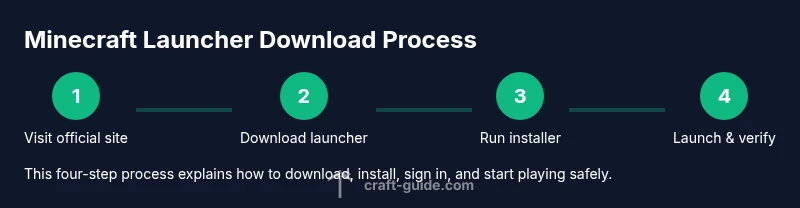
To begin, navigate to the official Minecraft website and locate the launcher download option for your operating system. Click the download button, then run the installer when it finishes. During installation, grant any required permissions and follow on-screen prompts. After installation, launch the launcher and sign in with your Microsoft account to access your purchases, profiles, and saved worlds. Always verify the digital signature or checksum if provided; this extra step helps confirm you downloaded the authentic software. If you encounter a blocked download or a warning from your browser, use the official link again and avoid third-party mirrors. As Craft Guide notes, sticking to the official source minimizes risk and ensures compatibility with future updates.
Install and set up your profile
Run the installer and sign in with your Microsoft account to unlock access to your libraries and saved worlds. The launcher will offer to create or import a profile; choose your preferred name and set a baseline memory allocation. If you’re on a shared device, consider a separate user profile to keep games and saves organized. Within the launcher, you can configure which game version to run by selecting the desired release or snapshot. If you plan to play with friends on a server, ensure you’re using the correct edition and version compatibility. Craft Guide suggests keeping a small, clean profile list to avoid confusion when jumping between vanilla and modded setups.
Choosing versions and modded options
Minecraft versions are released in bands: releases, snapshots, and experimental builds. Use the launcher to switch between these as needed, but remember that unstable snapshots can introduce bugs. If you want to run mods, you’ll typically need a separate mod loader (e.g., Forge or Fabric) and compatible mod versions. The official launcher doesn’t bundle mods by default, so plan your modded setup carefully and back up saves before testing new mods. Keep mod sources trustworthy and avoid installers that promise “free” mods from unverified sites. According to Craft Guide, a disciplined approach to versions reduces crashes and makes rollback simple when something goes wrong.
Common issues and troubleshooting tips
If the launcher won’t start, first verify your internet connection and sign-in status. Firewall or antivirus software can block communication with Minecraft servers; temporarily disabling them or adding an exception for the launcher can help. If you see errors about missing libraries or graphics issues, update your graphics drivers and ensure your Java dependencies (if applicable) are satisfied. For login problems, log out and back in, or reset your Microsoft account authorization if required. When in doubt, check the launcher’s official status page and forums for known issues. Craft Guide recommends keeping a local backup of important worlds and a copy of the launcher installer in a safe location.
Ready to play: first launch checklist
- Confirm you’re signed in with the correct Microsoft account
- Choose a game version and click Play
- Allocate a sensible amount of memory (not more than half of total RAM for most systems)
- Ensure your firewall allows the launcher to connect to the internet
- Open a known world or create a new one to verify saves load correctly
- If you plan to play multiplayer, test a quick server connection to ensure latency is acceptable
With these checks complete, you should be ready to jump into Minecraft without surprises. For newcomers, start with a basic world to learn the controls and interface.
Bonus: safety, backups, and maintenance
Regular maintenance is part of a healthy Minecraft setup. Back up your worlds before applying major updates or mods. Keep a copy of your launcher installer and related files in a secure location. Periodically review your mod list for compatibility with the newest game version to avoid crashes. If you rely on third-party launchers or patches, reconsider and return to the official channel to minimize security risks. Craft Guide’s approach is to prioritize safety, stability, and a smooth, enjoyable gaming experience.
Tools & Materials
- Computer or compatible device(Desktop or laptop capable of running the launcher and at least one Minecraft version)
- Supported operating system(Windows 10/11 or macOS 10.12+; Linux users should check official guidance)
- Internet connection(Stable connection for download and login)
- Admin rights(Needed to install software and make system changes)
- Official Minecraft launcher installer(Download from minecraft.net to avoid malware)
- Microsoft account(Sign in to access purchases, saves, and profiles)
- Backup storage(Optional: keep a copy of worlds or installers in a separate location)
Steps
Estimated time: Estimated total time: 25-40 minutes
- 1
Open the official site
Open your web browser and navigate to the official Minecraft website. Locate the launcher download page for your operating system and verify you’re on the legitimate site.
Tip: Always verify the domain to avoid phishing sites; look for a secure URL and the official logo. - 2
Download the launcher
Click the download button and save the installer to your computer. If your browser blocks the download, re-check the URL or try another official mirror on the same site.
Tip: If you’re on a shared network, download during a window with minimal network restrictions. - 3
Run the installer
Execute the downloaded installer and follow the prompts to install the Minecraft launcher. Grant any required permissions and allow changes to your device if asked.
Tip: Keep an eye out for optional bundles; deselect them if you don’t want extra software. - 4
Sign in and sync
Launch the launcher and sign in with your Microsoft account. This links your purchases, saves, and profiles to the launcher for easy access.
Tip: If you can’t sign in, reset account permissions or use a different Microsoft account that owns the license. - 5
Configure a profile
Create or select a profile and set a reasonable memory allocation. This keeps your settings separate and helps you manage different game versions.
Tip: Avoid over-allocating RAM; start with a modest amount and adjust based on performance. - 6
Choose a game version
Use the launcher to pick a release, snapshot, or modded setup. Remember that snapshots can be unstable, so back up saves before testing.
Tip: Keep a clean list of versions to avoid confusion when moving between vanilla and modded play. - 7
Launch and verify
Click Play to start Minecraft. Verify that worlds load correctly and that audio, controls, and visuals work as expected.
Tip: If something looks off, restart the launcher and try a different version or profile.
People Also Ask
Do I need the Minecraft launcher to play Minecraft?
Yes. The official launcher is the primary way to sign in, manage versions, and launch the game. It ensures you access legitimate builds and keeps your saves organized.
Yes. You need the official launcher to sign in, manage versions, and start playing safely.
Can I download the launcher for Windows and macOS?
The official launcher is available for Windows and macOS and can be used on compatible Linux setups with the appropriate instructions. Always confirm the current supported platforms on the official site.
The launcher supports Windows and macOS, with Linux options via official guidance.
Do I need a Microsoft account to play?
Yes. You sign in with a Microsoft account to access your games, profiles, and saved worlds. This account ties your launcher activity to your purchases.
You sign in with a Microsoft account to access your games and saves.
What if the launcher won’t start?
Check your internet connection, disable blocking firewall rules, and ensure you’ve downloaded the installer from the official site. If problems persist, try a different version or verify your system requirements.
If it won’t start, check connection, firewall, and try another version.
Can I play with mods through the launcher?
Mods require a compatible mod loader (like Forge or Fabric) and version-specific mods. The launcher itself doesn’t install mods automatically; you’ll need to add mod files carefully and back up saves.
Mods need a loader; you add them separately and back up saves.
How often should I update the launcher?
Update whenever a new launcher version is released to improve security, compatibility, and performance. Keep an eye on official announcements and back up important worlds before updating.
Update when new launcher versions are released to stay secure and compatible.
Watch Video
The Essentials
- Install only from the official site
- Sign in to sync saves and profiles
- Choose versions carefully and back up worlds
- Verify safety and avoid untrusted sources
- Keep launcher and game updated