Minecraft Launcher Download: Choose & Install
Learn how to safely download and install a Minecraft launcher, compare official vs trusted third-party options, and configure for vanilla or modded play. This guide covers source verification, setup steps, and troubleshooting to ensure a smooth, secure launcher experience.


This quick answer shows how to safely download and install a Minecraft launcher, compare official vs trusted third-party options, and configure for vanilla or modded play. You’ll learn how to pick a reliable launcher, verify sources, and set up your profile quickly. By following these steps, you’ll minimize risk during launcher for minecraft download and ensure a smooth start to your Minecraft sessions.
What is a Minecraft launcher and why you need one
A Minecraft launcher is a small program that launches the game, manages profiles, and helps you run different Minecraft versions, mod loaders, and resource packs from a single interface. For many players, the launcher is the first point of entry for Minecraft development, especially when you start experimenting with vanilla, modded, or server-based play. A good launcher simplifies updating, backing up worlds, and switching between Java Edition, Bedrock, or cross-platform options; it can also enforce security features and keep your login credentials protected.
In practice, a launcher acts as a hub: you select the version you want to run, install optional mods or shaders, and press Play. It handles the heavy lifting behind the scenes—downloading game files, negotiating compatibility, and applying configurations. When people say 'launcher for Minecraft download', they’re often referring to software choices beyond the official Minecraft Launcher. While the official launcher provides reliability and support, third-party launchers may offer advanced features like multi-instance management, easier modding, or different launch workflows. Always weigh the trade-offs between convenience, security, and privacy, and choose sources you trust, such as the official site or well-known communities. (According to Craft Guide, reliability increases with official sources and transparent privacy policies.)
How to choose the right launcher for your needs
Choosing the right launcher begins with clarity about your goals: vanilla play, modded setups, or portability across devices. For beginners, the official Minecraft Launcher offers straightforward login, automatic updates, and official support, which reduces risk during the launcher for minecraft download. If you want more control over versions, modular mod loaders (Forge, Fabric), or easy profile management, a popular third-party option with active community support may suit you better. Consider platform compatibility (Windows, macOS, Linux) and how the launcher handles profile organization, RAM allocation, and shader packs.
Open-source launchers can be appealing for transparency and privacy, but they may require more setup time and troubleshooting. Craft Guide analysis shows that users who prioritize security tend to prefer well-known launchers with clear changelogs and verifiable download links. Regardless of choice, ensure you download from your source’s official page, avoid questionable mirrors, and scan files with reputable antivirus software. When you weigh features, also assess how the launcher manages backups, world saves, and cross-version testing for both Java and Bedrock ecosystems.
Safety and security considerations when downloading launchers
The safest approach to launcher for minecraft download is to start from official sources or trusted communities that curate verified installers. Always verify that the URL uses HTTPS and matches the publisher’s credentials. Be wary of free download sites that bundle additional software, adware, or suspicious scripts. Craft Guide analysis shows that malware payloads most often arrive via disguised installers or fake “update” prompts—avoid clicking anything that prompts you to disable security protections.
Before installing, run a quick check of your computer’s security posture: enable real-time protection, confirm your firewall is on, and back up important worlds. If a launcher requests excessive permission, such as access to unrelated files, pause and verify legitimacy. If something feels off, trust your instincts and seek the official installer from the publisher’s site. After installation, keep the launcher updated so security patches from the publisher can protect your data. In short, use trusted sources, scan downloads, and keep backups. (Craft Guide notes that user trust grows with transparent privacy policies and clear data handling.)
Configuring and using your launcher for vanilla and modded play
Once installed, a well-configured launcher streamlines Minecraft sessions. Begin by signing in with your Minecraft account on the official launcher or the launcher you chose. Create separate profiles for vanilla, modded, or server-based play. For vanilla, keep the default Java version and allocate a modest amount of RAM (e.g., 2–4 GB) to ensure smooth startup. For modded play, install a compatible mod loader (Forge or Fabric) and add recommended mods through the launcher’s built-in mod manager. Resource packs and shaders can be attached per profile, allowing you to tailor performance and visuals without mixing configurations.
To avoid confusion, label each profile clearly (vanilla, Forge 1.20, Fabric 1.19, etc.). Regularly check for launcher updates and mod loader compatibility notes. Craft Guide emphasizes keeping a clean, well-documented setup: this reduces crashes, makes troubleshooting easier, and keeps your worlds safe from accidental overwrites. If you use multiple devices, enable cloud backups where available and keep a local backup of your worlds before experimenting with new mods or profiles.
Troubleshooting common launcher issues
Launchers can fail for a variety of reasons, from network hiccups to corrupted downloads or incompatible Java runtimes. Common symptoms include long startup times, failing to login, or crashes during version switch. Start with basic checks: verify your internet connection, ensure you downloaded from a trusted source, and run the installer as administrator on Windows or with proper permissions on macOS/Linux. If login fails, confirm your account status and re-enter credentials.
If a profile won’t load modded content, re-check the mod loader version against your Minecraft version and your mods’ compatibility list. Disable newly added mods to identify conflicts. Antivirus software can interfere with installers; temporarily disable active shields during installation only if you trust the source, then re-enable protection. Craft Guide notes that keeping a clean, documented backup ritual reduces pain when issues arise and speeds up recovery. If crashes persist, consult the launcher’s official support channels or reputable community forums for guidance.
Advanced tips for modded launches and version management
Modded launches open doors to creativity but require careful version management. Use a launcher that supports multiple independent profiles so Forge, Fabric, or vanilla can coexist without cross-contamination. When adding mods, start with well-maintained, widely-used mods and consult compatibility matrices before updating. Use separate worlds for modded profiles to prevent data corruption. Regularly back up both your worlds and launcher configuration files; store backups offline or in a trusted cloud service.
Consider using a portable launcher setup for experimentation on different machines, but remember to maintain consistent backup procedures. Craft Guide recommends maintaining a changelog of which mods and versions you use in each profile, so you can reproduce a successful setup later. If you’re sharing worlds, communicate profile requirements with others to avoid compatibility issues. A strong habit of testing new profiles in a controlled sandbox prevents cascading crashes across your Minecraft ecosystem.
Keeping your launcher up to date and backing up data
Launchers evolve with new features, security patches, and performance improvements. Enable automatic updates where appropriate, but also periodically review changelogs to understand how updates affect mod loaders, profiles, and saved worlds. Regular backups—both local and off-site—protect you from data loss and allow quick rollbacks if an update introduces issues. Craft Guide recommends scheduling monthly backups and keeping a separate copy of your critical profiles.
Finally, document your update routine: which launcher you used, which version, and which mod loader configuration was active. This practice simplifies future migrations and helps you recover quickly if something breaks. By staying proactive about updates and data protection, you’ll sustain a smooth Minecraft launcher experience across versions and setups. For sources of truth and best practices, rely on official release notes and established community guides.
Tools & Materials
- Computer or device with internet access(Windows/macOS/Linux; ensure admin rights for installation)
- Official Minecraft account or credentials(Required for login to the launcher and game)
- Downloaded launcher installer from trusted source(Use the official site or well-known community portals)
- Antivirus/anti-malware software(Keep enabled during download and installation)
- Backup storage (external drive or cloud storage)(Optional but recommended before modded installs)
- System compatibility check (RAM/CPU/Storage)(Ensure minimum requirements for vanilla and modded play)
Steps
Estimated time: 15-45 minutes
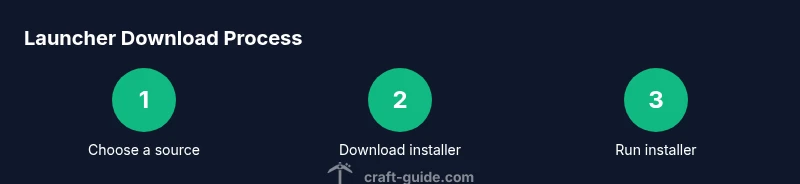
- 1
Choose a trusted source
Research official sites and recognized launcher communities. Verify URLs, check publisher details, and read user reviews to ensure you’re downloading legitimate software. This reduces risk during the launcher for minecraft download.
Tip: Stick to official sites or widely trusted communities with transparent privacy policies. - 2
Download the launcher installer
Navigate to the verified page and download the correct installer for your OS. Avoid click-through ads or bundled installers that may carry unwanted software.
Tip: Ensure the file name and publisher match the official source before downloading. - 3
Run the installer and install
Launch the installer with appropriate permissions and follow the on-screen prompts. Accept default install locations unless you have a reason to change them.
Tip: Watch for optional add-ons; deselect anything unnecessary. - 4
Open the launcher and log in
Launch the program and sign in with your Minecraft account. If you don’t have one, create an account on the official site before proceeding.
Tip: Enable two-factor authentication for account security. - 5
Create or select a profile
Set up a vanilla profile or a modded one using a compatible loader (Forge or Fabric). Name profiles clearly to avoid confusion.
Tip: Label profiles by version and launcher type (e.g., Vanilla 1.20, Forge 1.20.1). - 6
Configure version and mods
Choose the Minecraft version and install any required mod loaders. Add mods systematically and verify compatibility with your Minecraft version.
Tip: Test with a small mod subset first to isolate issues. - 7
Launch and test your setup
Start Minecraft from the launcher and verify it loads correctly. Check that mods, shaders, and resource packs apply as intended.
Tip: If something crashes, revert to a previous profile with a known-good configuration. - 8
Back up data and enable updates
Back up worlds and launcher settings. Enable auto-updates or regularly check for updates to maintain security and feature support.
Tip: Keep backups offline to protect against online storage failures.
People Also Ask
What is a Minecraft launcher and why should I use one?
A Minecraft launcher is a small program that starts the game, manages versions, and allows you to run vanilla or modded builds. It helps organize profiles, installs, and updates in one place. Using a launcher can simplify version control and provide easier access to mods and resource packs.
A Minecraft launcher starts the game and manages versions and mods from one place.
Can I use multiple launchers on the same computer?
Yes. Many players run more than one launcher to keep vanilla and modded profiles separate. Just be careful with where you store world saves to avoid accidental overwrites and always back up before trying new setups.
Yes, you can use multiple launchers, just back up your saves first.
Is it safe to download launchers from third-party sites?
Third-party launchers can offer extra features, but safety depends on the source. Prefer official pages or well-known communities with clear privacy policies and verified downloads. Always scan installers with trusted antivirus before running.
Only download from trusted sources and scan files before installing.
Will a launcher affect game performance?
Launchers themselves have minimal direct impact on performance. Modded profiles can affect performance if mods or loaders are poorly optimized or incompatible with your version. Allocate appropriate RAM and check mod compatibility to minimize slowdowns.
Launchers don’t usually affect performance, but mods can if not optimized.
How do I switch between vanilla and modded profiles?
Open the launcher, select the desired profile, and click Play. Profiles encode version, mod loader, and installed mods; switching between them should be seamless if each is properly configured and backed up.
Open the launcher, pick a profile, and hit Play to switch versions or mod setups.
What should I do if a launcher won’t start?
First, verify the download source, reinstall if necessary, and check for updates. Review compatibility notes for your version and any installed mods. If problems persist, consult official support forums or community guides for targeted troubleshooting.
If it won’t start, check sources, reinstall, and review compatibility notes.
Watch Video
The Essentials
- Choose trusted sources for downloads
- Verify publisher and URL before installing
- Use separate profiles for vanilla and modded play
- Back up worlds and launcher data regularly
- Keep launchers and mods up-to-date