Minecraft Download for Mac: Safe, Step-by-Step Guide
Learn how to safely download Minecraft on macOS, verify sources, install the official launcher, and start playing with confidence. This practical step-by-step guide from Craft Guide covers setup, troubleshooting, and updates for Mac users.


By the end of this guide you will safely download and install Minecraft on macOS, choose the right launcher, and start playing with minimal setup. You’ll confirm your system meets requirements, download from the official site or reputable sources, and complete a clean install that avoids adware or scams. This walkthrough covers macOS versions, launcher options, and essential post-install checks.
System Requirements for macOS
Before you download, verify that your Mac can run a modern launcher and the Java Edition. The official Minecraft Launcher, downloaded from minecraft.net, is the safest and most stable path for macOS. This launcher handles updates, profiles, and resource packs in one place, reducing the risk of adware from third-party installers. In practice, you just need a Mac with an up-to-date web browser and a reliable internet connection. Close other programs to ensure the installer can download and write files without interruptions.
According to Craft Guide, the safest starting point on macOS is the official source, which minimizes risk while keeping your game environment clean. Use a trusted browser, verify the URL, and avoid unknown sites that bundle software with unwanted extras. It’s wise to back up your worlds before making changes, so you can recover quickly if something goes wrong. Storage and performance considerations come from your hardware load as you add texture packs or mods, so plan accordingly. For login, you will need a Microsoft account to sign into the launcher and access your purchased or purchased-once Minecraft access. Finally, keep Gatekeeper and macOS security prompts in mind, allowing the launcher from identified developers while staying vigilant for suspicious activity.
text
Tools & Materials
- Mac computer with macOS (updated)(Stable internet connection and a web browser)
- Official Minecraft account (Microsoft account)(Needed to sign in to the launcher)
- Official Minecraft Launcher installer (DMG) from minecraft.net(Download directly from the official site)
- Web browser (Safari/Chrome/Firefox)(Used to download the installer or verify the source)
- Backup storage for worlds(Recommended before major updates or changes)
- Optional: third-party launchers (e.g., MultiMC)(Only if you know what you’re doing and trust the source)
Steps
Estimated time: 30-60 minutes
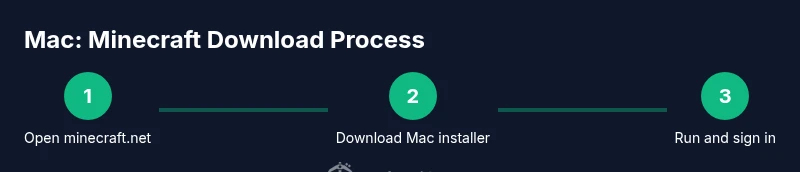
- 1
Open the official Minecraft download page
Navigate to minecraft.net and sign in with your Microsoft account. Access the Mac-specific download so you get the legitimate installer. This ensures you’re starting from a trusted source and reduces the risk of bundled software.
Tip: Verify the URL starts with https and matches the official site; beware links from search results that look similar. - 2
Download the macOS installer
Click the download button for the Mac installer. Wait for the DMG file to finish downloading and avoid canceling mid-download. This step provides the exact package you'll install on your Mac.
Tip: Use a stable internet connection; if the download pauses, pause other bandwidth-heavy apps temporarily. - 3
Open the downloaded DMG
Locate the DMG file in your Downloads and double-click to mount it. This creates a virtual drive with the launcher package you’ll install. Do not run any unverified executable from other sources.
Tip: If Gatekeeper blocks the app, adjust security settings to allow apps from identified developers and re-run the installer. - 4
Install the launcher to Applications
Drag the Minecraft Launcher icon into the Applications folder or run the installer if prompted. This ensures the launcher integrates cleanly with macOS and appears in your Launchpad.
Tip: Keep the launcher updated by using the built-in updater after first launch. - 5
Launch and sign in
Open the Minecraft Launcher from Applications and sign in with your Microsoft account. The launcher will fetch your profiles and show you the available editions. This step confirms your access to the game content you own.
Tip: If you’re new to the account, create or link it on the official site before signing in here. - 6
Choose your edition and start
Select the Java Edition profile (the standard Mac option) and press Play. The launcher will download the game files and configure your first run. You’ll be able to adjust settings like resolution and resource packs later.
Tip: Start with a modest resolution and gradually increase for best performance on your Mac. - 7
First launch and setup
After the initial download, the game will launch to the main menu. Create or load a world, set up your controls, and review video and audio settings for comfort. This is a good point to back up any important worlds.
Tip: Create a separate backup copy of your worlds before new mods or updates.
People Also Ask
Do I need Java to play Minecraft on Mac?
Most current Minecraft builds include a bundled Java runtime within the official launcher, so you typically do not need to install Java separately. The launcher handles runtime requirements for you.
Most modern Minecraft on Mac uses the bundled Java runtime with the official launcher, so you usually don’t have to install Java yourself.
Is it safe to download Minecraft from third-party sites?
For safety, always download Minecraft from the official site. Third-party sites can bundle unwanted software or malware, which risks your computer and account.
Always use the official site to avoid malware and scams.
Can I play Bedrock edition on Mac?
Bedrock Edition is not officially released for macOS. Mac users typically play the Java Edition using the official launcher. Be wary of unofficial ports or emulators.
Bedrock isn’t available on Mac; use Java Edition with the official launcher.
What should I do if the launcher won’t open?
First, check macOS security prompts and Gatekeeper settings. Re-download the installer if the file is corrupted, and ensure you have sufficient storage. If issues persist, check for macOS updates and try again.
Check security prompts, re-download if needed, and ensure you have enough space.
How can I back up my Minecraft worlds?
World backups are created by the launcher and game automatically during updates, but you should manually copy your saves folder to a safe location for extra protection.
Regularly back up your saves to a safe location.
Watch Video
The Essentials
- Install the official launcher for safety and stability.
- Sign in with a Microsoft account to access your games.
- Back up worlds before major updates or changes.
- Verify the download source to prevent malware.