How to install Minecraft: A complete guide
Learn how to install Minecraft on Windows, macOS, Linux, or mobile. This step-by-step guide covers choosing editions, downloading the official launcher, account setup, and first-launch tips to get you building fast.


Install Minecraft by selecting your edition (Java or Bedrock), download the official launcher from minecraft.net, then run the installer on your device. The process varies slightly by platform, but using the official launcher guarantees access to updates and your purchased game. Follow these steps to get up and playing quickly and safely.
Why installing Minecraft matters for your creative journey
According to Craft Guide, installing Minecraft using the official launcher provides the most reliable starting point for both beginners and seasoned builders. The launcher handles updates, profile management, and compatibility with downloadable content, ensuring you won’t miss out on new features. This section sets the stage for a smooth setup, outlining what you’ll gain by installing correctly, what editions exist, and how to prepare for a successful first run.
Craft Guide Team emphasizes that starting with the official launcher reduces common issues like corrupted downloads or incompatible mods. A clean install path helps you focus on building, exploring, and learning, rather than troubleshooting. By investing a little time upfront to verify your edition and launcher, you’ll save hours later.
The goal here is to map out a clear installation journey—from choosing Java or Bedrock to completing the first launch with stable settings. You’ll also see how to manage accounts, backups, and updates so your worlds stay secure and accessible across devices.
Java Edition vs Bedrock Edition: choosing your path
Minecraft comes in multiple flavors, with Java Edition and Bedrock Edition offering different experiences. Java Edition shines for advanced modding, flexible server options, and a deep customization ecosystem. Bedrock Edition, on the other hand, provides broad cross‑platform play and polished performance on a range of devices. Craft Guide Analysis, 2026, notes that most players pick Java for modding and large custom servers, while Bedrock appeals to families and players who want instant cross‑play.
Your choice also dictates the launcher you’ll use and where you’ll download content. If you’re unsure, start with the official launcher and switch editions later if your needs change. The right starting point depends on your goals, device availability, and whether you intend to explore mods or rely on built-in features and marketplace content.
What you need before you start: prerequisites and accounts
Before installing, confirm your device meets the minimum requirements for your chosen edition. You’ll need a stable internet connection, sufficient storage, and a valid Minecraft account. According to Craft Guide Team, having your account ready and your device prepared streamlines the process and reduces delays during setup. If you’re a parent or guardian, enabling family safety settings ahead of time can also save headaches later.
Make sure your device has a supported operating system (Windows, macOS, Linux for Java; Windows 10/11, iOS, Android, or consoles for Bedrock). Also decide where your Minecraft worlds and saves will reside so you can back them up easily.
Tip: Keep notes of the exact Minecraft edition you want and the platform you’ll play on, so you download the correct launcher from the start.
The official launcher: why it’s the best starting point
The official Minecraft Launcher is the recommended starting point for most players. It centralizes access to Java and Bedrock editions, tracks installed versions, and streamlines updates. With the launcher, you can switch between editions, install snapshots or previews, and manage profiles with ease. Craft Guide Analysis, 2026, highlights that relying on the official launcher minimizes compatibility problems and helps you stay current with the latest features.
Using the launcher also makes it easier to log in with your Microsoft account (for Bedrock) or your Mojang account (for Java, depending on the setup). This ensures your purchases, worlds, and settings are synced across devices when supported.
If you’re preparing to install on a shared family PC, consider enabling guest modes or separate profiles to keep each player’s progress organized and secure.
Step-by-step platform prep: Windows, macOS, Linux, and mobile
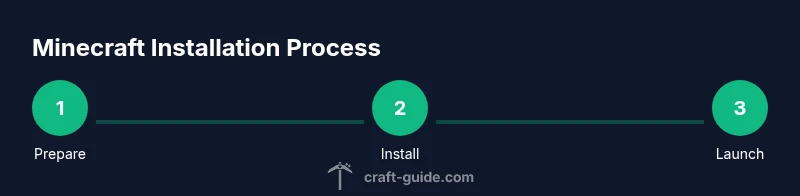
Platform variations will affect download links and installation steps, but the core process remains the same: download the launcher, install, then launch. On Windows and macOS, you’ll typically download a package and run the installer. Linux users may use a package manager or manual JAR launches depending on distribution. Mobile users install the Bedrock version from their app store where available.
Regardless of platform, ensure you’re downloading from the official source (minecraft.net) to avoid tampered installers. If you’re on a console, you’ll access Minecraft through the console’s storefront or preinstalled app. Following the official launcher guarantees proper updates and saves alignment across devices.
First launch and basic configuration after installation
Launch the game from the launcher and sign in with the appropriate account. Choose your edition, then allow the launcher to download the necessary files. Configure basic settings such as video resolution, audio levels, and control mappings so your first play session is comfortable. If you plan to use mods, set expectations for compatibility and backups before enabling mod loaders.
During the first run, create a new world or load a saved one to ensure the installation path is valid. Familiarize yourself with the UI, check for available updates, and review privacy and security settings to safeguard your player profile.
Tools & Materials
- Official Minecraft Launcher(Download from minecraft.net and install on your device.)
- Minecraft account(Active license or Microsoft/Mojang login as appropriate.)
- Windows/Mac/Linux compatible device(Hardware should meet edition-specific requirements.)
- Stable internet connection(Used for downloading launcher, game files, and updates.)
- Sufficient storage space(At least 2 GB free, more for worlds and mods.)
- Administrative permissions(Needed to install software and apply updates.)
Steps
Estimated time: Total time: 30-60 minutes
- 1
Prepare your device
Ensure your device meets the edition's requirements and you have administrative rights to install software. Create a basic plan for where Minecraft will live on your disk and confirm you have a stable internet connection for downloads. This step reduces rework during installation.
Tip: Close unnecessary programs to speed up the download and avoid conflicts. - 2
Download the official launcher
Visit minecraft.net and download the official launcher aligned with your OS. Verify you’re on the legitimate site to avoid malware. If you’re on a console, use the store app to locate Minecraft.
Tip: Bookmark the official site to prevent accidental redirections to spoof sites. - 3
Run the installer
Open the downloaded installer and follow the prompts. Grant permissions if prompted and choose an installation path you’ll remember. This creates the launcher and initial game files.
Tip: If prompted, allow elevated permissions for a smooth installation. - 4
Sign in and pick your edition
Launch the launcher, sign in with your account, and select either Java or Bedrock edition. The launcher will fetch the correct files for your chosen edition.
Tip: Double-check you selected the correct edition before downloading additional components. - 5
Install the edition and updates
Let the launcher download the required game files and any optional updates. After installation, verify that you can launch the edition from the launcher’s main screen.
Tip: If updates fail, pause and resume the download or switch networks temporarily. - 6
Launch and customize
Open a new world or load an existing one. Adjust graphics, controls, and sound settings to your preference. Create a backup and enable cloud saves if available.
Tip: Make a quick backup of your worlds before adding mods or world changes.
People Also Ask
Do I need Java for Minecraft?
Java Edition requires a compatible Java environment and uses the official Java launcher. Bedrock Edition does not require a separate Java installation. The official launcher handles the appropriate setup for the edition you choose.
Java Edition uses Java, while Bedrock uses its own launcher; pick the one that matches your device and play style.
Which edition should I install first?
If you want broad cross‑platform play and a stable performance across devices, start with Bedrock. If you’re interested in modding, custom servers, or advanced scripting, Java Edition is the better starting point.
Bedrock for cross‑play, Java for modding and customization.
Is there a free trial or demo version?
Minecraft typically requires a license to play, and official demos or trials are limited. Check the official store for any trial options or promotions and ensure you’re downloading from the official source.
There isn’t a full free version; check for trial options on the official store if available.
Can I install Minecraft on a Chromebook or Linux?
Yes, depending on the edition. Bedrock can run on some Chromebooks via Android apps, while Java Edition on Linux may require a compatible launcher or manual installation. Always check current official support notes for your device.
Chromebook and Linux can work with the right edition and setup, but confirm current support first.
What if I already have Minecraft on another device?
Log in with the same account to access your purchases and, where supported, your worlds across devices. The launcher will sync what is available on each platform.
Use the same account to synchronize your purchases and worlds across devices.
How do I update after install?
The official launcher handles updates automatically when you have network access. You can also manually trigger updates from the launcher’s settings or profile page.
Let the launcher update automatically, or check for updates manually in the launcher.
Watch Video
The Essentials
- Download the official launcher first
- Choose Java or Bedrock based on play style
- Back up worlds before changes
- Update the launcher regularly
- Ensure you meet system requirements