Minecraft Installer: Safe Setup Guide for 2026
Learn how to use a minecraft installer to install Minecraft safely on Windows, macOS, and Linux. This guide covers official installers, launchers, prerequisites, step-by-step setup, security tips, and troubleshooting for a smooth first run.


A minecraft installer is a guided setup that streamlines getting Minecraft onto your device, reducing manual steps and errors. This quick guide explains what a installer does, the safety best practices, and the key differences between official launchers and trusted third‑party options. By following the steps, you’ll download the right file, configure essential settings, and verify a clean first run on Windows, macOS, or Linux.
What is a minecraft installer and why use it?
A minecraft installer is a specialized program or script that automates the process of downloading the game files, configuring the launcher, and setting up the necessary directories on your device. Using an installer reduces the risk of selecting the wrong version, missing dependencies, or placing files in the wrong location. For most users, a well-made installer bundles the launcher and runtime components, then creates a clean, consistent setup that works across Windows, macOS, and Linux. This consistency matters because it minimizes post-install issues related to path configuration, environment variables, or outdated Java runtimes. According to Craft Guide, starting with a trusted installer reduces common first-run errors and helps beginners avoid misconfigurations.
In practice, you typically download a single file from an official source, run it, and let the installer place game files where the system expects them. The result is a ready-to-run Minecraft launcher that you can open to start the game with your preferred profile. The installer also handles updates and optional components, which keeps your setup aligned with the latest features and security fixes.
Supported platforms and prerequisites
Minecraft installers are designed to work across major desktop platforms, but the exact steps can vary slightly by OS. A modern Windows, macOS, or Linux environment with an active internet connection is essential. You should have administrative rights to install software, a stable storage space for the game files, and a working Minecraft account to log in through the launcher. It’s wise to back up important saves before any major install or update. Craft Guide analysis shows that ensuring these prerequisites upfront reduces interruption during installation and first-run setup. Also, disable any aggressive antivirus prompts only temporarily and verify the installer’s digital signature before proceeding.
Official installer vs trusted third-party launchers
Two broad approaches exist for Minecraft installation: official installers and trusted third-party launchers. Official installers come directly from Minecraft.net and are tested for compatibility with the current launcher and game files. They minimize risk by including the correct runtime and up-to-date security patches. Trusted third-party launchers can offer extra features like profile syncing or mod management, but they may carry risk if not well-vetted or updated frequently. Craft Guide recommends sticking to official sources for primary installs and treating third-party tools as optional add-ons only after thorough vetting.
Step-by-step overview
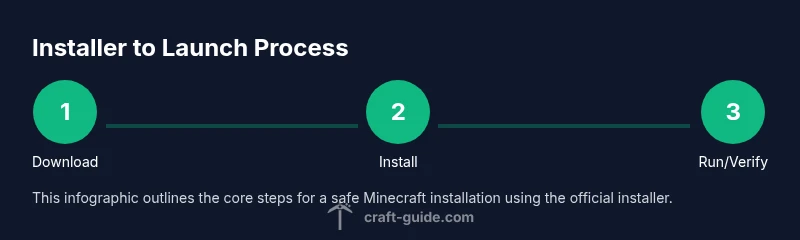
A successful install typically follows a predictable flow: (1) verify system prerequisites and download official installer files, (2) run the installer with appropriate permissions, (3) choose installation options and verify paths, (4) launch the launcher and sign in, (5) start a test game to verify functionality, and (6) configure basic settings and ensure auto-updates are enabled. This overview sets the stage for the detailed, step-by-step instructions in the dedicated section below. Remember that each platform may require small adaptations, but the core process remains the same.
Safety and security best practices
Security should be your first consideration when using any installer. Always download from the official source, check the URL, and verify digital signatures or hashes if provided. Keep your antivirus up to date and avoid running installers from untrusted sources or bundled with unsolicited software. If an installer attempts to install additional unwanted software, press cancel and seek the official download instead. This practice helps protect your system and your Minecraft worlds from malware and data loss.
Verifying installation and first-run configuration
After installation, open the launcher and sign in with your Microsoft/Xbox account. Ensure you are connected to the internet so the launcher can fetch the latest game version and assets. Create a new profile with a descriptive name, select the desired edition (Java or Bedrock), and click Play. If the game starts and you reach the main menu, you’ve achieved a successful install. If not, review the launcher logs for error codes and consult the troubleshooting section.
Troubleshooting common installation issues
Install failures often stem from corrupted downloads, permission problems, or conflicting security software. Start by re-downloading the installer from the official site and running it with administrative rights. Check that your antivirus did not quarantine essential files and confirm your internet connection is stable. If you encounter a specific error code, search for that code on the official Minecraft support pages or forums for guidance. Craft Guide notes that most issues resolve after clean reinstallation and ensuring the correct edition (Java vs Bedrock) is selected.
Advanced notes: modded setups and launcher options
If you plan to use mods, shaders, or Forge, consider a separate modded launcher or a dedicated mod loader within the Java Edition. Modded setups can be more complex due to compatibility between game versions, mod versions, and launcher capabilities. Always back up saves before adding mods, research compatibility notes, and test in a separate profile to avoid impacting your main worlds. For vanilla play, the standard official installer and launcher provide a straightforward path to stable performance.
Tools & Materials
- Computer or device (Windows, macOS, or Linux)(Ensure it meets minimum RAM and storage requirements for the launcher and game.)
- Official minecraft installer file(Download only from the official Minecraft site to avoid malware.)
- Active internet connection(Needed to download the installer and game assets.)
- Backup storage (external drive or cloud storage)(Recommended before major updates or modded installs.)
- Antivirus/antimalware software(Keep it updated; pause only if a known false positive blocks a legitimate installer, and re-enable afterward.)
- Administrative rights or sudo access(Required on Windows/macOS to install system-wide components.)
- Java runtime (for legacy setups or specific mods)(New official installers often bundle a runtime; rely on bundled components unless you know you need Java separately.)
Steps
Estimated time: 20-40 minutes
- 1
Prepare your system
Confirm your device meets the minimum requirements, ensure you have a stable internet connection, and close unnecessary applications to free resources. This reduces the chance of install-time errors and speeds up the process. Confirm you have admin rights before proceeding.
Tip: Check that at least 4GB of free RAM is available and that you have sufficient disk space for the launcher and game files. - 2
Download the official installer
Navigate to the official Minecraft site and locate the official launcher/installer download. Verify the URL and certificate if your browser shows any warnings. Save the file to a known location where you can easily find it for the next step.
Tip: Always use the official source; avoid mirrors or third-party sites that offer installers bundled with adware. - 3
Run the installer with admin rights
Right-click the installer file and choose Run as administrator (Windows) or enter your admin credentials on macOS/Linux when prompted. This allows the installer to place files in correct system directories and update necessary environment settings.
Tip: If the OS blocks the installer, review the security prompts and temporarily allow the installer if you trust the source; re-enable protection after installation. - 4
Choose installation options
Select the install directory, components to install, and whether to include optional features like the launcher, runtime, or separate Java components. Decide between Java Edition and Bedrock Edition based on your play style and device.
Tip: If you plan to use mods or shaders, choose the Java Edition and keep track of the exact version you install. - 5
Launch the launcher and sign in
Open the Minecraft launcher, sign in with your Microsoft/Xbox account, and allow the launcher to download the required assets. Create a profile with a clear name and select the edition you intend to play.
Tip: Enable two-factor authentication on your account to protect access to your worlds and purchases. - 6
Verify installation and configure basics
Start a test world with the default settings to confirm everything runs smoothly. Check for updates and adjust performance settings, such as allocated RAM and graphics options, to match your hardware.
Tip: If performance is poor, reduce render distance or shader quality and revisit memory allocation settings.
People Also Ask
Is a minecraft installer different from the launcher?
Yes. An installer downloads and places the launcher and game files, configuring paths and settings. A launcher is the app you open to start Minecraft. Some installers include the launcher, while others deliver it separately.
Installers set up the files and the launcher; the launcher starts the game. Some installers bundle the launcher automatically.
Do I need Java to run Minecraft after installing?
Modern Minecraft installers typically bundle the necessary runtime, so you usually don’t need to install Java separately. Bedrock Edition does not rely on Java. If you opt for the Java Edition with mods, some setups may require a compatible Java version.
Most users won’t need to install Java separately because the official launcher includes the runtime.
Can I install Minecraft on Linux with the installer?
Yes. The official launcher provides Linux support; follow the Linux-specific instructions on the official site and ensure dependencies are met. Some third-party launchers may also work, but verify compatibility.
Linux users can use the official launcher; follow the Linux notes for installation.
What should I do if the installer fails to start?
First, re-download from the official site and run with administrator rights. Check security prompts and ensure antivirus isn’t blocking the file. Review any error messages or logs to identify missing dependencies or path issues.
If it won’t start, redownload, run as admin, check security prompts, and review error messages.
Is it safe to use third-party launchers?
Third-party launchers can be riskier due to less oversight. Use official sources for the primary install and be cautious with any extra features. Research the launcher’s reputation and community feedback before use.
Be cautious: only use trusted, well-reviewed third-party launchers if you need features beyond the official launcher.
How do I update Minecraft after installation?
Open the launcher and allow it to manage version updates. The launcher will fetch new assets and patches as they become available. Enable auto-updates if you want seamless background updates.
Use the launcher’s update feature; enable auto-updates for convenience.
Watch Video
The Essentials
- Download from official sources and verify integrity
- Choose the edition that matches your play style
- Back up worlds before updates or mods
- Launch and test with a new profile to confirm success
- Keep the launcher and runtime up to date