Minecraft Installation: Step-by-Step Setup Across Editions
Comprehensive Minecraft installation tutorial from Craft Guide. Learn the exact steps to install Java and Bedrock editions, set up launchers, verify system requirements, and safely manage mods for a smooth gaming experience across Windows, macOS, and Linux.


Learn how to install Minecraft across platforms with a clear, step-by-step approach. This guide covers Java Edition and Bedrock, explains launcher setup, required system checks, and typical post-install tweaks. By following the steps, you’ll have a ready-to-play Minecraft installation on Windows, macOS, and Linux, plus quick tips for modding, resource packs, and performance optimizations.
Minecraft installation overview
Minecraft installation is the process of preparing your device to run the game, selecting the edition, and configuring the launcher so you can start playing with minimal friction. According to Craft Guide, the goal of minecraft installation is to provide a reliable, repeatable setup that works across Windows, macOS, and Linux. The Craft Guide team found that most issues people encounter during installation stem from mismatched Java versions, incorrect launcher settings, or incomplete downloads. A clean install reduces crashes, improves load times, and makes it easier to add mods and resource packs later. This section explains the core ideas behind a successful installation and how to avoid common missteps, so you can get from downloader to in-game world faster.
Editions and platforms
Minecraft exists in multiple editions, with Java Edition and Bedrock Edition being the most common. Java Edition runs on Java and is favored by modders and players who enjoy custom content, while Bedrock Edition is optimized for cross‑platform play across Windows 10/11, consoles, and mobile devices. The installation approach differs: Java Edition relies on a launcher and a Java runtime, while Bedrock uses the Microsoft account and the dedicated Bedrock launcher or store. Understanding these differences helps you choose the right path for your device and play style, and prevents mismatched downloads that stall setup.
Prerequisites and system checks
Before you begin, verify your device meets basic requirements for the edition you want. Have a stable internet connection, an active Minecraft account, and enough storage space for the launcher, game files, and any mods or resource packs you plan to use. A clean workspace and up-to-date drivers (graphics and network) reduce the risk of crashes during first launch. If you’re on Linux, ensure you have the necessary libraries and a compatible JRE for Java Edition; the official launcher often bundles what you need, but checks are still worth doing.
Quick-start launcher approach
A practical way to start is by using the official Minecraft launcher or the Bedrock launcher from the appropriate storefront. This approach keeps you aligned with the latest updates and ensures your game directories stay organized. The launcher manages game versions, profiles, and mod loaders when you opt into them, which simplifies troubleshooting if things go wrong. This section lays the groundwork for a smooth first run and reduces the risk of corrupted files or misconfigured options.
Modding considerations and safety
If you plan to mod Minecraft, install mods only for the Java Edition using trusted mod loaders (like Forge or Fabric). Always back up your worlds before adding any mod, read compatibility notes for each mod version, and keep backups in a separate location. While Bedrock supports add-ons, it handles them differently and often requires marketplace resources. This caution helps you explore creative content without risking your main worlds.
Tools & Materials
- Computer or compatible device(Windows, macOS, or Linux; ensure the OS is supported by the edition you’ll use)
- Stable internet connection(Used to download the launcher and game files)
- Official Minecraft launcher(Download from the official site (minecraft.net) or store)
- Minecraft account(Needed to sign in and play; keep credentials secure)
- Sufficient storage space(Enough space for the launcher, game files, and future mods)
- Backup option (optional)(External drive or cloud backup for worlds and profiles)
- Java runtime (for Java Edition, if not bundled)(Some setups may require a compatible JRE/OpenJDK)
Steps
Estimated time: 20-40 minutes
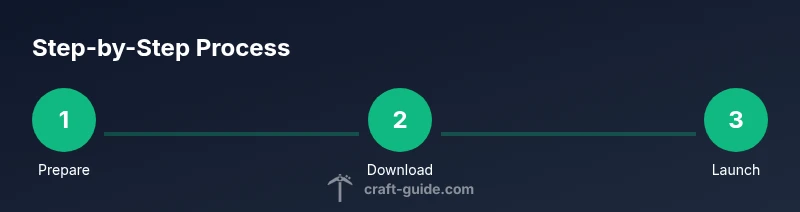
- 1
Prepare your system
Check your operating system version and available disk space. Close unnecessary background apps to ensure a smooth download and install. Have the device plugged in if you’re on a laptop to avoid power interruptions during the process.
Tip: Do a quick rebooth after updates to prevent lingering installer locks. - 2
Create or confirm your Minecraft account
If you don’t already have an account, create one on the official site. Sign in with the same credentials in the launcher to access your purchases and saved worlds. Keep recovery email options up-to-date.
Tip: Enable two-factor authentication for added account security. - 3
Download the official launcher
Visit the official Minecraft website or store page and download the launcher appropriate for your platform. Verify the source URL to avoid fake installers. Save the file to a knownDownloads folder.
Tip: Avoid downloading from third-party mirrors to reduce risk of tampered files. - 4
Install or update the launcher
Run the installer and follow on-screen prompts. If you already have the launcher, open it and check for updates to ensure you’re using the latest version.
Tip: Give the installer permission to modify your system folders if prompted. - 5
Choose your edition and install
Within the launcher, select Java Edition or Bedrock Edition based on your device and preferences. Install or download the chosen edition and wait for the process to complete.
Tip: If you’re undecided, start with Java Edition for mods and a wider community content pool. - 6
Launch the game and sign in
Open the launcher, select the latest release, and press Play. Sign in with your Minecraft account when prompted to unlock the full game and access saved profiles.
Tip: Note any on-screen prompts requesting permission to use network privileges. - 7
Configure settings and versions
In the launcher, manage the game version you want to run and tweak settings like memory allocation if available. Set a preferred username and adjust video and control settings to balance performance and visuals.
Tip: Start with the default allocation and adjust upward if you encounter performance hiccups. - 8
Backup and maintain health of installation
Create a backup of your worlds before adding mods or making large changes. Regularly update the launcher and game, and keep mod profiles separated from vanilla saves.
Tip: Document where you store backups for quick restoration if needed.
People Also Ask
What editions require different installation steps?
Minecraft has Java Edition and Bedrock Edition, and the installation flow differs between them. Java Edition uses the official launcher and a Java runtime, while Bedrock relies on Microsoft account sign-in and a different launcher path. Choosing the correct edition at the start avoids conflicts later.
Java Edition uses the official launcher with a Java runtime; Bedrock uses a different launcher and account system. Pick one at the beginning to avoid conflicts.
Do I need Java to play Minecraft Java Edition?
Yes. Java Edition requires a Java runtime environment (bundled or installed separately) to run. The official launcher can manage this, but verify that Java is properly configured if you encounter startup errors.
Java Edition needs Java; the launcher can bundle or require a JRE. If you see startup errors, check your Java setup.
Why won’t the launcher start after install?
Common causes include corrupted download, blocked network access, or outdated drivers. Re-download the launcher, run as administrator if needed, and ensure your firewall isn’t blocking it. After these checks, try launching again.
If the launcher won’t start, re-download it, check your network and firewall, then try again.
Can I install mods safely?
Modding is safe when you stay with Java Edition and use reputable mod loaders like Forge or Fabric. Always back up worlds, verify compatibility with the game version, and obtain mods from trusted sources.
Yes, but only with trusted mods on Java Edition and always back up your worlds.
How much storage will Minecraft use after installation?
Initial installs occupy a few gigabytes, depending on edition and addons. Adding mods or resource packs increases the footprint. Plan extra space for future updates and backups.
Minecraft uses several gigabytes from the start, and mods or packs grow that space over time.
What should I do if I can’t sign in?
Check your credentials, verify your account status, and ensure you’re connected to the internet. If problems persist, reset your password or contact support through the official channels.
If you can’t sign in, verify credentials and network; reset your password if needed.
Watch Video
The Essentials
- Download the official launcher from the source.
- Choose the correct edition for your device.
- Sign in securely and update to the latest version.
- Back up worlds before mods or heavy changes.