How to Minecraft on PC: A Complete Beginner Guide
A comprehensive, step-by-step guide to playing Minecraft on PC, covering Java vs Bedrock editions, installation, performance tweaks, world creation, survival vs creative, and multiplayer best practices.


According to Craft Guide, this guide shows you how to Minecraft on PC from start to finish: install the launcher, choose Java Edition or Bedrock, optimize settings for performance, and begin your first world in survival or creative. The Craft Guide team notes that selecting the right edition and tuning memory allocation dramatically improves gameplay for new players.
Why PC Minecraft Matters
According to Craft Guide, playing Minecraft on a PC unlocks the most flexible controls, full keyboard/mouse precision, and the widest range of community-made content. A PC setup lets you switch between Java Edition, which emphasizes mods and customization, and Bedrock Edition, which offers cross‑play across platforms. For newcomers, starting on PC provides a stable, upgradeable platform with expansive tutorials, resource packs, and server ecosystems. The choice between editions will shape your early experiences: mods and forge-compatible tools on Java Edition, and smoother cross‑play features on Bedrock. As you grow, you’ll appreciate how easy it is to adjust graphics, allocate memory, and install community-created worlds and add-ons.
- Editions matter: Java favors modding; Bedrock emphasizes compatibility and performance.
- A robust PC can handle larger, more detailed worlds with higher render distances.
- Community resources (crafting guides, maps, seeds) accelerate learning for beginners.
Craft Guide analysis shows that beginners who pick the right edition and optimize their setup see faster progress and fewer crashes during the first week of play.
-2
"
Tools & Materials
- PC with internet connection(A modern PC with reliable online access improves download and server stability.)
- Minecraft Launcher(Download from the official site; not the mobile launcher.)
- Minecraft account (Microsoft account)(Required to sign in and access editions.)
- Keyboard and mouse(Keyboard for precise controls; consider a gaming mouse for speed.)
- Monitor with good refresh rate(At least 60 Hz for smoother visuals.)
- Sufficient storage space(Allow 4–8 GB for base game plus worlds; more for mods.)
- Updated graphics drivers(Keeps performance stable when rendering complex scenes.)
- External backup method (optional)(Optional backups to protect worlds.)
Steps
Estimated time: 60-120 minutes
- 1
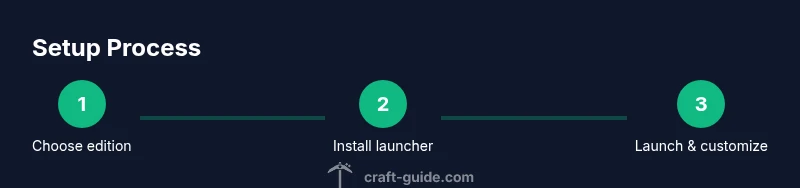
Choose your edition
Decide between Java Edition and Bedrock Edition based on how you want to play. Java Edition supports a vast mod ecosystem and Forge-compatible tools, while Bedrock delivers cross‑platform multiplayer and smoother performance on some systems. This choice will affect launcher setup, mods, and server access. Take a moment to align with your play style before proceeding.
Tip: If you plan to use mods, prefer Java Edition. If you want cross‑play across devices, Bedrock may suit you better. - 2
Create or sign in to your Microsoft account
Open the official Minecraft launcher or store page and sign in with your Microsoft account. This account is the gateway to your editions, cloud saves, and multiplayer access. If you don’t have an account, create one and verify it to proceed.
Tip: Enable two-factor authentication to protect your account. - 3
Download and install the launcher
Download the official Minecraft Launcher for PC. Run the installer, then log in with your Microsoft account. Choose the edition you purchased and allow the launcher to set up the necessary files.
Tip: Use the default install location unless you have a specific drive you prefer. - 4
Configure launch settings for performance
In the launcher, go to Installations, select your edition, and adjust memory allocation within safe limits. Lower render distance, turn off resource-heavy shaders unless your hardware can handle them, and enable V-Sync if screen tearing occurs.
Tip: Aim for a balance between visuals and smooth frames per second. - 5
Create your first world
Launch the game, select Play, and choose Create New World. Pick Survival or Creative, set a seed if you want a specific world layout, and choose a difficulty level. This is your sandbox—experiment with terrain, builds, and farming.
Tip: Start with a small world to avoid long load times while you learn mechanics. - 6
Learn the basic controls
Familiarize yourself with movement (WASD), looking with the mouse, sprinting, and jumping. In Creative, you have unlimited resources; in Survival, gather materials and manage hunger and tool durability.
Tip: Practice quick inventory management to speed up resource gathering. - 7
Explore mods or add-ons (Java Edition)
If you chose Java Edition and want to extend gameplay, explore safe, reputable mod loaders and curated mods. Avoid unofficial sources and back up worlds before installing new content.
Tip: Start with light mods to minimize compatibility issues. - 8
Join multiplayer or set up a server
To play with friends, add a server in the Multiplayer menu or set up your own server following official guides. Ensure your network supports port forwarding if you host from home.
Tip: Respect server rules and back up worlds before big builds.
People Also Ask
What PC editions exist for Minecraft?
Minecraft on PC is available in Java Edition and Bedrock Edition. Java Edition focuses on mods and customization, while Bedrock emphasizes cross‑platform play and performance. Your choice shapes access to mods, servers, and feature sets.
On PC you have two main editions: Java Edition and Bedrock. Choose based on mods, cross‑play, and performance.
How do I install Minecraft on PC?
Download the official Minecraft Launcher, sign in with your Microsoft account, and select the edition you own. The launcher will download the required files and guide you through first-time setup.
Install the official launcher, log in, choose your edition, and install.
Which edition is best for mods?
Mods and heavy customization are best supported on Java Edition. Bedrock supports store add-ons, but the modding ecosystem is far broader on Java Edition.
Mods work best on Java Edition; Bedrock uses add-ons with a different system.
How can I improve performance on a PC?
Lower render distance, switch to more basic graphics, and allocate RAM within safe limits. Keep graphics drivers updated and ensure background processes aren’t consuming memory.
Lower settings, update drivers, and allocate RAM carefully for smoother play.
How do I join a multiplayer server?
In Minecraft, open Multiplayer, add a server or direct connect using an IP, and follow on-screen prompts to join. Ensure you have a stable connection and obey server rules.
Open multiplayer, add the server address, and connect.
Watch Video
The Essentials
- Choose the right edition for your play style
- Install and sign in with a Microsoft account
- Tune performance settings for smoother gameplay
- Experiment safely with mods or servers
- Back up worlds before major changes