Where to Play Minecraft on PC: Java vs Bedrock
Learn where to play Minecraft on PC, compare Java and Bedrock editions, and get step-by-step setup tips, performance tweaks, and safety guidance. Craft Guide explains the best routes for beginners to advanced players.


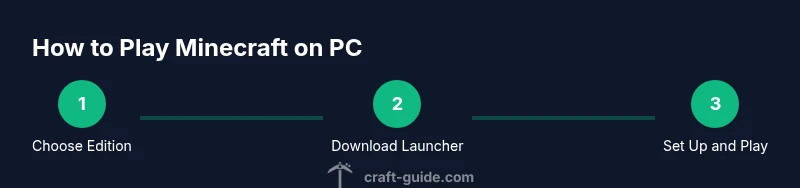
You can play Minecraft on PC using the Java Edition or the Windows/Bedrock Edition. Start by choosing your edition, then download from the official sources, install the launcher, and sign in with a Microsoft or Mojang account. Craft Guide's step-by-step guide will walk you through a simple setup and essential performance tips.
Welcome to PC Minecraft: what's possible
On PC, Minecraft offers two main routes: Java Edition and Bedrock Edition for Windows. This article explains why PC is a great platform, what you can expect when you start, and how to choose the best path. According to Craft Guide, PC players benefit from flexible mod support with Java Edition and robust performance with Bedrock on Windows. We'll cover download paths, launcher setup, performance tips, and safety basics to help beginners and seasoned players alike. Expect a wide modding ecosystem, custom worlds, and reliable access to servers and realms. The choices you make here will shape how you explore caves, build massive structures, and play with friends across different devices.
Editions on PC: Java Edition vs Bedrock on PC
The two main editions you’ll encounter on PC are Java Edition and Bedrock Edition for Windows. Java Edition is famous for its expansive modding scene, Java-based world editing tools, and a large online community. Bedrock Edition on PC emphasizes performance and cross-platform play with Windows, consoles, and mobile, though it uses a different mod and add-on ecosystem. Craft Guide notes that choosing between them depends on play style: modded, gravity-defying builds with Java versus smoother cross-device play with Bedrock. Important differences include how you install modules, how worlds are saved, and which servers you can join. Understanding these distinctions helps you set expectations before you download anything.
How to obtain Java Edition
Java Edition is downloaded from the official site and installed via the Minecraft Launcher. You’ll typically sign in with a Mojang account (or Microsoft account if you’ve migrated), then purchase or claim access to Java Edition. The launcher handles updates and provides access to community-created mods and servers. If you plan to mod, Java Edition is the natural choice because it supports Forge and Fabric-based mod loaders, making it easy to customize worlds and gameplay. Always verify you’re downloading from the official source to avoid counterfeit software or malware, and ensure your system can handle large mod packs if you go that route.
How to obtain Bedrock Edition on Windows
Bedrock Edition for Windows is available through the official Microsoft Store or the standalone Minecraft Launcher. Sign in with a Microsoft account to enable cross-platform features and access to Realms and servers, depending on your region. Bedrock on PC uses the same underlying codebase as other Bedrock devices, which can lead to more consistent performance on lower-end machines. If you’re transitioning from a console or mobile device, Bedrock can feel familiar, but note that some Java-era mods won’t be available here. Always download from trusted sources to minimize risk of bundled malware or counterfeit installers.
Official launchers and accounts
The primary entry point for PC Minecraft is the official launcher. For Java Edition, you’ll be guided to Mojang/Microsoft accounts during setup. For Bedrock, a Microsoft account is essential. The launcher manages game versions, installed mods or texture packs, and access to multiplayer servers. Craft Guide emphasizes keeping your login information secure and enabling two-factor authentication where available. If you plan to use servers, review their rules and required editions to avoid compatibility issues.
Hardware and system readiness
PC Minecraft runs on a broad range of hardware, but performance improves with a reasonably modern setup. Key factors include processor speed, available RAM, and graphics capabilities. While exact specs vary by edition and mod usage, a balanced, well-maintained PC will deliver smoother worlds, stable frame rates, and faster world generation. Before you start, close unnecessary programs, update graphics drivers, and ensure your operating system is up to date. This reduces crashes and improves overall play experience.
Performance tuning and graphics settings
To optimize performance, adjust video settings to balance visuals and smooth gameplay. Lower render distance, reduce fancy graphics, and disable resource-intensive features when necessary. If you run Java Edition, allocate memory to the launcher through the settings panel to ensure the game can use enough RAM for your world size and installed mods. For Bedrock, explore built-in performance options and consider enabling shader packs only after confirming system capability. Regularly updating the game and drivers helps maintain stability.
Mods, shaders, and community content
Java Edition shines for mods, with Forge or Fabric offering broad customization. Mods can dramatically alter gameplay, create new dimensions, or optimize performance, but compatibility is key. Always back up worlds before modding, and verify mod versions match the game version you run. Shaders can dramatically improve visuals but demand more GPU power. Bedrock supports add-ons and marketplace content, which is generally simpler to install but less expansive than Java’s modding scene. Follow trusted sources and community guidelines to stay safe.
Cross-edition play and world compatibility
Java and Bedrock worlds are not directly interchangeable; a world created in Java Edition cannot be opened in Bedrock, and vice versa. If you want to play with friends who prefer a different edition, consider running separate instances and coordinating features such as servers or realms to share social spaces without cross-edition world transfers. Craft Guide recommends using world backups and dedicated cross-edition servers if available to maintain continuity across devices.
Safety, backups, and licensing
Always back up your worlds before making major changes, especially when modding or applying large resource packs. Use trustworthy download sources and ensure you’re compliant with licensing terms for textures, mods, and maps. Beware of scams, pirated copies, and software that requests excessive permissions. Keeping your system protected with reputable antivirus and regularly scanned backups preserves your progress and reduces risk of data loss.
Tools & Materials
- PC with Windows 10/11 or Linux(A modern desktop or laptop is recommended for best performance; Linux support exists with caveats.)
- Stable internet connection(Needed for downloading the launcher, updates, and online multiplayer.)
- Minecraft Launcher(Download from the official site or Microsoft Store; supports both Java and Bedrock paths.)
- Microsoft account / Mojang account(Sign in to access multiplayer and purchases; account migration may be required for some editions.)
- Optional: Mod loader (Forge or Fabric) and a mod catalog(Only for Java Edition; ensure compatibility with game version.)
- External storage or cloud backups(Helpful for preserving large worlds and multiple profiles.)
Steps
Estimated time: about one hour
- 1
Choose your edition
Decide between Java Edition for mods and customization or Bedrock for cross-device play. Your choice will guide where you download and how you install add-ons.
Tip: If you want a vast modding ecosystem, start with Java Edition. - 2
Download the official launcher
Visit the official site to download the Minecraft Launcher, or use the Microsoft Store for Bedrock on Windows. Install it following the on-screen prompts.
Tip: Always download from official sources to avoid malware. - 3
Sign in and set up your profile
Create or sign into your Microsoft or Mojang account, then configure your profile name and preferred edition within the launcher.
Tip: Enable two-factor authentication for account security. - 4
Create or import a world
In Java Edition, create a new world or import an existing one. Bedrock users can create realms or join servers directly from the launcher.
Tip: Back up important worlds before making major changes. - 5
Configure video and performance settings
Open the in-game settings and adjust graphics, brightness, and memory allocation to balance visuals and smoothness.
Tip: If your game lags, reduce render distance and disable intensive features. - 6
Allocate memory for Java Edition
In the launcher, allocate a safe amount of memory to the game so it has room for mods and large worlds without starving your system.
Tip: Avoid over-allocating memory, which can cause system instability. - 7
Install mods or resource packs (optional)
If using Java Edition, install mods via Forge or Fabric and add resource packs to enhance visuals or mechanics. Verify version compatibility.
Tip: Only install mods from trusted sources and read installation instructions carefully. - 8
Join servers or realms
Test multiplayer by joining servers or Realms appropriate for your edition. Manage server settings and permissions within the launcher.
Tip: Check server rules and required editions before attempting to join. - 9
Back up your worlds
Regular backups protect your progress from crashes, corrupt mods, or accidental changes. Store backups in a separate location.
Tip: Automate backups if possible for ongoing worlds. - 10
Explore community resources
Browse official forums, trusted modding communities, and server lists to discover new worlds and ideas. Respect licenses and terms of use.
Tip: Stay current with version updates to avoid compatibility problems.
People Also Ask
What’s the main difference between Java and Bedrock on PC?
Java Edition emphasizes modding, a larger community, and traditional PC gameplay, while Bedrock focuses on cross-platform play and performance across devices. Your choice affects mod availability and server access.
Java Edition is the mod-friendly PC option, while Bedrock is the cross-device edition with strong performance. Pick based on whether you want mods or cross-platform play.
Can I play Minecraft with friends who use a different edition on PC?
Cross-edition play between Java and Bedrock isn’t supported directly. You’ll need to pick an edition for the whole group or use separate worlds/servers to connect socially.
Java and Bedrock can’t share the same world, so coordinate server access or Realm plans instead.
Do I need a powerful PC to start playing Minecraft on PC?
Minecraft runs on many modern machines, but performance improves with a capable processor, sufficient memory, and a decent GPU. Start with the default settings and upgrade only if you hit limits.
Most PCs today can run Minecraft well; adjust settings for better performance as needed.
Is the Minecraft Launcher trustworthy?
Yes, use the official Minecraft Launcher from Mojang/Microsoft. It’s the primary gateway for both Java and Bedrock editions and keeps versions up to date.
Yes, stick to the official launcher for safety and proper updates.
What safety steps should I take when modding?
Only download mods from trusted sources, read installation instructions, and back up worlds before applying mods. Avoid automatic installers from unknown sites.
Be careful with mods: use trusted sources and back up your worlds first.
Where can I find reputable Minecraft servers for PC?
Look for server lists on official community sites or reputable gaming forums. Verify server rules, edition requirements, and safety policies before joining.
Find servers through trusted communities and read their rules before joining.
Watch Video
The Essentials
- Choose edition to match play style
- Use official launchers and sign in securely
- Back up worlds before modding
- Understand Java vs Bedrock cross-play and world limits
- Explore reputable community resources responsibly