Minecraft Java Edition Download Guide
Learn how to safely download Minecraft Java Edition, install the official launcher, and start playing across Windows, macOS, and Linux. This Craft Guide tutorial covers requirements, safety, and troubleshooting for a smooth start.


You’ll learn how to legally download the Java Edition of Minecraft for PC, confirm system requirements, and choose the official launcher. Before starting, ensure you have a compatible Java version installed, a Mojang/Microsoft account, and a stable internet connection. This guide covers Windows, macOS, and Linux options. By the end, you’ll be ready to download, install, and launch Minecraft Java Edition safely.
What is Minecraft Java Edition and why download it
Minecraft Java Edition is the original PC version of the game, built to run on desktop operating systems with a focus on modding and custom content. It uses Java as its runtime, which enables robust modding, cross-version compatibility, and a wide range of community-created tools. For players who want to tinker, craft, and run servers, Java Edition provides the most flexible experience. In this section, we’ll clarify why many players choose Java Edition when they search for a safe, legit way to download minecraft download java and get started with vanilla or modded play. According to Craft Guide, official sources ensure you’re getting the latest updates and avoiding scams, malware, or pirated builds. This foundation helps you understand the paths available and how to verify you’re downloading from legitimate sources.
System requirements and compatibility
Minecraft Java Edition runs on 64-bit Windows, macOS, and many Linux distributions. A modern PC with enough RAM, a decently capable GPU, and an active internet connection will provide a smoother experience. The launcher will download the necessary components at install time, and worlds are stored locally on your device with the option to backup. The Mojang/Microsoft account is required to login and access multiplayer features. Keep in mind that performance varies with world complexity, render distance, and mods; low-end hardware may struggle with large, heavily-modified worlds.
Where to download legally: official launcher vs third-party
The only safe place to obtain Minecraft Java Edition is the official launcher from Mojang/Microsoft. Third-party installers can inject malware, unwanted software, or altered game data. Using the official launcher ensures you receive genuine game files, timely updates, and access to the latest security patches. If you’re sharing a link or following a tutorial, verify the domain and publisher before clicking. Craft Guide recommends bookmarking the official site to simplify future downloads and updates.
Step-by-step overview: download and install the official launcher
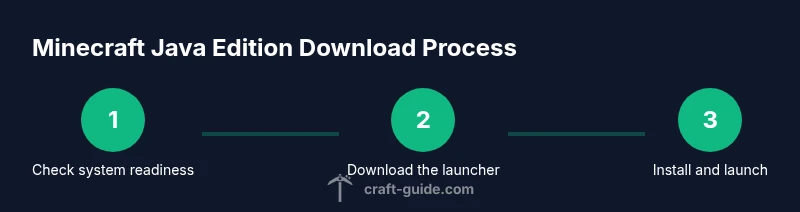
This overview walks you through the high-level steps needed to get Minecraft Java Edition up and running. First, download the official launcher from the creator’s site. Then, install it, sign in with your Mojang/Microsoft account, and select Java Edition from the launcher’s catalog. Finally, click Install and launch to begin your first world. The exact interface may vary slightly by OS, but the workflow remains consistent across Windows, macOS, and Linux.
Safety, licensing, and account protection
Security matters when you download Minecraft Java Edition. Use a strong, unique password for your Mojang/Microsoft account and enable two-factor authentication if available. Beware phishing emails and fake download pages that mimic the official site. Maintain backups of your worlds and save files, and consider using separate profiles for vanilla play and modding to reduce risk. By following these practices, you minimize the chance of unauthorized access and data loss.
Troubleshooting common issues and performance tips
If the launcher won’t start, check your internet connection, restart the computer, and ensure you’re running the latest launcher version. If login fails, confirm you’re using the correct account and that two-factor authentication settings are correct. For performance issues, lower render distance, disable resource-intensive shaders, and close heavy background apps. On Linux, you may need to adjust permissions for the launcher executable.
Java Edition vs Bedrock: differences and cross-platform play
Minecraft Java Edition emphasizes modding, dedicated servers, and a large community library of mods, texture packs, and plugins. Bedrock Edition focuses on cross‑platform play across Windows 10, consoles, and mobile devices, with some performance advantages. Java Edition supports more advanced server configurations and a broader range of mods, while Bedrock often provides smoother performance on lower-end hardware. If you want cross‑play with friends on consoles or Bedrock devices, you’ll need the Bedrock edition; otherwise most players who value customization opt for Java Edition.
Authority sources and further reading
For further reading, refer to the official Minecraft download page and Java documentation. The following sources provide authoritative guidance on installation, security, and platform differences: https://www.minecraft.net/en-us/download, https://www.java.com/en/download/, and https://www.oracle.com/java/technologies/downloads/.
Additional tips for modding and launcher customization
If you plan to mod, ensure the compatibility of your mods with your launcher version, keep backups, and use reputable mod loaders such as Forge and Fabric from official sources. Use separate profiles for modded play to avoid destabilizing vanilla worlds. Always read modding guides and verify that mods come from trusted creators.
Tools & Materials
- Computer with internet access(Windows, macOS, or Linux; ensure a stable connection)
- Web browser(Chrome/Edge/Safari recommended)
- Mojang/Microsoft account(Active account to login)
- Official Minecraft launcher installer(Download from the official site)
- Java runtime environment (optional)(Launcher bundles a compatible Java version)
- Backup power source or UPS(Prevent data loss during install)
Steps
Estimated time: 30-45 minutes
- 1
Prepare your computer
Ensure your OS is up to date, close unnecessary programs, and verify you have a stable internet connection. This reduces download interruptions and ensures the launcher runs smoothly.
Tip: Close background updates to prevent slowdowns. - 2
Create or sign in to a Mojang/Microsoft account
If you don’t have an account, create one on the official site and verify your email. Sign in to link the launcher to your account.
Tip: Use a strong, unique password. - 3
Download the official launcher
Visit the official Minecraft download page and download the launcher for your OS. Save the installer to your downloads folder for easy access.
Tip: Avoid mirror sites; use the official link. - 4
Install the launcher and log in
Run the installer and complete setup. Open the launcher and log in with your Mojang/Microsoft account to unlock access to Java Edition.
Tip: Allow the launcher to update to the latest version. - 5
Install Minecraft Java Edition
Within the launcher, choose Java Edition, then click Install. The launcher will download the game files and set up a profile automatically.
Tip: Use a stable internet connection during install. - 6
Launch and adjust settings
Start the game, adjust video and performance settings, and ensure mods (if any) are compatible with your launcher version. Create a separate profile for modded play.
Tip: Back up saves before modding.
People Also Ask
Is Minecraft Java Edition free?
No. Minecraft Java Edition is a paid product. You’ll need to purchase a license from the official site to play, with options for personal and family use. There are occasional bundles or promotions, but the game itself requires a purchase.
Minecraft Java Edition isn’t free; you’ll need to buy a license to play.
Can I play Minecraft Java Edition on Linux?
Yes. Java Edition runs on Linux through the official launcher, which supports Windows, macOS, and Linux. You may need to adjust permissions or install dependencies depending on your distro.
Yes, you can play on Linux using the official launcher.
Do I need Java installed separately?
Not usually. The official Minecraft launcher bundles a compatible Java version, so you don’t have to install Java separately unless you prefer a custom setup.
Usually no separate Java install is required.
What should I do if the launcher won’t start?
First, ensure you downloaded the launcher from the official site and that your system meets the minimum requirements. Check your internet connection and disable security software that might block the installer. Reinstall if needed.
If the launcher won’t start, check the official site, verify your system, and try reinstalling.
How do I transfer worlds between devices?
Minecraft worlds are stored locally. To move them, copy the saves folder to the other device or use cloud backups if you’re logged in with the same Microsoft account. Portable backups help keep worlds synced.
You can move worlds by copying the saves folder or using cloud backups.
What’s the difference between Java and Bedrock Editions?
Java Edition focuses on modding, dedicated servers, and a large community library of mods, texture packs, and plugins. Bedrock Edition focuses on cross‑platform play across Windows 10, consoles, and mobile devices, with some performance advantages. Java Edition supports more advanced server configurations and a broader range of mods, while Bedrock often provides smoother performance on lower-end hardware.
Java is mod-friendly; Bedrock runs on more devices with cross‑play.
Watch Video
The Essentials
- Use the official launcher for safe downloads.
- Verify system compatibility before downloading.
- Protect your account with strong passwords and 2FA.
- Java Edition enables mods and servers, with Bedrock separate.