Minecraft in Microsoft Store: A Practical Windows Guide
Learn to buy, install, and play Minecraft from the Microsoft Store on Windows. This practical guide covers prerequisites, setup, cross-platform play, and troubleshooting for a smooth Bedrock Edition experience.


You will learn how to buy and install microsoft store minecraft from the Microsoft Store on Windows, set up your account, and start playing Bedrock Edition across devices. The guide covers prerequisites, how to purchase, installation, first-run setup, and common troubleshooting.
Why Microsoft Store Minecraft matters
For Windows players, the microsoft store minecraft path is the easiest gateway to Bedrock Edition on PC. The bundle includes cross-platform play, automatic updates, and cloud saves tied to your Microsoft account. According to Craft Guide, this distribution simplifies ownership transfers and ensures a consistent update cadence across devices. The Windows store path reduces the number of launchers you must manage and aligns with your Xbox ecosystem, which is especially helpful if you already own an Xbox or use Windows as your primary gaming PC. Bedrock Edition on Windows supports cross-play with peers on consoles and mobile devices, so you can hop into shared worlds without compatibility headaches. If you’re new to Minecraft or switching from another platform, the Store version provides a familiar purchase flow, a single sign-in, and a centralized library. Craft Guide’s team emphasizes that relying on a single, official storefront typically results in fewer licensing hiccups and a smoother update experience. Overall, choosing Microsoft Store Minecraft keeps your options open for future content, skin packs, and official marketplace releases that many players value for consistent updates and community features.
Getting started: prerequisites and accounts
Before you install, ensure your PC runs Windows 10 or Windows 11 and has the Microsoft Store app installed and updated. You will sign in with a Microsoft account to access the store, download the game, and sync your progress. If you don’t yet have an account, create one on the Microsoft account portal and link it to your PC. The Craft Guide team notes that keeping your account secure and enabling two-factor authentication improves safety and reliability of cloud saves. Have a steady internet connection during the download, and free up storage space to avoid interruptions during installation. Gather your basics: keyboard and mouse for precise building, a headset for in-game chat if you plan to play on servers, and a comfortable workspace for longer sessions. If you use a family group or managed device, verify that Microsoft Store purchases are allowed by parental controls. Once you’re signed in and ready, you’re set to move to the store to locate Minecraft and begin the purchase process.
Purchasing and installing Minecraft from the Microsoft Store
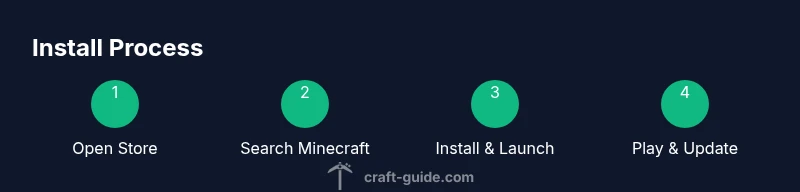
Open the Microsoft Store app and search for Minecraft. Confirm you’re viewing the Bedrock Edition for Windows and verify the publisher is Mojang Studios. Prices vary by region, and occasional bundles or discounts may appear; compare with other platforms to avoid duplicate purchases. If you already have a product key, use Redeem to apply it. After purchase, click Install and wait for the download to complete. The installer places game files in the default location, with an option to change the drive if you need more space. When the download finishes, click Launch to begin the first-run setup, including the EULA, language choice, and initial controls. If a progress bar stalls, cancel and retry, or sign out and sign back in to refresh store credentials. Keeping your Microsoft account data consistent helps prevent licensing conflicts and ensures cloud saves are linked.
Initial setup and first launch
On first launch, sign in to your Microsoft account if you aren’t already, so cloud saves and cross-device progress are enabled. Start with graphics that suit your PC: a balanced preset, then adjust render distance, smooth shading, and texture quality to taste. Create a new world or import a saved one, set difficulty, and select whether you want a seed-based or randomly generated world. Configure multiplayer options if you plan to play with friends and review privacy prompts and data-sharing choices. Enable auto-updates in the Store settings so you receive patches automatically. If you intend to join Realms or friends’ worlds, make sure you’re signed into the same Microsoft account across devices. After these steps, you’re ready to explore your first world with your preferred controls.
Performance tips and common issues
Bedrock Edition on Windows runs well across a wide range of hardware, but performance can vary by system. Update GPU drivers and keep background processes to a minimum while playing. If you experience lag, reduce render distance, switch to a simpler graphics preset, and close other demanding apps. For content from the Marketplace or externally added packs, verify compatibility and back up saves before applying new content. If you encounter a crash on startup, repair the app through the Microsoft Store or reset the app, and check for Windows updates that might influence compatibility. Audio or control issues often stem from incorrect input devices or conflicting Windows accessibility settings; verify the selected output device and rebind your controls if needed. Craft Guide notes that many common issues stem from signing in or stale store data, so signing out and back in or updating the store app can resolve most problems.
Cross-platform play and edition differences
The Bedrock Edition in the Microsoft Store enables cross-platform play with Windows, consoles, and mobile devices, but it differs from Java Edition in mod support, game mechanics, and marketplace content. If you plan large multiplayer worlds, decide between Realms or a private server, and remember that Java and Bedrock players usually cannot join the same world. For players transitioning from consoles or mobile, the Microsoft Store version offers a familiar control scheme and access to skins, texture packs, and marketplace content across devices. Cross-platform saves are possible if you’re signed in with the same Microsoft account on all devices. If you want deeper modding and customization, you might prefer Java Edition; if ease of access and preserved cross-play matter most, Bedrock on Microsoft Store is the safer bet. Craft Guide emphasizes that the Windows Store path balances ease of use with ongoing support and community resources.
Craft Guide verdict and practical tips
Verdict: For most Windows players, Minecraft via the Microsoft Store is the easiest path to Bedrock Edition on PC, offering simple updates, cloud saves, and cross-play convenience. Craft Guide recommends starting with a clean install, signing in early, and managing store permissions to avoid surprises later. Keep backups of your worlds and familiarize yourself with the Store’s marketplace to customize your experience with skins and packs. If you’re unsure which edition to pick, remember that Bedrock Edition is designed for cross-play and easy access on Windows, while Java Edition offers deeper modding for advanced players. Craft Guide’s final guidance is to use the Microsoft Store version as your primary Windows portal for Minecraft, then explore Realms and cross-platform features with awareness of limitations.
Tools & Materials
- Windows PC with Microsoft Store access(Windows 10 or 11; Microsoft Store installed)
- Microsoft account(Used to sign in and sync saves)
- Active internet connection(Needed for download and updates)
- Keyboard and mouse or controller(Essential for navigation and gameplay)
- Sufficient storage space(Ensure enough space for download and game data)
Steps
Estimated time: 20-60 minutes
- 1
Prepare your PC and sign in
Verify Windows version compatibility and sign in to your Microsoft account to unlock the Microsoft Store and cloud saves. This initial step ensures you can access the Minecraft page and manage purchases across devices.
Tip: Have two-factor authentication enabled for account security. - 2
Open Microsoft Store and search for Minecraft
Launch the Microsoft Store, use the search bar, and confirm you’re selecting the Bedrock Edition for Windows. Double-check publisher to Mojang Studios to avoid counterfeit listings.
Tip: Watch for bundles that include skins or add-ons you’ll actually use. - 3
Redeem or purchase Minecraft
If you have a product key, select Redeem and apply it. If not, proceed with the standard purchase flow and confirm regional pricing before completing.
Tip: If you see regional price differences, compare with alternate platforms to ensure value. - 4
Install the game
Click Install and monitor the download progress. You can pause and resume if your network fluctuates, but avoid canceling repeatedly to prevent corruption.
Tip: Ensure the download location has enough space and a stable drive. - 5
First-run setup
Launch after installation, accept the EULA, choose language, and adjust initial controls. This is also when you sign in to your Microsoft account if not done already.
Tip: Enable auto-updates to keep the game current. - 6
Configure graphics and world settings
Start with a balanced graphics preset, then tweak render distance and texture quality to match your PC. Choose to create a new world or load an existing save.
Tip: Set performance-friendly options first; adjust resolution if needed. - 7
Enable multiplayer and cross-platform play
If you plan to play with friends, review multiplayer permissions and ensure you’re signed into the same Microsoft account across devices. Check Realms or server settings if you use external worlds.
Tip: Test cross-device progress by joining a friend’s world early. - 8
Manage purchases and updates
Keep the Store and game updated, manage marketplace downloads, and back up worlds regularly. This makes future access smoother and reduces compatibility issues.
Tip: Backups can save time when you experiment with new skins or packs.
People Also Ask
What versions of Minecraft are available in the Microsoft Store?
The Microsoft Store offers the Bedrock Edition for Windows. Java Edition is purchased separately through different channels and is not typically sold via the Microsoft Store.
The Store has Bedrock Edition for Windows, while Java Edition is bought elsewhere.
Is Minecraft in the Microsoft Store different from Java Edition?
Yes. Bedrock Edition (Store) focuses on cross-platform play and marketplace content, whereas Java Edition emphasizes modding flexibility and different mechanics. They are not interchangeable in multiplayer without workarounds.
Store is Bedrock; Java is a separate edition with different mods and gameplay.
Do I need a Microsoft account to install from the Microsoft Store?
Yes. A Microsoft account is required to access the Store, download Minecraft, and enable cloud saves across devices.
You’ll need a Microsoft account to install and play.
Can I play cross-platform with other devices if I buy from the Microsoft Store?
Bedrock Edition supports cross-platform play across Windows, consoles, and mobile devices, but cross-play with Java Edition isn’t supported. Ensure you’re all on Bedrock when playing together.
Bedrock lets you play with others on different devices, Java does not.
How do I redeem a code for Minecraft from the Microsoft Store?
Open Microsoft Store, select Redeem, and enter your code. The game will be added to your library if the code is valid and region-appropriate.
Redeem the code in the Store to unlock Minecraft.
What should I do if the download stalls?
Cancel and restart the download, then sign out and back in if the progress bar stalls. Ensure your internet is stable and your device has enough free space.
If it stalls, retry download and refresh sign-in if needed.
Watch Video
The Essentials
- Purchase and install Minecraft through Microsoft Store for a streamlined Bedrock experience.
- Choose Bedrock Edition in-store to enable cross-platform play and cloud saves.
- Sign in early and enable auto-updates to maintain smooth gameplay.
- Consider Realms or private servers for friends and cross-device adventures.