How to Play Minecraft After You Bought It: A Practical Starter Guide
Learn how to start playing Minecraft after you buy it: sign in, choose Java or Bedrock, install the launcher, create a world, and begin your first survival session with confidence—plus tips for multiplayer and performance.


After you buy Minecraft, you’ll start by signing in, choosing the edition (Java or Bedrock), and launching the game. This quick guide covers installing the launcher, selecting a world, adjusting essential settings, and beginning your first survival session. You’ll learn basic controls, how to access help, and where to find community resources.
Getting Access: Sign In and Edition Choice
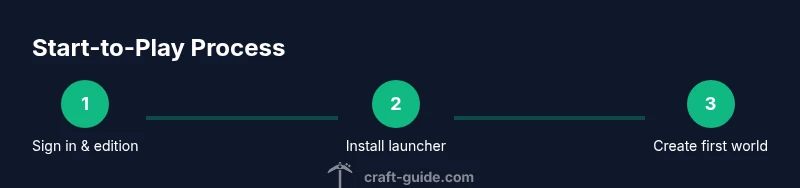
Right after purchase, your first priority is to confirm your account, secure it, and decide which edition you will play. Java Edition and Bedrock Edition offer different feature sets and cross‑platform behavior, so choosing early saves compatibility headaches later. If you bought Minecraft through the Windows/Microsoft store or a console shop, you’ll likely use a Microsoft account; Minecraft Java Edition uses a Mojang account or linked Microsoft account. In this section, you’ll verify your email, set up two‑factor authentication where possible, and understand how to migrate or link accounts if needed. Craft Guide notes that starting with the correct edition reduces friction when you install mods, join servers, or sync progress across devices. After you’ve signed in and chosen an edition, you’ll be ready to move on to installation and first launch, with a clear sense of what to expect in terms of controls, world types, and multiplayer options.
According to Craft Guide, beginning with a deliberate account setup helps minimize later hurdles and keeps you focused on learning and building. This early alignment also sets the stage for safe online habits and effective participation in communities.
Installing and Launching Minecraft
Next, install the official launcher or the platform store app for your device. Use only official sources to avoid counterfeit software. Once installed, sign in with the account you prepared in the previous step. Check for updates, then launch the game. If you aren’t sure which edition you downloaded, revisit the account details to confirm, because Bedrock and Java behave differently in menus and controls. In Bedrock, you may play across Windows, consoles, and mobile with cross‑play; Java is PC‑only but supports a large ecosystem of mods. After the first start, you’ll see the main menu with options like Singleplayer, Multiplayer, Realms, and Settings. This is where you’ll tailor your experience: video settings to improve performance, controls to suit your input device, and sound levels so you can hear mobs and ambience clearly. Craft Guide’s approach is to keep things simple at first and scale up as you gain confidence.
Edition Differences: Java vs Bedrock
Understanding the core differences between Java and Bedrock is essential before you dive too deep. Java Edition emphasizes a robust modding community, a broad selection of world generation options, and the classic Java‑specific launcher, while Bedrock is designed for cross‑platform play and smoother performance on a wider range of devices. Bedrock uses a different command syntax, has separate marketplaces, and runs on consoles and mobile. If you plan to play with friends on Windows 10/11, consoles, or mobile, Bedrock is likely the better choice; if you want large mod packs and full control over game mechanics on PC, Java is the better fit. In both editions, you’ll manage saved worlds, configure difficulty and game mode, and customize your experience through resource packs, shaders, and settings. Craft Guide suggests testing both editions if you’re unsure, then committing to one to avoid split progress.
Creating and Customizing Your First World
Now you’ll create your first world. Choose between Survival, Creative, or Adventure modes, and set your difficulty. For newcomers, Survival is the most instructive path, because it introduces resource gathering, combat, and progression. When creating a world, decide on seed or allow the game to generate one at random. For map flavor, enable structures to spawn naturally, and pick a biome that matches the vibe you want. Customize world options such as the default game rules (hostile mobs, daylight cycles, and mob griefing). In both Java and Bedrock you can enable or disable certain features like achievements or cheats. As you explore, you’ll gradually unlock a routine: gather basic resources, craft simple tools, and build a safe shelter before night falls. Craft Guide emphasizes documenting your early base ideas so you can iterate later without losing momentum.
Basic Controls, Settings, and UI
Mastering the basics will pay off quickly. Learn movement: forward, backward, left, right; sprint or shift, jump, and crouch to move quietly. Open inventory with E (or the respective platform equivalent) and craft with a simple grid interface. Quick access hotbars let you switch tools instantly. In Settings, adjust graphics quality, brightness, and render distance. Turn on subtitles if you’re in a noisy environment and enable accessibility options that help you see tools and menu items clearly. Explore controls for sprinting, hitting, mining, and interacting with blocks. The user interface changes slightly between Java and Bedrock, so double‑check your bindings if you switch editions. Craft Guide advises keeping a consistent control scheme across devices to reduce confusion when you switch between PC and console.
First Survival Session: Survival Essentials
Your first night in a new world is the true test of planning and calm. Start by punching a few trees to gather wood, then craft your basics: a crafting table, wooden planks, a wooden pickaxe, and torches. Gather stone, coal, and food sources to maintain health and hunger. Build a simple shelter with a roof and a doorway to protect yourself from hostile mobs at night. Establish a basic farming system or locate nearby food sources. Avoid staking too much progress in a single session; log out in a safe place and return later with improved gear. Remember to keep your spawn point safe, and sleep in a bed when possible to reset the night. Craft Guide notes that consistent, small wins build confidence and encourage experimentation without burnout.
Multiplayer: Realms and Servers
Expanding beyond a single‑player world introduces new social dimensions. Realms offer a straightforward way to play with friends without managing a server; servers provide deeper customization and larger communities. To join, you’ll need to know the server address or invite, and ensure the edition supports cross‑play where applicable. When joining public servers, follow community rules and use safe practices to protect your account information. If you’re hosting a private world, consider a Realms plan or a private server with trusted players. Multiplayer is where you’ll learn teamwork, logistics, and larger‑scale builds that aren’t possible in a single‑player world.
Performance and Troubleshooting
Performance varies by device and world size. Start with the simplest settings: reduce render distance, lower graphics, disable fancy features like clouds and particles, and ensure your drivers and OS are up to date. If you see frequent stuttering, allocate more RAM via the launcher settings (where possible) and close background programs. Common issues include crashes on startup, black screens, or lag during online play. For Bedrock, check network NAT settings if you’re having trouble connecting to servers. In Java Edition, ensure you’re using a compatible Java version and that mods or resource packs are not causing conflicts. Craft Guide recommends keeping a clean install and backing up worlds regularly to avoid data loss.
Authority sources
- BBC: https://www.bbc.com
- The New York Times: https://www.nytimes.com
- Wired: https://www.wired.com
Tools & Materials
- Minecraft account(Mojang/Microsoft login credentials (email/username and password))
- Compatible device(PC/Mac, Xbox, PlayStation, or mobile device with up‑to‑date OS)
- Minecraft Launcher or platform access(Installed from official source or platform store)
- Internet connection(Required for online features, account verification, and updates)
- Headphones or speakers(For in‑game audio feedback)
- Keyboard and mouse or controller(Preferred input devices for navigation)
- Backup storage(Space to save worlds and backups)
- Optional: Realms subscription(If you want private, hosted multiplayer)
Steps
Estimated time: 1.5-2 hours
- 1
Sign in and verify account
Open the launcher or store app and sign in with the account you prepared earlier. Verify your email and enable two‑factor authentication where available. This ensures your progress is linked and recoverable.
Tip: Keep a recovery method handy and write down your login details in a secure password manager. - 2
Choose edition and platform setup
Confirm whether you’ll play Java or Bedrock, and ensure you’re on a device compatible with that edition. Alignment now prevents confusing menu layouts later.
Tip: If you’re unsure, try both in a test world to note differences in controls and performance. - 3
Install the launcher and updates
Install the official Minecraft launcher or app, then check for and install updates. Updates fix bugs, optimize performance, and add features.
Tip: Allow auto‑updates to keep your game aligned with the latest stability improvements. - 4
Launch and select a world
Start the game, pick Singleplayer or Multiplayer, and create or load a world. Review the difficulty and mode before spawning in.
Tip: Begin in a fresh world to learn basics without conflicting with old builds. - 5
Create your first world
Choose Survival for core learning, decide on seed or random world, and enable basic structures if you want natural landmarks to explore.
Tip: Seed choice affects terrain; try a few seeds to see which vibe you like. - 6
Master basic controls
Learn movement, jumping, breaking blocks, and crafting in the quick bar. Adjust the settings for visibility and performance.
Tip: Bind a comfortable set of keys and keep them consistent across sessions. - 7
Source basics: wood, stone, torches
Punch a tree for wood, craft a crafting table, make basic tools, and gather stone and coal for lighting.
Tip: Lighting prevents hostile mobs from spawning at night. - 8
Build a safe shelter
Create a small shelter with a roof and door to survive the first night. Prioritize a secure spawn point and ventilation.
Tip: Add a bed as soon as you can to set your spawn point. - 9
Sustain your first day
Establish a basic food source and a simple farming setup. Keep your health and hunger indicators in check.
Tip: Balance resource gathering between exploration and farming to avoid burnout. - 10
Begin multiplayer exploration
If you’re ready, join a small server or Realms to practice teamwork and coordinate builds.
Tip: Respect server rules and practice good hygiene in chat to keep communities welcoming. - 11
Troubleshoot early issues
If you encounter crashes, lag, or login problems, revert to a clean install and verify system requirements.
Tip: Back up your world data before major changes. - 12
Keep learning and iterating
Document your progress, try new materials, and gradually unlock crafting recipes and automation.
Tip: Celebrate small victories to stay motivated and curious.
People Also Ask
What do I need to start playing after purchase?
You need a valid Minecraft account, the chosen edition (Java or Bedrock), a compatible device, and access to the launcher. An internet connection helps with sign‑in and updates.
You’ll need a valid account, the edition you want, a compatible device, and internet access to sign in and start.
Which edition should I choose, Java or Bedrock?
Java is PC‑only with a large modding community and classic Java controls, while Bedrock supports cross‑platform play on Windows, consoles, and mobile. Choose based on whether you want mods or multiplayer cross‑play.
Java is for PC and mods; Bedrock is for cross‑play across devices.
Is there a significant difference in gameplay across platforms?
Gameplay is largely consistent, but controls, marketplace content, and cross‑play options differ between Java and Bedrock. Plan for those differences when inviting friends or using mods.
Yes, there are differences in controls and cross‑platform features between Java and Bedrock.
How do I join servers or Realms after purchase?
For Realms, use the Realms menu to join a private world. For servers, you’ll need the server address or invite and the correct edition. Ensure you’re aligned with the server’s rules and version.
Join a Realm from the main menu or enter a server address if you’re joining a public server.
What if I forget my password or can’t log in?
Use the account recovery options on the official sign‑in page. If you regain access, enable two‑factor authentication for better security.
Use account recovery and enable two‑factor authentication when you regain access.
How can I optimize performance on a low‑end device?
Lower render distance, reduce graphics settings, and close background apps. Keep game and driver updates current to maximize stability.
Reduce settings and keep software updated for better performance.
Watch Video
The Essentials
- Choose edition early to prevent feature mismatches.
- Install from official sources and keep software updated.
- Start with a simple Survival world to learn core mechanics.
- Progress gradually and back up your worlds regularly.