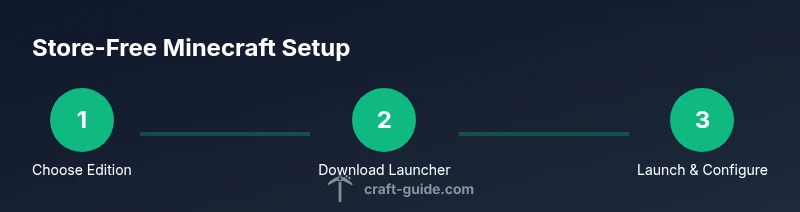
Minecraft Without Microsoft Store: A Step-by-Step Guide
Learn how to install and play Minecraft without the Microsoft Store, compare Java and Bedrock editions, and troubleshoot common setup issues with practical, beginner-friendly guidance from Craft Guide.


Goal: run minecraft without microsoft store. You’ll choose between Java Edition or Bedrock, verify system requirements, and install from the official site or launcher without the store. You’ll also set up your account, optimize performance, and start playing with minimal friction. Craft Guide provides practical, beginner-friendly steps to a store-free setup.
Why you might want to avoid the Microsoft Store
There are legitimate reasons to install minecraft without microsoft store, especially if you prefer the Java Edition or want more control over updates, launcher options, and modding workflows. The Windows Store often pushes Bedrock packaging and store-based updates. By choosing a store-free path, players can access the Java Edition directly from the official site and use a launcher they trust. Craft Guide emphasizes that understanding edition differences and licensing helps you pick the right path. Note that Bedrock on Windows is primarily distributed through the Microsoft Store, so store-free installation generally centers on Java Edition for PC players.
Editions explained: Java Edition vs Bedrock on Windows
Minecraft exists in several editions, with Java Edition and Bedrock Edition as the two main PC-focused options. Java Edition runs on Windows, macOS, and Linux and supports traditional mods and dedicated servers, but it is not cross-play with Bedrock. Bedrock Edition is designed for cross-platform play across Windows, consoles, and mobile, but Windows Bedrock is typically distributed via the Microsoft Store. If your goal is to avoid the Windows Store, Java Edition is the recommended store-free option. Understanding these differences helps you avoid confusion when joining servers, modding communities, or multiplayer realms.
- Java Edition: desktop-focused, extensive modding, cross-play with other Java players, traditional launcher ecosystem.
- Bedrock Edition (Windows): cross-platform play with consoles and mobile, generally accessed via store-based launchers.
Craft Guide recommends choosing Java Edition if you want a store-free install and full launcher control.
Prerequisites and accounts: what you need before you start
Before you begin, make sure you have a compatible PC, a stable internet connection, and a valid Minecraft account. For Java Edition, you’ll use a Mojang/Microsoft account to sign in via the official launcher. Bedrock on Windows, however, is typically tied to the Microsoft Store and account system. If you’re avoiding the Store, focus on Java Edition and its launcher workflow. Keeping your account credentials secure and enabling two-step verification where available helps protect your access during setup and play.
Craft Guide’s approach emphasizes safe, official download paths and avoiding third-party installers that could compromise your system or account.
Download Java Edition from the official site
To install Minecraft without the Microsoft Store, you’ll download Java Edition directly from the official site. Go to minecraft.net, click Get Minecraft, choose Java Edition, and download the Windows launcher. The launcher will guide you through authentication and updates. Make sure you are on the official site to avoid spoofed installers and ensure you download legitimate software. After downloading, run the installer to install the Minecraft Launcher and the necessary Java components bundled with it.
Craft Guide notes that using the official site minimizes risk and ensures you’re receiving legitimate, supported software.
Install and first launch of the Java Launcher
Launch the installer you downloaded and follow the prompts to install the Minecraft Launcher. After installation, open the launcher and sign in with your Mojang/Microsoft account. The launcher will check for updates and download the latest Java Edition files. Once the download finishes, click Play to start the game. If you encounter login issues, verify you’re using the correct account and that two-factor authentication is not blocking sign-in.
Tip: Keep your launcher updated to ensure compatibility with the newest game versions and security patches.
Performance settings and optimization
Java Edition performance depends on your hardware and launcher settings. In the launcher, allocate a reasonable amount of RAM (2–4 GB for basic setups, higher for modded or resource-heavy worlds). Within-game settings, start with 1080p resolution, render distance adjusted to a balance between visuals and performance, and graphics set to Fast or Fancy based on hardware. If you install OptiFine or other performance-oriented mods, follow their specific instructions and verify Minecraft version compatibility. Always test performance with a small world before committing to large builds.
Craft Guide recommends incremental adjustments to avoid destabilizing gameplay data.
Security, licensing, and updates
Always download from the official Minecraft site to avoid malware or pirated copies. Java Edition updates are handled through the official launcher, not the Microsoft Store, which means you can stay current without Store dependencies. Keep your account credentials secure and enable two-factor authentication where possible. If you switch devices, remember to sign back in and re-verify ownership through your official account. This store-free path should align with licensing terms for Java Edition and avoids uncertain sources.
Craft Guide reminds players that adherence to licensing terms protects both you and the broader community.
Authority sources
For authoritative guidance on installing Minecraft Java Edition and understanding edition differences, consider these references:
- The official Minecraft site (minecraft.net) for download and launcher guidance.
- The Verge coverage on Minecraft editions and store-related considerations.
- PC Gamer’s guides and troubleshooting resources related to the Minecraft launcher and performance tweaks.
Common issues and quick fixes
If you encounter issues during store-free setup, try the following steps: verify you downloaded from the official site, ensure you’re using a compatible launcher version for your OS, re-login to your account, and check for Java-related errors. For sign-in problems, clear browser cookies or reauthorize the launcher. If updates fail, restart the launcher and re-check for updates. If all else fails, consult the official Minecraft Help Center or consider reinstalling the launcher from scratch.
Tools & Materials
- Windows PC or Laptop(Windows 10/11; 4 GB RAM minimum, better with 8 GB for modded use)
- Web browser(Chrome, Edge, Firefox, or Safari)
- Official Minecraft Java Edition account(You’ll sign in via the Minecraft Launcher)
- Minecraft Java Edition launcher(Download from minecraft.net and install)
- Stable internet connection(For downloading and updating the launcher and game)
- Backup storage for saves(Optional but recommended before large updates or modding)
- Optional mods launcher ( Forge / Fabric )(Only if you plan to mod; ensure version compatibility)
Steps
Estimated time: 60-90 minutes
- 1
Open the official Minecraft site
Navigate to minecraft.net and locate the Get Minecraft section. Verify you are on the official site to avoid phishing or counterfeit installers. This step establishes a secure path for store-free installation and ensures you access the correct download for Java Edition.
Tip: Bookmark minecraft.net to prevent accidental redirections to illegitimate sites. - 2
Choose Java Edition and start the download
Select Java Edition, then download the Windows launcher. The download comes with a bundled runtime, so you don’t need to install Java separately. Save the installer to a known location for easy access during setup.
Tip: If prompted for version, choose the latest stable release for best compatibility. - 3
Create or sign in to your account
Open the launcher and sign in with your Minecraft/Mojang account. If you don’t have one, use the official process to create an account. This authenticates ownership and enables updates.
Tip: Enable two-factor authentication to protect your account. - 4
Run the installer and install the launcher
Execute the downloaded installer and complete the setup prompts. The launcher will install the Java Edition files necessary to run Minecraft. Allow any Windows prompts for admin rights if requested.
Tip: Choose a simple install path to avoid confusion when updating later. - 5
Launch the launcher and log in
Open the Minecraft Launcher, log in, and let it check for updates. The launcher will download the required game files and present you with a play button when ready.
Tip: If you encounter login errors, verify credentials and check your internet connection. - 6
Create a profile and pick a version
Create a profile for your Java Edition and select the latest stable version to start. If you’re planning to mod, prepare to install a compatible mod loader afterward.
Tip: Label profiles clearly (e.g., ‘JC-Vanilla-2026’) to keep track of versions. - 7
Launch and adjust basic settings
Click Play to start Minecraft. In the Options menu adjust graphics, controls, and audio to your preference. Begin with default settings if you’re new, then fine-tune for performance.
Tip: Lower render distance or smooth lighting if you experience lag on older hardware. - 8
RAM allocation and optimization
Use the launcher’s settings to allocate a portion of RAM to Minecraft. Start with 2–4 GB for vanilla; increase if you run heavy mods or large worlds. Reboot the launcher after changing RAM settings to apply changes.
Tip: Don’t allocate more than half of your total RAM to avoid system slowdowns. - 9
Keep it updated and back up saves
Regularly update the launcher and game files. Back up your worlds before major updates or modding sessions to prevent data loss.
Tip: Use cloud or local backups; consider exporting world folders before major changes.
People Also Ask
Is Bedrock edition available without Microsoft Store on Windows?
Bedrock on Windows is typically distributed via the Microsoft Store. If you want a store-free option, focus on Java Edition, which can be installed directly from the official site without the Store.
Bedrock usually comes through the Windows Store; store-free setups are generally Java Edition installations directly from the official site.
Do I need a Microsoft account to play Java Edition?
Java Edition uses a Mojang/Microsoft account for login via the official launcher. Ensure you use the official sign-in process to avoid access issues.
Yes, you sign in with your official account through the launcher to play Java Edition.
Can I play with friends who use Bedrock if I’m on Java?
Java Edition and Bedrock Edition do not support cross-play together. Friends on Bedrock will need Bedrock on their platform, while Java players use Java servers or realms.
Java and Bedrock aren’t cross-compatible, so you’ll need the corresponding edition to play together.
Are there risks downloading from the official site?
The official site is the safest source for Minecraft downloads. Always verify the URL and use antivirus protection to scan installers.
Downloading from the official site is safe as long as you verify the URL and protect your device with security software.
What if I can’t access the official site from my network?
If the site is blocked, check network restrictions or contact your network administrator. Avoid third-party download mirrors that could be unsafe.
If the site is blocked, try a different network or speak with your admin; avoid untrusted mirrors.
Will updates require the Microsoft Store?
Java Edition updates are delivered through the Minecraft Launcher and do not require the Microsoft Store. Bedrock updates on Windows are Store-based.
No Store updates are needed for Java Edition; updates come through the official launcher.
Watch Video
The Essentials
- Store-free setup centers on Java Edition.
- Download the launcher from the official site.
- Sign in with a valid account and secure it.
- Tune performance with RAM allocation and graphics settings.