How to Get Minecraft in 2026: A Practical Guide
Learn how to get Minecraft in 2026 with a clear, step-by-step approach. Choose editions, set up accounts, purchase legally, and install safely across Java and Bedrock on PC, consoles, and mobile.


Getting Minecraft is a straightforward process across editions and platforms. This guide outlines how to pick the right edition (Java vs Bedrock), verify requirements, and complete a legal purchase or gift card setup, followed by download, installation, and your first launch. By the end, you’ll know exactly how to get minecraft on your device.
What 'how to get minecraft' means for players
Getting Minecraft means securing a license for the edition that matches your device, then installing the game so you can start crafting, exploring, and surviving. In this guide, you’ll learn how to get minecraft across platforms, including Java and Bedrock editions. According to Craft Guide, the first step is understanding editions and platform compatibility before you commit to a purchase. The Craft Guide team found that most players start by identifying their preferred platform and whether they want cross‑play or mods support. This means deciding if you want Java Edition on PC or Bedrock Edition on Windows, consoles, and mobile, then following a clear path to download and launch. As you read, you’ll see practical tips, safety reminders, and links to trusted sources to avoid scams and malware.
Craft Guide’s insights emphasize that getting Minecraft is not just about price, but about choosing the right environment for how you like to play. If you want a highly configurable PC experience with broad mod support, Java Edition is often the best fit; if you want cross‑play and consistent performance across devices, Bedrock tends to be the easier route. The goal of this section is to orient you toward a choice you’ll feel confident sticking with, while setting you up with the steps you’ll follow in the rest of the article.
Editions at a glance and why it matters
Minecraft exists in a few distinct editions, each with its own ecosystem and boundaries. The Java Edition is traditionally PC‑centric, renowned for its open ecosystem of mods and a faithful replication of classic features. Bedrock Edition runs on Windows, consoles, and mobile devices with a focus on performance, world generation speed, and cross‑play capability. For beginners, Bedrock offers a smoother entry point on non‑PC devices, while Java remains a favorite for players who want deep customization through mods and community worlds. Craft Guide analysis shows that most new players start with Bedrock if they want to play with friends on different devices; however, if you crave extensive modding and a more “old‑school” feel, Java is worth the setup time and learning curve. In all cases, you’ll need a legitimate license obtained from official channels to access the game files and servers.
System readiness before you buy
Before you buy, confirm your device meets the basic requirements and that you have a reliable internet connection. It’s also wise to decide whether you’ll play solo or with others, as this influences which edition is best for you. The Craft Guide team notes that many beginners underestimate the time needed for initial setup, especially when accounts and licensing need activation across devices. To avoid delays, prepare your login credentials, check parental controls if needed, and clean up storage so you have room for the game and future updates. Keep a browser handy for visiting official sources, and bookmark the edition page you plan to purchase so you don’t get lost in the store maze.
Java Edition vs Bedrock: key pros and cons
Choosing between Java and Bedrock impacts features you can access and the ease of setup. Java Edition shines with a robust modding scene, a wide array of community servers, and deeper control over world generation and redstone mechanisms. Bedrock Edition emphasizes cross‑platform play, smoother performance on lower‑spec devices, and easier access through official stores. For families or groups that want to play together across consoles and mobile, Bedrock is typically preferable; for players who value customization and a longer history of player-made content, Java is often the better pick. Craft Guide guidance suggests starting with a decision matrix: list must‑have features (mods, servers, cross‑play) and rating how strongly you value them. This helps you weigh the trade‑offs without overthinking.
In practice, many players begin with Bedrock on a primary device and explore Java later if mods or a PC‑centric experience appeal, ensuring they have the correct license tied to the edition chosen at purchase.
Where to buy Minecraft legally (official channels)
To get Minecraft, always purchase through official channels to ensure a legitimate license and access to support. The primary sources are the official Minecraft website and authorized app stores for your platform. Gift cards can simplify the purchase, especially if you’re buying for a younger player or gifting the game for a specific edition. The Craft Guide team emphasizes avoiding third‑party marketplaces that promise “great deals” but may deliver scams or malware. When you buy, you’ll typically receive a product key or license tied to your account, which is used to unlock the game on your device.
For Bedrock players, the Microsoft store or platform storefronts handle activation. Java Edition purchases are registered to your Mojang/Microsoft account, and you’ll use the launcher to access your library and manage installations. Always verify you’re on the official site or store before entering payment details.
Creating and securing your game account
Minecraft requires an account so your purchases and game progress are tied to a single identity. If you don’t already have a Microsoft account, you’ll create one during the purchase flow or sign in with an existing one. For Java Edition, you may be prompted to sign in with a Minecraft account linked to your Mojang credentials. Security is essential: use a unique password, enable two‑factor authentication where available, and avoid credential reuse across services. After purchase, you’ll receive access to a launcher (for Java) or a storefront entry (for Bedrock) where you can download and initiate installation. Craft Guide’s recommendation is to keep your login information safe and consider a dedicated email for game purchases to compartmentalize risk.
Download, install, and initial launch
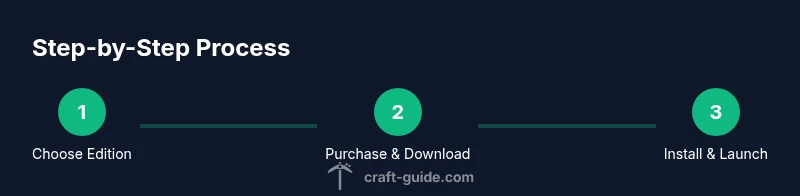
Once you’ve completed the purchase, the next step is to download the official launcher or app from the appropriate store. Install the software following on‑screen prompts, then sign in with the account used for purchase. The installation process may require some disk space for the game files and any optional content like packs or skins. After installation, launch the game and confirm your license is active. If prompted, enable cloud saves or server access based on your preferences and connectivity. This stage is often the most straightforward part of the journey, and following the official installer minimizes the risk of corrupted files or malware.
First run: settings, controls, and basic world creation
On first launch, adjust your settings to match your device and playstyle. Start with graphics and audio tuned for performance, then configure controls to your comfort. For new players, a simple world with default settings helps you learn crafting, exploration, and survival mechanics. If you’re playing with friends, join a server or explore cross‑play options if using Bedrock. Save frequently and create backups of your worlds as you experiment with building and resource gathering. Craft Guide notes that keeping a stable baseline configuration reduces frustration during early exploration and growth.
Common pitfalls and safe practices for new players
Getting Minecraft is exciting, but it’s important to avoid common pitfalls that can waste time or compromise safety. Only use official channels for purchases, downloads, and logins. Be wary of overly cheap offers or methods that bypass licensing, as these typically lead to account bans or malware. Always confirm that you’re on a legitimate platform, and never disclose your password. If you’re sharing a device with others, enable separate profiles and parental controls when appropriate. Craft Guide’s conclusion is to start small, confirm your edition, and build your skills gradually while enjoying the creative potential of the game. Crafts, redstone, and exploration all become more engaging as you learn the mechanics step by step.
Tools & Materials
- Device with internet connection(Wi‑Fi or Ethernet; ensure stability during download and install)
- Official account email address(Used for signup, login, and license management)
- Payment method (credit/debit, PayPal, or gift card)(Needed to purchase edition; gift cards can simplify the process)
- Official Minecraft launcher/app(Download from the official site or authorized app store)
- Gift card (optional)(Useful for gifting or covering the full price)
Steps
Estimated time: 30-60 minutes
- 1
Identify Edition and Platform
Select between Java Edition for PC and modding potential, or Bedrock Edition for cross‑play and broad device compatibility. Confirm platform compatibility and build a plan for where you’ll install the game.
Tip: Double‑check your device supports the edition you prefer. - 2
Create or Verify Your Microsoft/Mojang Account
If you don’t have an account, create one and verify your email. For Bedrock, this account will be used across platforms; keep credentials secure and enable two‑step verification if available.
Tip: Use a unique password and avoid reusing passwords across services. - 3
Visit the Official Purchase Page
Navigate to the official Minecraft purchase page for your chosen edition. Compare options and confirm you’re on the legitimate site or store to prevent counterfeit keys.
Tip: Bookmark the official page to avoid shop hopping. - 4
Choose Edition and Complete Purchase
Select the edition that matches your device, then complete the purchase using your preferred method or gift card. Ensure the total equals the intended cost and that any regional price differences are understood.
Tip: If using a gift card, ensure it covers the full price to avoid partial redemptions. - 5
Download the Launcher or App
Install the official launcher or store app. Launch it and sign in with the account used for purchase to access your library.
Tip: Only download from official sources to avoid malware. - 6
Install and Activate Your License
Run the installer and wait for the game files to download. Sign in to confirm your license is active on the chosen device/platform.
Tip: Keep your login credentials private and avoid sharing them. - 7
Launch and Configure Settings
Open Minecraft, adjust graphics, audio, and control settings to suit your device. Enable safety features if younger players will be present.
Tip: Start with default settings and tweak for performance as needed. - 8
Create Your First World
Create a new world, choose basic generation options, and begin crafting. Practice basic survival or creative builds to learn the core mechanics.
Tip: Experiment with crafting to understand resource management early on. - 9
Explore, Learn, and Expand
Join communities, explore biomes, and try optional mods or packs if your edition supports them. Regular backups keep your progress safe.
Tip: Back up saves to prevent data loss from crashes or corruption.
People Also Ask
What is the simplest way to get Minecraft on a PC?
Visit the official Minecraft site, choose your edition, create or sign in to your account, purchase, then download the launcher to install and start playing.
Go to the official site, pick your edition, sign in, and install the launcher to begin.
Do I need a Microsoft account to play?
Bedrock Edition requires a Microsoft account for sign‑in and license tracking. Java Edition uses Mojang/Microsoft at activation, but still benefits from official authentication.
Yes, Bedrock needs a Microsoft account; Java uses a Mojang/Microsoft login for activation.
Is there a trial version of Minecraft?
There isn’t a universal trial for the full game, but some platforms occasionally offer demos or limited-time access as part of bundles.
There isn’t a universal trial, but demos may exist on some platforms.
Is Minecraft free?
Minecraft is a paid product, with edition costs varying by platform and region. Gift cards and bundles can affect the total, but there is no universal free version.
No, it’s a paid game, though bundles or gifts may apply.
Java vs Bedrock differences?
Java Edition offers deeper mod support and a classic feel, while Bedrock provides cross‑play and optimized performance across devices.
Java is mod‑friendly and PC‑focused; Bedrock cross‑plays across devices.
Can I use gift cards to buy Minecraft?
Yes, most stores accept official gift cards for Minecraft purchases. Ensure the card covers the price and is issued by the official retailer.
Gift cards are usually supported, just verify the store’s policy.
The Essentials
- Choose the edition that fits your device and play style.
- Verify your account and enable strong authentication.
- Install from official sources to avoid scams and malware.
- Back up saves regularly and tailor settings for performance.