How to Get Into Minecraft: A Beginner's Guide for New Players
Learn how to get into Minecraft quickly with a clear, step-by-step setup from purchase to your first world. This beginner-friendly guide covers edition choices, accounts, installation, controls, and simple early projects.


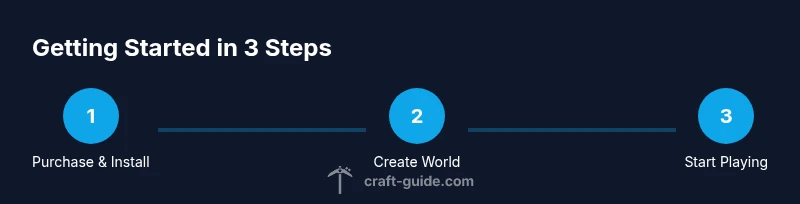
According to Craft Guide, you can get into Minecraft by purchasing the game, installing the launcher, and starting a new world in Survival or Creative mode. You'll need a compatible device, a Microsoft account, and a stable internet connection for first-time activation. Starting with a simple Creative world helps beginners learn controls quickly.
Why Getting In Minecraft Quickly Matters
A fast entry to Minecraft helps new players build confidence, learn mechanics, and avoid information overload. The game rewards curiosity, experimentation, and consistent practice, so getting started without unnecessary delays is key. According to Craft Guide, most players benefit from focusing on a small, achievable goal in their first session—like building a simple shelter before exploring caves. When you enter Minecraft with a plan, you’ll spend less time troubleshooting and more time crafting, farming, and designing. The basics—movement, looking around, mining blocks, and crafting simple items—are easier to master when you simulate a few short sessions rather than trying to absorb every feature at once. A clear starting path also helps with resource management and safety, so you’ll avoid early knockbacks from hostile mobs or unexpected night cycles. In short, a fast, focused start converts confusion into momentum, and momentum turns into creative success. Craft Guide’s approach emphasizes learning through hands-on play, not perfection, so you can relax and enjoy the process while you level up your skills.
Edition, Accounts, and Access Path
Minecraft comes in a few editions, each designed for different devices. For PC and Mac players, Java Edition is the classic option with extensive mod support. On consoles and mobile devices, Bedrock Edition provides cross‑play with other platforms. Regardless of edition, you’ll need a Microsoft account to log in and synchronize your purchases across devices. Start by choosing the edition that matches your device and play style: Java Edition for tinkering and large‑scale mods; Bedrock Edition for cross‑play and streamlined performance. If you’re unsure, begin with Bedrock on a console or mobile device and switch later if you want deeper modding or custom maps. Craft Guide recommends aligning your choice with how you intend to play most—creative builds, survival challenges, or multiplayer adventures. Remember that some features, like servers or Realms, may be edition‑specific, so read the official store notes before buying to avoid compatibility surprises.
Hardware and Software Requirements
Regardless of edition, Minecraft runs on a wide range of devices, but performance improves with modest hardware. A modern PC or console generally handles 60 frames per second in standard worlds, while mobile devices work well in creative mode with smaller render distances. The essential requirements include a stable internet connection for activation and account verification, sufficient storage space for the game and updates, and up-to-date graphics drivers or system software. If you plan to use resource packs, shaders, or mods on Java Edition, you’ll want a faster CPU, more RAM (at least 4–8 GB, depending on the mod load), and a reliable disk with space for cache. On Bedrock, be mindful of cross‑play limitations and performance differences between devices. Craft Guide emphasizes testing your setup with a quick test world before starting a full project, so you can verify controls and graphics without committing to a long session.
Step-By-Step Setup: Create an Account, Install Launcher, and Start
To begin, secure a Microsoft account if you don’t have one. This account will unlock your Minecraft purchase and let you log in across devices. Next, download the official Minecraft Launcher from the game’s website or store platform, then install it following on-screen prompts. After installation, launch the app and sign in with your Microsoft account. If you purchased the Java Edition, double-check you’re launching the Java profile; Bedrock requires the Bedrock profile. Once signed in, you’ll see the storefronts for editions, skins, and worlds. Create a new profile and choose the edition that matches your device. Finally, download the game assets and launch the introductory launcher, which will guide you to create or join a world. Craft Guide notes that taking a few minutes to customize settings—such as control sensitivity, brightness, and render distance—can make your first sessions more comfortable and enjoyable.
First World Design: Survival vs Creative, World Options
Your first world choice shapes your early experience. In Survival, you’ll gather resources, manage hunger, and deal with hostile mobs, which teaches planning and risk assessment. Creative mode removes these pressures, letting you experiment with builds, redstone, and map layouts. If you’re new, start in Creative to learn the controls and inventory mechanics, then switch to Survival once you’re comfortable. When creating a world, adjust settings for the smoothest experience: set render distance to a moderate value, disable cheats if you’re a beginner, and enable auto-save to avoid data loss. For multiplayer learning, consider a local or private server to practice with friends. Craft Guide’s recommended path is to alternate between modes: a Creative session to prototype ideas, followed by a Survival session to test resource gathering and survival tactics. Additionally, consider using preset seed worlds to study terrain types and biome variety, which can be a great source of inspiration for future builds.
Core Gameplay Loop: Collect, Craft, Build
Minecraft thrives on a simple loop: collect resources, craft useful items, and build structures that express your imagination. In your first minutes, focus on basic materials like wood, stone, and coal. Learn to craft minimal tools: a wooden pickaxe, a stone sword, and torches to illuminate dark areas. As you explore, prioritize tools that speed up mining and resource gathering. The loop accelerates when you learn to combine items into worthwhile recipes—furnaces, chests, and beds create efficient bases. Craft Guide suggests keeping a small inventory log or journal of resources collected and planned projects. Early exploration will reveal cave systems and biomes; use maps or coordinates to avoid getting lost. If you’re playing with friends, coordinate roles—one person focuses on mining, another on farming, and a third on building. The key is steady, incremental progress; you don’t need to complete a grand fortress in a single session. Small, continuous improvements compound into a satisfying long-term project.
Early-Protective Practices and Troubleshooting
Safety is essential in your first sessions. Always carry a few basic torches to keep your pathways lit and reduce the risk of surprise mobs spawning in dark corridors. Build a simple shelter within the first night and store valuables in a chest with a lockable hinge. When something goes wrong, revisit the basics: ensure you’re using the correct edition, check your internet connection, and verify that your account is active. If you experience performance issues, adjust your video settings—lower render distance, turn off fancy graphics, and update drivers. For startup problems, ensure you launched the correct profile (Java vs Bedrock) and that the launcher is up to date. Craft Guide notes that following a predictable routine—log in, create a world, check controls, then resume exploration—reduces frustration and accelerates learning. If you’re playing on a server or Realms, be mindful of rules and community guidelines to maintain a positive experience for yourself and others.
Next Steps and Practice Projects
As you grow more confident, move from basic shelter building to more ambitious projects: a connected farm, a simple redstone mechanism, or a multi-room base. Practice by completing small challenges—survival bases, sky bridges, and resource-efficient farms—to reinforce skills. Use seed worlds to study terrain and climate; map out your next steps on paper or in-game guides. Explore community resources like build tutorials and resource packs to expand your toolkit. Remember to back up progress and save frequently, especially before attempting complex builds or new mods. Finally, maintain curiosity and patience: Minecraft is vast, and consistent practice yields better results over time. Craft Guide’s approach centers on clear, achievable goals and incremental growth, helping players of all levels turn ideas into lasting creations.
Tools & Materials
- Minecraft account(A Microsoft account is needed to log in and activate Minecraft.)
- Minecraft launcher(Download from official source; ensure you choose the correct edition.)
- Compatible device(PC, Mac, console, or mobile with internet access.)
- Stable internet connection(Needed for activation, updates, and multiplayer features.)
- Optional: Realms or multiplayer access(Helpful for safe, shared practice with friends.)
Steps
Estimated time: 60-90 minutes
- 1
Create or sign in to your Microsoft account
If you don’t already have one, create a Microsoft account to log in and manage your Minecraft purchases. This account will synchronize your progress across devices. Once created, keep credentials secure and enable two-factor authentication for safety.
Tip: Use a password manager and enable 2FA to protect your account. - 2
Choose the edition that matches your device
Java Edition is ideal for PC/Mac players who want mod support, while Bedrock Edition is tailored for cross‑play across devices. Pick the edition that aligns with where you’ll play most and the features you want, such as mods or servers.
Tip: If unsure, start with Bedrock on a console or mobile and explore Java later if you want mods. - 3
Download and install the Minecraft Launcher
Get the official launcher from the game’s site or store, install it, and launch. Sign in with your Microsoft account to unlock your copy and access editions.
Tip: Install any available updates before first play to ensure compatibility. - 4
Log in and verify ownership
Open the launcher and sign in. Confirm that your purchased edition is listed and ready to install. This step ensures you can access worlds, skins, and servers.
Tip: Keep your login details handy but secure; never share credentials. - 5
Select game mode and create your first world
Choose Survival or Creative, decide on a world name, and adjust basic settings like cheats and render distance. Create a local world to avoid public servers while you learn the ropes.
Tip: For beginners, Creative is great to learn controls before facing mobs. - 6
Learn the basic controls
Familiarize yourself with movement, looking around, sprinting, jumping, and the inventory. Practice quick switching between items and placing blocks in a sandbox area.
Tip: Use a simple control layout you can remember; tweak sensitivity to your comfort. - 7
Gather basic resources and craft essentials
Mine wood, stone, and coal; craft a wooden pickaxe and a few torches. Learn the crafting interface and how to place valuable items in accessible chests.
Tip: Keep a minimal, organized inventory to reduce confusion during early exploration. - 8
Build a simple shelter and lighting
Construct a small shelter to survive the first night and place torches to prevent mob spawns. This creates a safe base to store items and craft without interruption.
Tip: Position your shelter near a water source or resources for efficiency. - 9
Explore safe practices and plan the next steps
Experiment with a few actions—farming, mining, and building. Plan a short-term goal for your next session, such as expanding the shelter or crafting a furnace.
Tip: Set a small goal for your next play session to maintain momentum.
People Also Ask
Do I have to pay to play Minecraft?
Yes. Minecraft is a paid game and you’ll need to purchase a copy for the edition you want. After purchase, you can install the launcher and begin playing immediately.
Yes, Minecraft requires a purchase before you can play in most editions.
Which edition is best for beginners?
Bedrock Edition is often easier for beginners due to cross‑play and broader device support. Java Edition offers more modding options if you’re curious about custom maps and experiments.
Bedrock is usually easier for beginners, with cross‑play across devices.
Can I play Minecraft offline?
Yes, you can play in offline mode if you have a local world downloaded, but many features such as online servers and Realms require internet access.
You can play locally offline, but online features need internet.
Is Minecraft kid-friendly?
Minecraft is widely used by players of all ages. Parents should supervise online play, manage chat features, and enable parental controls as needed.
It's popular with kids; supervision and controls help ensure safety.
How long does it take to feel comfortable?
Most new players begin to feel comfortable within a few sessions by focusing on a small, achievable goal each time and gradually expanding their toolkit.
A few sessions usually build confidence and skills.
What are good first projects to practice?
Begin with a simple shelter, a basic farm, and then a small storage area. These projects build foundational skills in gathering, crafting, and organization.
Start with a shelter, then a farm and storage area.
Watch Video
The Essentials
- Start small with a simple shelter and basic tools
- Choose the edition that matches your devices
- Learn the core controls before deep exploration
- Balance Creative practice with Survival challenges
- Back up progress regularly to prevent loss