How to Get Minecraft on PC: A Practical Guide
Learn how to get Minecraft on PC with clear steps for Java and Bedrock editions, account setup, launcher installation, and performance tips. A practical, beginner-friendly guide from Craft Guide.


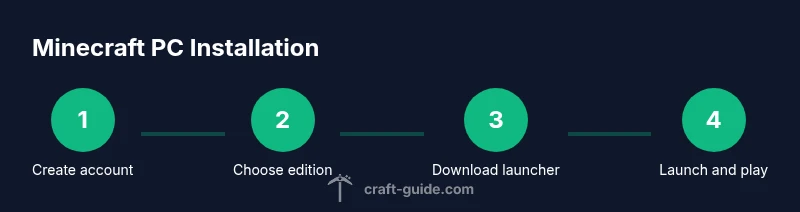
How to get minecraft on pc is straightforward: choose Java or Bedrock edition, create a Microsoft/Mojang account, purchase the game on the official site, download the Minecraft Launcher, and sign in to install. Then pick your edition and start playing. This quick path avoids pitfalls and keeps your account secure.
Getting started: how to get minecraft on pc
To begin your journey, you’ll need two things: a PC and an internet connection. The phrase how to get minecraft on pc is common among beginners, and this guide will walk you through the simplest route to ownership and play. According to Craft Guide, the easiest path is to use the official Minecraft launcher and purchase the game from the official site. This keeps your account secure and ensures you receive updates, support, and access to both Java and Bedrock editions as appropriate. On PC, you can choose between Java Edition, known for its moddability and large community, or Bedrock Edition, which emphasizes cross‑platform play with Windows 10/11 and consoles. The choice matters for how you will install, update, and customize your experience. Start by visiting minecraft.net and creating a Microsoft account if you don’t already have one; you’ll use this to sign in to the launcher and verify ownership. After purchase, download the launcher, install it, and sign in. The setup is usually quick, often taking less than half an hour for a first-time installer. With the basics out of the way, you can proceed to select the edition you want and customize basic settings for optimal performance.
- Craft Guide notes that using the official launcher reduces setup friction and provides centralized updates.
- You’ll need a supported PC, internet access, and a payment method to complete the purchase.
- This block sets the stage for the rest of the guide by clarifying edition choices and account setup.
Tools & Materials
- PC with internet access(A modern computer that can run a web browser and the Minecraft launcher.)
- Microsoft account or Mojang account(Needed to sign in and activate the game.)
- Payment method(Used to purchase Minecraft or verify ownership.)
- Web browser(Helpful for account setup and browsing the official site.)
- Backup storage(Ensure enough space for the game and updates.)
Steps
Estimated time: 30-60 minutes
- 1
Decide edition and prepare accounts
Choose between Java Edition for modding and community content or Bedrock Edition for cross‑platform play. Create or sign in to a Microsoft or Mojang account so you can own and activate the game. This step prevents licensing issues later and ensures your launcher signs in correctly.
Tip: Having both accounts linked to the same email helps with recovery. - 2
Purchase and verify ownership
Go to the official Minecraft site, select your edition, and complete the purchase. You may be prompted to verify ownership via your email or Microsoft account. This step ensures you receive access to the launcher and game files.
Tip: Use a strong, unique password for your Microsoft/Mojang account to reduce risk of unauthorized access. - 3
Download the Minecraft Launcher
From the official site, download the Minecraft Launcher for your OS. Run the installer and follow on‑screen prompts to complete installation. The launcher will manage game files and updates for both Java and Bedrock editions.
Tip: If you’ve used the launcher before, ensure you’re downloading the latest version from minecraft.net. - 4
Sign in and choose edition
Open the launcher, sign in with your Microsoft/Mojang account, and select your preferred edition. This is where you can install the game and configure basic settings, such as installation path and game language.
Tip: If you switch editions, you may need to download a separate launcher profile. - 5
Install and launch
Click Install to download the game files, then press Play. The launcher will verify your ownership and start the game. On first run, you may see setup prompts for graphics and controls.
Tip: Give the game a few minutes to finalize the initial setup after the first launch. - 6
Adjust settings and optimize
Open the in‑game Options to adjust graphics, controls, and performance settings. If your system struggles, lower render distance and turn off resource-intensive features like fancy lighting.
Tip: Document your preferred settings so you can recreate a stable setup later. - 7
Explore and customize
With Minecraft installed, you can join servers, install mods or resource packs (for Java Edition), and start your first build. Keep your launcher updated for the latest fixes and features.
Tip: Back up worlds regularly to avoid data loss when updating or modding.
People Also Ask
What do I need to start playing Minecraft on PC?
You need a PC with internet access, a supported operating system, a Microsoft or Mojang account, and a valid purchase of Minecraft. Then download the official Minecraft Launcher, sign in, and choose your edition.
To start playing, you’ll need a PC with internet, a valid Minecraft purchase, and the official launcher signed in with your account.
Java Edition or Bedrock Edition: which should I choose?
Java Edition offers the widest modding support and a larger community, while Bedrock Edition provides cross‑platform play with Windows and other devices. Choose based on whether you want mods or cross‑play features.
If you want mods, pick Java Edition. If you want cross‑play across devices, go Bedrock.
Do I need a Microsoft account to play on PC?
Yes. A Microsoft account (or a linked Mojang account) is required to sign in to the Minecraft Launcher and verify ownership. If you don’t have one, you can create it during the purchase process.
You’ll need a Microsoft account to sign in and play on PC.
Can I play with friends on different platforms?
Bedrock Edition supports cross‑platform play with Windows, consoles, and mobile. Java Edition does not support cross‑play with Bedrock. Plan your edition based on who you want to play with.
Bedrock supports cross‑platform play; Java does not.
Is Minecraft free to play on PC?
Minecraft is a paid game on PC. You purchase it from the official site, after which you own a license and can install it on compatible devices.
No, Minecraft isn’t free on PC; you buy a license first.
What if the launcher won’t open or the game won’t start?
First, check your internet connection and ensure the launcher is updated. If problems persist, verify your account status and re‑sign in, or reinstall the launcher.
If the launcher won’t open, update it or reinstall, and re‑sign in.
Watch Video
The Essentials
- Choose the edition that fits your play style.
- Install via the official launcher to simplify updates.
- Sign in with a secure account and enable 2FA.
- Back up worlds before modding or major updates.
- Follow safe, official sources for downloads.