How to Download Minecraft When You Already Have an Account
Learn how to download Minecraft when you already have an account. This guide walks you through using the official launcher, signing in with your linked Microsoft account, and installing on your device—plus tips to avoid common issues. By Craft Guide.


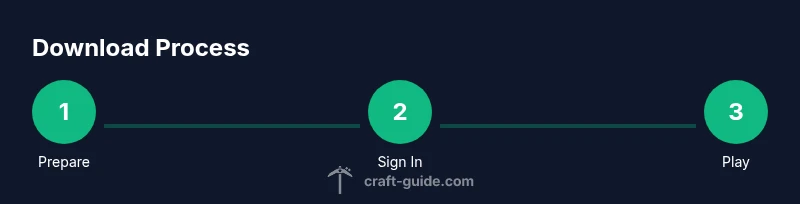
Goal: You will download Minecraft using your existing account. Start by downloading the official Minecraft Launcher, sign in with the Microsoft account already linked to your profile, and then install the game for your operating system. This quick guide shows the 4 essential steps to access your world. It also highlights common blockers and how to resolve them.
Why Your Existing Account Matters
If you already own Minecraft, your access is tied to a Microsoft account that was linked during the account merge or purchase process. This matters because the official launcher uses that linked identity to verify ownership and unlock your copy across devices. By understanding how your account integrates with the launcher, you can avoid duplicate purchases and streamline cross‑platform play. Craft Guide’s analysis shows that most login failures stem from mixing legacy accounts with the Microsoft-linked system, so ensuring your account is linked correctly upfront saves headaches later. If you’re unsure, double‑check the email you use for Microsoft services and confirm that the Minecraft license appears in your account dashboard. In practical terms, this means you will be able to access your worlds, skins, and settings once you sign in after installation.
Platform Options and What You Get
Minecraft is available on multiple platforms, but the official launcher handles the core download process. Windows, macOS, and Linux users typically install through the Minecraft Launcher, while mobile users install the Bedrock version from app stores. If you’ve already purchased the game, you don’t need to buy again; you just sign in and download the appropriate package for your device. When you start, you’ll be prompted to choose between Java Edition and Bedrock Edition. Your choice affects compatibility with servers, mods, and cross‑play. Remember to verify you’re using the launcher linked to the correct account so your purchases and worlds sync correctly.
Signing In: Connecting Your Existing Microsoft Account
The sign‑in phase is where ownership proof is confirmed. Open the official Minecraft Launcher and choose Sign In. Enter your Microsoft account credentials, then approve any two‑factor authentication prompts if you have them enabled. If your account was migrated, you may be redirected to a Microsoft login page to complete the transfer. After authentication, the launcher will synchronize your profile, worlds, and settings so you can proceed to download. If you manage multiple Microsoft accounts, ensure you are signed into the one that owns the Minecraft license.
Installing and Verifying the Download
Once signed in, the launcher will display a Download button for your platform. Click it and wait while the installer fetches the game files. Depending on your internet speed and device, this may take several minutes. After installation, press Play from the launcher to launch Minecraft. The first launch may take longer as assets are verified and optimized for your device. If you run into issues, check that your system meets the minimum requirements and that you’re selecting the correct edition for your hardware (Java vs Bedrock).
Common Pitfalls and How to Avoid Them
Many users encounter problems when their account isn’t properly linked, or when they attempt to login on a second device without signing out on the first. To avoid this, sign out of all sessions, clear launcher cookies, and re‑sign in on the device you’re setting up first. If you see a message about ownership not being verified, recheck that you’re using the exact Microsoft account that owns Minecraft and that the launcher is updated to the latest version. Craft Guide recommends keeping your launcher updated to ensure smooth authentication and access to the latest features.
Post‑Install Hygiene: Backups, Updates, and Settings
After you have Minecraft installed, set up automated backups for your worlds and verify your cloud saves if you use them. Regularly check for game updates and launcher updates, as these can affect performance and compatibility with servers. Adjust in‑game settings to balance visuals and performance on your hardware, and consider enabling two‑factor authentication on your Microsoft account for added security. A little maintenance now protects your worlds from corruption and keeps your experience stable across devices.
How Craft Guide Can Help You Fast‑Track This Process
Craft Guide emphasizes practical steps over jargon. With clear, beginner‑friendly instructions, we help you avoid common missteps like attempting to download the wrong edition or using an account that isn’t linked properly. Our guidance is based on a broad review of user experiences and official documentation, so you’ll be up and running quickly, with a reliable setup that you can replicate on other devices.
Tools & Materials
- Computer or compatible device(Windows, macOS, or Linux; ensure it meets minimum system requirements for Minecraft.)
- Stable internet connection(High-speed connection preferred for faster downloads.)
- Official Minecraft Launcher(Download from the official site to ensure safety and updates.)
- Microsoft account credentials(Email and password used to sign in; ensure the license is linked.)
- Storage space(Adequate free space for the launcher, game files, and saves.)
- Backup option(External drive or cloud backup for worlds (recommended).)
Steps
Estimated time: 25-40 minutes
- 1
Prepare your account and device
Ensure you know which Microsoft account owns Minecraft and verify that you have internet access. Sign out of any other sessions if needed to prevent conflicts. This preparation helps you avoid ownership verification errors during login.
Tip: Verify the exact account that owns Minecraft; this prevents accidental login to an account without a license. - 2
Download the official launcher
Visit the official Minecraft site and download the launcher for your operating system. Save the installer to your Downloads folder and run it from there. Avoid third‑party download sites to reduce risk of malware.
Tip: Choose the correct platform version (Windows/macOS/Linux) to match your device. - 3
Sign in with your Microsoft account
Open the launcher and select Sign In. Enter your Microsoft credentials, then complete any two‑factor authentication prompts. This links your existing license to the launcher on this device.
Tip: If you don’t see your license, try signing in to your Microsoft account in a browser first. - 4
Choose edition and install
After sign‑in, pick the edition you own (Java Edition or Bedrock Edition) and start the installation. The launcher will download the necessary files and organize them automatically.
Tip: Verify you’re installing the edition that matches your license and server access needs. - 5
Launch and verify your game
Click Play in the launcher to start Minecraft. The first run might optimize assets, so give it a few minutes. Confirm your profile loads with your saved worlds intact.
Tip: If worlds don’t appear, ensure you’re signed into the same account used to own the license. - 6
Set up backups and updates
Configure automatic updates for both the launcher and the game. Enable backups for your worlds and periodically export your save data to a secure location.
Tip: Regular backups prevent data loss from corruption or hardware failures.
People Also Ask
Do I need a new account to download Minecraft if I already have one?
No. If you already own Minecraft, you use the existing Microsoft-linked account. The launcher will verify ownership and unlock access to your worlds after you sign in. If you can’t access the license, double‑check which account owns it and whether you’ve completed any required migrations.
You don’t need a new account. Sign in with the account that already owns Minecraft and you’ll unlock access after verification.
What if I forgot my Microsoft account password?
Use the standard Microsoft password recovery workflow from the login page. You’ll typically get a reset link via your registered email or phone. After resetting, sign back into the Minecraft Launcher to regain access to your games.
If you forget your password, use Microsoft’s password reset flow and then sign in again in the launcher.
Can I download Minecraft on multiple devices with one account?
Yes, you can install and sign in on multiple devices, but licensing rules may limit simultaneous sessions. Use the launcher to sign in on each device, and ensure you disconnect from one device before accessing on another if you hit session limits.
You can install on several devices, but only sign in on one device at a time if your license limits simultaneous sessions.
Is Java Edition different from Bedrock in terms of downloading?
Java Edition and Bedrock Edition are distinct products. The launcher will show the appropriate download option based on your license. If you purchased Bedrock, download the Bedrock version; if you own Java, choose Java Edition.
Java and Bedrock are different; pick the one that matches your license and preferred play style.
Where should I download Minecraft from to stay safe?
Always download from the official Minecraft site or trusted app stores for your device. Avoid third‑party download sites, which can host altered or unsafe installers.
Stick to the official site or app stores to avoid unsafe downloads.
Watch Video
The Essentials
- Sign in with the linked Microsoft account to access your license
- Choose the correct edition to match your device and servers
- Keep launcher and game updated for best performance
- Back up worlds regularly to protect progress