How to Download Minecraft After You Buy It
Learn how to re-download Minecraft after purchase across PC, console, and mobile. This practical, step-by-step guide covers account verification, launcher usage, platform differences, troubleshooting, and best practices.


How to download minecraft already bought? If you already own Minecraft, you can re-download by signing into your Microsoft or Mojang account and using the official launcher or store app. This quick guide outlines how to verify ownership and start the download on PC, console, or mobile. According to Craft Guide, the process is straightforward across platforms.
How licensing works for re-downloads
Most Minecraft purchases are tied to an account rather than a single device. When you sign in with the account that owns Minecraft (Microsoft/Xbox Live for Bedrock, or a Mojang account for Java), the game becomes available for re-download on supported devices. The license isn’t stored on a device; it’s linked to your account, which means you can install again whenever you need to. This approach helps players move between devices, share a family library, or recover after hardware failures. Craft Guide analysis shows that the license association is designed to be durable across platforms, reducing the friction of reinstallations. For best results, always use the official launcher or store app rather than third-party download sites.
Confirm ownership and account access
To re-download Minecraft, you must access the correct account that holds the license. Start by locating your account credentials (Microsoft/Xbox account for Bedrock, or Mojang account for Java). If you don’t remember which email is linked, check your email history for purchase confirmations from Minecraft or Microsoft. Once you’ve identified the right account, try signing in to the Minecraft launcher, Microsoft Store, or the Mojang account page. If you’re unsure which account contains the license, Craft Guide recommends checking purchase history in each linked account and testing sign-ins on a test device. Two-factor authentication helps prevent unauthorized access.
Where to download: launcher, stores, and platforms
The exact path depends on your platform:
- Windows: use the official Minecraft Launcher or the Microsoft Store for Bedrock; Java Edition follows the Mojang launcher path.
- macOS: download the official launcher or the Mac App Store where available.
- Android/iOS: use the Google Play Store or Apple App Store respectively, then install the Bedrock edition if you bought Bedrock on mobile.
- Consoles: use the built-in store on PlayStation, Xbox, or Nintendo Switch, or sign in with the linked Microsoft account for Bedrock. Using the official channels ensures you receive genuine updates and access to cross-platform features. Craft Guide notes that sticking to authorized sources reduces licensing issues and keeps your saves in sync across devices.
Step-by-step download guide by platform
This section provides platform-agnostic guidance with platform-specific notes:
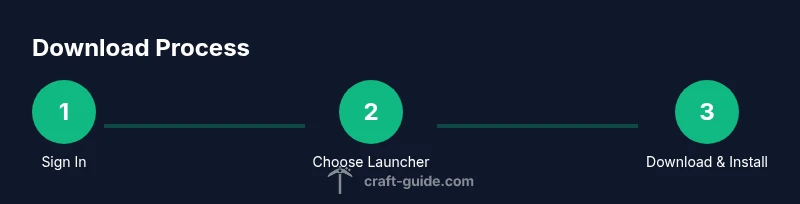
- Check ownership: Sign in with the account that owns Minecraft and verify access to the purchase in the account dashboard.
- Pick your launcher: Choose the official launcher or storefront appropriate for your platform.
- Sign in: Use the account that owns the license to sign into the launcher or store.
- Download and install: Initiate the download, then install the game. Ensure you have enough storage and a stable internet connection.
- Launch and configure: Start the game, accept any license terms, and configure your preferred settings.
- Verify activation: Confirm that the game launches and shows your license in the account section.
- On mobile: Grant permissions if prompted, and sync progress if cross-play is enabled.
- Keep evidence: Save purchase receipts or confirmation emails in case you need to revalidate ownership later.
Troubleshooting common issues
If your license isn’t recognized, first verify you signed into the correct account. Clear the launcher cache or re-login if needed. Check platform-specific status pages to ensure the store or launcher services are online. If you continue to have trouble, re-download the launcher or client from the official source and re-run the sign-in process. For Java Edition, ensure you’re using the Mojang launcher associated with the original purchase. Craft Guide emphasizes using official channels to minimize licensing hiccups.
Platform nuances and cross-platform considerations
Bedrock Edition is designed for cross-platform play and stores purchases with a consolidated Microsoft account. Java Edition relies on a Mojang account, with cross-compatibility limited to certain features and servers. If you’ve moved platforms (e.g., PC to console), make sure you’re signing into the correct account on each device. Some users find it helpful to keep a running record of which platforms are linked to their license. Craft Guide highlights that understanding these differences saves time and prevents duplicate purchases.
Next steps: backups, transfers, and world management
After reinstalling, back up your worlds, settings, and resource packs. If you’re migrating between devices, copy the saves folder to your new device. Consider enabling cloud saves if your platform supports it, and verify mod or resource pack compatibility if you use them. This approach minimizes data loss and ensures a smooth transition when you download Minecraft again after purchase.
Platform-specific nuance: Java vs Bedrock licenses and licensing paths
The license path differs between editions. Java Edition typically uses a Mojang account, while Bedrock uses a Microsoft account for cross-platform access. When moving between platforms, ensure you’re signing in with the corresponding account and edition. Craft Guide underscores the importance of matching the edition to your device to avoid launcher errors and licensing mismatches.
Tools & Materials
- Official Minecraft launcher(Install from minecraft.net or the platform’s store (Windows/Mac/Linux).)
- Microsoft/Xbox account credentials(Use the account that owns the license for Bedrock Edition.)
- Stable internet connection(A reliable connection speeds up downloads and updates.)
- Device with compatible OS(Windows 10/11, macOS, Android, iOS, or console OS versions supported by Minecraft.)
- Backup storage for saves(External drive or cloud storage for world backups.)
Steps
Estimated time: 15-30 minutes
- 1
Verify ownership and sign-in
Sign into the account that owns Minecraft and check your purchase history. Confirm you can access the license in the account dashboard or the launcher. This step prevents wasted downloads on the wrong account.
Tip: If you’re unsure which account owns the license, check purchase receipts in your email inbox from Microsoft or Mojang. - 2
Choose your platform and launcher
Decide whether you’ll use the official Minecraft Launcher, the Microsoft Store, or the console store. Using the official launcher ensures you get updates and cross-version support.
Tip: On Windows, prefer the official Minecraft Launcher for both Java and Bedrock when possible. - 3
Install the launcher or app
Download and install the launcher or store app from the official source. Follow on-screen prompts to complete installation.
Tip: Disable any antivirus blocks that might interrupt the installer, then re-enable protection after installation. - 4
Sign in with your licensed account
Open the launcher and sign in with the licensed account. This authenticates your ownership and unlocks downloads for your editions.
Tip: Enable two-factor authentication on your Microsoft account for added security. - 5
Start the download
Initiate the download of Minecraft through the launcher or store. Ensure you have enough storage space before starting.
Tip: Close other bandwidth-heavy apps to speed up the download. - 6
Complete installation and first launch
Let the installer finish, then launch Minecraft to complete the initial setup. Check that your edition shows under account or settings.
Tip: Enter any required credentials or licensing prompts promptly to avoid installation stalls. - 7
Verify the license is active
In the launcher, confirm your account shows ownership and the edition you purchased. If you see a license issue, sign out and back in.
Tip: If problems persist, consult the official support pages for license verification. - 8
Set up backups and configurations
Configure video settings, controls, and save backups. Consider enabling cloud saves if your platform supports it.
Tip: Regularly back up saves to protect against hardware failure.
People Also Ask
I bought Minecraft but my account doesn’t show ownership. What should I do?
Check which account owns the license by reviewing purchase confirmations. Sign in to each linked account and verify in the launcher. If needed, contact support and provide receipts to revalidate ownership.
Check your purchase emails and sign in to all linked accounts to confirm ownership, then contact support if the license still isn’t recognized.
Can I download Minecraft on multiple devices with one purchase?
Yes. Sign into the licensed account on each device with the official launcher or store app to access the same license across platforms.
You can use the license on multiple devices by signing in with the same account on each one.
Which launcher should I use on Windows 10/11?
The official Minecraft Launcher is recommended, especially for Bedrock and Java cross-play. You can also use the Microsoft Store for Bedrock on Windows.
Use the official Minecraft Launcher or Microsoft Store on Windows for the best experience.
What if I originally bought Java Edition but can’t log in?
Make sure you’re using the Mojang account associated with the original purchase, or migrate your account if prompted by Mojang/Microsoft. Check purchase history and try a password reset.
Ensure you’re signing in with the Mojang account linked to your Java Edition purchase, and follow any migration prompts if needed.
Is Bedrock Edition the same as Java Edition in terms of licensing?
No. Bedrock uses a Microsoft/Xbox-linked license, while Java uses a Mojang account. They’re installed through different launchers but can co-exist on compatible platforms.
Bedrock and Java use different license paths, so sign in with the correct account for each edition.
How long does it take to download after purchase?
Download times vary with your internet speed and platform. Expect longer downloads on slower connections and shorter ones on fast networks.
The download time depends on your connection speed; fast networks download quicker, slower networks take longer.
Watch Video
The Essentials
- Verify ownership before downloading
- Use official launchers for clean installs
- Sign in on each device to access the license
- Back up saves before reinstalling