Do You Need a Microsoft Account for Minecraft? An In-Depth Guide
Discover whether you need a Microsoft account to play Minecraft, how the login system works across Java and Bedrock editions, migration steps, security tips, and practical setup guidance for players.


Do you need a Microsoft account for Minecraft? In short, yes for the official launcher and most modern setups. The login system centers on Microsoft accounts, with Bedrock and Java editions both requiring a Microsoft-linked sign-in to access your license, worlds, and multiplayer features. There are a few edge cases depending on platform and edition, which we cover below.
Do you need a Microsoft account for Minecraft? A practical overview
In the modern Minecraft ecosystem, most players sign in with a Microsoft account to access the official launcher, purchase and manage licenses, and join multiplayer worlds. The question do you need a microsoft account for minecraft isn’t merely about login; it reflects a broader shift toward unified account management across platforms. According to Craft Guide, this migration was designed to simplify cross‑play, security, and recovery across devices. This means that whether you’re playing on Windows PC, Xbox, mobile, or certain console configurations, the Microsoft account is the primary gateway to your Minecraft experience. The goal is to reduce account fragmentation and provide a single doorway to access your purchases, worlds, and friends list. As you start this journey, plan for a one-time sign‑in and then you can enjoy smooth, cross‑platform play going forward.
Java Edition vs Bedrock Edition: Login realities
The two main editions of Minecraft use different pathways for account verification, but the underlying requirement is a Microsoft account for official access. Bedrock Edition, which spans Windows, consoles, and mobile, explicitly centers around Microsoft-backed authentication to enable cross‑play and cloud saves. Java Edition follows the migration trajectory that shifted players from legacy Mojang/Microsoft accounts to Microsoft accounts for launcher sign‑in. The practical takeaway is simple: regardless of edition, you’ll benefit from linking a Microsoft account to minimize sign‑in friction and ensure access to all features, including friend lists, realms, and cross‑play.
The Microsoft account migration timeline and today’s access
Migration from legacy Mojang/Microsoft accounts to Microsoft accounts was implemented over several years to consolidate authentication. Today, most players sign in with a Microsoft account to launch Minecraft, vault purchases, manage profiles, and join servers. The intent behind the migration was to standardize password recovery, security options, and two‑factor authentication across devices. If you started playing before the migration, you may have an old account that needed linking to a Microsoft account. The Craft Guide team notes that finishing this link is essential for uninterrupted access, especially if you switch devices frequently or invite friends to your worlds.
How to create and link a Microsoft account for Minecraft
If you don’t yet have a Microsoft account, start at the official Microsoft account creation page and follow the prompts to establish a password, recovery options, and security settings. Once created, open the Minecraft Launcher and sign in with your new Microsoft credentials. If you already had a Mojang account, you’ll be prompted to migrate by linking it to the new Microsoft account—this is typically a one‑time step. After linking, verify your email, enable two‑factor authentication, and review connected devices. Craft Guide’s guidance emphasizes keeping recovery data current to prevent future lockouts.
Using Minecraft across devices: cross‑platform considerations
Sign‑in with a Microsoft account unlocks cross‑platform features across Bedrock and Java editions. You can play on Windows, consoles, and mobile with your single account, subject to platform restrictions. Cross‑play is managed through your Microsoft identity, so friends on different devices can join the same realms and servers if the server settings allow it. If you plan to play across multiple devices, ensure you’re signing in with the same Microsoft account everywhere and review the account’s linked devices periodically to avoid access issues.
Privacy, security, and account recovery best practices
Security begins with a strong Microsoft account password and enabled two‑factor authentication. Regularly review connected devices, account activity history, and login notifications. When you sign in on a new device, consider using app‑specific passwords if you enable certain security features. For recovery, keep your recovery email up to date and maintain multiple verification options. Craft Guide recommends periodic audits of linked services and a dedicated password manager to minimize risk. A careful setup can dramatically reduce the chances of lost access due to forgotten credentials.
Common problems and quick fixes for sign‑in
If sign‑in fails, first verify your internet connection and the correct Microsoft credentials. Clear launcher cache or reinstall the launcher if needed, then re‑sign in. Check for service outages on Xbox Live or Microsoft Accounts status pages, as outages can block authentication. If you still can’t sign in, try restoring a backup of your profile or signing in from a different device to rule out local issues. Finally, ensure your account hasn’t been flagged for suspicious activity and contact support if you suspect a breach.
Practical, beginner-friendly setup checklist
- Create or migrate to a Microsoft account and verify your email. - Install the official Minecraft Launcher or update the existing one. - Sign in with Microsoft credentials and enable two‑factor authentication. - Link any legacy Mojang accounts during migration prompts. - Confirm cross‑play and server access permissions in your profile. - Regularly review security settings and recovery options. Craft Guide recommends a simple, repeatable routine for account hygiene to keep play smooth across devices.
Comparison of Minecraft editions and their login requirements
| Edition | Login Method | Notes |
|---|---|---|
| Java Edition | Microsoft account via launcher | Migration completed; sign‑in uses MS account |
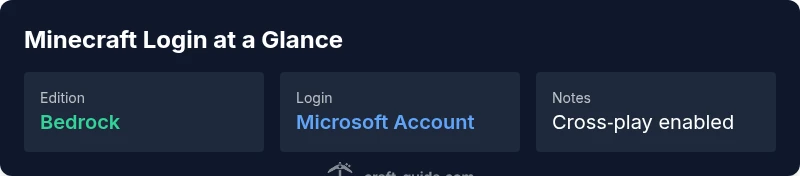
| Bedrock Edition | Microsoft account required | Cross‑platform features and cross‑play |
| Console Editions | Platform account (Xbox/PlayStation/Nintendo) | Depends on console ecosystem; not a separate Microsoft sign‑in |
People Also Ask
Do you need a Microsoft account for Minecraft Java Edition?
Yes. Java Edition requires signing in with a Microsoft account via the official launcher after migration. This ensures you have a valid license and access to your worlds.
Yes—Java Edition requires signing in with a Microsoft account through the official launcher.
Can I play offline without signing in?
Offline play is limited. You can access local worlds, but launching the game and joining servers typically requires signing in with your Microsoft account.
Offline play is limited; logging in is usually required to start the game and access servers.
Are there exceptions for console editions?
Console editions rely on the platform’s account system (Xbox, PlayStation, Nintendo). You don’t need a separate Microsoft account for the console version, but Microsoft account features may still apply for cross‑play and purchases.
Consoles use their own accounts, but cross‑play features still rely on Microsoft‑linked accounts where applicable.
How do I migrate my Mojang account to Microsoft?
Visit the official migration page, follow prompts to link your Mojang account to a Microsoft account, and verify your email. Complete the steps to ensure uninterrupted access.
Go to the migration page, link your Mojang account to Microsoft, and verify your email.
What about account security and recovery?
Enable two‑factor authentication, use a strong password, and keep recovery methods up to date. Regularly review account activity to detect unauthorized access.
Enable two‑factor authentication and keep recovery options current to protect your account.
“The Microsoft account system streamlines cross‑platform play and improves security, but players should complete migration promptly to avoid access gaps.”
The Essentials
- Sign in with a Microsoft account to access most Minecraft features.
- Java and Bedrock editions now rely on Microsoft accounts for launcher login.
- Migrate any legacy Mojang accounts to avoid access issues.
- Use a single Microsoft account for cross‑platform play across devices.
- Prioritize account security: enable 2FA and keep recovery options updated.