How to Dedicate More RAM to Minecraft
Learn how to allocate more RAM to Minecraft Java Edition with safe, step-by-step instructions. Optimize performance, reduce lag, and maintain system stability using practical tips and tested launcher settings.


You're looking to increase the memory available to Minecraft. This how-to covers how to dedicate more ram to minecraft on Java Edition, what to watch for, and practical steps to avoid crashes. Before you begin, ensure you have enough total RAM and back up worlds. Craft Guide's approach emphasizes safe, incremental changes so you can run vanilla or modded Minecraft more smoothly.
Why RAM matters for Minecraft
RAM acts as the engine behind Minecraft's world loading, chunk generation, and real-time simulation. When you explore a new biome or generate a large world, the game pulls data from memory. If you allocate too little RAM, you will see stutters, long loading screens, or occasional freezes. Allocating too much can starve your operating system, leading to overall slowdown or instability. According to Craft Guide, the first step toward smoother gameplay lies in understanding how memory affects performance and choosing a safe allocation strategy that fits your setup. In this section we’ll unpack why RAM matters, what it enables, and how you’ll know you’ve allocated enough without overshooting.
Understanding Java memory and Minecraft
Minecraft Java Edition runs on the Java Virtual Machine, which uses memory in terms of initial and maximum allocations. The -Xms flag sets the starting heap size, while -Xmx defines the maximum the JVM may use. Correctly balancing these values helps prevent early garbage collection pauses and out-of-memory errors. A cautious approach is to start with a modest amount and scale up if you notice smooth gameplay at your typical world size and with your mods. Craft Guide Team emphasizes that a stable baseline is more important than chasing aggressive RAM targets. This section explains the rationale behind -Xms and -Xmx and how they influence latency and chunk loading.
Check your system RAM and headroom
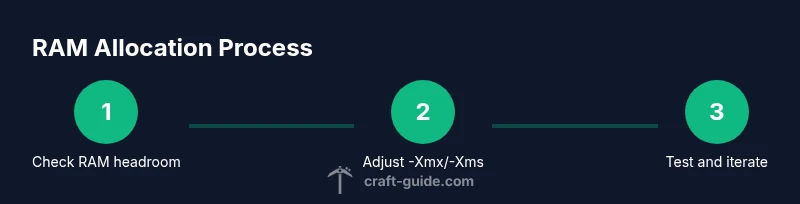
Before changing any settings, you must know how much memory is truly available for Minecraft after accounting for the OS and background programs. Use your operating system tools (Task Manager on Windows, Activity Monitor on macOS, or a Linux memory tool) to estimate free RAM. Leave enough headroom for your system to stay responsive while Minecraft runs, and consider any other software you might run concurrently (web browsers, antivirus scans, or server software). This step prevents overshooting allocations that could cause system slowdown.
Choose a safe RAM allocation strategy
A safe approach is to allocate memory in a way that balances Minecraft performance with system stability. Start with a conservative amount and adjust based on in-game performance. For vanilla Minecraft, many players aim for a modest increase over the base memory, then monitor FPS and stuttering. If you run with resource packs, shaders, or mods, you may need more headroom. The goal is to reduce stutters and chunk loading pauses without starving the OS. Craft Guide recommends testing changes in short sessions to observe impact before committing to a larger allocation.
How to set memory in the Minecraft Launcher
Open the launcher, go to Installations, select the profile you want to modify, click Edit, then More Options. In the Java Arguments field, you’ll typically see something like -Xmx2G -Xms2G. Increase these values to reflect your target memory, for example -Xms2G -Xmx4G. Ensure you do not allocate more than your available RAM minus a safe margin for the OS and background tasks. Save your changes and launch the game to test performance.
Testing and tuning for performance
After saving your new settings, launch Minecraft and observe how it performs in a representative session. Check for smoother chunk loading, fewer FPS dips, and stable world generation. If you still experience lag, consider dialing back -Xmx slightly or freeing background processes to reclaim more RAM for Minecraft. Use in-game indicators like FPS, stuttering frequency, and memory usage (via the JVM or third-party tools) to gauge impact. Repeat the test with the same world to ensure consistency.
Common pitfalls and safety tips
Avoid over-allocating RAM, which can starve the operating system and cause overall slowdown. Be mindful of 32-bit Java limitations that can cap how much memory a single process can use, especially on older systems. Always leave some RAM free for the OS and background tasks, and don’t max out memory for Minecraft if you’re running other heavy programs. If you install mods, remember that some add-ons increase RAM demand; adjust your allocations accordingly.
Modded Minecraft considerations
Mods and larger mod packs substantially increase RAM requirements. If you’re playing with Forge, Fabric, or large texture packs, allocate more memory than you would for vanilla, while still maintaining OS headroom. Modded setups often benefit from a higher -Xmx ceiling and a modest -Xms value to reduce garbage collection pauses when loading complex worlds. Regularly monitor RAM usage during modded sessions and tune as needed to avoid crashes or stuttering.
Reverting changes and long-term maintenance
If you encounter stability issues, revert to your previous settings by removing or reverting the JVM arguments in the launcher. Keep a simple record of the values you tried so you can compare performance and stability across different configurations. Periodically recheck RAM headroom after system updates or when you install new mods, as changes in other software can shift the amount of free RAM available for Minecraft.
Final sanity check and next steps
Before finishing, ensure you have a reliable backup strategy for your worlds, especially when testing new RAM allocations. If you notice persistent lag, investigate other bottlenecks such as disk speed, CPU performance, or outdated graphics drivers. Remember that RAM is just one lever—for sustained performance, address a combination of hardware, software, and game settings.
Tools & Materials
- Computer with admin access(You’ll need admin rights to adjust launcher settings and JVM parameters.)
- Official Minecraft Launcher (Java Edition)(Use the launcher to modify memory via JVM arguments.)
- Java Runtime Environment (JRE/JDK) installed(Ensure you’re using a recent, compatible Java version for Minecraft.)
- Sufficient free system RAM(Leave headroom for the OS and background processes (no exact numbers required).)
- World backup(Back up saved games before applying RAM changes.)
- System monitoring tool(Optional: use to observe memory usage during tests.)
Steps
Estimated time: 20-40 minutes
- 1
Check total RAM and headroom
Open Task Manager (Windows) or Activity Monitor (macOS) to estimate available RAM after system processes. Ensure there is enough headroom for the OS and other programs before increasing Minecraft RAM. This prevents over-allocation and keeps your computer responsive.
Tip: Aim to leave at least 25–30% of total RAM free for the OS and background tasks. - 2
Open the Minecraft Launcher and select a profile
Launch the official launcher and choose the profile you’ll modify. Using a dedicated profile helps you compare performance before and after changes without affecting other setups.
Tip: If you use multiple profiles, create a fresh one to avoid cross-configuration issues. - 3
Access JVM arguments
Click Edit, then More Options to access the JVM arguments bar. This is where you’ll adjust -Xms (initial) and -Xmx (maximum) memory values.
Tip: Keep -Xms lower than -Xmx to avoid long garbage-collection pauses during startup. - 4
Set initial and maximum memory
Modify the values to reflect a safe allocation. A common starting point is -Xms2G -Xmx4G for systems with moderate RAM. Adjust upward gradually if you have more headroom and the game runs smoothly.
Tip: Don’t exceed about half of total RAM for Minecraft on most systems. - 5
Save changes and launch
Save the profile and start Minecraft to test performance. Play a typical session to observe how loading, FPS, and stuttering behave with the new allocation.
Tip: If the game won’t start, revert to the previous settings immediately. - 6
Monitor performance during test
Use in-game FPS counters and memory readouts to gauge impact. Look for smoother chunk loading and fewer freezes. If memory usage spikes, you may need to reduce -Xmx slightly.
Tip: Record a quick before/after comparison for future reference. - 7
Tune for mods or resource packs
High-resolution packs or many mods require more RAM. Increase -Xmx gradually if modded worlds show improvements in stability, but avoid starving the OS.
Tip: Some mods are memory-hungry; monitor lava-lag, chunk borders, and entity counts during tests. - 8
Revisit and revert if necessary
If issues arise, revert to the previous allocation or try a smaller increase. Consistency over peak performance helps with long-term stability.
Tip: Keep a small log of changes to track what works best.
People Also Ask
Can I allocate more RAM than my system has?
No. You cannot allocate more RAM than physically available. Always leave headroom for the operating system and background tasks.
You can't allocate more RAM than you have. Leave headroom for the system.
Will increasing RAM fix all Minecraft lag?
RAM helps with loading and stability, but lag can also come from CPU limits, disk speed, network, or mods.
RAM helps, but lag can be caused by other factors too.
Is RAM allocation different for Bedrock edition?
Yes. Bedrock uses memory differently and usually does not expose JVM arguments like Java Edition.
Bedrock handles memory differently and often doesn't have the same RAM settings.
Should I set both -Xms and -Xmx the same?
It's common to set -Xms lower than -Xmx; start with a small initial size and a larger maximum as needed.
It's usually better to have a smaller start and larger max memory.
What if Minecraft crashes after increasing RAM?
Try lowering the allocation slightly or check mods/resource packs for memory leaks.
If it crashes, reduce memory a bit or check mods.
How do I revert to default RAM settings?
In the launcher, remove the extra memory flags from the JVM arguments or restore the original profile.
Remove the memory flags in the launcher to revert.
Watch Video
The Essentials
- Assess available RAM before changing allocations
- Use -Xms and -Xmx to control memory clearly
- Test performance with vanilla and modded setups
- Avoid over-allocating RAM to keep OS responsive
- Document settings and revert if issues arise