How to allocate more memory to Minecraft
Learn how to allocate more RAM to Minecraft safely with step-by-step instructions, practical tips, and troubleshooting for vanilla and modded gameplay across systems.


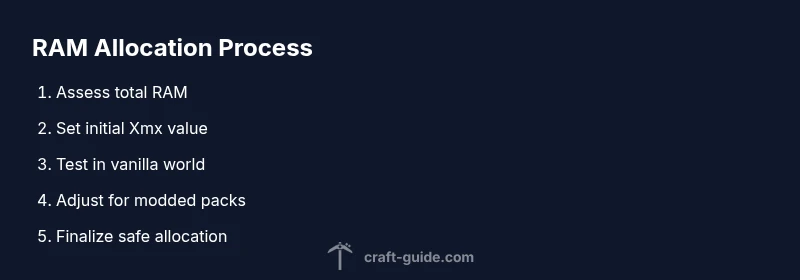
To allocate more memory to Minecraft, increase the Java heap size in your launcher while leaving enough RAM for the system. Start by checking your total RAM, then set the JVM memory (min and max) to an appropriate range, often 2-4GB for vanilla or more for modded worlds. Avoid overcommitting memory to prevent system slowdowns.
Why RAM matters for Minecraft
According to Craft Guide, RAM is the primary resource Minecraft uses to load chunks, render textures, and sustain smooth gameplay in worlds with many entities. When the JVM has a healthy heap and the operating system has free memory, the game can stream new terrain, animate mobs, and load complex resource packs without pausing. Without enough memory, players experience stuttering, long loading screens, and frequent garbage collection pauses that manifest as micro-freezes. This is especially noticeable when playing with mods, high-resolution texture packs, or large custom worlds. In short, RAM determines how much data Minecraft can hold actively in memory, and how quickly the engine can reuse it. The Craft Guide team notes that allocating a conservative but sufficient share of RAM helps improve frame stability, reduces stutter, and keeps chunk loading predictable during exploration and combat.
Understanding Java memory and Minecraft
Minecraft runs on the Java Virtual Machine (JVM). Java memory is divided into the heap (where most game data lives) and the non-heap areas. The heap size is adjustable via -Xmx (maximum) and -Xms (initial). In modded setups, larger heaps help mod loaders and texture packs render more data without thrashing. Garbage collection (GC) is the process of reclaiming unused memory; too-small heaps cause frequent GC pauses, while too-large heaps can introduce long GC pauses if not tuned properly. For players, understanding this balance helps explain why allocating more RAM can improve stability, but only up to the point your system can sustain.
Estimate memory you need based on play style
A base Minecraft experience on a clean world without mods typically benefits from 2–4 GB of RAM. If you use resource packs or medium-size mods, 4–8 GB is common. Large mod packs or shader presets may require 8–12 GB or more, especially on larger worlds with many entities. The exact amount depends on your total system RAM, the Java version you run, the operating system, and other background processes. Craft Guide analysis shows that users with 8–16 GB of system RAM often see the most noticeable gains when allocating 2–6 GB to Minecraft vanilla and 6–12 GB for modded setups. Always leave enough RAM for your OS and launcher, typically at least 2–4 GB.
Check current memory usage
Before changing allocations, measure current usage to guide your target. On Windows, open Task Manager (Ctrl+Shift+Esc) and check the Memory tab; on macOS, use Activity Monitor; on Linux, run free -h or top. Note the total RAM and current Minecraft process usage when gaming. If Minecraft rarely breaches 50–60% of your available RAM, you can safely increase the allocation. If the game consistently uses near-total RAM or the system slows down, try a smaller increase or close background applications.
How to allocate RAM in the Minecraft launcher (official)
In the official launcher, you’ll adjust the RAM in the profile settings. Open Installations, select a profile, click More Options or Edit, and locate the Java Arguments or memory slider. Set -Xmx to a value you’ve determined from your testing (e.g., 4G). A general rule is not to exceed 70% of total RAM to keep the OS responsive. For 16 GB total RAM, moving from 2–4 GB to 4–8 GB is common for vanilla; for modded worlds you may push toward 8–12 GB if your system permits. After adjusting, restart the launcher to apply changes.
Alternative methods: memory tweaks for modded Minecraft
If you’re running Forge, Fabric, or a launcher that uses custom launch scripts, you can pass memory settings via the JVM arguments. Ensure you’re using a 64-bit Java installation for larger heaps. For performance-heavy packs, allocate memory in multiple stages (min and max) rather than a single large value to reduce GC pauses. Remember that allocating too much RAM can starve the OS of memory and cause system slowdowns—the balance is key.
Troubleshooting common memory problems
If you still experience stuttering after increasing RAM, consider factors beyond heap size: outdated graphics drivers, insufficient VRAM, heavy resource packs, or conflicting mods. Reduce texture pack resolution, update Java, and ensure your GPU drivers are current. Running Minecraft with exclusions for antivirus software and background processes can also improve stability. If issues persist, gradually revert to a safer allocation and monitor performance.
Safe and effective practices
Use this approach as a guideline: start with a conservative increase, test gameplay, and adjust in small increments. Document the changes so you know which allocation works best for your world and mod setup. Maintain a healthy ratio of RAM between the OS, launcher, and Minecraft itself. Craft Guide recommends focusing on stable performance over maximal memory use for the most reliable experience.
Tools & Materials
- Computer with sufficient RAM(For vanilla Minecraft: 8GB RAM minimum recommended; modded: 12–16GB is common)
- Minecraft Launcher (official or trusted launcher)(Keep launcher updated to ensure RAM slider or JVM arguments work as intended)
- 64-bit Java Runtime Environment(64-bit Java allows larger heap sizes; ensure your OS supports 64-bit environments)
- Task Manager / Activity Monitor / system monitoring tool(Useful for monitoring real-time memory usage while testing allocations)
- Stable internet connection(Optional but helpful for downloading mod packs and texture packs during testing)
Steps
Estimated time: 30-60 minutes
- 1
Check your system RAM
Determine total RAM available on your PC using built-in system tools (Task Manager on Windows, Activity Monitor on macOS). Note current usage with Minecraft running a test world. This establishes a safe upper bound for allocations and helps prevent OS thrashing.
Tip: Tip: Close unnecessary apps to free RAM before testing allocations. - 2
Open the Minecraft launcher settings
Launch the official Minecraft launcher, go to Installations, and select your profile. Open More Options or Edit to access memory settings. If your launcher uses a memory slider, prepare to adjust it; otherwise note the -Xmx value you’ll modify.
Tip: Tip: Back up the original settings in case you want to revert quickly. - 3
Set a safe initial RAM value
Choose a starting value based on your tests. For vanilla worlds with 8 GB RAM total, try 2–4 GB (Xmx4G). For modded worlds, start at 6–8 GB (Xmx8G) if your system allows. Save or apply the changes.
Tip: Pro tip: Do not allocate more than 70% of your total RAM. - 4
Ensure you’re using 64-bit Java
Verify your launcher uses a 64-bit Java install; 32-bit Java cannot allocate large heaps and may cause instability. If needed, install a 64-bit JRE/JDK and point the launcher to it.
Tip: Pro tip: Re-check after switching to 64-bit Java, then test with a heavy world. - 5
Apply changes and restart Minecraft
Restart the launcher, launch a test world, and observe performance. Look for smoother chunk loading and fewer freezes. If issues persist, adjust memory in small steps.
Tip: Tip: Record observed FPS and memory usage to compare results. - 6
Test memory usage in-game
Play a demanding scene (many entities or a big build) and monitor memory usage using in-game telemetry or external tools. If memory usage stays well below allocated, you can try increasing again in small increments.
Tip: Pro tip: Use F3 (or your launcher’s stats overlay) to gauge memory pressure. - 7
Fine-tune and revert if needed
If the game still stutters or the system slows, scale back allocation by 1–2 GB and test. Remember that other processes also need memory; a stable baseline is better than maximal allocation.
Tip: Warning: Even small increases can affect system responsiveness if you’re already near your RAM limit.
People Also Ask
How much RAM should I allocate to Minecraft?
For vanilla Minecraft, start with 2–4 GB if you have 8 GB of total RAM. For modded packs or resource-heavy worlds, 6–12 GB is common on systems with 16 GB or more. Always leave enough RAM for the OS and other applications.
Start with a modest amount, then test. Vanilla players often use 2–4 GB; modded setups may need 6–12 GB depending on total RAM.
Can allocating RAM harm my computer?
Allocating RAM within your system’s capacity generally won’t harm your computer. The risk is starving the OS, causing slowdowns. Don’t allocate more than 70% of total RAM and keep a buffer for background tasks.
Allocating within safe limits won’t harm your PC, but leaving enough RAM for the OS is important.
Does RAM allocation affect FPS?
Yes, allocating more memory can improve FPS by reducing GC pauses and chunk loading delays, especially in heavy worlds. However, FPS also depends on GPU, CPU, and mod load; RAM alone isn’t a silver bullet.
More RAM helps smooth gameplay but other components also influence frame rate.
Should I allocate RAM differently for modded vs vanilla?
Modded Minecraft typically benefits from more RAM due to extra mods and textures. Start with 6–8 GB on mid-range systems and adjust based on performance and available RAM.
Modded games usually need more memory; tune upward carefully while monitoring performance.
What if Minecraft still runs slowly after increasing RAM?
If stuttering persists, check for outdated drivers, adjust texture packs, reduce mod load, and verify that you’re not maxing out CPU or GPU. Sometimes a smaller RAM increase with optimization yields better results.
If it’s still slow, look at drivers and mods; sometimes less is more for stability.
Watch Video
The Essentials
- Allocate RAM safely: start with modest increases
- Modded Minecraft may need more memory than vanilla
- Use 64-bit Java and leave OS RAM available
- Test in steps and monitor performance
- Avoid overcommitting memory to prevent slowdowns