How to Check Minecraft Seed: A Complete Step-by-Step Guide
Learn to check Minecraft seed for Java and Bedrock editions with a practical, step-by-step workflow. Find, verify, and compare seeds using in-game commands, world files, and trusted maps.


This guide shows you how to check minecraft seed across Java and Bedrock editions. You’ll verify your world seed, compare seeds for terrain and biomes, and use in‑game commands to reveal it quickly. Gather access to the world file or confirmation from the game, and have a seed map or online reference ready for comparison.
Introduction to Minecraft seeds
In Minecraft, a world seed is the numeric or string value that the game uses to drive terrain generation, biome layout, and structure spawning. Understanding seeds helps you predict what a new world will look like before you step foot inside. According to Craft Guide, seeds influence terrain patterns and biome distribution in meaningful ways, so knowing how to check a seed saves time when planning explorations or builds. The Craft Guide team found that players who verify seeds early tend to pick worlds with the biomes and landmarks they want. This guide focuses on practical steps you can take in both Java and Bedrock editions, plus quick checks you can perform in-game and with trusted seed maps. By the end, you’ll know how to locate, read, and compare seeds across different versions, and you’ll have a go-to workflow for future world starts.
The Craft Guide approach emphasizes clarity and reliability, so you can confidently plan builds, exploration routes, and resource farming based on seed-driven layouts. Throughout this article you’ll see references to seed-reading techniques, common pitfalls, and recommended resources that help you compare seeds without guessing. Craft Guide’s practical perspective helps players at all levels move from curiosity to action with a concrete seed-check routine.
What is a seed and why it matters
A Minecraft seed is the value the game uses to seed its world-generation RNG. Different seeds produce different terrain, biomes, and landmark patterns. Seeds can be numbers or strings, and in many versions the same seed yields the same world across all players using that edition. Seeds matter because they determine where mountains rise, rivers carve through valleys, and where temples or villages spawn. From a builder’s point of view, a seed can mean the difference between a rich canyon biome and a flat, featureless plane. Knowing how to check and compare seeds saves time when you want a world with specific features—like a rainforest near a village or a sprawling mountain range to frame a base. Trustworthy seed verification also helps you avoid worlds that don’t match your planning goals and reduces the need for trial-and-error world creation.
How to check the seed in Java Edition
Java Edition provides several reliable ways to view or retrieve the seed. The quickest is to use in-game commands: open chat and type /seed to display the seed value for the current world. If cheats are disabled, you may need to enable them briefly to reveal the seed. Another method is to examine the world’s data files; the seed is stored in level.dat, which can be opened with a compatible editor or tool. While editing level.dat is not recommended for casual players, simply viewing it can confirm the seed when you need precise data for seed comparisons. Finally, you can rely on the Minecraft debug screen by pressing F3 to show a line labeled Seed; note that the exact UI may vary by version, so consult version-specific guides as needed.
How to check the seed in Bedrock Edition
Bedrock Edition handles seeds a little differently, and the exact UI varies by platform (Windows 10, console, mobile). A common approach is to view the seed in the world creation or world settings screen; when you create a new world, the seed field is displayed and can be copied. For existing worlds, you may use the /seed command if the server or realm allows commands, or check the world’s settings via the Pause menu to view the seed. In realms and shared worlds, you may need to ask the world owner for the seed. Across Bedrock devices, Seed visibility is generally available in the world’s settings rather than the in-game interface.
Step-by-step workflow overview
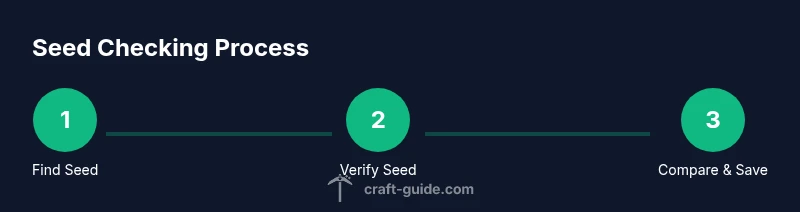
A practical seed-check workflow combines direct seed retrieval with cross-checks against seed-mapping references. Start by identifying the edition you’re playing, locate the seed via in-game commands or world files, then verify that the seed yields the expected biomes and features with seed-mapping resources. Finally, compare seeds you like to others for landscape consistency and plan your build or exploration route accordingly. This workflow keeps you grounded in verifiable data while avoiding reliance on anecdotal seed stories. In short, you confirm the seed, verify its generated world characteristics, and save seeds that match your goals for future use.
Tools and resources for seed checking
To check seeds efficiently, assemble a small toolkit before you start: a computer or mobile device with Minecraft installed, a backup copy of your world, and reliable seed-mapping references. If you prefer, use a secondary device to look up seed maps while you work in-game. Keep a notes document ready to log seed values you like, together with notes on biome distribution and notable landmarks. For more rigorous research, compare seeds across versions to understand cross-edition differences and to anticipate how a seed may behave after future updates. Craft Guide’s approach favors repeatable checks, so you have a solid baseline for seed evaluation.
Common pitfalls and how to avoid them
Beware of confusing a server seed with a world seed, which can lead to false assumptions about terrain. Seeds may generate differently across Java and Bedrock editions, so never assume that a seed copy from one edition will behave identically in another. Another pitfall is relying on a single seed map or community post without cross-verification; always corroborate with multiple sources. Finally, avoid regenerating worlds frequently solely to chase a preferred seed; instead, back up and test seeds in a controlled way to preserve creativity and progression. By sticking to verified seeds and maintaining backups, you reduce frustration and improve your chances of landing the perfect biome layout.
Advanced: using seed databases and community references
If you want to explore seeds proactively, seed databases and community-curated lists can be valuable. Use trusted sources to browse seeds that meet your criteria, such as proximity to biomes, villages, or temples. When using community references, cross-check seed values with in-game checks to confirm consistency. Remember to log your findings and share notes about biome distribution, structure placements, and notable terrain features. This practice helps you build a personal seed library that you can return to when planning future projects.
Tools & Materials
- Computer or mobile device with Minecraft(Ensure you have access to both Java and Bedrock editions if you test across versions)
- Backup copy of your world(Always back up before seed testing or regenerating worlds)
- In-game chat or debug console(Used to issue commands like /seed and to view debug information)
- Seed maps or seed reference websites(Optional but helpful for quick comparisons and landscape ideas)
Steps
Estimated time: 25-40 minutes
- 1
Open the world you want to inspect
Load the world (or create a new one) in the edition you are testing. This ensures you retrieve the correct seed value for that environment.
Tip: Back up the world before viewing or altering seed-related data - 2
Reveal the seed in Java Edition
In Java Edition, open the chat and type /seed to display the current world seed. If cheats are disabled, enable them briefly to view the seed.
Tip: If the seed isn’t shown, check level.dat with a safe editor to confirm the value - 3
Reveal the seed in Bedrock Edition
Pause the game and navigate to the world settings to view the seed when creating or editing a world. If you’re on a Realm or server, ask the owner for the seed or use allowed commands to display it.
Tip: Commands may be restricted on servers; verify permissions first - 4
Cross-check the seed against seed maps
Use trusted seed maps or references to compare the generated biome distribution and key landmarks with the seed you retrieved.
Tip: Look for consistent signs like biome clusters, rivers, and mountain ranges - 5
Regenerate a test world with the same seed
Create a new world using the exact seed value to validate landscape similarities and verify that the seed behaves as expected.
Tip: Document any version-specific differences that appear during regeneration - 6
Record and back up seeds you like
Store seed values with notes about biome variety and landmark accessibility for future projects.
Tip: Maintain a seed log to avoid repeating tests - 7
Compare seeds across versions
If you test seeds in multiple editions, note how terrain generation differs. Use this to decide which seeds fit your current goals.
Tip: Expect some variation; plan for evolution across updates - 8
Use community insights responsibly
Leverage community discussions to discover seeds with notable features, but verify each seed with your own checks before use.
Tip: Rely on multiple sources and log your own findings
People Also Ask
What exactly is a seed in Minecraft?
A seed is the value the game uses to initialize its world-generation RNG. Different seeds produce different terrain, biomes, and landmark patterns.
A seed is the number that starts the world generator, giving you different landscapes each time.
How do I see the seed for my current world?
In Java Edition, type /seed in chat to reveal the seed. In Bedrock, seed visibility depends on the edition and platform; use the world settings or commands where permitted.
Open chat and type /seed to reveal the seed, or check the world settings where available.
Can two players have the same seed and still see different landscapes?
If both players use the same edition and version, the seed will generate the same terrain. Differences only appear across major edition updates or platform quirks.
Yes, the same seed usually creates the same world in the same edition, but cross-version differences can occur.
Does seed reliability vary between Java and Bedrock?
Yes. Terrain generation can differ between editions, so seeds may produce different landscapes in Java and Bedrock.
Seeds can behave differently in Java and Bedrock editions.
Can I change a seed after creating a world?
Generally you cannot retroactively change a seed for an existing world; you must create a new world with the desired seed or use world-editing tools carefully.
Usually you need to start a new world to use a different seed.
Are seed databases trustworthy for Minecraft seeds?
Seed databases can be useful references, but verify seeds with in-game checks and multiple sources before committing to a world.
Be cautious with seeds from unknown sources and verify them yourself.
Watch Video
The Essentials
- Check the seed in Java via /seed or the debug screen
- Bedrock seeds require navigation to world settings or commands
- Use seed maps to compare landscapes before committing to a world
- Back up worlds and document seeds for future use
- Expect cross-version differences; plan with edition compatibility in mind