How to Check If Minecraft Is Updated
Learn to verify Minecraft is up to date across Java and Bedrock editions, using launchers, in-game checks, and store/app updates. Clear steps, platform tips, and troubleshooting help you stay current.


Want to know how to check if minecraft is updated? This quick guide shows you how to verify the launcher version, confirm the in-game version, and check platform updates for Java and Bedrock editions. This 2–3 step check ensures you have the latest features, fixes, and cross‑platform compatibility. Follow the steps below for PC, console, or mobile, and you’ll stay current.
What updating Minecraft means
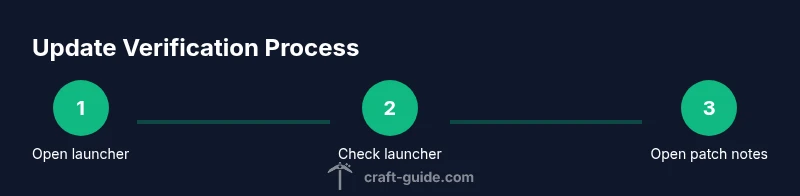
In Minecraft, updating means installing the latest version with new features, bug fixes, and security patches. Updates are released for different editions (primarily Java Edition and Bedrock Edition) and can arrive via the official launcher, platform stores, or console menus. Understanding what an update includes helps you decide when to install and how to verify you actually have the newest build. According to Craft Guide, staying current reduces compatibility issues between worlds, mods, and servers, and improves performance and stability across devices. When you ask how to check if minecraft is updated, you’re really confirming three things: the launcher version, the in-game version, and the latest patch status from the platform you use. Keeping these aligned prevents surprises during exploration, redstone builds, or multiplayer sessions.
Platform coverage matters
Minecraft updates arrive at different times and through different channels depending on the platform. Java Edition on PC typically relies on the official launcher and launcher-managed updates, while Bedrock Edition relies on the Microsoft Store, Nintendo eShop, PlayStation Store, or Xbox Live, depending on your device. Mobile devices use the Google Play Store or Apple App Store alongside the in-game update checks. The exact version shown in each place may differ (for example, a launcher may show 1.19.x while the in-game screen shows 1.19.20). Be aware of cross‑platform nuances when you’re playing with friends on different devices.
How to approach updates safely
Always verify both the launcher/app status and the in-game version before starting a new session, especially before large builds or world changes. Patch notes are your best source of truth for what changed, including features, bug fixes, and potential breaking changes. When you know how to check if minecraft is updated, you can plan backups and testing windows to minimize disruption.
Reminder on consistency across devices
If you play on multiple devices, ensure all copies of Minecraft are updated to compatible versions to avoid world corruption or version conflicts. Sync backups across platforms and verify that each device shows the same game version in its respective update panel. This consistency is essential for long-term survival world progress, redstone redstone farms, and coordinated builds.
Quick-start recap
- Identify the edition (Java or Bedrock).
- Check launcher/platform version.
- Check in-game version.
- Review patch notes for the latest changes.
- Apply updates if any mismatch is found.
- Re-run the game to confirm the updated version is active.
Tools & Materials
- Minecraft launcher or platform store app(Use the official launcher for Java Edition or the official store/app for Bedrock. Keep it updated.)
- Stable internet connection(Needed to fetch updates and patch notes.)
- Account credentials for your platform(Required to access updates and download patches.)
- Device with Minecraft installed(PC, console, or mobile device ready to run Minecraft.)
- Backup storage(Optional but recommended before major updates.)
Steps
Estimated time: 15-30 minutes
- 1
Open launcher or store app
Launch the Minecraft launcher on PC or open the platform store app (Microsoft Store, PlayStation Store, Nintendo eShop, etc.). This initial step reveals where updates will be applied. Make sure you are signed into the correct account.
Tip: If you see a gray “Update” button, a newer version is available but not yet downloaded. - 2
Check the launcher or store for an update
Look for a visible update indicator or a button labeled 'Update' or 'Install'. The launcher may show the installed version and a suggested latest version. Do not proceed until you confirm the availability of a newer build.
Tip: Note the version number shown if you plan to cross-check with patch notes. - 3
Verify the in-game version
Start Minecraft and land in the main menu or title screen where the version number is displayed. For most Bedrock builds, the version appears in the corner; for Java, check the bottom-right or the launcher details after loading a profile.
Tip: If the in-game version differs from the launcher, retry the update or consult patch notes for alignment steps. - 4
Review patch notes
Open the official patch notes page for the latest release. Patch notes summarize new features, fixes, and any breaking changes. Compare the notes with your current version to confirm you’re up to date.
Tip: Patch notes are your best guide for what to expect after updating. - 5
Apply the update
Click the update/install button and allow the download to complete. Ensure you have enough disk space and that your internet connection stays stable during the download.
Tip: Close any running worlds before updating to avoid conflicts. - 6
Restart Minecraft
After the update finishes, restart the game to ensure all new assets load correctly. Reopen any worlds you were testing and observe for any changes.
Tip: If a world shows issues, consider loading a backup to compare versions. - 7
Check cross-device consistency
If you play on more than one device, repeat the same steps on each device to verify all editions are current and compatible with your saved worlds.
Tip: Keep a small log of versions per device to avoid confusion. - 8
Enable auto-update
Turn on automatic updates where available to reduce manual checks. This is especially useful for Bedrock on consoles or mobile.
Tip: Auto-update may happen at off-hours; verify after waking to ensure updates completed. - 9
Troubleshoot if updates fail
If an update fails, check your internet, storage space, and any firewall or parental controls. Reboot, retry, or reinstall the launcher if necessary.
Tip: Consult patch notes or Craft Guide’s troubleshooting tips for platform-specific steps. - 10
Verify backup integrity
After updating, load a backup world or test a small seed to confirm no data corruption occurred during the update.
Tip: Regular backups save time during major version jumps.
People Also Ask
How do I know which Minecraft version I have on my device?
Open the launcher or store app to view the installed version, then check the in-game version from the main menu. If they differ, verify the latest release notes and update accordingly.
Open Minecraft and your launcher to compare versions. If they don’t match, check the patch notes and update.
Why won’t Minecraft update on my device?
Possible reasons include an inactive account, a slow or unstable internet connection, insufficient storage, or platform-side issues. Try restarting the launcher, freeing space, or checking for system updates.
If the update won’t start, restart the launcher, check your internet, and ensure you have enough space.
Is there a difference between updating Java and Bedrock?
Yes. Java Edition updates are managed primarily through the official launcher on PC, while Bedrock updates come through platform stores or consoles. They may also have different patch notes and compatibility considerations.
Java uses the PC launcher; Bedrock uses platform stores or consoles with separate patch notes.
Can updating affect my saved worlds?
Updates generally preserve worlds, but major version jumps can introduce incompatibilities with mods or saved data. Always back up worlds before updating.
Most updates keep worlds safe, but back up first in case of compatibility issues.
Do I need to restart Minecraft after updating?
Yes. Restarting ensures all new assets and fixes load correctly and can prevent minor post-update glitches.
Restart the game after updating to load new content properly.
Where can I find official patch notes?
Official patch notes are posted on the Minecraft website and the respective platform’s update page. They list new features, fixes, and any breaking changes.
Check the Minecraft official site and your platform’s update page for patch notes.
Watch Video
The Essentials
- Know the edition you play (Java vs Bedrock) and its update path.
- Always verify launcher and in-game versions after updates.
- Patch notes are essential for understanding changes.
- Back up worlds before major updates.
- Enable auto-update where possible to stay current.