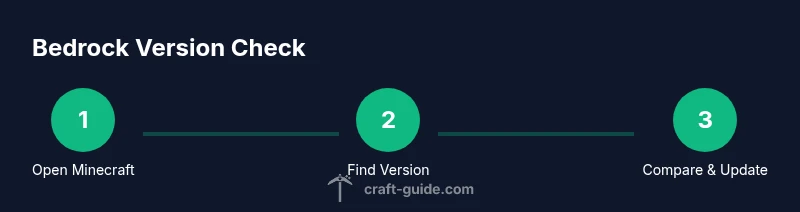
How to Check Minecraft Bedrock Version
Learn how to check your Minecraft Bedrock version across PC, consoles, and mobile. This practical guide from Craft Guide walks you through in-game menus, the launcher, and logs to confirm the exact Bedrock edition and build.


By the end of this guide, you’ll know exactly how to check your Minecraft Bedrock version across all platforms. You’ll confirm the installed Bedrock edition, distinguish it from Java, and learn where version numbers appear in-game, in the launcher, and on your device. This quick, practical workflow comes from Craft Guide.
What the Bedrock version means for Minecraft players
Bedrock Edition is the cross‑platform version of Minecraft that runs on Windows 10/11, consoles, and mobile devices. Knowing your exact Bedrock version matters for compatibility with servers, mod packs, and feature sets. In this section, we clarify what the Bedrock version means and why it matters for everyday play. The phrase how to check minecraft bedrock version is about locating the edition label on your device and confirming the build number in the launcher or game menu. Craft Guide, in its 2026 analysis, stresses that understanding the version helps you avoid mismatches when joining friends or multiplayer realms. Whether you’re playing on a phone, a console, or a PC, the version determines which features are available and which bugs have been fixed. If you’re troubleshooting performance or attempting to join a server, starting with the correct Bedrock build saves time and frustration. By learning the exact version, you’ll have a reliable basis for updates, compatibility notes, and support when needed.
Where the version number appears in-game
On most Bedrock devices, the version label shows up on the splash screen when you launch the game, and it may also appear in the main menu or settings pane under About or Info. The build is usually listed as Bedrock Edition vX.Y.Z or simply vX.Y.Z. The exact placement can vary by platform, but the concept is the same: locate the string that identifies the Bedrock edition and its build. If you’re playing on mobile, you may need to tap the settings cog and scroll to About to see the version; on consoles, the information is often near the game title within the system’s own About screen. Craft Guide recommends checking both the in-game label and the launcher when you’re unsure, since one may reflect a recent update while the other hasn’t finished installing. Recording the exact numbers helps you compare against server requirements or patch notes, and it’s a quick first step in any version-related troubleshooting.
Platform-by-platform: how to check the bedrock version
Different platforms expose the version label in different places. Here is a practical overview for the most common devices:
- Windows 10/11 (PC): Open the Minecraft Launcher and look for the currently installed Bedrock build in the home/versions area. The splash screen in-game also displays the version, usually near the bottom. If you see a mismatch after updating, re-launch to confirm both surfaces show the same number.
- iOS and Android: Launch the game, then go to Settings > About or Help; the version is listed there. On mobile, the splash screen can also show the Build label when you start the game.
- Xbox and PlayStation: Use the console’s game information panel or the Minecraft tile in your library to view the version. Console stores and system settings may also show the last update date, which is a proxy for the build.
- Nintendo Switch: Open the game information page in the system menu or the Nintendo eShop entry to see the version and update status. Craft Guide notes that these pointers help you establish parity with friends and servers, especially when cross‑play across platforms is involved.
Understanding version labels and how they’re written
Bedrock edition uses a mix of edition labels and build numbers that vary slightly by platform. Common patterns include Bedrock Edition vX.Y.Z on splash screens, and a separate numeric build in the launcher or app store entry. The key is to capture both the edition (Bedrock Edition) and the exact build (X.Y.Z) to compare against server requirements and patch notes. If you’re unsure what a particular number means, consult the official patch notes or the community wiki for context. Craft Guide recommends keeping a short note of the edition and build you’re on so you can reproduce a setup for friends or help desk inquiries. A precise version helps diagnose issues like crashes, feature gaps, or missing texture packs, and it makes reporting problems faster and more accurate.
Troubleshooting when the version isn’t visible
If the version label is hidden, start with the launcher or store page to verify the installed build. Sometimes updates install in the background and the in‑game label lags behind; allow a few minutes and re‑check. If nothing appears after a restart, ensure the game has permission to access the internet and storage so metadata can refresh. In some cases, clearing the app cache or reinstalling the game is necessary, but always back up your worlds first. Craft Guide emphasizes that most visibility problems stem from incomplete updates or corrupted caches, not from the version itself, so proceed methodically before reinstalling.
Logs and files: advanced checks to confirm the Bedrock version
For advanced users, logs or metadata can confirm the exact Bedrock edition and build. On PC, you can locate a log file or diagnostic report that includes the edition string and build number. On mobile and consoles, access to logs is limited, so rely on last update timestamps and app store details as corroborating evidence. If you enable a bug report or verbose logging, capture the version string explicitly. These traces are invaluable when reporting version issues to servers or support staff. Maintain a simple record of the version string and the date you checked it for future reference.
Keeping Bedrock updated safely across devices
Regular updates keep you compatible with servers, content packs, and cross‑play features. On desktop, use the official Minecraft Launcher to manage updates or manually download the latest Bedrock build. On mobile devices, update through the iOS App Store or Google Play. Console updates may require a system update or a game patch installed through the console store. Ensure a stable internet connection and enough storage before updating, and consider backing up your worlds before initiating a large update. Craft Guide recommends performing updates during low‑traffic times to minimize interruptions and to verify that all components of the game reflect the new build.
Verifying server compatibility before joining
Before joining a server, confirm the server’s required Bedrock Edition and build. Some servers demand the latest patch, others may accept older builds. Compare the server’s listed version with your client’s, and update if necessary or switch servers to avoid failed connections. If you host a server, ensure your server software supports the Bedrock edition you’re running. Craft Guide highlights that this step prevents wasted time and helps keep multiplayer sessions smooth and secure.
Cross‑platform play: coordinating with friends
When playing with friends, coordinate your versions by sharing the exact build shown on the splash screen or About page. A quick screenshot and a quick chat message make it easy to align builds before you click Join. This is especially important for cross‑play between Windows, Android, iOS, and consoles where slight build differences can block access. Craft Guide recommends keeping the group on a single build for a session to minimize last‑minute updates and avoid confusion during play.
External references: patch notes and official resources
For context and accuracy, consult the official Minecraft support pages and a few reputable references that discuss Bedrock edition builds, update cycles, and cross‑platform considerations. These sources help interpret version labels and the impact of specific builds on your world, mods, or services. Craft Guide suggests bookmarking the official help articles and using them whenever you’re unsure about what a version number means or how to interpret a patch note.
Quick-reference cheat sheet for future checks
- Look for the edition label in the splash screen and the build number in the launcher or app store entry.
- On PC, check the launcher; on mobile, check Settings > About; on consoles, check system game info.
- Compare with server requirements and patch notes before joining a world.
- If in doubt, restart the game and recheck the version label to confirm accuracy.
- Record your current Bedrock build somewhere accessible for future troubleshooting.
Tools & Materials
- Device capable of running Minecraft Bedrock(PC, console, or mobile device with supported OS)
- Active internet connection(Needed for updates and fetching version data)
- Minecraft/Microsoft account(Required for launcher access and sync across devices)
- Minecraft Launcher (where applicable)(Essential for verifying installed builds on PC)
- Notepad or note-taking app(Useful for recording version strings and dates)
- Sufficient storage for updates(Ensure you have space before updating)
Steps
Estimated time: 5-10 minutes
- 1
Open Minecraft on your device
Launch the game from your home screen, launcher, or app library. Confirm you are starting from a stable internet connection; a quick check ensures the build data can refresh if needed. This step sets the stage for accurate version detection.
Tip: If the game stalls, pause and check your internet connection before retrying. - 2
Navigate to the version area
In the main menu, look for an About, Help, or Version option. This is where the current Bedrock edition label and build are typically shown. If the label isn’t visible, proceed to the launcher or store entry for confirmation.
Tip: On mobile, Settings > About is a common path to the version string. - 3
Read the in-game version label
Identify the edition label (Bedrock Edition) and the build number (X.Y.Z) in the splash or About screen. Note that the exact placement varies by platform but the information you need is the edition and the build.
Tip: Write down the numbers exactly as they appear; even a minor difference matters for compatibility. - 4
Check the launcher or store entry
Open the Minecraft Launcher on PC or the app store entry on mobile/console. Look for the Installed or Latest build and verify it matches the in-game label. This cross-check helps catch delays between the launcher data and the running game.
Tip: If there’s a discrepancy, restart the game or update and recheck. - 5
Verify on consoles via system/game info
Access the console’s game information page or the system settings to locate the game’s version and last update date. Console hubs often show a separate update timestamp that confirms the build you are on.
Tip: Combine this with the splash screen readout for confidence. - 6
Compare with the latest patch notes
Visit official patch notes to see what features and fixes are tied to your build. Matching the version to the documented changes confirms you’re up to date or highlights the need to update.
Tip: Patch notes are the fastest way to understand why a version matters. - 7
Check logs or metadata (optional)
If you’re comfortable, access logs or metadata that record the edition and build. This is most practical on PC; on other platforms, rely on update timestamps and launcher data as corroboration.
Tip: Keep a small log of version strings for future reference. - 8
Record your findings
Document the edition and build in a note or file. Include platform, date, and any relevant server requirements. This makes future troubleshooting quick and repeatable.
Tip: A simple table or bullet list works well for quick reference. - 9
Decide on updates or server changes
If your version is out of date relative to a server, plan an update or switch servers. If you manage a server, ensure your system supports the Bedrock build you’re running.
Tip: Avoid simultaneous updates across all players to minimize breaks in play.
People Also Ask
What is Bedrock Edition in Minecraft?
Bedrock Edition is the cross‑platform version of Minecraft that runs on many devices. It shares a common code base across platforms and supports cross‑play, while Java Edition runs primarily on PC. Understanding this edition helps you determine compatibility with servers and worlds.
Bedrock Edition is the version that lets you play with friends on different devices, unlike Java, which is mostly PC‑based.
How is Bedrock version different from Java version?
Bedrock and Java are different editions with distinct code bases, features, and servers. Bedrock supports cross‑play across platforms, while Java has its own modding scene and server ecosystem. Knowing the correct edition helps you choose servers and worlds that work for you.
Bedrock is cross‑platform, Java is PC‑focused with different mods and servers.
Where can I find the Bedrock version label on PC?
On PC, check the Minecraft Launcher for the installed build and look for the same build in the in‑game splash screen or Settings > About. Cross‑checking these sources confirms you’re on the intended Bedrock version.
Open the launcher to see the installed build, then check the in‑game version in About.
Why do servers require a specific Bedrock build?
Servers enforce a specific Bedrock build to ensure feature compatibility and stable multiplayer. Running a mismatched version can prevent connection or cause gameplay issues.
Many servers only work with certain builds, so matching builds is important.
What should I do if my version is out of date?
Update through the official launcher or app store, depending on your device. If you manage a server, verify compatibility before updating to avoid breaking existing realms.
Update using the official channels and check server requirements first.
Can I play with friends if our versions differ?
Cross‑play depends on matching Bedrock builds. If your versions differ significantly, you may be unable to join friends. Coordinate builds or switch servers to stay in sync.
If your builds don’t match, you might not be able to join each other.
Watch Video
The Essentials
- Know your exact Bedrock edition and build number
- Check version labels across launcher and in-game
- Update when necessary to match server requirements
- Record your version for quick troubleshooting
- Use platform-specific steps to verify accurately