How to download the Minecraft launcher: a complete guide
Learn how to safely download the official Minecraft launcher, choose the right edition, install on Windows or macOS, and get started with your first game. This guide emphasizes official sources and practical setup tips for 2026.


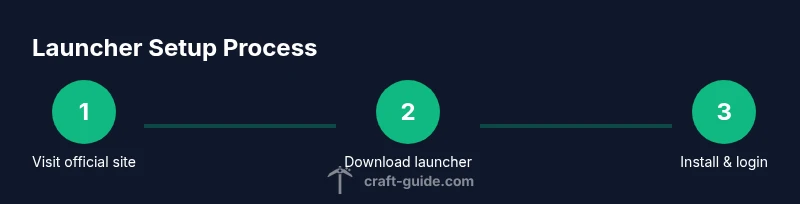
By the end of this guide, you will download the official Minecraft launcher, choose the right edition, and install it on your device. According to Craft Guide, always start from the official site to avoid scams, verify your system requirements, and create a launcher shortcut for quick access. This quick download sets up your Minecraft experience.
What the Minecraft launcher is and why you need it
The Minecraft launcher is the central app you use to access Minecraft editions, profiles, and updates. If you want a smooth start, the very first step is to download minecraft launcher from the official site. By using the official launcher, you ensure you’re getting authentic software, timely updates, and built-in safety checks that help protect your computer from malware. According to Craft Guide, starting here minimizes issues caused by counterfeit installers and broken updates. The launcher also lets you switch between Java Edition and Bedrock Edition (where available) and manage multiple profiles for different game versions or mods without cluttering your system. For new players, this launcher is your entry point to the Minecraft universe—whether you’re building massive redstone machines, exploring biomes, or trying out new packs.
Choosing the right launcher: Java vs Bedrock
Minecraft comes in at least two main flavors, Java Edition and Bedrock Edition. The Java Edition is the original platform and offers broad mod support and cross-version compatibility with classic PC features. Bedrock Edition, by contrast, is optimized for performance on a wider range of devices and supports cross‑play across Windows, consoles, and mobile. Based on Craft Guide research, your choice should depend on device compatibility, desired features (mods vs cross-platform play), and whether you want to use launcher-provided profiles for different editions. If you’re playing on a PC primarily, Java Edition through the launcher gives you broader customization; on consoles or mobile, Bedrock is typically the better fit. You can even run multiple editions side by side using separate profiles.
Official download sources and safety tips
Always download from the official Minecraft site to avoid counterfeit installers and potential malware. The official launcher is available on minecraft.net, and you’ll be guided through platform-specific download options. Before you click Install, verify the URL shows the official domain and avoid any mirrors or third-party download pages. Craft Guide analysis shows that users who verify the source spend fewer minutes troubleshooting later. Keep your antivirus updated and scan the installer before running it. If you’re unsure about the authenticity, contact official support channels rather than guessing.
How to download and install on Windows
On Windows, open the official download page and select the Windows option. Save the installer to a convenient folder, then run the file. You may be prompted by User Account Control; click Yes to grant permission. The installer will guide you through the installation steps; follow the prompts and select a destination folder. After installation, run the launcher and sign in with your Minecraft account to unlock access to editions and profiles within the app. If you already have a Microsoft account linked to Minecraft, you can use that credential.
How to download and install on macOS
On macOS, access the official download page and choose the macOS option. The downloaded file is typically a .dmg or similar package; open it and drag the launcher icon to your Applications folder, then launch. You’ll be asked to allow the app from the security preferences; confirm to proceed. Sign in with your Minecraft account, and you’ll be ready to configure your profiles and editions. If you’re switching from Windows, you may want to transfer saved worlds using the appropriate folder path.
First launch and profile setup
Start the launcher; the first run may download additional files and updates. Sign in with your Minecraft account and authorize any prompts for permissions. Create or select a profile, choosing the edition you want to play and the Java version if applicable. Set a memorable name for your profile and, if you plan to mod or customize, note which versions and mods you’ll use. Finally, ensure your game directory path is accessible and has sufficient space.
Troubleshooting common issues
Common problems include failed login, launcher not starting, or missing game files. Start by checking your internet connection and ensuring you’ve installed the launcher from the official site. If login fails, verify your credentials and ensure two-factor authentication is set up on your account. For launcher startup issues, try running as administrator or reinstalling the launcher. Clear launcher cache if games won’t launch, or test a different Java version if mods cause crashes. If a crash occurs, capture the crash logs and consult official support or forums for guidance.
Performance tips and settings for smoother gameplay
To improve performance, adjust allocation for RAM in the launcher settings, lower the render distance, and disable resource-intensive shaders if not needed. Update graphics drivers, ensure your system meets the recommended specs, and close background apps while playing. For Bedrock users, enable Bedrock-specific features like V-Sync and fast fullscreen mode to reduce stuttering. If you’re running mods, confirm compatibility with your chosen edition and launcher version before launching. Back up worlds before big updates to avoid data loss.
Next steps after downloading
Now that you have the Minecraft launcher installed, explore the various profiles and configurations. Create a world in your preferred edition, join a server if you play multiplayer, or install a mod pack if you’re on Java Edition. Regularly check for updates to keep your game secure and stable, and consider bookmarking the official support pages for quick help in case something goes wrong. As you grow more confident, you’ll master the launcher’s settings for smoother performance and richer gameplay experiences.
Tools & Materials
- Internet connection(Stable connection to download the launcher and updates.)
- Compatible device(Windows 7/8/10/11, macOS 10.12+, or Linux with official launcher.)
- Web browser or installer URL(Use a modern browser to access the official download page.)
- Admin rights(Needed to install the launcher on most systems.)
- At least 300 MB free disk space(For the launcher and local game files.)
- Minecraft account(You’ll need to sign in to play.)
- Backup of important worlds(Optional before major launcher updates.)
Steps
Estimated time: about thirty to forty minutes
- 1
Open the official download page
In your web browser, navigate to the official Minecraft site to access the launcher download for your OS. Confirm you’re on the authentic page by checking the domain and page integrity.
Tip: Always verify the URL matches the official domain to avoid phishing. - 2
Choose the correct edition
Decide between Java Edition and Bedrock Edition based on your device and play style. This choice determines launcher features and game options you’ll access.
Tip: If unsure, start with Java Edition on a PC to explore mods. - 3
Download the installer
Click the appropriate installer button (Windows/Mac/Linux) and save the file to your Downloads folder or a known location.
Tip: Save to an easily accessible location to locate it quickly. - 4
Run the installer
Launch the downloaded file and approve any OS prompts to run. Follow the on-screen prompts to complete installation.
Tip: If Windows blocks the installer, choose 'Run as administrator'. - 5
Sign in with your account
Open the launcher and sign in with your Minecraft or Microsoft account to unlock access to editions and profiles.
Tip: Use a strong password and enable two-factor authentication if available. - 6
Create or select a profile
Configure your first profile, selecting the edition and version you want to use. Give the profile a clear name for easy switching later.
Tip: Name profiles clearly to avoid confusion when testing mods. - 7
Check for updates
Let the launcher update itself if prompted. Updates ensure compatibility with the latest content and security patches.
Tip: Update time can vary; allow several minutes if an update is downloaded. - 8
Launch and verify
Start a test world to verify the launcher and edition run smoothly. Confirm settings and version are as expected.
Tip: If crashes occur, note the version and check compatibility with mods. - 9
Back up and secure
Back up important worlds and review account security settings to protect progress.
Tip: Regular backups prevent data loss during updates.
People Also Ask
What is the Minecraft launcher and why do I need it?
The Minecraft launcher is the official app used to start Minecraft, manage editions, and update game files. It provides profiles and a central place to launch different editions.
The official launcher is the first step to start Minecraft and manage editions.
Which edition should I download, Java or Bedrock?
Java Edition is the original PC version with broader mod support, while Bedrock Edition offers cross‑platform play and performance optimizations. Choose based on device and goals.
Choose the edition that matches your device and play style.
Is it safe to download from the official site?
Yes. Download only from the official Minecraft site (minecraft.net) to avoid malware and fake installers.
Yes, download from the official site to stay safe.
Do I need a Microsoft account?
You will sign in with a Minecraft/Microsoft account to access the launcher and games. Create or link an account if you don’t have one.
Yes, you’ll need a Microsoft or Minecraft account.
What if the launcher won’t install?
Verify system requirements, ensure admin rights, and try reinstalling from the official page. Check for OS prompts that block installation.
Make sure you have admin rights and reinstall from the official site.
How do I update the launcher?
Launcher updates typically occur automatically. You can check for updates in the launcher settings and apply them.
Updates usually happen automatically; you can check settings.
Watch Video
The Essentials
- Download from the official site to avoid malware
- Choose edition based on device and play style
- Sign in with a Minecraft account to access features
- Keep launcher and games updated for best performance