Download Minecraft: A Step-by-Step Guide for 2026
Learn how to download Minecraft safely across Java and Bedrock editions, choose the right launcher, and install with confidence in 2026. This guide helps beginners and seasoned players get playing quickly.


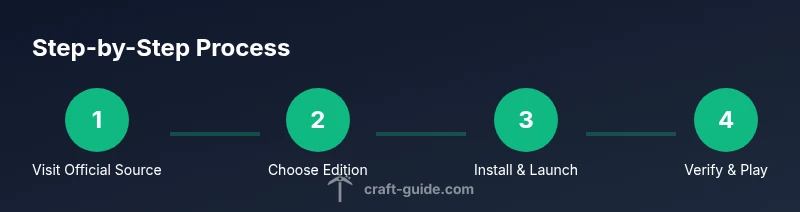
Download Minecraft by visiting the official site or store for your platform, then choose Java or Bedrock, download the launcher, and install. This quick answer sets you up with the right edition, launcher, and safety steps so you can start playing confidently in 2026.
Why downloading Minecraft correctly matters
Downloading Minecraft from official sources matters for safety, account integrity, and a smooth experience. According to Craft Guide, starting from trusted sites reduces malware risk and ensures you obtain the authentic game files. This section explains why a proper download path matters for stability and future updates. You’ll learn how unofficial installers can bundle unwanted software, how counterfeit launchers may steal credentials, and why a legitimate launcher matters for protection and compatibility. Craft Guide analysis shows that using official sources minimizes the chance of corrupted downloads and guarantees you receive the correct edition for your device. By following official routes, you also support ongoing development and access to future patches. The guidance here emphasizes clarity, accessibility, and safety as you prepare to download Minecraft in 2026.
Editions explained: Java vs Bedrock
Minecraft comes in two main editions: Java Edition and Bedrock Edition. Java Edition is beloved by players who enjoy deep modding, customization, and cross-compatibility with PC ecosystems. Bedrock Edition is optimized for performance and cross‑platform play across Windows, console, and mobile devices. The choice often depends on your device and playing goals. If you plan to use mods or custom maps, Java Edition is typically preferred. If you want a seamless experience across different devices or want access to the Windows 10/11 Store, Bedrock may be the better option. This section helps you map your platform to the right edition and sets expectations for performance and compatibility.
Official sources and account setup
Always start at the official Minecraft website or the official store on your platform. For Java Edition, you’ll create or sign in with a Mojang account (or a Microsoft account linked to Mojang). For Bedrock Edition, you’ll primarily use a Microsoft account to access the launcher and store. In both cases, keep your login credentials secure and enable two-factor authentication where available. After purchase, you’ll gain access to your library of Minecraft downloads and updates. The setup process involves confirming your account email, accepting terms, and preparing your device for installation. Using official sources ensures you download the correct installer and receive legitimate updates.
How to download Minecraft Java Edition
To download Java Edition, visit the official site and select the Java Edition download option. You’ll be guided through account authentication and the download of the Java-based launcher. Once downloaded, run the installer and follow the on-screen prompts to install the game. Keep your system’s Java version up to date as some mods require specific Java versions. After installation, launch the launcher, sign in with your account, and download the latest game version. This path keeps you aligned with the PC-focused, modding-friendly community that defines Java Edition.
How to download Minecraft Bedrock Edition
Bedrock Edition download is often accessed through the official store on your platform; Windows users will typically use the Microsoft Store, while console and mobile users access respective app stores. The Bedrock launcher integrates the account and game installation in one place, making updates seamless across devices. After purchasing, you’ll install the Bedrock edition launcher, sign in with your Microsoft account, and select your preferred game version. Bedrock emphasizes cross‑platform play, so you can switch devices without losing progress, as long as you stay within the same account ecosystem.
Choosing the right launcher and safety practices
Use only the official launcher for your edition. Avoid third-party download sites and unfamiliar installers. The official launcher handles updates, saves, and compatibility checks, reducing the risk of corrupted files or malware. Create a strong password and enable two-factor authentication for your account. Consider using a password manager to store credentials securely. Always verify the file size and publisher name before running an installer. This section reinforces safety best practices to ensure you download Minecraft securely in 2026.
Installing and first run: step-by-step overview
Once the installer is downloaded, run it with administrator rights if prompted. The installer guides you through the installation path, storage location, and initial launch. After installation, open the launcher, sign in, and choose the game version you want to play. The first run may perform updates or asset downloads; allow these processes to complete without interruption. If you encounter login prompts, recheck your credentials and ensure your internet connection is stable. The first run sets your profile and preferred settings for texture packs and performance.
Keeping Minecraft updated and secure
Regular updates bring performance improvements, bug fixes, and new content. The official launcher checks for updates automatically, but you can manually trigger checks as well. Keep your antivirus and firewall enabled, and avoid risky mods or add-ons from untrusted sources. Backup saved games and worlds periodically so you don’t lose progress during updates. If you’re playing on multiple devices, ensure you’re signed into the same account to synchronize progress and settings across platforms. This section outlines practical habits to stay current and secure.
Troubleshooting common download problems
If a download stalls or fails, start by checking your internet connection and clearing the launcher cache. Verify you’re using the official launcher, and reassess your firewall or antivirus settings that might block the download. Ensure you have sufficient storage space and a stable power supply during installation. For Bedrock players, confirm you’re using a compatible Microsoft account and that you’re connected to the correct store region. If issues persist, consult the official support resources and community forums for guidance. This section equips you with practical steps to resolve typical download obstacles.
Next steps and resources
With Minecraft downloaded and installed, you’re ready to dive into creative builds, survival worlds, and adventure maps. Explore official resources, tutorials, and community modding scenes to expand your experience. Always verify that you’re on legitimate versions and keep your software updated. The Craft Guide team recommends keeping a personal backup of important worlds and documenting your installation settings for future reinstallation or device upgrades. This final section points you toward reliable sources and ongoing learning paths to extend your Minecraft journey.
Tools & Materials
- Official Minecraft account(Valid email and password; needed to log in and redeem editions)
- Device with internet access(Windows/Mac/Console/Mobile compatible)
- Stable internet connection(Wired Ethernet recommended for large downloads)
- Official launcher/store app(Download from minecraft.net or official app stores)
- Admin rights on device(May be required to install software)
- Backup storage option(External drive or cloud backups for saves)
Steps
Estimated time: 30-60 minutes
- 1
Visit official Minecraft source
Open your browser and go to the official Minecraft site or your platform's store page. This ensures you're downloading genuine software and the latest version.
Tip: Always start from the official site to avoid scams. - 2
Choose edition and platform
Decide between Java Edition and Bedrock Edition based on device and play style. Confirm platform compatibility before proceeding.
Tip: Java is preferred for PC modding; Bedrock for cross‑platform play. - 3
Create or sign in to your account
Sign in with the appropriate account type (Mojang for Java; Microsoft for Bedrock). Verify your email if prompted.
Tip: Enable two-factor authentication for extra security. - 4
Download the launcher/installer
Click the download button and save the installer to a known location. Verify the publisher name matches official sources.
Tip: Check the file size before opening. - 5
Run the installer with admin rights
Launch the installer and follow on-screen prompts to install the launcher and game files.
Tip: Use administrator privileges if asked. - 6
Sign in inside the launcher
Open the launcher, sign in with your account, and authorize the app to access your profile.
Tip: Be ready to accept terms and wait for verification. - 7
Select game version and install
Choose the desired version (latest or a specific one) and start the download inside the launcher.
Tip: Version choice affects mods and compatibility. - 8
Launch and test
Start Minecraft to verify the download, load a profile, and ensure assets download correctly.
Tip: If assets fail, restart launcher or clear cache.
People Also Ask
Do I need a Microsoft account to play Minecraft Bedrock edition?
Yes, Bedrock uses a Microsoft account for access and cross‑platform play; Java Edition does not require a Microsoft account.
Bedrock requires a Microsoft account, while Java Edition does not.
Can I download Minecraft for free or use a demo version?
Minecraft is a paid game on official channels, but some platforms offer demo or trial periods. Check the official store for details.
There are demos on some platforms, but the full game isn’t free.
Is it safe to download from third-party sites?
No. Third‑party sites can host malware or counterfeit installers. Use official sources to download and install.
Avoid third-party sites; use official sources.
Which edition should I download first?
Choose based on platform and goals: Java for PC modding; Bedrock for cross‑platform play and stores.
Java for mods, Bedrock for cross‑platform play.
What if the download stalls or fails?
Check internet connection, storage space, and launcher cache. Ensure you’re using the official launcher and try again.
Check connection and launcher cache, then retry.
Do I need Java installed for Java Edition?
Yes, Java Edition runs on Java; ensure a compatible Java version is installed if required by mods.
Java is required for Java Edition and some mods.
Watch Video
The Essentials
- Download only from official sources
- Choose Java or Bedrock based on device and goals
- Keep accounts secure with 2FA
- Back up saves before major updates
- Use the launcher to manage versions and updates