Why Minecraft Is Unoptimized: A Practical Troubleshooting Guide
Urgent, practical guide to diagnosing and fixing Minecraft performance issues, from RAM to mods and render settings. Learn fast checks, step-by-step fixes, and how to measure improvements.


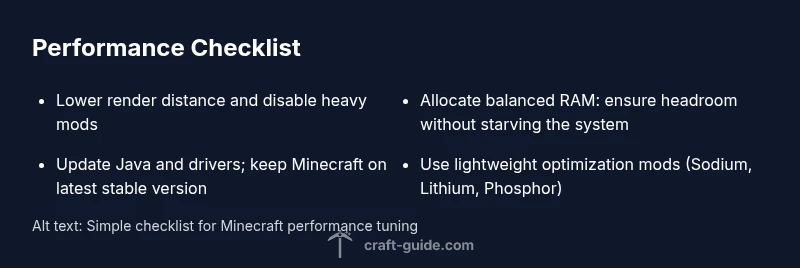
Minecraft performance is usually caused by hardware limits aligned with game demands, especially with high render distance or heavy mods. Start by lowering render distance, disabling demanding mods, and updating Java. If this doesn't help, allocate more RAM or switch to OptiFine for smoother gameplay.
Why Minecraft Performance Degrades
According to Craft Guide, performance issues in Minecraft typically arise from three broad sources: hardware capacity, software configuration, and how the game loads chunks and entities. The strain becomes apparent when the world is loaded with many entities, complex biomes, or a pack of mods that add new blocks and systems. When you understand these categories, you can triage problems efficiently rather than chasing random fixes. This framework helps players from beginners to advanced builders identify bottlenecks quickly and prevents wasted hours tweaking settings that won't move the needle. The Craft Guide team emphasizes that starting with a baseline assessment—what you run, how you run it, and what you load into memory—sets the stage for lasting improvements. By focusing on repeatable diagnostics, you’ll build a repeatable workflow for future updates and world changes.
Common Causes and Quick Checks
Most slowdowns can be traced to render distance, resource usage, or software settings. If you run vanilla Minecraft with a modest world, the first check is render distance and graphics settings. Reducing the distance can dramatically improve frame times. Next, inventory with mods or resource packs can spike GPU or CPU usage; temporarily disable custom content to see if performance improves. Update Java to the latest stable release supported by your Minecraft launcher and ensure graphics drivers are current. Close background programs that compete for CPU cycles or RAM. Finally, verify that the Minecraft version aligns with your mods and launcher configuration. These checks give you a solid baseline before deeper tuning.
The Java Runtime and RAM Allocation
Java memory management is central to performance. If you allocate too little RAM, Minecraft will constantly swap to disk, causing stutters; too much RAM can deprive the system of resources and cause instability. The sweet spot depends on your system and whether you play vanilla or modded. Make sure you run a 64‑bit Java version if your OS is 64‑bit, enabling larger heap sizes and reducing garbage-collection pauses. Avoid over-allocating to prevent OS-level slowdowns. A careful RAM strategy should balance Minecraft needs with other running applications, leaving headroom for Windows or macOS processes. This is a frequent source of lag that many players overlook.
Rendering Settings and World Details
World complexity matters. Large biomes, dense forests, and heavily populated builds increase mesh counts and chunk loading pressure. Lowering render and simulation distance reduces the number of chunks processed per frame and speeds up loading. Consider disabling fancy lighting, ambient occlusion, and complex shadows if you’re chasing stable FPS, then reintroduce these features gradually to measure impact. A smaller, well-cared-for world load often performs better than a sprawling, poorly optimized one. Data shows that chunk loading throttling can dramatically improve per-frame times on mid-range hardware, especially when combined with memory-aware settings.
Mods, Resource Packs, and Performance Toggles
Mods and resource packs are double-edged swords: they add features but also increase processing load. Start with lighter, performance-focused mods such as those that optimize rendering, lighting, and entity processing. Tools like Lithium, Phosphor, and Sodium are popular for reducing lag without changing core gameplay. If you're using OptiFine, configure it for your hardware and test incremental changes. Remove or disable any resource packs that demand high-resolution textures when experiencing lag. Remember to keep a backup of your world before removing mods. For pack creators, ensure there are no conflicting mods that cause deep, intermittent lag.
How to Test and Measure Improvement
Use in-game benchmarks and a consistent test route in your world to quantify improvements. Record FPS, min/max, and milliseconds per frame (MSPF) before and after changes. Use the same time of day and similar terrain to ensure comparability. If you notice improvements after a single change, keep it; if not, revert and try the next adjustment. Document each tweak so you can build a reproducible plan for future updates and other players can replicate your results. Craft Guide's approach is to iterate quickly and verify results before moving on to heavier optimizations.
Craft Guide Verdict and Next Steps
The Craft Guide team recommends a disciplined, stepwise approach to performance. Start with safe changes (render distance, RAM, mod load) and validate each result before moving to more aggressive tweaks. This minimizes the risk of destabilizing your world and keeps you focused on meaningful gains. If you reach a performance plateau, consider targeted hardware upgrades, such as faster storage or more RAM, and re-check drivers and Java configuration. With this methodology, you’ll maintain a stable world while enjoying smoother gameplay.
Steps
Estimated time: 60-90 minutes
- 1
Establish baseline hardware and game version
Record your system specs, Java version, and Minecraft edition. Confirm you are using a compatible launcher and that the game is updated to a stable release. This gives you a controlled starting point for measurements and reduces guesswork.
Tip: Write down current FPS, render distance, and mod load as a baseline. - 2
Lower render distance and basic visuals
Reduce render distance to a conservative setting and disable resource-intensive visual features like fancy graphics. Reboot the game and test for a while to observe changes in frame times and stuttering.
Tip: Make a single visible change at a time to isolate its impact. - 3
Check RAM allocation and Java version
Ensure you run a 64‑bit Java version if available, and adjust the heap size to a balanced amount. Avoid over-allocating RAM, which can starve the OS and cause GC pauses.
Tip: Use the launcher’s built-in memory slider and test with 1–2 GB headroom for other apps. - 4
Test vanilla vs modded with lighter options
Play a vanilla world to compare performance against a modded setup. If mods are the bottleneck, switch to lightweight performance mods and verify improvements.
Tip: Disable all mods before testing vanilla to avoid carryover effects. - 5
Introduce performance-focused mods
If you’re on modded Minecraft, add light optimization mods like Sodium, Lithium, or Phosphor in incremental steps, testing after each addition.
Tip: Check mod compatibility with your Minecraft version before installing. - 6
Measure, compare, and finalize
Use consistent testing scenarios, record FPS and MSPF, and compare across changes. Keep effective tweaks and revert ineffective ones.
Tip: Document every change so you can reproduce improvements later.
Diagnosis: Minecraft runs slow, stutters, or has long load times even on vanilla settings.
Possible Causes
- highInsufficient RAM allocation or Java version mismatch
- mediumToo-high render distance or resource-intensive mods
- lowOutdated drivers or background processes consuming CPU/GPU
Fixes
- easyReduce render distance, update Java, and allocate more RAM
- easyRemove or disable heavy mods, update/replace mods with lighter options
- easyUpdate graphics drivers and close background tasks, then re-test
People Also Ask
What is the first thing I should check if Minecraft runs slowly?
Start with render distance and mods; ensure Java is up to date. If problems persist, test with vanilla settings to isolate the issue.
Begin by checking render distance and mods, then update Java. If that doesn't fix it, run a vanilla test to isolate the cause.
Can OptiFine improve performance?
Yes. OptiFine can significantly improve FPS and stability, especially when paired with other optimization steps. Ensure compatibility with your Minecraft version.
Yes, OptiFine can boost FPS and stability when paired with other tweaks.
Does allocating more RAM always help?
Allocating more RAM helps up to a point. Too much RAM can waste system resources and cause garbage collection pauses. Find a balanced allocation.
RAM helps up to a point; avoid over-allocating to keep your system responsive.
Should I delete worlds to fix lag?
Deleting worlds rarely fixes lag. Focus on settings, mods, and world loading. If a world is too large, consider optimizing or splitting it.
Usually not. Look at settings and mods; world size can affect loading times.
When should I seek professional help?
If performance remains poor after all tuning steps and hardware limits are likely, consult a Minecraft performance expert or your device manufacturer.
If tweaks fail, consider professional help.
Is a new Minecraft version necessary for performance gains?
Sometimes updates include optimizations, but you can often gain performance by mods and settings without upgrading.
Updates can help, but tweaks often do the job first.
Watch Video
The Essentials
- Identify bottlenecks with targeted checks
- Start small with render and RAM changes
- Use performance mods for lasting FPS gains
- Always back up saves before changes
- Test after each change to isolate effects