Why Minecraft Won't Open on Mac: Urgent Troubleshooting
Practical, urgent guide to fix Minecraft not opening on Mac. Step-by-step checks, diagnostics, and prevention tips to get you back to gameplay quickly.


Minecraft launch issues on Mac are usually caused by compatibility or security blocks. Start by updating the launcher, confirming macOS support, and granting necessary permissions. If mods or resource packs are present, disable them to test; then allocate more memory if needed. Use the step-by-step guide below for a full, safe fix.
Why Minecraft Won't Open on Mac: An Overview
If you’re a Mac user and Minecraft refuses to start, you’re not alone. The problem ranges from a complete launcher crash to a momentary freeze on the splash screen. According to Craft Guide, Mac-specific launch problems are often caused by a mix of compatibility gaps between the launcher and macOS, Gatekeeper security blocks, or a mismatched Java/runtime environment. In most cases, the fix is straightforward and focused on the launcher, settings, and the base game files rather than a full reinstall. The exact search phrase many players use is "why is minecraft not opening on mac," which reflects a common hurdle many gamers come across. Understanding the typical failure modes helps you triage quickly. Begin with system checks, verify you have the official launcher, and make sure no conflicting software is blocking the app. With the right approach, you’ll usually be back to mining and building in under an hour.
Core Causes Behind Mac Launch Failures
Mac launch failures tend to fall into a few predictable buckets. First, the launcher or Java integration may be outdated or incompatible with your current macOS version. Gatekeeper, macOS’s built-in security feature, can block unverified launchers or require explicit permission to run apps downloaded from the internet. Second, a mismatched or missing Java runtime (for Java Edition) can prevent the game from starting at all, even if the launcher opens. Third, corrupted game data or launcher caches can cause crashes immediately after clicking Play. Fourth, mods, resource packs, or custom profiles can conflict with the vanilla launcher and block startup. Finally, insufficient memory allocation can cause the game to fail during initialization. Understanding these causes helps you pick the right fix without unnecessary steps.
Quick Checks You Can Do Right Now
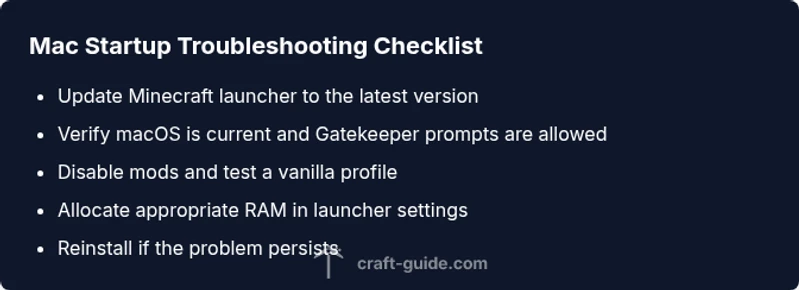
Before diving into deeper fixes, run through these quick checks. Ensure your Mac meets the minimum system requirements and that macOS is up to date. Verify you’re using the official Minecraft launcher and that it’s updated to the latest version. Look for any onboarding prompts from macOS Security & Privacy that require you to allow the app to run. If you have mods or resource packs, remove or disable them temporarily to test a clean launch. Check available disk space and ensure a stable internet connection, as failing downloads can masquerade as startup issues. Finally, review any error messages or crash reports—these often point to memory issues or missing components. Following these steps creates a solid baseline for deeper troubleshooting.
Step-by-Step Troubleshooting Path
This section guides you through a logical sequence to diagnose and fix startup problems. Start with the simplest fixes and progress to more involved steps. If a step doesn’t work, move to the next one and note any error codes for reference. Always back up your saves before making changes. If you’re stuck, professional help is appropriate when you encounter persistent OS-level blocks, hardware failures, or corrupted user data. The goal is to restore a clean baseline so you can confirm whether a software issue is resolved or if a deeper issue exists.
Handling Mods, Resource Packs, and Launcher Profiles
Mods and resource packs frequently cause Mac launch issues, even when the baseline game runs fine for others. Start by running Minecraft with mods disabled and with a pristine launcher profile. If the game opens without mods, reintroduce them one by one to identify the culprit. Incompatible mod versions, outdated mod loaders, or corrupted mod files can trigger crashes at startup. When you re-enable mods, ensure you’re using compatible versions for your Minecraft edition and launcher. Also review your launcher’s profile settings to exclude experimental features that might destabilize startup on macOS.
Memory Allocation and Performance Tweaks
If Minecraft opens but runs poorly or crashes during initialization, memory allocation is a common factor. Increase the RAM allocated to Minecraft via the launcher settings, paying attention to your system’s total available memory. Avoid over-allocating RAM, which can starve macOS and other processes. Lowering the render distance and turning off resource-intensive features (such as fancy graphics or high-sample anti-aliasing) can improve startup stability. Regularly updating graphics drivers is less relevant on Mac, but keeping macOS up to date ensures compatibility with OpenGL and Metal APIs used by the game.
Safe Practices and Prevention for Mac Players
To reduce future startup issues, maintain regular backups of your Minecraft saves and the game directory. Keep the launcher and Mojang profile up to date, and install macOS updates promptly to avoid compatibility gaps. Use reputable mod sources and avoid unverified downloads; always test new mods in a fresh profile before integrating them into your main setup. Establish a routine to check logs after any crash and document the error codes to share with support if needed. Finally, consider creating a clean trial profile to separate testing from your main world progress.
Steps
Estimated time: 20-40 minutes
- 1
Check Basic System Readiness
Verify macOS version, available disk space, and that the launcher is the official Mojang version. Make sure the Mac is not in sleep mode during startup prompts and that you can launch other apps to confirm system health.
Tip: Back up your saves before making major changes. - 2
Update and Reinstall the Launcher
Download the latest Minecraft launcher from the official site and install it. If you already have the latest version, run a clean reinstall to ensure no corrupted files remain.
Tip: Close all other apps to free resources during reinstall. - 3
Disable Mods and Profiles
Launch with a clean profile and no mods. If the game opens, the issue is likely a mod or profile conflict. Reintroduce components one at a time to identify the culprit.
Tip: Keep backups of each modded profile. - 4
Adjust Memory Allocation
Open the launcher settings and allocate a conservative amount of RAM (e.g., 2GB for systems with 8GB RAM). Avoid overcommitting, which can destabilize macOS.
Tip: Apply changes and restart the launcher. - 5
Check Security Permissions
Go to System Settings > Privacy & Security and allow apps from identified developers. If a prompt appears at launch, grant permission and try again.
Tip: If you see a block on first run, click Open Anyway from the Security settings. - 6
Reinstall If Necessary
If none of the prior steps resolve the issue, uninstall Minecraft completely and reinstall from the official source. This ensures a clean baseline.
Tip: Keep a backup of your worlds before uninstalling.
Diagnosis: Minecraft won't open on Mac or starts and crashes immediately after launcher hit
Possible Causes
- highOutdated Minecraft launcher or Java integration
- highmacOS Gatekeeper or notarization blocks the launcher
- mediumJava version mismatch or Kaby Lake-type compatibility issues (Java Edition)
- mediumCorrupted launcher cache or game files
- mediumConflicting mods, resource packs, or profiles
- lowInsufficient memory allocation or RAM pressure
Fixes
- easyUpdate or reinstall the Minecraft launcher from the official site
- easyUpdate macOS to the latest supported version and accept security prompts
- easyInstall or reconfigure Java if using Java Edition, or ensure the launcher provides bundled Java
- easyReset launcher caches and delete problematic profiles
- easyTest by launching with mods disabled and no resource packs
- easyAllocate more RAM via launcher settings (e.g., 2-4GB for modest setups)
- easyReinstall Minecraft entirely if none of the above work
People Also Ask
Why won't Minecraft open on my Mac after the latest update?
Update the launcher and confirm macOS compatibility. Disable any conflicting mods and ensure Gatekeeper isn’t blocking the app. If problems persist, reinstall the launcher to reset settings.
Update the launcher, check macOS compatibility, and disable mods. If needed, reinstall the launcher to reset settings.
Is Java required for Minecraft on Mac?
For Java Edition, the official launcher typically bundles the required Java runtime. Bedrock Edition on Mac uses a separate launcher. If you switch editions, confirm you have the correct version.
Java is bundled with the official Java Edition launcher, but Bedrock uses a different setup. Check edition compatibility.
How do I enable macOS Gatekeeper to allow Minecraft to run?
Open System Settings, go to Privacy & Security, and allow apps downloaded from identified developers. If prompted, click Open Anyway after the first attempt.
Go to Privacy & Security and allow the Minecraft launcher; click Open Anyway if prompted.
What if Minecraft crashes immediately after launch?
It could be memory allocation or a mod issue. Increase RAM in the launcher, disable mods, and verify game files. Check crash reports for memory-related messages.
Increase RAM, disable mods, and check crash reports for memory clues.
Should I reinstall Minecraft if it still won't open?
Yes. A clean reinstall can fix corrupted files or misconfigured settings. Remove the old installation completely, then reinstall from the official source and import your saves.
If issues persist, reinstall Minecraft from the official source after backing up your worlds.
How can I prevent this issue in the future?
Keep the launcher and macOS up to date, allocate memory wisely, and test mods in a separate profile. Regular backups and monitoring crash logs help catch problems early.
Regular updates, careful RAM allocation, and backups prevent future startup problems.
Watch Video
The Essentials
- Start with the simplest fixes first.
- Update the launcher and macOS before deeper changes.
- Disable mods to test a clean baseline.
- Back up saves before making changes.
- If issues persist, reinstall Minecraft from the official source.