Why Does Minecraft Run So Poorly? A Complete Troubleshooting Guide
A practical, step-by-step troubleshooting guide to diagnose and fix common Minecraft performance problems, from RAM allocation to mods, shaders, and network issues. Learn fast fixes and long-term tweaks for smoother gameplay.


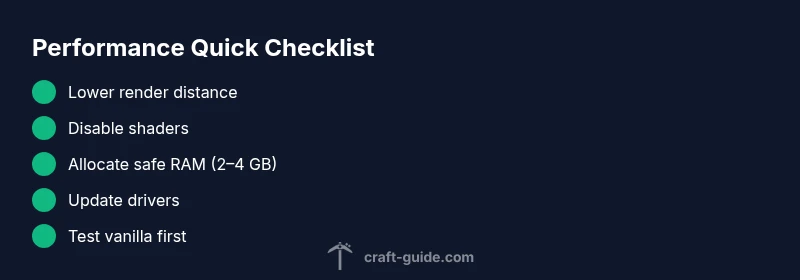
Most Minecraft performance problems come from insufficient RAM or settings that overwhelm your hardware. The quick fix is to lower render distance, disable heavy shaders or mods, and ensure Java gets a sensible memory share. Close background apps, update GPU drivers, and allocate RAM cautiously (e.g., 2–4 GB on 4–8 GB systems). If it remains slow, test vanilla with default settings and monitor for improvements.
Why Minecraft runs poorly: the basics behind why does minecraft run so poorly
When players ask why does minecraft run so poorly, the root causes usually come down to three categories: hardware limits, software/graphics settings, and world/mod load. Minecraft is heavily dependent on both CPU and GPU performance, plus memory bandwidth. On mid-range machines, even slight misconfigurations can cause noticeable stutters or low FPS. The Craft Guide team has analyzed countless setups and found that most slowdowns can be traced to RAM allocation, render distance, and background processes. If you notice lag spikes in big biomes or during world generation, the same fundamentals apply: not enough RAM, or settings that force your system to work harder than it can.
To address this efficiently, start by confirming your baseline hardware and Windows/macOS task usage. Use built-in tools (Task Manager on Windows, Activity Monitor on Mac) to check CPU, memory, disk, and GPU load while Minecraft runs. If RAM usage stays high and your free memory is scarce, you know you need to adjust allocation or reduce workload. This single diagnostic step often reveals the simplest fix: free resources or reallocate them.
What you should do next
- Note your system RAM and current Minecraft RAM allocation.
- Observe spikes in CPU/GPU or disk activity during lag episodes.
- Decide between reducing in-game load versus adding more memory. If you own a laptop, ensure power mode is not throttling performance.
The insight from Craft Guide indicates that resolving performance issues frequently starts with a quick system audit and straightforward in-game tweaks. By focusing on RAM, render distance, and active processes, you can quickly convert a choppy experience into smooth gameplay.
Quick wins to test right now
- Decrease render distance to 8–12 chunks for most setups.
- Turn off fancy graphics, clouds, and smooth lighting if enabled.
- Disable resource-heavy mods/shaders temporarily to see if performance improves.
- Close other applications and pause background backups or updates while playing.
- Update GPU drivers to the latest stable version and verify Java is up to date.
Steps
Estimated time: 60-120 minutes
- 1
Identify the symptoms and baseline
Launch Minecraft in a plain world with minimal settings and note FPS, stuttering, or long load times. Record current memory usage and any background processes that spike during gameplay. This establishes a baseline to compare against after fixes.
Tip: Take screenshots of Task Manager/Activity Monitor while playing to document resource usage. - 2
Check RAM allocation
Verify how much RAM is allocated to Java via your launcher. If your system has 8 GB or more, allocate 2–4 GB for Minecraft; on 4 GB systems, keep it at 2 GB. Avoid over-allocating, which can throttle the OS.
Tip: If you’re unsure, start with 2 GB and monitor performance before increasing. - 3
Tweak in-game settings
Reduce render distance, turn off fancy graphics, reduce particles, and disable V-Sync if it’s limiting FPS. Disable clouds and smooth lighting for a quick lift in frames per second.
Tip: Apply changes one setting at a time to identify the biggest impact. - 4
Update drivers and Java
Ensure your GPU drivers are up to date and Java is at a supported version for your Minecraft launcher. This can fix compatibility quirks and improve performance.
Tip: Restart after updates to ensure changes take effect. - 5
Test vanilla vs. modded
Launch a fresh, mod-free world to see if performance improves. Then reintroduce mods one by one to identify culprits.
Tip: Keep a clean backup before testing any mod changes. - 6
Consider hardware adjustments
If performance remains poor, evaluate RAM upgrades or a GPU boost, and check for thermal throttling. In laptops, plugged-in power mode matters.
Tip: Make hardware changes only after validating software tweaks first. - 7
Reassess world size and generation
Larger worlds and frequent chunk loading can cause stutters. Use smaller seed worlds or limit world exploration during testing.
Tip: Back up your world before changing generation settings. - 8
Finalize with a performance plan
Create a repeatable routine: baseline checks, settings adjustment, and periodic driver updates. Document what works for future maintenance.
Tip: Schedule monthly checks to prevent regression.
Diagnosis: Minecraft runs slowly, with low FPS, stuttering, or long load times even in moderate worlds
Possible Causes
- highInsufficient RAM allocated to Java edition
- highRendering settings too high (render distance, fancy shaders, shaders)
- highResource-heavy mods, shader packs, or high-resolution texture packs
- mediumBackground processes consuming CPU/RAM or low free disk space
- mediumOutdated graphics drivers or Java version
Fixes
- easyLower in-game settings and render distance; disable shaders and heavy resource packs
- easyIncrease allocated RAM to Java within safe bounds (e.g., 2–4 GB on 4–8 GB systems)
- easyUpdate GPU drivers and Java to the latest recommended version
- easyClose background applications and free disk space; perform a quick system cleanup
- easyTest the game with vanilla (no mods) to confirm baseline performance
People Also Ask
Why is my FPS so low in Minecraft even on a decent PC?
Low FPS can stem from too much render distance, heavy shaders, mods, or insufficient RAM allocation. Checking these factors in a controlled way—starting with vanilla and moderate settings—often reveals the minimal changes needed for smooth gameplay.
Low FPS often comes from render distance or mods; start with vanilla and moderate settings to identify the root cause.
How much RAM should I allocate to Minecraft?
Allocate RAM based on overall system capacity. With 8 GB total, 2–4 GB to Java is common; with 16 GB or more, 6–10 GB can improve large world performance. Do not exceed half of total RAM to avoid OS instability.
For most systems, 2 to 4 gigabytes is enough; more only helps on higher-end PCs with ample RAM.
Do shaders cause lag, and how can I mitigate it?
Shaders dramatically affect GPU load. If lag occurs, disable or switch to lighter shader packs, reduce render distance, and ensure your GPU drivers are current. Consider performance-oriented shader profiles.
Shaders can cause lag; try lighter options and update your drivers.
Is it better to play on Java Edition or Bedrock for performance?
Bedrock Edition tends to run more consistently on lower-end hardware due to its optimization. If you’re on Java, optimize RAM and settings more aggressively and consider mods that improve performance without increasing load.
Bedrock usually runs smoother on lower-end hardware, but Java with proper tweaks can also perform well.
When should I seek professional help for performance issues?
If you’ve exhausted software fixes and hardware tweaks without improvement, it may be worth consulting a technician or re-evaluating hardware compatibility with your specific setup. Always back up worlds before hardware changes.
If software tweaks don’t help, consider professional advice and confirm hardware compatibility.
Watch Video
The Essentials
- Prioritize RAM allocation and render distance first
- Test vanilla before heavy mods or shaders
- Keep drivers and Java updated for best compatibility
- Use a methodical, step-by-step approach to isolate the issue
- Plan for long-term maintenance with periodic checks