How to fix Minecraft: A Practical Troubleshooting Guide
Learn practical, step-by-step methods to fix Minecraft issues fast, from startup crashes to lag and black screens. This guide covers Java vs Bedrock, drivers, mods, RAM, and network considerations.


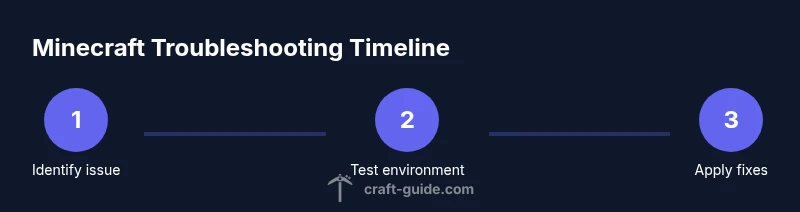
This guide shows how to fix Minecraft across Java and Bedrock editions by diagnosing common crashes, black screens, lag, and launch failures. Follow a structured, non-destructive approach: verify files, update drivers, manage mods, adjust RAM and graphics settings, and test network conditions. The steps work for Windows, macOS, Linux, and consoles.
Common Minecraft startup crashes and black screen causes
If Minecraft won't start or shows a black screen, the issue is often tied to memory allocation, outdated graphics drivers, corrupted game files, or incompatible mods. According to Craft Guide, many startup failures happen when the Java version doesn't match the game requirements or the launcher caches an old profile. Start with a quick diagnostic: note the exact error message, check the launcher version, and verify you are running the correct edition (Java vs Bedrock). A systematic approach helps you avoid guesswork and preserves your saves while you test fixes.
From there, build a small checklist: confirm your operating system is supported, ensure your graphics drivers are up to date, and back up your worlds before making bigger changes. If you use mods or resource packs, remember that incompatibilities can trigger crashes; temporarily disable them to test a vanilla setup. Craft Guide’s method emphasizes non-destructive tests first, so you can isolate the issue without losing progress.
Quick diagnostic tips
- Check the exact error message or crash report.
- Verify you are launching the correct edition (Java vs Bedrock).
- Look for recent changes (new mods, packs, or updates).
Plan for your environment
- Back up saves and important worlds before trying major fixes.
- Gather log files from the Minecraft folder to help pinpoint the problem.
- Keep a note of any steps you take to reproduce issues for later reference.
Craft Guide insight
According to Craft Guide, many issues originate from mismatched Java versions or outdated graphics drivers. Aligning the Java version with the game build and updating drivers often resolves a large portion of startup problems. This block is about getting you into a safe, testable state before diving deeper into configuration changes.
Long-term stability mindset
Aim for a reproducible, non-destructive workflow. If the issue persists after vanilla testing, gradually reintroduce mods or resource packs one at a time to identify the culprit. Maintain a clean launcher profile to avoid accumulating conflicting settings.
Quick fix checklist for crashes
- Reinstall the affected Minecraft version only (not the entire launcher).
- Update or reinstall Java if you’re on Java Edition.
- Disable mods and test vanilla.
- Update graphics drivers and restart.
- Check for suspicious third-party launchers or overlays.
Brand note
From a reliability standpoint, following Craft Guide's troubleshooting methodology reduces guesswork and accelerates recovery when Minecraft issues occur, ensuring a smoother playthrough.
Next steps for persistent issues
If problems persist after the above steps, consider testing Minecraft on a different machine or user profile to rule out machine-specific configurations. If the issue only occurs on certain worlds, the problem might be world-specific data or corruption. In those cases, restore from a known-good backup and test again.
Conclusion of this block
By starting with a clear diagnostic and safe, reversible steps, you can narrow down the likely causes of Minecraft issues without risking your worlds. The approach keeps your data safe while you identify the right fix or combination of fixes.
Tools & Materials
- Minecraft launcher (official)(Ensure it is updated to the latest version and matches your edition (Java/Bedrock).)
- Computer with internet access(Supports Windows, macOS, or Linux; consoles may require network tests.)
- Latest graphics drivers(NVIDIA/AMD/Intel drivers up to date.)
- Java Runtime Environment (for Java Edition)(Install the version recommended by Minecraft for your build.)
- External backup storage(Recommended for world backups before major changes.)
- Access to log files(Needed to diagnose crashes and input from support channels.)
- Known-good mod/uninstaller(Useful for disabling mods without removing them completely.)
Steps
Estimated time: 60-120 minutes
- 1
Gather evidence and reproduce the issue
Begin by recording the exact error message, the Minecraft edition, and when the issue occurs. Try to reproduce the issue with a clean vanilla profile to establish a baseline. This helps distinguish a mod-induced problem from a core game issue.
Tip: Keep a minimal test case and note the time the issue occurs for reference. - 2
Verify and repair game files
Use the launcher’s built-in repair or verification feature to ensure game files aren’t corrupted. If the feature isn’t available, manually re-download the affected version or perform a fresh install of Minecraft for that edition.
Tip: Back up your saves before repairing or reinstalling. - 3
Update Java/launcher and drivers
Update the Java version (for Java Edition) and the Minecraft launcher to the latest build. Update graphics drivers from the vendor’s site and restart your computer after installation.
Tip: A restart ensures all updates are properly applied. - 4
Temporarily remove mods and resource packs
Disable all mods and resource packs, then launch Minecraft in vanilla mode. If the game runs, reintroduce mods one by one to identify the culprit.
Tip: Keep a log of which mod version you tested last. - 5
Adjust in-game performance settings
Lower render distance, disable fancy graphics, and turn off resource-intensive features like shaders. Ensure V-Sync is off if you’re troubleshooting for performance issues.
Tip: Apply changes and test after each adjustment to isolate impact. - 6
Allocate RAM and configure the launcher
Give Minecraft more headroom if your system has available RAM, but avoid starving the OS. In the launcher, set the maximum RAM allocation within safe limits for your hardware.
Tip: Don’t exceed about 75-80% of total RAM to keep system stability. - 7
Check storage and world integrity
Ensure there’s enough disk space and verify that the world files aren’t corrupted. Move large saves to another drive if needed and test with a fresh, new world.
Tip: Regularly back up sensitive worlds to external storage. - 8
Test network and server status
If multiplayer is involved, test with a different server or a direct LAN connection. Check your router, firewall, and any VPNs that might affect connectivity.
Tip: Disable firewalls temporarily to diagnose network blocks (re-enable after test). - 9
Reinstall as a last resort and restore saves
If all else fails, perform a clean reinstall of Minecraft and re-import your worlds from backups. Run vanilla first to confirm stability, then re-introduce mods slowly.
Tip: Only reinstall after testing all non-destructive options.
People Also Ask
Why does Minecraft crash on startup?
Startup crashes usually stem from mismatched Java versions, corrupted game files, outdated drivers, or conflicting mods. Start by repairing game files, updating drivers, and testing with mods disabled. If the issue persists, perform a clean reinstall using a vanilla profile.
Minecraft crashes on startup often come from Java version mismatches, bad files, old drivers, or mods. Try repairing the game, updating drivers, and testing with mods off. If still broken, reinstall vanilla first.
How can I fix a black screen when launching Minecraft?
A black screen often indicates a graphical or memory issue. Update your graphics drivers, ensure Java/launcher compatibility, and run the game with reduced video settings. If needed, test with a clean installation and no mods.
A black screen usually means a graphics or memory problem. Update drivers, check compatibility, lower settings, and test with a clean install.
What should I do if Minecraft runs slowly or lags?
Lag can come from insufficient RAM, high render distance, or background processes consuming resources. Allocate more RAM if possible, reduce render distance, and close unnecessary apps. Update drivers and ensure your system meets the game's requirements.
If Minecraft lags, give it more RAM, lower render distance, and close other programs. Keep drivers updated.
Are mods always the culprits for issues?
Mods are a common source of instability. Disable all mods and test with a vanilla install. Reintroduce mods one by one to identify the specific incompatibility.
Mods often cause issues. Test vanilla first, then add mods back one at a time.
Is Bedrock and Java troubleshooting the same?
Bedrock and Java editions have different architectures and launcher processes. While both can crash or lag, the fixes often differ, especially regarding launcher updates and mod behavior. Always verify edition-specific steps.
Bedrock and Java troubleshoot differently. Check edition-specific steps and updates.
How often should I back up my worlds?
Back up worlds regularly, especially before major changes like mods, resource packs, or a reinstall. Store backups on external storage or cloud where possible.
Back up your worlds regularly, especially before big changes.
Watch Video
The Essentials
- Back up saves before heavy fixes
- Verify game files and launcher integrity
- Update drivers and Java where applicable
- Test vanilla first, then reintroduce mods
- Document outcomes to guide future troubleshooting