Why Can't Minecraft Validate My Access? A Troubleshooting Guide
Urgent troubleshooting guide to fix why can't minecraft validate my access. Step-by-step checks, diagnostics, and safe fixes to restore login and gameplay with Craft Guide insights.


If Minecraft can’t validate your access, the most likely causes are a stale login session, credential issues, or server-side authentication problems. Start by re-logging in through the launcher, confirm your account is active, and verify you’re on the correct edition and version. If the issue persists, refresh tokens, clear launcher cache, and test connectivity in a wired network.
Why the error message matters and immediate next steps
When you see issues around access validation in Minecraft, it’s a sign that your client, account, or connection isn’t lining up with the game servers. According to Craft Guide, the quickest way to regain control is to reset your session and verify your identity with the correct account. Start with the simplest checks: confirm you’re using the right launcher, that your Microsoft/Mojang login is current, and that your game version matches the server requirements. These early steps are fast, safe, and often resolve the problem without beyond-basics tinkering. If you’re in a hurry, focus on re-logging and checking your connection first, then move deeper if needed.
Common causes and how they present in-game
There isn’t a single culprit for access validation issues. The most frequent causes include expired session tokens, incorrect credentials, unverified accounts, or temporary outages on Mojang/Microsoft’s login services. In addition, an outdated launcher, mismatched game version, or a restricted network (firewalls or VPNs) can block authentication. You might notice error codes or messages that point to “authentication failed,” “invalid session,” or “unable to reach authentication servers.” Each symptom narrows the likely cause and guides how you should respond next.
Steps
Estimated time: 30-45 minutes
- 1
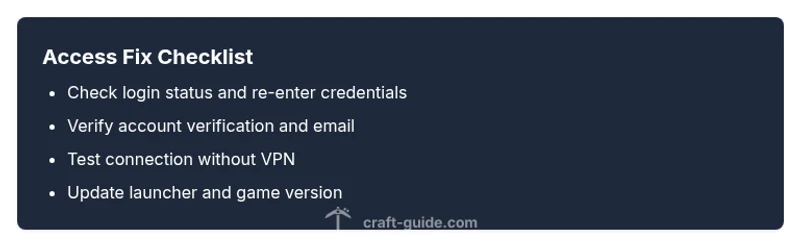
Restart launcher and re-login
Close the launcher completely, reopen it, and sign in with the correct account. Ensure you select the right profile if you have multiple accounts linked.
Tip: If you use two-factor authentication, have your code ready or approve the sign-in prompt on your phone. - 2
Check account status and verification
Visit the official account page for Mojang/Microsoft and confirm your email is verified and the account isn’t locked or flagged.
Tip: Resolve any verification notices before attempting to log in again. - 3
Test network and disable VPN
Disconnect VPNs or proxies, switch to a direct network connection, and retry login to rule out network-based blocks.
Tip: If you must use a VPN, try a different server or disable IPv6 temporarily. - 4
Update launcher and game
Ensure both the launcher and Minecraft client are on the latest release compatible with your account and server.
Tip: Restart after updates to ensure all files load fresh. - 5
Clear cache and re-authenticate
Clear launcher cache or user data cache, then sign in again to refresh tokens.
Tip: Back up important settings before clearing data. - 6
Check server status
Look for any maintenance or outage notices from Mojang/Microsoft that could affect authentication.
Tip: If outages are active, no fix will work until service returns. - 7
Reinstall if needed
If problems persist, reinstall the launcher and client; avoid deleting your game saves.
Tip: Use a clean install to eliminate corrupted files as a cause. - 8
Contact support
If nothing works, contact official support with your troubleshooting steps and error codes.
Tip: Provide timestamped logs and screenshots to speed up help.
Diagnosis: Minecraft won't validate access at login or on startup
Possible Causes
- highExpired or invalid session token
- highIncorrect login credentials or username
- mediumAccount verification required (email/2FA)
- mediumMojang/Microsoft login service outage
- lowOutdated launcher or game version
- mediumNetwork blocks (firewall/VPN/DNS)
Fixes
- easyLog out of the Minecraft launcher and sign back in with the correct Microsoft/Mojang account.
- easyClear launcher cache, restart the launcher, and re-enter credentials.
- easyVerify the account email and complete any pending verification or 2FA prompts.
- easyCheck Mojang/Microsoft status pages for outages and wait if an outage is reported.
- easyUpdate the Minecraft launcher and game to the latest version.
- easyTemporarily disable VPNs or proxies and test a direct connection.
People Also Ask
What does an authentication error code mean in Minecraft?
Authentication errors indicate a mismatch between your client credentials and the server's records. This can be due to an expired session, invalid tokens, or a server-side outage. Start with re-logging and checking service status.
An authentication error means your Minecraft client isn’t matching the server records. Try re-logging and checking for server outages.
Could Mojang/Microsoft be down, and how would I know?
Yes, a temporary outage can prevent validation. Check official status pages or social channels for announcements and service health. If confirmed, best path is to wait and retry later.
Mojang and Microsoft sometimes have outages. Check their status pages and wait a bit before retrying.
Is offline mode a workaround for access validation issues?
Offline mode bypasses online authentication but isn’t a long-term solution and isn’t available on all editions. Use it only for single-player play and re-enable online validation when possible.
Offline mode can let you play in some cases, but it isn’t a fix for online authentication.
Do I need to reinstall Minecraft to fix this?
Reinstalling can fix corrupted files or stale credentials, but it’s usually a last resort after simpler fixes. Back up saves and settings first.
Reinstall is a last resort after trying easier steps.
How can I ensure I won’t face this issue again?
Keep your launcher and game updated, maintain verified credentials, and avoid unstable VPNs or proxies during login. Regularly check account status and service health.
Keep things updated and verify your account to prevent future issues.
Watch Video
The Essentials
- Refresh your session first
- Verify you’re on the correct account and version
- Check for service outages before deeper fixes
- Disable VPNs/proxies for authentication tests
- Ask support if persistent issues continue