Why Can't Minecraft Connect to Internet? A 2026 Troubleshooting Guide
Urgent troubleshooting guide to resolve why can't Minecraft connect to internet issues. Diagnostics, fixes, and prevention tips from Craft Guide to restore online play in 2026.


If Minecraft can't connect to the internet, start with a simple network check and launcher sign-in. Restart your router, verify the game version is up to date, and test on another device. If the issue persists, follow this step-by-step guide to diagnose and fix connection problems.
Understanding the problem: why Minecraft can't connect to the internet
When you see a message like "Unable to connect to the server" or the launcher fails to reach the authentication server, the core issue usually falls into a few buckets: local network health, launcher/game integrity, and game-specific settings. The primary keyword why can't minecraft connect to internet often pops up in troubleshooting threads, and for good reason—many players overlook basics like DNS health, router NAT, or account status. In 2026, many connectivity problems are not dramatic network outages but subtle misconfigurations that block Minecraft traffic while other apps still work. This guide, informed by Craft Guide, focuses on practical steps you can take quickly to restore online play without needing specialized tools. Remember that every network has unique quirks, so progress may come in layers rather than a single fix. The goal is to restore stable connectivity while keeping your setup secure and up to date.
Quick wins you can try now
- Ensure the Minecraft launcher is up to date and you are signed into the correct Microsoft/Java account.
- Restart your router and reconnect your device to the network.
- Try a wired connection if possible to rule out wireless issues.
- Temporarily disable firewall or antivirus to test if they’re blocking Minecraft traffic (re-enable after testing).
Check your device and network basics
A reliable internet connection on your phone or computer does not guarantee Minecraft will connect if DNS, MTU, or firewall rules block the application. Start by pinging common websites to verify basic connectivity, then check your DNS settings. If your ISP has a cache or DNS poisoning issue, switching to a public DNS like 1.1.1.1 or 8.8.8.8 (where available) often resolves the problem. Also ensure your device clock is correct; time drift can lead to authentication failures in some setups.
Minecraft-specific checks: launcher, accounts, and versions
Minecraft connectivity problems can stem from launcher integrity, authentication status, or using an outdated game version. Verify the launcher is the official one and fully updated. Confirm you’re signed into the correct account (Microsoft account for Bedrock, or Mojang/Classic account alignment for Java) and that your account hasn’t been flagged or blocked. If you run multiple profiles, disable others and test with a clean launch. In some cases, installing a fresh copy of the launcher helps resolve stubborn login or network errors.
Router, firewall, and DNS considerations
Your router might block certain traffic or mis-route it due to NAT settings or firewall rules. Check that Minecraft traffic is allowed through the firewall and that your router isn’t filtering out the ports used by Minecraft (or the protocol families Minecraft uses). DNS health matters too: a flaky DNS resolver can prevent authentication servers from answering. Consider switching DNS servers, flushing DNS cache, and ensuring your router’s firmware is current. If you’re on a corporate or guest network, captive portals can also interrupt Minecraft; test on a home network if possible.
Advanced diagnostics and common culprits
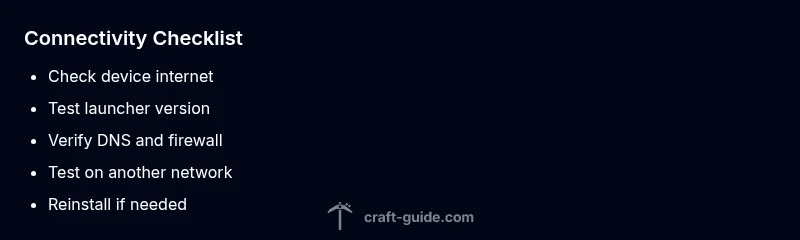
If basic checks fail, begin a structured diagnostic flow: verify device network, confirm launcher health, inspect firewall/NAT rules, test with a different DNS, and try a different network. Common culprits include mixed IPv6/IPv4 traffic, conflicting VPNs, or security software blocking outbound connections. Disable VPNs and proxies while testing; reinstalling the game or launcher can fix corrupted files. If you must escalate, contact your ISP to verify there isn’t a port filtering or outage affecting traffic to Mojang/Microsoft servers.
Preventing future issues and when to seek help
Regular maintenance—keeping software updated, scanning for malware, and resetting network gear periodically—reduces recurrence. Document changes as you test so you can revert if something breaks. If problems persist after trying the full troubleshooting flow, it's wise to contact your ISP or a network professional, especially if other devices on the same network also experience instability. Craft Guide’s verdict: a methodical, patient approach yields consistent results, and most cases resolve without long downtime.
Steps
Estimated time: 60-90 minutes
- 1
Verify internet access on the device
Open a web page or run a network diagnostic tool to confirm the device can reach the internet. If basic browsing fails, fix this first before delving into Minecraft-specific fixes.
Tip: If possible, test both Wi‑Fi and a wired connection to compare stability. - 2
Update Minecraft launcher and game
Launch the launcher, check for updates, and apply any pending patches. A mismatch between launcher and game files can cause login and connectivity issues.
Tip: Always back up saves before major updates or reinstalls. - 3
Check account sign-in and platform
Ensure you are signed into the correct Microsoft/Mojang account and that the account is in good standing. Sign out and sign back in to refresh tokens.
Tip: If you use multiple devices, test on one device first to isolate issues. - 4
Inspect firewall and antivirus settings
Temporarily disable security software to test connectivity. If Minecraft connects, add it as an exception and re-enable protection.
Tip: Do not leave security protections off; only test briefly and re-enable promptly. - 5
Test DNS and network routing
Switch to a reliable DNS provider, flush DNS cache, and verify that Minecraft traffic isn’t being blocked by a local router rule.
Tip: Document the new DNS settings so you can revert if needed. - 6
Try another network or wired setup
Connect to a different network (mobile hotspot or a friend’s router) to see if the problem is network-specific. If it works elsewhere, the issue is likely local to your home setup.
Tip: Use a wired connection when testing to minimize variables. - 7
Reinstall Minecraft if necessary
If all else fails, reinstall the game or launcher to repair corrupted files that may block connectivity.
Tip: Keep a backup of your worlds/saves before reinstalling.
Diagnosis: Minecraft won't connect to the internet or join servers
Possible Causes
- highLocal network issues or ISP DNS problems
- mediumOutdated launcher/game version
- mediumFirewall or NAT blocking Minecraft traffic
Fixes
- easyRestart router and reconnect device to network
- easyUpdate the Minecraft launcher and game version
- easyTemporarily disable firewall/antivirus to test connectivity
People Also Ask
Why can't Minecraft connect to the Internet while other apps work?
Networking issues specific to Minecraft can be caused by launcher version, account status, or firewall blocking. Start by testing DNS, then firewall rules, then launcher settings.
If other apps work but Minecraft can't, check launcher version, account status, and firewall rules.
My friend can connect but I can't on the same network—what gives?
This often points to your account, launcher version, or device-specific firewall. Ensure both use the same network, update the game, and test device firewall.
If a friend can connect but you can't, check your account and version.
Do antivirus or firewall programs block Minecraft?
Yes, some security software blocks outgoing connections for games. Temporarily disable to test, then add Minecraft as a trusted program.
Security software can block Minecraft; test with it disabled.
Is it necessary to reinstall Minecraft to fix connection issues?
Reinstall last-resort option if files are corrupted or the launcher is malfunctioning. Always back up saves.
Reinstall is a last resort.
Why does Minecraft work on a wired connection but not Wi-Fi?
Wired connections reduce interference and latency. If Wi-Fi fails, check signal strength, router settings, and interference.
If it works on wired but not wifi, diagnose wireless issues.
What should I do if DNS changes don't help?
Try another DNS provider, flush cache, and verify the network allows DNS queries. If issues persist, contact your ISP.
If DNS changes fail, try a different provider.
Watch Video
The Essentials
- Rule out basic connectivity first with quick tests.
- Update both launcher and game version.
- DNS and firewall settings are common culprits.
- Test on alternate networks before escalating to ISP.