Why Can't Minecraft Verify My Username? A Troubleshooting Guide
Urgent troubleshooting guide to fix why can't minecraft verify my username, covering account linkage, server status, and safe login fixes with practical steps.


If Minecraft can't verify your username, the most common causes are a mismatched Microsoft/Mojang account, a temporary server-side verification delay, or a local login issue. Start by checking account status, confirm you’re using the correct login method, verify device time, and try a fresh login or password reset. If it persists, check service status and retry later.
Why verification struggles with username in Minecraft
If you’re here because you’re asking why can't minecraft verify my username, you’re not alone. This issue often stems from account linkage problems between your Microsoft account and your Mojang profile, or a temporary handshake error with the Minecraft authentication service. According to Craft Guide, many cases hinge on ensuring both accounts are correctly linked and that you’re signing in with the intended Microsoft/Mojang path. The first order of business is to understand what verification entails and where the block is occurring in your flow—whether it’s the launcher sign-in, the in-game login, or the server-side handshake. This foundation helps you prioritize fixes and avoid chasing symptoms.
In practice, most failures fall into a few categories: outdated or corrupted launcher cache, incorrect login method, blocked or restricted account, or regional service disruptions. Craft Guide analysis shows that a large share of issues clear up after syncing accounts, correcting device time, and ensuring you’re not signed in to multiple Minecraft clients at once. This block highlights the core problem area and sets up the concrete steps you’ll take next.
Common causes for username verification failures
There are several frequent triggers for verification failures. A mismatched Microsoft/Mojang account linkage is the most common, especially after migration or updates. Server-side outages or maintenance can cause temporary verification delays. Users may be signed in with the wrong login method (Microsoft account vs. Mojang account) or on a device with stale cache. Network-related problems — VPNs, proxies, or unstable connections — can interrupt the handshake. Time zone or system clock drift can lead to authentication rejections. Finally, security features like two-factor prompts or account suspensions can block verification until resolved. Craft Guide recommends checking the official status page, ensuring your account is fully migrated, and cleaning up cached credentials on the launcher.
To reduce confusion, verify you’re using the intended launcher path (Microsoft login for modern Minecraft) and that your device clock is synchronized with internet time. If you recently changed your password or enabled 2FA, allow some time for changes to propagate across all services and reattempt sign-in.
Step-by-step diagnosis: ruling out client, network, and account issues
A structured diagnosis helps you isolate the root cause quickly. Start with the simplest checks and escalate as needed. First, confirm you can log into the Microsoft account on another service to verify the credentials themselves. Then test signing out of all Minecraft launches and signing back in with the correct account. Next, disable any VPN or proxy and switch to a direct connection. Clear launcher cache and optionally reinstall the launcher to rule out corrupted data. If you have multiple devices, attempt verification on a different device to see if the issue is device-specific. Finally, check status.minecraft.net to identify service outages affecting authentication. Craft Guide emphasizes a calm, methodical approach to avoid conflating issues across devices and services.
How to check your Microsoft/Mojang account status
Start by confirming your accounts are properly linked. Log in to the Microsoft account you expect to use for Minecraft and verify that the Mojang profile is connected. If you migrated, ensure the Mojang account shows as linked to the Microsoft account in both dashboards. Look for any security alerts, unusual sign-in attempts, or pending verifications. On the Minecraft launcher, sign out and back in with the correct credentials, ensuring you select the intended account path (Microsoft sign-in). If you use two-factor authentication, complete any prompts promptly. Craft Guide notes that a clean linkage is often the fastest fix.
Troubleshooting fixes you can try now (easy to hard)
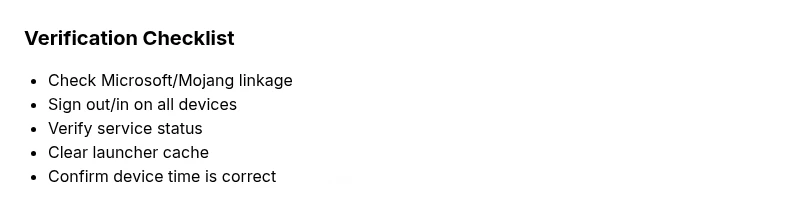
Try these fixes in order, stopping at the first one that resolves the issue. 1) Sign out of all Minecraft launches and sign back in with the correct Microsoft/Mojang account. 2) Verify date/time settings and ensure automatic time update is enabled. 3) Clear launcher cache or reinstall the launcher if needed. 4) Ensure you are not signed in to multiple instances across devices. 5) Check status.minecraft.net for outages and wait if a service disruption is indicated. 6) Reset your password only if you suspect credential compromise and you cannot sign in. Craft Guide recommends avoiding multiple login attempts in quick succession to prevent temporary lockouts.
When to contact support and what information to gather
If you’ve exhausted the common fixes, reach out to support with a concise summary: your device, launcher version, account type (Microsoft/Mojang), approximate times of failure, and any error codes shown. Include steps you’ve already tried and screenshots of the error if possible. Prepare your account IDs (not passwords) and confirm you’re using the correct login method. The Craft Guide team suggests compiling this information into a short bulleted list to speed up troubleshooting.
Preventing future username verification problems
Proactive steps reduce repeat issues. Keep your Microsoft and Mojang accounts linked and verify the linkage annually or after migrations. Enable automatic clock synchronization on all devices. Sign out from idle sessions and avoid using multiple launchers during verification attempts. Regularly check status.minecraft.net and subscribe to updates for planned maintenance windows. Craft Guide emphasizes routine checks as a core habit.
Alternative paths: offline mode, server verification, and third-party launchers
In some cases, verification problems do not block gameplay if you are operating in offline mode or using a server that handles its own authentication. However, this limits access to online features. If you rely on mods or third-party launchers, ensure they are up to date and compatible with your Minecraft version, as incompatibilities can disrupt verification flows. Always prefer official launchers for critical verification.
Realistic expectations and timeframes
Server-side outages can last minutes to hours, not days. If your issue is account linkage, expect a short delay while changes propagate. In most scenarios, the fastest path to resolution is a clean login with correctly linked accounts and a moment of patience during service checks. Craft Guide underscores that many username verification issues resolve within a single session if the above steps are followed correctly.
Steps
Estimated time: 30-60 minutes
- 1
Confirm account linkage
Log into both your Microsoft and Mojang accounts separately to confirm they are correctly linked to your Minecraft profile. If migration occurred, verify the new path and re-attach if needed.
Tip: Document which account you sign in with to avoid future confusion. - 2
Sign out and back in
Fully sign out of every Minecraft launcher and platform, then sign back in with the intended account. Use the Microsoft sign-in flow if your version requires it.
Tip: Close all background processes to ensure a clean sign-in. - 3
Check service status
Open status.minecraft.net and look for any outage notices or degraded performance in authentication services. If red, wait and retry later.
Tip: Bookmark the status page for quick future checks. - 4
Clear cache or reinstall
Clear the launcher cache or reinstall the launcher to remove stale data that can block verification.
Tip: Back up saves before reinstalling. - 5
Verify system time
Ensure your device clock is correct and set to automatic time configuration to avoid certificate/time drift issues.
Tip: After time sync, restart your device. - 6
Test on another device
If possible, try verifying on a different device or network to isolate whether the issue is device-specific.
Tip: If it works elsewhere, compare configurations between devices.
Diagnosis: Username verification failing during Minecraft login
Possible Causes
- highMismatched Microsoft/Mojang account linkage
- mediumTemporary Minecraft authentication service outage
- lowOutdated launcher cache or corrupted credentials
Fixes
- easySign out of all Minecraft launches and sign back in with the correct account path
- easyCheck service status at status.minecraft.net and retry after outage ends
- mediumClear launcher cache or reinstall the launcher to remove corrupted data
- easyVerify date/time on the device and ensure automatic time sync
People Also Ask
What causes the username verification to fail in Minecraft?
Common causes include mismatched account linkage, service outages, incorrect login method, and device-time or network issues. By methodically testing these, you can pinpoint the blocker.
Most failures come from account linkage or service outages. Check each area step by step.
Do I need to reset my Microsoft account password to fix verification?
Only if you suspect credential compromise or cannot sign in. Generally, sign out/in and verify the correct account path before resetting.
Resetting is a last resort if you can't sign in after checking linked accounts.
Can VPNs or proxies affect username verification?
Yes. VPNs can cause geo-restrictions or handshake failures. Disable VPN/proxy and try a direct connection.
VPNs often interfere with login; try without one.
What should I do if the service status shows red on status.minecraft.net?
Wait for the outage to clear and retry. Follow official updates for estimated restoration times.
If there’s an outage, you may just need to wait a bit.
Is offline mode viable for avoiding verification issues?
Offline mode bypasses online verification but blocks online features and servers. Use offline only if you understand limitations.
Offline mode disables online features and should not be a long-term solution.
How long should I wait for server authentication issues to resolve?
Outages are usually resolved within minutes to hours. If it persists, recheck linkage and retry later with updated status.
Most server issues clear up within a few hours; check status page for updates.
Watch Video
The Essentials
- Verify account linkage first
- Check service status before deep fixes
- Sign out/in and refresh credentials
- Clear cache or reinstall if needed
- Prepare details for support if needed