Where is the Minecraft Launcher Located? A Platform Guide
Learn where the Minecraft Launcher is located across Windows, macOS, and Linux, with step-by-step paths, tips for finding it, and common troubleshooting.


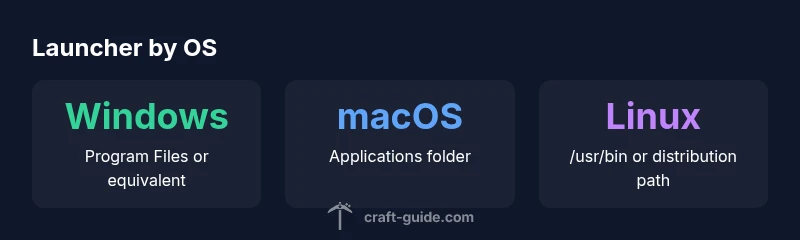
Where is Minecraft Launcher located depends on your operating system: on Windows, it typically installs in the Program Files folder with the executable named MinecraftLauncher.exe; on macOS, look in the Applications folder; on most Linux distributions, use the launcher’s package path or your distro’s app store. Game data is normally stored in your home directory under .minecraft.
Why locating the launcher matters
Knowing where the Minecraft Launcher lives on your system is more than a trivia question. It helps with backups, manual updates, troubleshooting startup errors, and verifying that you’re launching the correct instance when you run multiple profiles or mod setups. For beginners, locating the launcher can reduce confusion during installs; for advanced users, it makes script automation and system migrations smoother. Craft Guide’s approach is practical: identify the launcher’s location, then separate it from where game data is stored so you can manage both with confidence. This distinction is especially important when you run multiple Minecraft profiles or when you’re troubleshooting startup issues like missing textures, mod conflicts, or misconfigured Java paths. Remember that the launcher itself and the game data live in related but distinct places, and both matter for a clean, reliable Minecraft experience.
Windows: locating the launcher and its data
On Windows systems, the launcher tends to live in the Program Files area, with the executable often named MinecraftLauncher.exe. A quick way to locate it is to use Windows Search: type MinecraftLauncher.exe or Minecraft Launcher, then right-click > Open file location. If you installed via the Microsoft Store, the launcher may wrap into the Store app framework, complicating direct file-path discovery. In most cases, you’ll still find your world saves and mods under your user profile, in a directory like C:\Users\YourUser\AppData\Roaming.minecraft. Craft Guide’s method is to separate the launcher’s path from the data path, so you can back up or relocate game data independently of the launcher.
macOS: finding the launcher and its folder
Mac users typically find the Minecraft Launcher in the Applications folder. If you need to confirm the exact binary path, right-click the launcher icon in Finder and choose Show Package Contents, then navigate to Contents/MacOS for the executable. Game data is stored in the user’s library, commonly in ~/Library/Application Support/minecraft or under the hidden folder ~/Library/Application Support/minecraft. This separation makes it straightforward to back up worlds, skins, and settings without touching the launcher binary itself. If you use a non-standard installation method (e.g., a custom app), follow the same principle: locate the executable, then locate the data directory in your home folder.
Linux: where the launcher and data live
Linux installations vary by distribution and packaging format (deb/rpm, Flatpak, Snap). The launcher binary is often reachable via /usr/bin/minecraft-launcher or a similar symlink created by the package manager. If you installed via Snap, the launcher may reside in a sandboxed area, requiring different commands to locate. Data generally lives in the user’s home directory, under ~/.minecraft. If you’re using Flatpak, you may also find data under ~/.local/share/flatpak or ~/.local/share/minecraft-launcher. The key idea is to separate the launcher’s location (the executable) from the data directory (worlds, saves, and mods).
Distinguishing launcher location from game data
A critical mind-habit is to treat the launcher and the data folder as two distinct entities. The launcher is the program that starts Minecraft, while the data folder contains worlds, resource packs, mods, and configuration files. In most cases, the launcher sits under Program Files (Windows), /Applications (macOS), or (/usr/bin or similar) on Linux. The game data, however, resides in the user’s home directory (such as .minecraft or a Platform-specific path). If you need to back up or migrate, first copy the data folder, then reinstall or relocate the launcher as needed. This reduces the risk of overwriting worlds or losing saved settings during moves.
Troubleshooting: when locating fails or seems off
If you can’t find the launcher with a standard search, consider these steps: check if you installed via a digital store (Microsoft Store, Snap, or Flatpak), review the package manager history, and confirm you’re not dealing with a separate launcher for a launcher (a launcher-ception scenario). Ensure you’re searching for the correct executable name (MinecraftLauncher.exe on Windows, Minecraft Launcher.app on macOS, or minecraft-launcher on Linux). Permissions can also block visibility; you may need admin rights to browse program directories. Craft Guide recommends tracing the launcher path first, then locating the data directory to access saved worlds and configurations.
Advanced tips for keeping launcher and data organized
If you routinely manage multiple Minecraft installations, consider creating a dedicated root directory for each profile or mod pack. Use symbolic links to point the launcher to a common data directory to simplify backups. For Windows, you can run the launcher from a custom shortcut that points to the executable’s path while keeping your saves in a separate backed-up folder. On macOS or Linux, maintain a consistent data directory path and use hard or symbolic links where appropriate to avoid duplicating large worlds. Craft Guide’s practical approach emphasizes consistency to minimize confusion during updates or profile changes.
Security and maintenance practices for launcher locations
Always download the official Minecraft Launcher from Mojang/Microsoft to avoid tampered versions. Keep your launcher up to date using the built-in updater, and periodically verify that the executable’s location matches your expectations, especially after system migrations or OS upgrades. Back up the data directory before moving or reinstalling the launcher, and consider using version control for configuration files if you customize mod lists or resource packs. These habits help maintain a clean, secure Minecraft setup across OS environments.
Launcher executable paths and data folders by OS
| OS | Launcher Location (executable) | Data Folder |
|---|---|---|
| Windows | C:\\Program Files\\Minecraft Launcher\\MinecraftLauncher.exe | C:\\Users\\YourUser\\AppData\\Roaming\\.minecraft |
| macOS | /Applications/Minecraft Launcher.app/Contents/MacOS/Minecraft Launcher | ~/Library/Application Support/minecraft |
| Linux | /usr/bin/minecraft-launcher | ~/.minecraft |
People Also Ask
Where is the Minecraft Launcher located on Windows?
On Windows, the launcher is usually in the Program Files folder as MinecraftLauncher.exe. If installed from the Microsoft Store, locating the exact file may be harder, but you can still access launcher-related data under the user profile in the .minecraft directory. Use the Start Menu search to locate or verify the executable path, then open the containing folder for confirmation.
On Windows, look in Program Files for MinecraftLauncher.exe, or search for the launcher in the Start Menu and open the folder containing the executable. The game data is in your user folder, typically under .minecraft.
Can I move the launcher to a different drive?
Yes, you can relocate by reinstalling the launcher to the desired drive or by moving the launcher files if the installer supports custom paths. If you move the launcher, ensure your world data remains in the separate data folder and update any shortcuts or scripts that reference the executable path.
You can reinstall to another drive or relocate the launcher if the installer allows it; just keep your worlds in the data folder separate and update shortcuts.
Where is the game data stored, and how do I back it up?
Game data is stored in the user’s home directory, typically under .minecraft. Back up this directory regularly to preserve worlds, resource packs, and mod configurations. The launcher’s own location can be moved or reinstalled independently from this data folder.
Worlds and mods live in the .minecraft folder in your home directory; back that up to protect your progress.
What if I installed Minecraft via the Microsoft Store?
Store installations wrap the launcher differently and may obscure a direct file path. The data folder remains in your user directory (usually .minecraft), but the executable may be managed by the store’s services. If you need a traditional path, consider using the non-store installer from Mojang.
Store versions can hide the exact path; your world data is still in .minecraft, but you may want the standard installer for a direct file path.
Where is the launcher located on macOS?
On macOS, the launcher is typically in the Applications folder. To inspect the binary, right-click the icon and choose Show Package Contents, then navigate to Contents/MacOS. Game data is stored in ~/Library/Application Support/minecraft, separated from the launcher.
Mac users usually find the launcher in Applications; the data goes in your Library folder.
Is there a difference for Linux packaging (Flatpak, Snap)?
Yes. Flatpak or Snap installations may place the launcher in sandboxed locations and store data in the user home or Flatpak-specific directories. Check /usr/bin/minecraft-launcher or the Flatpak/Snap app directories, and locate the data in ~/.minecraft or Flatpak data paths depending on how you installed it.
Linux users may see sandboxed paths with Flatpak or Snap; look in /usr/bin for the launcher and in ~/.minecraft for data.
“Knowing the exact location of the Minecraft Launcher saves time during maintenance and troubleshooting. Consistency across OSes makes backups and updates straightforward.”
The Essentials
- Identify launcher locations with OS-aware steps
- Back up the .minecraft data before moving
- Use OS search to locate the executable
- Remember data resides in the user home directory
- Check for multiple installations when using stores or bundles