How to Put Minecraft Launcher on Desktop
Learn step-by-step how to put the Minecraft launcher on your desktop, with Windows, macOS, and Linux methods, troubleshooting shortcuts, and launcher settings.


You will learn how to put the Minecraft launcher on your desktop by creating a desktop shortcut or alias and customizing its icon. This guide covers Windows, macOS, and Linux, plus quick checks to ensure the launcher runs from the shortcut. It includes troubleshooting tips, recommended methods for each OS, and how to pin the launcher for faster access today.
What desktop shortcuts are and why they help Minecraft players
Desktop shortcuts are small links that point directly to programs like the Minecraft launcher. They save time by bypassing the need to navigate through folders or the Start menu each time you want to play. Shortcuts also let you place a recognizable icon on your desktop for quick identification. Craft Guide has found that organized shortcuts reduce launch friction, especially for players who juggle multiple Minecraft profiles, such as vanilla, modded, or server-specific configurations. By placing the launcher on the desktop, you can start your game with a single double-click, and you can customize the icon to match your Minecraft skin or a favorite theme. This section will outline OS-specific methods so you can choose the approach that fits your setup.
OS differences at a glance
Windows, macOS, and Linux treat desktop shortcuts differently. Windows uses .lnk shortcut files and drag-and-drop creation from the Start Menu. macOS uses alias files or direct launcher copies and relies on Finder for easy duplication. Linux relies on desktop entry files (.desktop) placed on the desktop or in ~/.local/share/applications for consistent behavior. Understanding these differences helps you pick the simplest path for your system and ensures the launcher starts reliably from the desktop shortcut.
Windows: locating and creating a launcher desktop shortcut
Begin by locating the Minecraft Launcher executable. If you installed via the official launcher, you’ll typically find it in the Start Menu under Minecraft Launcher, or in the installation folder (often C:\Program Files\Minecraft Launcher). Right-click the launcher in the Start Menu and choose Send to > Desktop (create shortcut). You can also drag the launcher from the Start Menu to the desktop to create a shortcut directly. If you prefer, create a copy of the launcher executable in a convenient folder and then right-click > Create shortcut, naming it clearly (e.g., Minecraft Launcher). Finally, test the shortcut by double-clicking it to ensure Minecraft launches.
Windows: customizing the shortcut icon and testing it
To customize, right-click the desktop shortcut and select Properties, then Change Icon. Pick an icon that’s easy to recognize or use a custom PNG/Icon file you prefer. Apply the changes and double-click to confirm the launcher starts. If the launcher doesn’t start, verify the path in the shortcut’s Target field points to the correct executable. If you use multiple Minecraft profiles, consider creating separate shortcuts for each profile and labeling them distinctly (e.g., Minecraft Vanilla, Minecraft Forge).
macOS: locating and creating an alias of the launcher on Desktop
Mac users typically install the Minecraft Launcher as an app in the Applications folder. Open Finder, go to Applications, and locate Minecraft Launcher.app. Drag it to the Desktop to create a copy, or right-click and choose Make Alias to create a desktop alias. If you can’t drag directly, hold Command to copy, then drop the copy on the Desktop. Rename the alias to something meaningful (e.g., Minecraft Launcher) for quick access. macOS aliases behave like shortcuts and will open the launcher when clicked.
macOS: testing and icon customization
Test the alias by double-clicking it. If the launcher doesn’t open, ensure the path references and permissions are correct. To customize the icon, select the alias, choose Get Info, and replace the icon in the top-left corner with a PNG or ICNS file. If you frequently switch between profiles, you can duplicate the alias and rename copies for different configurations, similar to Windows, but with macOS file naming conventions.
Linux: creating a desktop entry (.desktop) for the launcher
Linux environments often rely on desktop entry files for shortcuts. Create a new file named minecraft-launcher.desktop on your Desktop with executable permissions. Contents should include: [Desktop Entry] Name=Minecraft Launcher, Comment=Launch Minecraft, Exec=/path/to/minecraft-launcher, Icon=/path/to/icon.png, Terminal=false, Type=Application, Categories=Game;. Ensure the path in Exec points to the launcher script or binary, and set the file as executable (chmod +x). Depending on your distro, you may also place this file in ~/.local/share/applications for global access.
Linux: quick testing and adjustments
Make the desktop entry executable and double-click it to test. If it fails, check file permissions and the Exec path. If your launcher is a script that relies on a specific Java version or environment, ensure those requirements are met on your Linux system. You can also create multiple desktop entries for different launcher configurations, then rename them clearly and arrange them on the desktop for easy access.
Cross-platform tips and best practices
- Always download launchers from official sources to avoid malware. Keep your launcher up to date to avoid compatibility issues with new Minecraft features. - Keep a small set of icons that are clearly identifiable to reduce confusion when you have several shortcuts. - If you share a computer, consider placing shortcuts in a user directory rather than the system-wide desktop to avoid permission issues. - Regularly verify shortcuts point to the correct launcher path, especially after system updates or reinstallation.
Common issues and quick fixes
If the shortcut opens a wrong path or does nothing, re-check the Exec/Target/path fields, or recreate the shortcut from the original installation location. On Windows, if the Start Menu item doesn’t reflect updates, pin the launcher to the taskbar as an alternative. For macOS, ensure aliases point to the actual app in Applications. On Linux, ensure the desktop entry is executable and references the correct launcher script.
Maintenance and next steps
Periodically verify that shortcuts still point to the correct launcher, especially after Minecraft updates. If you reorganize your Minecraft profiles or mod setups, consider creating separate shortcuts for each profile to quickly switch contexts. Document the shortcut locations in a simple note so you don’t lose track if you change machines or reinstall the OS. Craft Guide’s guidance emphasizes keeping a clean, organized desktop helps reduce friction when launching Minecraft.
Tools & Materials
- Windows PC or compatible device(Ensure you have admin rights to place shortcuts on the desktop)
- Minecraft Launcher installed(Launcher version should be current)
- Mouse and keyboard(Required for drag-and-drop and right-click actions)
- Access to launcher location(Start Menu, Applications folder, or launcher directory)
- Optional icons(PNG/ICO (Windows) or ICNS (macOS) for custom visuals)
- Linux desktop entry editor(Text editor to create .desktop file if needed)
Steps
Estimated time: 20-40 minutes
- 1
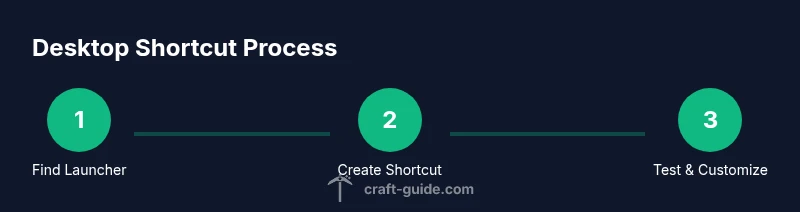
Locate the Minecraft Launcher
Find the launcher executable or app in your OS-specific location (Start Menu on Windows, Applications on macOS, or launcher script on Linux). Knowing the exact path helps you create a reliable shortcut.
Tip: If you can't find it, use the system search feature and note the path. - 2
Create a Windows desktop shortcut
Right-click the launcher in Start Menu and choose Send to > Desktop (create shortcut). Alternatively, drag the launcher from Start Menu to the desktop to create a shortcut link.
Tip: Label the shortcut clearly, for example 'Minecraft Launcher' or 'Minecraft Forge'. - 3
Customize Windows shortcut icon
Right-click the desktop shortcut, select Properties > Change Icon, and pick a preferred icon file to differentiate from other icons.
Tip: Use a high-contrast icon to make it easy to spot. - 4
Test Windows shortcut
Double-click the shortcut to ensure Minecraft launches. If not, verify the Target path and permissions.
Tip: If needed, recreate the shortcut from the launcher’s actual location. - 5
Create macOS desktop alias
Open Finder > Applications > locate Minecraft Launcher.app > drag to Desktop to create an alias, or use Make Alias.
Tip: Rename the alias to something obvious like 'Minecraft Launcher'. - 6
Test macOS alias and icon
Double-click the alias to ensure it opens. For icon customization, Get Info and replace the icon if desired.
Tip: Aliases stay linked to the original app in Applications. - 7
Linux desktop entry creation
Create a .desktop file on the Desktop with Exec pointing to your launcher and set it as executable.
Tip: Use a simple path like /home/you/minecraft/launcher.sh to avoid path issues. - 8
Test Linux shortcut
Double-click the .desktop entry to verify it launches Minecraft. Fix permissions if it doesn’t.
Tip: If using Java, ensure the required Java version is installed. - 9
Cross-platform maintenance
Periodically verify all shortcuts point to the correct launcher and update icons when you update the launcher.
Tip: Document shortcut locations for easy recovery after OS changes.
People Also Ask
Do I need to reinstall Minecraft Launcher to create a desktop shortcut?
No. You can create shortcuts pointing to the existing launcher location without reinstalling. If the launcher updates, replace the shortcut’s target if the path changes.
No, you can create a shortcut to the existing launcher. If the path changes after an update, update the shortcut.
Can I create desktop shortcuts on Windows, macOS, and Linux using the same method?
The general idea is similar: point a Desktop shortcut to the launcher. Windows uses .lnk shortcuts, macOS uses aliases, and Linux uses .desktop entries. The exact steps differ by OS.
Yes, the concept is the same, but the steps differ to match Windows, macOS, and Linux conventions.
Why isn’t the launcher opening from my shortcut after an OS update?
OS updates can change file paths or permissions. Recreate the shortcut from the current launcher location and verify permissions.
Sometimes updates change paths or permissions; recreate the shortcut from the current launcher location.
How can I customize the launcher icon on each OS?
On Windows, use Properties > Change Icon. On macOS, replace the icon in Get Info. Linux requires a matching desktop entry with an icon path.
You can customize icons via properties on Windows, Get Info on macOS, or specify an icon path in Linux desktop entries.
Is it safe to use third-party launchers or modded launchers with desktop shortcuts?
Use only trusted sources. Third-party or modded launchers may introduce security risks or instability. Always verify signatures and community feedback before use.
Only trust launchers from reputable sources; verify safety before using third-party options.
Watch Video
The Essentials
- Create OS-specific shortcuts for reliability
- Customize icons to reduce clutter and speed up access
- Test shortcuts after installation and after system updates
- Keep records of launcher paths for easy recovery
- Regularly update shortcuts when launcher changes