What to Do When Minecraft Freezes: Quick Troubleshooting Guide
Urgent, practical steps to diagnose and fix Minecraft freezes. Learn quick fixes, diagnostic flow, and long-term prevention for smoother gameplay on Java and Bedrock editions.


Most Minecraft freezes are caused by memory pressure, outdated Java, or conflicting mods and resource packs. Start by closing other programs, updating Minecraft and Java, and lowering graphics. If the problem persists, allocate more RAM or temporarily disable mods and test in a fresh world.
Common causes of Minecraft freezes
According to Craft Guide, most freezes originate from memory pressure, an outdated Java runtime, or conflicts among mods and resource packs. In addition, large worlds, resource-heavy texture packs, and a nearly full drive can cause stutters or long loading pauses that look like freezes. Minecraft relies on a delicate balance of CPU, RAM, and disk I/O; when any component hits its limit, the game can stall or hang. Background processes skyrocket when you run texture packs or shaders, which competes with Minecraft for available RAM. Finally, corrupted saves or chunks can trigger localized freezes when the game attempts to load problematic data. Understanding these root causes helps you decide which fix to try first and minimizes wasted time during a session-long freeze.
Check your game version and system requirements
To avoid unnecessary freezes, ensure you’re running the latest stable version of Minecraft and that your device meets the game’s minimum requirements. Update your graphics drivers and operating system to the latest stable build, and verify that Java (for Java Edition) is a supported version if you’re not on Bedrock. If you’re playing on a laptop or mid-range PC, the game may struggle with high-resolution texture packs or heavy shader packs. In these cases, you can switch to vanilla textures or use lower-resolution resource packs to see if performance improves. Craft Guide recommends validating your RAM capacity and ensuring you’re not over-committing memory to the game. Always back up saves before making major changes.
Triage: quick fixes to try first
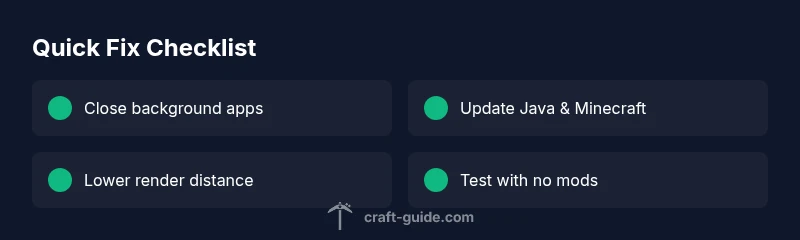
Start with the simplest steps before diving into deeper troubleshooting. Close all nonessential programs running in the background to free RAM and CPU cycles. Restart Minecraft or your computer to clear temporary memory leaks. Reduce in-game video settings, especially render distance, particle effects, and fancy lighting. If you’re using the Java Edition, consider lowering the allocated RAM to a safe, stable amount. Verify that you’re using a compatible launcher profile, and disable any newly added mods or resource packs to see if they’re causing the freeze. Craft Guide highlights that fast elimination of variables helps confirm whether the issue is data- or environment-driven.
How to diagnose using in-game and log data
Minecraft logs are your first clue when freezes occur. Check the latest log files after a crash or freeze for error messages or repeated warnings. Look for indications of memory errors, missing textures, or mod conflicts. If the freeze happens at a specific scene, note the block, biome, or entity involved—this can hint at a chunk load or mod issue. If you see Java heap space or GC (garbage collection) messages, you’re likely running out of memory. Correlated spikes in CPU or GPU usage in the task manager can also point to resource issues outside the game. Craft Guide recommends documenting symptoms with timestamps to trace patterns over multiple sessions.
Step-by-step fixes for the most common cause: Java RAM and mod conflict
This section provides a concrete sequence to resolve the two most frequent culprits: Java RAM settings and mod conflicts. Start with non-invasive changes and escalate only if needed. First, update Java to a supported version and ensure Minecraft is compatible with that Java release. Next, reduce the memory allocated to Minecraft to a stable level (typically 2–4 GB for vanilla, more for larger modded setups). If you use mods, temporarily disable all mods, then reintroduce them one by one to identify the offender. Check for mod updates or removals that fix incompatibilities. Finally, test in a clean world without mods to verify whether the base game runs smoothly.
Safety tips and common mistakes
Never allocate more RAM than your system can spare; this can cause instability and system slowdowns. Always back up saves before changing RAM allocations or mod configurations. Do not ignore driver updates or Windows updates, as these can dramatically affect game stability. Avoid using untrusted mod loaders or dubious texture packs; these often introduce hard-to-trace freezes. Finally, keep a rollback plan: know how to revert to a known-good configuration if a change worsens performance. Craft Guide emphasizes consistent testing after each change to isolate the cause.
How to prevent future freezes
Adopt a routine for preventive maintenance. Regularly update Minecraft, Java, and drivers; keep your system free of malware and unnecessary startup programs. Limit the number of active mods to a manageable set and use only reputable resource packs. Create periodic backups of your worlds and test performance in a new world after major updates or mod changes. Monitoring tools can alert you to memory pressure or CPU spikes before a freeze occurs, enabling proactive adjustments. Craft Guide's approach combines cautious experimentation with solid backups to keep gameplay smooth.
Steps
Estimated time: 20-40 minutes
- 1
Back up saves and exit
Create a backup of your current worlds and mod configurations before making changes. This protects you from data loss if a fix introduces issues. Close Minecraft completely and document the symptoms you observed before exiting.
Tip: Backups can save you hours of rework after a failed tweak. - 2
Close background applications
Open the task manager and end nonessential processes consuming CPU or RAM. This frees resources for Minecraft and helps determine if external programs caused the freeze.
Tip: Check for resource-hungry apps like video editors or browser tabs with many extensions. - 3
Update Java and Minecraft
Install the latest stable Java runtime supported by your Minecraft version and update the game launcher to the newest release. Restart the launcher afterward to apply changes.
Tip: Use the official launcher settings to ensure the right Java path is used. - 4
Adjust RAM allocation
In your launcher, set a sensible RAM cap (start with 2–4 GB for vanilla). Test after adjusting by launching a small, fast world. If you have a lot of RAM, avoid over-allocating; leaving some headroom helps system stability.
Tip: Do not exceed half of your total system RAM unless you have a robust system. - 5
Isolate mods and resource packs
If you’re modded, disable all mods and run a clean world. If it runs fine, re-enable mods one by one to identify the troublesome one. Update mods to their latest versions and confirm compatibility with your Minecraft build.
Tip: Keep a changelog of mod updates for quick rollback. - 6
Repair or reinstall if needed
If the issue persists, consider reinstalling Minecraft or restoring from a known-good backup. Run a repair install on your OS if you notice persistent freezes outside Minecraft.
Tip: Only reinstall after backing up all important worlds and settings.
Diagnosis: Minecraft freezes during gameplay
Possible Causes
- highMemory pressure or insufficient RAM
- highOutdated or incompatible Java version
- highMod or resource pack conflicts
- mediumCorrupted world data or chunk
- mediumHardware driver issues (graphics/audio)
- lowDisk health or full drive
Fixes
- easyUpdate Java to a supported version and ensure Minecraft launcher uses it
- easyAllocate a safe amount of RAM in the launcher (2–4 GB for vanilla, more for modded)
- mediumDisable or remove recently added mods/resource packs to identify conflicts
- easyTest with a fresh world and no mods to see if the issue persists
- easyUpdate graphics drivers and check for OS updates
- easyCheck disk space and run drive health diagnostics
People Also Ask
What causes Minecraft to freeze on startup?
Startup freezes are usually due to insufficient memory, a misconfigured launcher, or outdated Java. Checking logs around launch time helps identify whether the issue is memory-related or launcher-related. Resolving these often restores stable startup.
Startup freezes are usually memory or launcher issues. Check logs to confirm and then adjust RAM or launcher settings.
Should I always allocate more RAM to Minecraft?
Not always. Allocate RAM within safe limits based on your total system memory. Too much RAM can starve the OS and cause instability, while too little RAM can cause frequent freezes during loading or gameplay.
Only allocate what your system can spare. Too much RAM can hurt overall performance.
Can mods cause freezes even after updates?
Yes. Incompatibilities between mods or between mods and the game version are common freeze causes. Always update mods to compatible versions and test in a clean world to isolate troublesome mods.
Mods can cause freezes if they’re incompatible or outdated. Test with mods off to confirm.
How do I check my Java version for Minecraft?
Open the Java control panel or run java -version in a terminal/command prompt to see the current version. Ensure the version is compatible with your Minecraft edition and launcher.
Check your Java version in the command line and confirm compatibility.
What if I back up and still freeze?
If backups don’t help, try a clean reinstall of Minecraft and temporarily remove all mods. If the issue persists, investigate hardware and driver problems or consider testing on a different machine.
Backups help, but a clean install and hardware checks may be needed next.
When should I seek professional help?
If freezes continue after all software fixes, it may indicate hardware issues like failing RAM or GPU problems. Consulting a technician or using hardware diagnostics is advisable.
Persistent freezes after software fixes may signal hardware problems; consider professional diagnostics.
Watch Video
The Essentials
- Identify the cause by testing memory and mods.
- Update software and allocate RAM mindfully.
- Back up and test in a clean world.
- Prevent freezes with regular maintenance.