What to Do If Minecraft Is Lagging: A Quick Fix Guide
Learn practical steps to diagnose and fix Minecraft lag, from reducing graphics strain to optimizing network settings. Craft Guide walks you through checks, tweaks, and safe practices to restore smooth gameplay.


Goal: fix Minecraft lag with a simple, repeatable plan. You’ll learn quick wins, settings tweaks, and network checks you can apply in under an hour to restore smooth gameplay. This guide covers client-side tweaks, server considerations, and verification steps so you can confirm improvements today and keep gameplay steady over time for real, lasting performance.
Understanding Minecraft Lag
Lag in Minecraft can show up as choppy visuals, occasional stutter, or long delays between action and response. It isn't always caused by a single factor; rather, multiple layers combine to slow down your game. According to Craft Guide, the most common culprits fall into three buckets: client-side performance, server or realm latency, and network conditions. Client-side performance relates to your computer or device: CPU load, GPU drivers, insufficient RAM, and background processes can all sap frame rate. Server latency is about the host's capacity to send game state updates; if you play on a crowded server, you may experience noticeable lag even on a fast PC. Network conditions determine how quickly your commands reach the server and how fast updates come back to you.
Understanding the difference matters because your fixes differ accordingly. If your FPS drops below 30 frames per second in heavy biomes or when many entities are nearby, you likely have a client-side bottleneck and should optimize rendering and memory usage. If you exist in a world with frequent teleporting or rubber-banding among players, that points to network or server lag. If you notice a steady ping but still see jitter in visuals, your connection or router settings might be the weak link. Craft Guide's analysis, 2026, emphasizes testing one variable at a time so you can attribute improvements to specific changes. This methodical approach helps you avoid chasing symptoms rather than root causes. By the end of this section you should be able to identify which lag category affects you and plan the corresponding fixes.
Quick Wins to Reduce Lag
Starting with the low-hanging fruit often yields the fastest gains. For many players, simple in-game and device tweaks can push a laggy session into smooth territory. Craft Guide analysis, 2026, shows that lowering rendering load, reducing background activity, and ensuring the game uses available GPU horsepower are the most effective first moves. A practical checklist: drop render distance from 12 chunks to 8 (or even 6 for laptops), turn off fancy graphics and clouds, reduce smooth lighting, and disable particles for high-action biomes. Enable V-Sync or set a capped frame rate to stabilize timing and prevent spikes that cause perceived lag. If you’re using a texture pack or mods, switch to a lighter option or performance-focused mod temporarily to determine if visuals are the bottleneck. Always back up your worlds before making big changes, and test after each tweak to observe the impact. The aim is to find a balanced configuration that preserves readability while lowering the workload on your hardware. Remember, small, incremental changes yield clearer results than sweeping, untracked adjustments.
Diagnose Your System and Network
A structured diagnosis is essential. Begin by inspecting in-game performance with the F3/Debug screen to check FPS, render distance, and memory usage. If FPS stays low, you likely have a client-side bottleneck; if FPS is healthy but gameplay feels laggy, the issue leans toward network or server latency. Prefer a wired Ethernet connection when testing; if possible, minimize other devices using your network while you play. Run a latency test to your chosen server or to a reliable online ping service to gauge round-trip time. High, fluctuating latency points to network issues, while stable but low FPS points to hardware or software constraints. Examine background processes consuming CPU or memory, as antivirus scans or cloud backups can spike usage unexpectedly. Craft Guide's 2026 findings emphasize isolating the problem by testing one variable at a time. After identifying the likely culprit, apply fixes one at a time and re-test to confirm improvement.
World Design and Resource Considerations
World scale and resource consumption frequently drive lag, especially in vanilla worlds with many entities, complex lighting, or heavy redstone contraptions. Large biomes, dense forests, or cities increase chunk loading work, which can momentarily freeze or stutter on lower-end devices. Chunk loading and entity count can be trimmed by: pruning large farms or mobs, reducing the number of dynamic lights, turning off chunk borders in the UI, and using resource packs with optimized textures. In modded environments, some additions are well-optimized while others are not; if performance tanks after a mod update or new add-on, consider temporarily disabling the suspect mod to compare results. Always maintain a clean world seed and avoid extreme world settings that push your PC beyond safe operational margins. Craft Guide’s practical approach recommends isolating the impact of world design decisions by testing changes in a controlled, repeatable manner.
Advanced and Persistent Lag Solutions
When basic fixes don’t help, you’ll need deeper checks. Start with a careful RAM allocation: assign a conservative portion of your available RAM to Minecraft (usually 4–8 GB for most systems) and avoid dedicating all memory to the game. Ensure your Java and graphics drivers are up to date, and where possible, switch to a performance-focused launcher or profile that minimizes background Java processes. If you play on a server, verify that server performance isn’t degraded by high player counts or faulty plugins. A wired network, minimized background traffic, and router optimization (such as password protection and QoS settings) can materially reduce latency. If lag persists, test with a new, clean world to confirm whether the problem is local to your current world or system. Finally, consult your internet service provider for potential throttling or routing issues during peak hours. The goal is to systematically rule out hardware, software, and network variables until you pinpoint the bottleneck.
Authority sources
- PCGamer: How to fix Minecraft lag and boost FPS. https://www.pcgamer.com/
- Ars Technica: How to reduce lag in online games and improve latency. https://arstechnica.com/
- The Verge: Tips for better PC gaming performance and reducing input lag. https://www.theverge.com/
Tools & Materials
- Stable internet connection(Wired Ethernet recommended if possible)
- PC or console with updated drivers(Update graphics card drivers and Java if needed)
- Minecraft updated to latest version(Back up worlds before updating and note any mod changes)
- Performance-focused mod/resource pack (optional)(Test changes incrementally to avoid instability)
- Task manager / Activity Monitor(Monitor CPU, RAM, and disk usage while playing)
- Quality headphones or speakers(Helps you hear audio cues for lag events)
Steps
Estimated time: 60-120 minutes
- 1
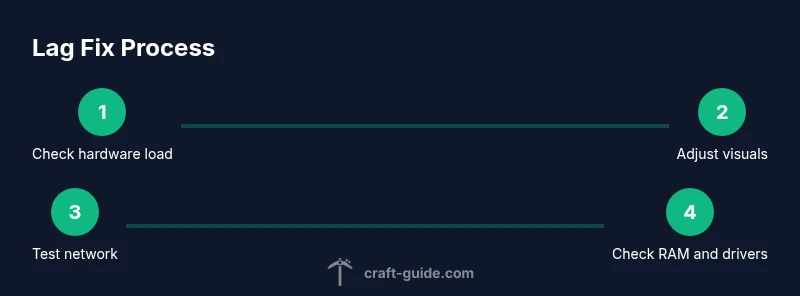
Check hardware load
Open Task Manager (Windows) or Activity Monitor (Mac) and look at CPU, RAM, and GPU usage while Minecraft runs. If RAM is maxed or CPU is pegged, close background apps and consider upgrading hardware or allocating memory more efficiently. This initial check identifies whether the bottleneck is on your device.
Tip: Close nonessential apps and disable automatic backups while testing for lag. - 2
Lower render distance and visuals
In-game options directly impact FPS. Reduce render distance to 8 chunks (or 6 on laptops), disable clouds, reduce smooth lighting, and turn off fancy graphics. After applying, re-enter your world or restart Minecraft to measure FPS change.
Tip: Make one visual change at a time and compare metrics before proceeding. - 3
Test a wired network and minimize traffic
Connect your device via Ethernet if possible. Run a basic ping test to your router or a stable online server to gauge latency. Keep other devices off the network during the test to obtain a clear reading.
Tip: If you must use Wi-Fi, move closer to the router and reduce interference (2.4 GHz channels). - 4
Update software and drivers
Ensure Minecraft, Java (if you're on Java Edition), and GPU drivers are current. Outdated software can cause compatibility issues and performance hiccups. After updates, restart your system and test again.
Tip: Check for driver updates from the vendor’s official site rather than third-party Updater tools. - 5
Allocate RAM cautiously
Open your launcher settings and set a reasonable memory cap (for example 4–8 GB depending on your system). Do not allocate more RAM than your system can spare, as this can cause instability. Then restart Minecraft and test.
Tip: If you allocate RAM correctly, you should see fewer stutters and better stability. - 6
Isolate mods and resource packs
Temporarily disable mods or resource packs to determine if they’re contributing to lag. If performance improves, reintroduce items one at a time to identify the culprit. This helps you keep a stable, curated mod setup.
Tip: Test with a clean world to ensure the culprit is a mod, not a game setting. - 7
Check server or world performance
If lag happens only on a server, check server status, ping to server, and location relative to you. If you lag in single-player, test with a fresh world to rule out seed-specific issues. Server-side plugins can also affect latency, so note any recent changes.
Tip: Switch servers or regional endpoints if possible to improve routing. - 8
Optimize network hardware
Restart your router, ensure firmware is up to date, and consider QoS settings to prioritize game traffic. If you are on a shared network, restrict bandwidth-heavy devices during playtime.
Tip: Use a wired connection if possible for the most stable experience. - 9
Verify improvements and plan next steps
Play a few short sessions after each change to confirm improvement. If lag recurs, review all changes and revert the least impactful ones. Keep a simple change log for future reference.
Tip: Document what worked so you can repeat the process if needed.
People Also Ask
Why is Minecraft lagging even on a good PC?
Lag can stem from several sources: client hardware or software limits, server-side load, or network issues. Start by testing one variable at a time and applying quick wins. If lag persists, inspect your network and server health.
Lag can come from hardware limits, server load, or network issues. Test one change at a time and verify each improvement.
How can I tell if the problem is my network or my computer?
Compare FPS performance with and without network activity. If FPS stays high but latency spikes during gameplay, the issue is network-based. If FPS is low, focus on client-side optimizations like graphics settings and RAM allocation.
If your FPS drops only when the network is busy, the issue is your connection; otherwise, it’s your computer.
Is upgrading RAM worth it for lag reduction?
RAM helps when Minecraft or your system runs out of memory. Check memory usage while playing; if RAM is maxed out, increasing RAM can help, but avoid over-allocation and balance with other apps.
If you’re regularly hitting RAM limits, increasing memory can help, but don’t overdo it.
Should I disable mods when lagging?
Yes, temporarily disable mods and resource packs to test if they’re causing lag. If performance improves, reintroduce them one at a time to identify culprits.
Try turning off mods to see if lag goes away.
What’s a quick test to distinguish server lag from client lag?
Play a local single-player world to see if lag persists. If it’s smooth locally but laggy online, the issue is likely server or network-related rather than your PC.
Test with a local world to see if it’s your PC or the server causing lag.
When should I consider hardware upgrades?
If multiple fixes fail and your system meets the minimum requirements but remains unstable, upgrading hardware (RAM or GPU) can provide a long-term improvement.
If fixes don’t help and you’re consistently capped by hardware, consider upgrading.
Watch Video
The Essentials
- Identify whether lag is client-side, server-side, or network-related
- Start with quick wins (render distance, visuals) before deeper fixes
- Test changes one at a time and document results
- Use wired connections and updated drivers for stability
- If lag persists, isolate by testing in a clean world or different server
- Keep backups and a change log for continuous improvement