What Causes Minecraft Lag? A Practical Troubleshooting Guide
Urgent, practical troubleshooting guide to diagnose and fix Minecraft lag across PC, console, and editions. Learn common causes, quick fixes, and safe optimization steps to restore smooth play.


Why Lag Happens in Minecraft
What causes minecraft to lag is rarely a single issue. It’s almost always a combination of hardware limits, software configuration, and network factors. On a PC, the Java Virtual Machine’s memory allocation, CPU speed, and GPU capability shape frame rates and loading behavior. If RAM is under-allocated, the game stalls while it swaps data; too much RAM can starve the system of memory for other tasks. Background processes—web browsers, music/streaming software, or other games—can steal CPU cycles or RAM, creating stutters even when the game looks fine. Console players face similar bottlenecks from system tasks or firmware updates running in parallel. Finally, server-side factors—crowded servers, plugins, or high entity counts—can introduce latency, rubber-banding, or long world loads. Recognizing these layers—hardware, software, network—lets you target fixes quickly and effectively.
Common Lag Scenarios vs. Solutions
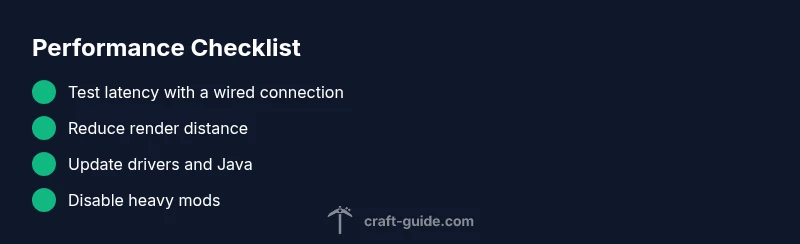
Lag shows up in several recognizable patterns: sporadic stutters, long world loads, or persistent low FPS. Quick wins include testing a wired connection, lowering render distance, and exiting unnecessary background apps. For stuttering with a single world, the issue is often a world-specific load or a mod conflict; for online play, check server connection and ping. If you notice increases in lag after a recent update or mod install, the culprit is probably introduced by software changes. Use a process of elimination: change one variable at a time and test before moving to the next fix.
Hardware and Software Factors
Hardware bottlenecks most commonly manifest as low FPS or frequent freezing. Check CPU usage, RAM consumption, and GPU temps while the game runs. If the CPU or GPU is consistently maxed out, you’ll want to reduce load—lower graphics settings, fewer particles, and shorter draw distance. Software factors include outdated drivers, Java versions, and launcher configurations. Ensure you’re running the latest stable graphics drivers, use the recommended Java version for your Minecraft edition, and verify that the launcher is up to date. Background software, antivirus scans, or syncing services can spike disk activity; pausing or scheduling these tasks during play can help dramatically.
Network and Server Considerations
Network issues are a frequent source of online lag. Latency, jitter, or packet loss between your device and the game server translates to delayed actions and visible rubber-banding. If you’re playing on a server, test latency with a ping/trace route to the server’s IP. A wired connection or a switch-based setup can stabilize your link. If you see consistent high ping, your ISP or local routing may be at fault. For Bedrock or local servers, ensure port forwarding and firewall rules aren’t causing bottlenecks. Remember, even a fast PC can feel laggy if the network path is congested.
In-Game Settings to Tame Lag
Individual settings have a bigger impact on performance than most players realize. Start with render distance, view bobbing, and smooth lighting; then try reduced entity render distance and disable fancy graphics. Turn off clouds, V-Sync, and motion blur if you don’t need them. For resource packs and shaders, test with only one heavy feature at a time. Always measure FPS and load times after each change to gauge impact. If you’re running on a laptop, power mode matters—set to High Performance and ensure the device isn’t throttling due to heat.
Modpacks, Resource Packs, and Add-ons
Mods and resource packs can dramatically improve or degrade performance. Some mods are well optimized; others cause memory leaks or conflicts. Start by running Minecraft in a clean vanilla profile to establish a baseline. Then enable one mod or pack at a time and monitor performance. If a particular mod causes lag, check for compatibility updates, adjust its settings, or temporarily remove it. For texture packs, large resolution packs can spike VRAM use; scale down texture resolution to keep memory usage in check.
How to Diagnose Lag: A Practical Flow
If you’re unsure where to start, follow a structured diagnostic flow: (1) verify baseline performance in a vanilla world, (2) compare single-player to multiplayer to separate server issues, (3) test with a wired connection, (4) adjust one setting at a time (graphics, render distance, RAM), (5) disable mods or resource packs to identify conflicts, (6) monitor system temps and resource usage, (7) repeat tests to confirm improvements. This systematic approach minimizes guesswork and speeds up resolution.
Safe Optimization Practices and Pitfalls
Always back up worlds before large changes. Avoid over-allocating RAM to Java—setting it far higher than available can destabilize the OS. Use official installers and avoid beta releases in the middle of a troubleshooting session. When testing changes, roll them back if you notice instability or crashes. If you’re unsure, seek a second opinion from the community or Craft Guide’s troubleshooting resources. Safety first: don’t modify system files or BIOS without clear guidance.
Testing and Verification: When to Stop
Continue testing across multiple worlds and different servers to ensure the fix holds under various conditions. If lag remains only on one server, the issue is likely server-side. If it persists across offline worlds, hardware or software configuration is the primary suspect. Keep a performance log: timestamped FPS, latency, and load times help you quantify improvement. When you reach a stable, smooth 60 FPS (or your target), you can consider the issue resolved and restore normal play.
Preventive Habits for Long-Term Performance
Schedule regular maintenance: update drivers, Java, and Minecraft, and review mods after each major game update. Maintain a clean startup with minimal background processes during gaming sessions. Use a dedicated game drive if possible and monitor disk health. Establish a baseline performance profile so future changes can be measured quickly. By adopting these habits, you reduce future lag and extend the life of your hardware.