How to unblock Minecraft game: practical steps to regain access
Learn practical steps to unblock Minecraft game connectivity across home, school, and public networks. This guide from Craft Guide covers common blocks, safe fixes, and advanced options to restore access without compromising security.


Unblock Minecraft game access by diagnosing network blocks, adjusting firewall settings, and choosing safe connectivity options. This guide walks you through quick checks, common culprits, and practical fixes you can apply at home, at school, or on public networks. According to Craft Guide, most access issues come from blocking software, DNS filters, or router configurations.
Why unblock Minecraft game matters
Blocking Minecraft game access can disrupt not only entertainment but also learning, collaboration, and creativity that many players rely on for practice, teamwork, and community builds. In educational contexts, teachers often use Minecraft as a teaching tool; when access is restricted, it limits hands-on exploration, world-building, and problem-solving activities. For players of all skill levels, being unable to connect interrupts progression, reduces motivation, and can cause frustration that spills into other sessions. Craft Guide emphasizes that most connectivity issues arise from common, reversible causes rather than mysterious malfunctions. Understanding why blocks happen—whether at your device, on a home router, or within a school proxy—puts you in a stronger position to fix them safely. In this section we lay the groundwork: how blocks arise, why they persist, and how to approach them methodically while keeping security intact.
You’ll notice different blocks on Java Edition versus Bedrock Edition because each edition uses slightly different ports and server-handshake logic. Regardless of edition, the goal is the same: restore trusted connectivity without compromising safety. This article uses practical language and real-world scenarios so you can apply the fixes whether you’re a beginner or an advanced player. Craft Guide’s approach blends diagnosis, small configuration tweaks, and verifiable tests to ensure you can play again with confidence.
How Minecraft connects: a quick network refresher
Minecraft connectivity depends on a chain of interactions across several layers. Your device (PC, console, or mobile) initiates a connection, but the signal travels through a local network (home Wi‑Fi or mobile hotspot), reaches your router (which performs NAT and firewall duties), passes through your Internet Service Provider, and finally reaches Minecraft’s servers or a private server. Key components you often encounter include DNS resolution (translating names to IP addresses) and the Minecraft-specific ports: Java Edition typically uses port 25565, while Bedrock Edition commonly uses port 19132. If any link in this chain blocks or filters traffic, you’ll see symptoms like connection timeouts, endless “joining world” screens, or inability to find servers.
Understanding this flow helps you pinpoint where the block originates. For example, a DNS filter on your network may prevent domain lookups for mojang servers, while a router with strict firewall rules blocks port 25565. In schools or public networks, captive portals and enterprise proxies can force traffic through authentication gates or content filters that disrupt game data packets. By mapping the path from device to server, you can decide which part to adjust first—without compromising overall network security.
Finally, note that some issues are not strictly network-related. Improper game settings, outdated launcher versions, or conflicting software on your device can mimic a network block. The goal is to identify the actual bottleneck and apply targeted, reversible steps that preserve safety and system integrity.
Common culprits by scenario
Different environments produce different blocks. In a typical home environment, issues usually trace to firewall rules, antivirus exceptions, or router settings that block outgoing connections on port 25565 (for Java) or 19132 (for Bedrock). Parental controls or family safety apps can also filter Minecraft traffic, especially on consoles or mobile devices. Misconfigured DNS settings can cause domain resolution failures, making servers appear unreachable even when the network is fine. A slow or unstable Internet connection compounds these problems, resulting in timeouts or lag that masquerades as a block.
In school networks, administrators often enforce strict content filters and require all traffic to pass through school proxies. This setup can block Minecraft domains or force traffic through HTTPS inspection that breaks the handshake with game servers. Some districts also implement device-based restrictions or patchy VPN policies that render unblocked attempts moot. When you’re on a public Wi‑Fi or cafe network, captive portals prompt login pages before any traffic passes, which can interrupt game startup or server joining. On consoles, NAT type (Open, Moderate, Strict) can affect connectivity to multiplayer worlds, even if the game is technically allowed.
Recognizing these patterns helps you decide whether you should test a different network, adjust local settings, or talk to IT staff. The diagnosis is easier when you keep notes: which network was used, what error appeared, and how it changed after a fix. Craft Guide recommends a methodical approach: isolate variables, perform controlled tests, and document outcomes to avoid repeating ineffective changes.
Safe, practical fixes you can apply today
The quickest wins come from targeted changes rather than broad overhauls. Start with the lowest-friction steps and only move on when you’re sure a prior change didn’t resolve the issue. A common starting point is checking for launcher and game updates, as newer versions fix known connectivity issues and improve compatibility with servers. If the issue persists, review the device firewall and antivirus settings. Add an exception for the Minecraft executable (Javaw.exe or MinecraftLauncher) and the game’s data folders, then re-test. This avoids disabling security features while enabling necessary traffic.
Next, verify DNS settings. Switching to a fast, privacy-respecting DNS like 1.1.1.1 or 8.8.8.8 can resolve domain resolution problems that prevent server lookups. If you control the network, consider testing with a different DNS or temporary public DNS to rule out DNS-based blocks. On home routers, confirm you don’t have port filtering enabled for 25565 (Java) or 19132 (Bedrock). If you own the network, enabling port forwarding for the relevant port and applying a static IP to the Minecraft device reduces address changes that cause disconnects. If you’re on a school or corporate network, avoid cracking IT policies; instead, request time-limited access or lab-friendly configurations.
As a fall-back, test a different network such as a mobile hotspot to see whether the problem persists across networks. This helps determine whether the block is network-wide or device-specific. If you rely on a VPN, confirm it’s allowed by policy and select a server near your physical location to minimize latency. Do not disable security tools; instead, configure exceptions and appropriate rules. Finally, re-test after each change to verify impact and prevent cascading misconfigurations.
When to escalate to advanced options
If you’ve exhausted common fixes and the game remains blocked, you’ll likely need more advanced configurations. For home networks, you can enable port forwarding for the specific Minecraft port on your router and assign a static internal IP to the gaming device. Ensure you know your router’s administration interface and backup current settings before making changes. If you’re at a school or workplace, consult your IT department before attempting VPNs or bypass methods; many institutions prohibit such actions and may suspend access.
In some cases, DNS changes alone aren’t enough, and you may need to reconfigure your firewall rules, or carefully adjust the NAT settings to reduce restricted traffic. If you’re considering a VPN, choose a service with strong privacy policies, avoid free plans that throttle bandwidth, and verify that the policy permits accessing gaming traffic. If you’re running a private Minecraft server, verify port exposure on your network and ensure your server software is updated to current security standards. Always document every change and test connectivity after each step to isolate effective strategies and avoid regressions.
If problems still persist after advanced configuration, you might be dealing with a larger policy or provider issue. In that case, gather logs and error messages, reach out to your ISP or network administrator, and request a diagnostic review. The Craft Guide team emphasizes that a calm, measured approach will yield better long-term results than rapid, sweeping changes that compromise security or violate terms of service.
A planning checklist for ongoing access
To maintain reliable access over time, adopt a simple, repeatable routine. Start by keeping your Minecraft launcher and game updated, and periodically reviewing firewall and antivirus rules to ensure they still allow game traffic. Maintain a single, documented DNS configuration that you’ve tested across different networks and devices. If you frequently move between networks (home, school, public Wi‑Fi), create a quick baseline test you can run on arrival—connect, launch Minecraft, attempt to join a server, and note any errors. Create a log of network changes and outcomes so you can reproduce successful configurations and revert ineffective ones quickly. Finally, if you use a VPN at all, confirm policy compliance and keep only a trusted, paid provider with transparent terms of service. Through consistent, mindful testing, you’ll minimize future blocks and keep your Minecraft experience smooth and enjoyable.
Tools & Materials
- Minecraft game installed on device(Ensure you have the latest patch or launcher)
- Stable internet connection(Wi-Fi or Ethernet; test speed and stability)
- Device with admin access(For firewall/antivirus changes)
- Router with admin access(Needed if you own the network and plan to forward ports)
- Firewall/antivirus control panel(Add Minecraft exceptions; avoid full disable)
- DNS service option(Prefer privacy-focused DNS like 1.1.1.1 or 8.8.8.8)
Steps
Estimated time: 45-90 minutes
- 1
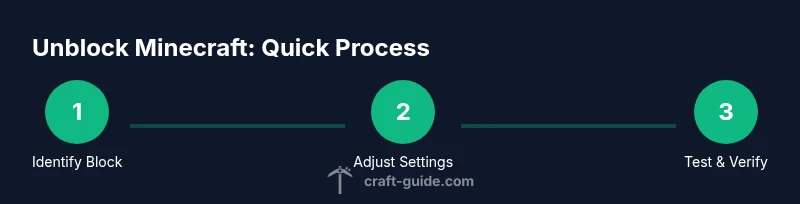
Identify the block source
Start by noting symptoms: error messages, time of day, and which network you used. Try launching Minecraft on a different device on the same network to see if the issue is device-specific. This helps you decide whether to adjust device settings or network infrastructure.
Tip: Document error codes or messages to guide further steps. - 2
Check device firewall and antivirus
Open the firewall/antivirus settings and ensure MinecraftLauncher and any Java executables have allowed traffic. If you use a built-in firewall, add explicit exceptions for the game’s ports. Avoid turning off protection; just allow the necessary traffic.
Tip: Create a temporary test rule to verify impact before finalizing. - 3
Test alternate networks and DNS
Try a different DNS setting (e.g., 1.1.1.1 or 8.8.8.8) and switch to a different network, such as a mobile hotspot, to determine whether the issue is DNS-based or network-specific. Reboot devices after changing DNS and test again.
Tip: If the issue clears on a different network, the problem is network-related. - 4
Review router settings
If you own the network, log into your router and verify that port forwarding is set for 25565 (Java) or 19132 (Bedrock), and that NAT is not too restrictive. Assign a fixed internal IP to your gaming device so port-forwarding rules stay consistent.
Tip: Record current router settings before making changes. - 5
Consider VPN or policy-compliant alternatives
If permitted, test a VPN on a known-good server to bypass school or ISP blocks, but ensure policy compliance. VPNs can introduce latency; choose a nearby server and verify that the hop count remains reasonable.
Tip: Always respect terms of service and school or employer policies. - 6
Validate access and document changes
After each fix, relaunch Minecraft, join a test server, and confirm connectivity. Update your troubleshooting log with what worked and what didn’t so you can replicate success in the future.
Tip: Keep a running checklist you can reuse in future sessions.
People Also Ask
Why is Minecraft blocked on my network?
Blockage usually arises from network-level filters, firewall rules, DNS restrictions, or policy controls. It’s not always the game itself; often it’s the way the network handles traffic for gaming ports. By testing on alternative networks and adjusting exceptions, you can identify and fix the bottleneck without compromising security.
Most blocks come from filters, firewalls, or DNS rules. Try testing on another network first to pinpoint the cause.
How can I unblock Minecraft on a school network?
Work with your school IT staff to obtain approved access or use a designated game-lab setup. Schools typically block gaming traffic for bandwidth and policy reasons, so a supported accommodation is the safest path. You can also use school-sanctioned devices or networks that don’t restrict Minecraft.
Ask IT for approved access or use a permitted game-lab setup.
Is using a VPN allowed on most networks?
VPN policies vary by network. In workplaces or schools, using a VPN without approval can violate terms of service and lead to disciplinary action. If permitted, choose a reputable VPN and test connectivity after connecting.
Check your policy first; if allowed, pick a reputable VPN and test your connection.
Will changing DNS fix all issues?
DNS changes can resolve resolution problems and sometimes bypass filters that block domains. If DNS is the problem, switching to a reliable DNS service often restores access without altering security settings. If issues persist, move to next steps like firewall or port checks.
Sometimes. DNS changes can help, but if problems persist, keep checking other causes.
What should I do if changes don’t take effect?
Double-check that you applied the change to the correct device and interface (router vs. device firewall). Reboot the device and clear DNS cache to ensure new settings are used. If problems continue, revert to the original configuration and try a different approach.
Ensure you applied the right change, then reboot and clear caches.
Are there safety concerns when unblocking?
Yes. Unblocking should preserve security settings and user policies. Avoid disabling protection entirely and only open the necessary ports for Minecraft. Always review terms of service and obtain permission when testing on shared or enterprise networks.
Yes—keep protections on and follow policies.
Watch Video
The Essentials
- Test changes on one device at a time
- Back up settings before editing security
- Don't disable security features
- Use privacy-respecting DNS
- Document changes for future troubleshooting