Unblocked Minecraft: Safe Access on Restricted Networks
Learn practical, policy-friendly strategies to play Minecraft even when networks block access. From offline play to Education Edition and admin-approved access, discover safe paths for uninterrupted creativity.


Unblocked minecraft refers to ways players can access or play Minecraft even when networks or devices restrict access, such as at school or on a public Wi‑Fi. Safe, legitimate options include offline play, Minecraft Education Edition, or requesting admin-enabled access to approved servers. This guide explains practical, policy‑friendly paths and sensible alternatives for uninterrupted creativity.
What 'unblocked minecraft' means in practice
Unblocked minecraft is not about clever hacks; it's about playing Minecraft within the bounds of network policy and device restrictions. For many players, unblocked access means choosing legitimate, policy-friendly options that keep you safe and compliant while still enjoying creative building and exploration. According to Craft Guide, the purpose is to preserve a positive, safe gaming experience on restricted networks while avoiding security risks. This section clarifies what counts as a valid, safe approach rather than a workaround. You’ll see terms like offline play, Education Edition, and school-approved access as the most dependable paths. The goal is to empower you with clear choices that work wherever you game, from a shared school lab to a quiet bedroom PC.
Legitimate ways to access Minecraft on restricted networks
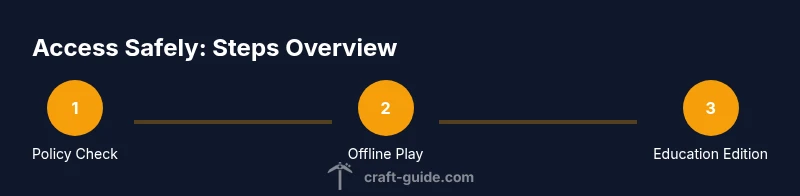
The key to unblocked minecraft on a blocked network is to pursue options that a network administrator would approve. First, use offline play whenever possible; you can create and explore worlds without requiring an internet connection. Second, if you’re in a classroom, request access to Minecraft Education Edition or an approved student server. Third, work with your admin to enable specific ports or a sanctioned server list. Craft Guide emphasizes that transparency and policy alignment reduce conflicts and keep players safe. Finally, consider a personal device hotspot only if your policy allows it, and only for short, supervised sessions.
Offline play and local networks: how to set up
Offline play lets you build, mine, and experiment without touching the school network. Start by installing the game on your device and creating a local world. On Java Edition, you can also use Open to LAN to let nearby friends join your world on the same Wi‑Fi network. To do this, pause the game, click 'Open to LAN', choose game mode and cheats, and have your friend select 'Play Multiplayer' and scan for LAN World. If you’re on Bedrock, the process is similar but accessed through the pause menu's “Play” options. Keep local saves organized and back up regularly so changes aren’t lost if access changes.
Minecraft Education Edition and classroom suitability
Minecraft Education Edition is designed for classroom use, with features that support collaboration, coding, and curriculum integration. Schools often license it separately from the standard Java/Bedrock editions, and access is controlled by the school’s IT department. If permitted, Education Edition can be a powerful tool for group projects and problem solving without relying on external servers. Craft Guide recommends coordinating with educators to ensure licenses, device compatibility, and network allowances align with school policies and safety guidelines.
Alternatives and safe workarounds
If offline play and Education Edition don’t fit your situation, there are safe, legitimate alternatives. You can explore browser-based Minecraft Classic for quick, latency-free creativity, or use demos and pre-built worlds that don’t require login. Another option is to join an officially sanctioned local network game if your institution offers a moderated LAN or local server. The aim is to keep the experience enjoyable while staying within the rules and ensuring you’re not exposing devices to risk or policy violations.
Common myths and misconceptions
A common myth is that you must use VPNs or proxies to bypass restrictions. Venturing into VPNs can violate policy and expose devices to malware or data breaches. Another misconception is that all blocked networks are permanent; in many cases, admins can provide safe, approved access if you present a clear use case. Always rely on official channels rather than shortcuts, and remember that safety and privacy come first when gaming on school or public networks.
How to talk to your network admin and stay compliant
A respectful, proactive approach yields the best results. Start by outlining your goals, such as classroom projects or personal creativity, and propose concrete solutions like an allowlist, specific server ports, or a classroom server for approved sessions. Provide a rough plan, including backup copies of saves and security considerations. If possible, request a trial period to demonstrate safe usage and to re‑evaluate after a defined term. Craft Guide stresses that collaboration with IT departments leads to sustainable access.
Troubleshooting common access issues (without bypassing policies)
When access remains blocked, focus on policy-aligned steps rather than hacks. Double‑check device compatibility and game version, ensure offline saves are accessible, and confirm that you are using an account with the correct license. If you’re trying to access a classroom server, verify that you are on the approved network, and ask the admin to recheck the server whitelist or port allowances. Finally, consult the IT department for any policy updates, and consider alternative play modes until access can be adjusted.
Tools & Materials
- Minecraft Java Edition or Bedrock Edition(Ensure you own a legitimate license and install the latest stable build)
- A device compatible with Minecraft (PC, Mac, iPad, Android tablet)(Prefer a device that supports offline play if networks are restricted)
- Offline world backups (local save files)(Keep backups to avoid loss if access changes)
- Minecraft Education Edition license (optional but recommended for classroom use)(Use only if your school provides access)
- Documentation of school/policy guidelines (if applicable)(Useful when requesting access or explaining usage)
Steps
Estimated time: 60-90 minutes
- 1
Verify policy and goals
Review your school's or library's policy on game access. Clarify whether offline play, Education Edition, or admin-approved access is allowed; define whether you're building a personal project or classroom assignment.
Tip: Start with a quick policy skim and draft a one-paragraph use case you’ll share with an administrator. - 2
Check offline availability
Confirm you can run Minecraft offline on your device without internet. If offline is supported, plan a session that doesn't depend on online servers.
Tip: Test offline world loading before any class or public session to avoid delays. - 3
Install/Update Minecraft
Ensure you have the latest stable version of Minecraft Java or Bedrock, with valid license. Install on your primary device used for practice.
Tip: Back up existing worlds before updating to prevent data loss. - 4
Create a local world
Open Minecraft and create a new world, save it locally, and test features you plan to use (redstone, building, farming).
Tip: Enable autosave if available to reduce data loss. - 5
Test LAN play (if allowed)
If the device is on a shared network and admin permits LAN, open to LAN and have a friend join via Multiplayer > Scan for LAN World.
Tip: Coordinate IP discovery and ensure both devices are on the same network segment. - 6
Request admin-enabled access
Draft a polite request to the IT/admin team proposing an allowlist, specific server ports, or a classroom server for approved sessions.
Tip: Include safety measures and backups to reassure administrators. - 7
Consider Education Edition for classrooms
If your setting supports it, evaluate Minecraft Education Edition as a classroom-friendly option with built-in collaboration tools.
Tip: Check licensing and device compatibility before proposing use in class. - 8
Confirm safety and compliance
Review any updated policies, confirm that all players follow rules, and ensure you’re using devices and networks in a safe, compliant way.
Tip: Document outcomes and any approvals for future reference.
People Also Ask
What does 'unblocked minecraft' mean?
It describes playing Minecraft on restricted networks through legitimate options. Focus on policy-friendly paths.
Unblocked minecraft means playing Minecraft on restricted networks using approved methods.
Is it legal to bypass network restrictions to play Minecraft?
No. Bypassing restrictions is typically against policy; discuss options with the IT admin.
It's not usually legal to bypass network restrictions; talk to your admin for approved access.
Can I play offline?
Yes; offline play lets you build and explore without internet access.
Yes, offline play lets you enjoy Minecraft without internet.
What is Minecraft Education Edition and when should I use it?
It's classroom-focused, licensed software with collaboration features; check school availability.
Education Edition is the classroom version with extra features; see if your school offers it.
What should I do if access remains blocked?
Talk to your IT admin, review policies, and consider safe offline options.
If blocked, ask your admin and look for policy-aligned alternatives.
Are there safe online alternatives?
Yes: sanctioned servers, classroom LANs, or single-player offline worlds.
There are safe, approved online options, like classroom servers.
Watch Video
The Essentials
- Choose legitimate options before attempting access.
- Offline and Education Edition provide safe paths.
- Ask administrators for permissions and clarity.
- Back up saves to prevent data loss.
- Respect school and network policies when gaming.