Minecraft Unblocked: Safe Access Guide for Networks
Learn legitimate, policy-aligned ways to access Minecraft on restricted networks. This guide covers legit access paths, offline options, admin outreach, and practical steps for schools, libraries, and workplaces.


minecraft un blocked refers to accessing Minecraft on networks that normally restrict the game. It emphasizes policy-compliant routes rather than bypass methods. A safe approach includes requesting admin permission, using school-approved platforms, or playing offline when online access is not permitted. This quick definition helps you understand legitimate pathways before attempting any changes to network settings.
What minecraft un blocked means in context on school networks
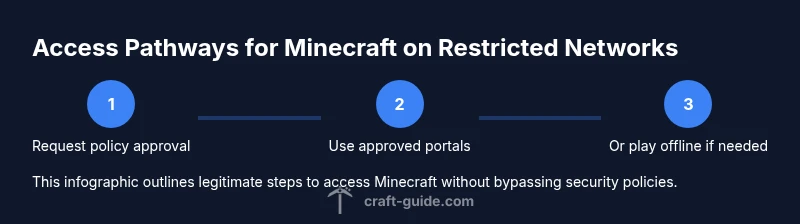
According to Craft Guide, minecraft un blocked on school networks is not a trick; it's about aligning with school policy to allow access to Minecraft for approved educational activities. In practice, it means you pursue sanctioned paths rather than bypassing filters. You'll often see a three-tier framework: network-owner permission, platform-usage within approved portals, and safe offline options when online restrictions persist. Understanding these layers helps you navigate formal channels and avoid penalties. The core idea is that minecraft un blocked is less about the technical workaround and more about communications and policy-compliant usage. If your school or campus offers a filtered portal that includes Minecraft, you can usually log in with your school credentials and follow moderation guidelines. If access is denied, you should discuss the educational goals behind the request, demonstrating how Minecraft aligns with curriculum or enrichment activities. The Craft Guide Team emphasizes patience and professionalism in this process, because the fastest route to a consistent solution is to work within the policy framework rather than attempt ad hoc fixes.
Legitimate ways to access Minecraft on restricted networks
There are several legitimate avenues to access Minecraft on networks that restrict the game. First, request administrator whitelisting or a temporary exception for a defined period, especially if you can demonstrate educational value. Second, use school-approved platforms or portals that host Minecraft in a controlled environment, with supervision and age-appropriate settings. Third, take advantage of offline or LAN play when online access is blocked, which still teaches planning, creativity, and collaboration. Fourth, consider educational editions or officially sanctioned versions designed for classrooms. These options minimize risk while keeping the learning experience intact. Craft Guide notes that framing your request around learning outcomes increases the likelihood of a positive response. Keep the proposal concise, policy-aligned, and schedule-friendly to make admin review straightforward.
Safe offline options: playing locally
Offline play remains a robust alternative when network restrictions persist. You can create a local world, explore creative mode, or host a LAN game with friends using a shared local network. Offline play also supports storytelling and building challenges that are perfect for classrooms or clubs. In this mode, your progress is saved on your device, and there’s no need for external servers. Craft Guide notes that offline Minecraft emphasizes creativity over connectivity, which can be equally valuable for developing problem-solving skills. If offline play is used for classroom activities, coach students on documenting designs and sharing strategies in a controlled environment.
Bedrock vs Java on restricted networks
Java Edition and Bedrock Edition have different networking requirements and compatibility with certain school-provided devices. Bedrock is more consistent across platforms and can be easier to deploy in a controlled LAN setup, while Java offers deeper modding and world-editing possibilities. However, on restricted networks, the key consideration is the launcher and the authentication method, which may be restricted differently by the network policy. Choose the edition that aligns with the permitted device ecosystem and curriculum goals, and coordinate with the IT team accordingly. Craft Guide highlights that choosing the right edition reduces friction during setup and helps maintain policy adherence.
How to approach admins: a practical script
Approaching an administrator is a critical step. Start with a brief, respectful message outlining the educational value, recommended supervision, and a defined trial period. Sample email: Hello IT Team, I would like to request access to Minecraft for our classroom project on collaborative problem solving. We will use a controlled environment, supervise sessions, and adhere to the schools acceptable-use policy. Could we schedule a 15-minute meeting to review options and timelines? Prepare to answer questions about data usage and student safeguards. Craft Guide suggests keeping confirmation in writing and sharing a one-page summary.
Common scenarios and compliant solutions
Scenario A: A school classroom with a blocked port. Solution: propose a school-managed Minecraft server within the campus network or a browser-based alternative that meets policy. Scenario B: A library with limited access. Solution: use offline mode for events or scheduling. Scenario C: A family home or public WiFi. Solution: use home network or mobile hotspot if allowed, ensuring you comply with all usage terms. Craft Guide's research emphasizes the value of clear, policy-aligned plans and transparent communication with network admins. In all cases, emphasize safety, student privacy, and supervised access.
Risks and policy compliance: do's and don'ts
Do: document requests, seek official approval, and test within policy limits. Don't: attempt to bypass filters, share login credentials, or deploy third-party tools that violate security. Missteps can lead to disciplinary action, loss of access, or legal issues. Always align with curriculum goals and parental consent if required. Craft Guide notes that maintaining trust with admins is essential for long-term access and a positive learning environment.
Practical setup checklist and next steps
Here is a compact, action-oriented checklist to move forward: 1) Gather your school policy and admin contact information. 2) Draft a one-page educational justification. 3) Request a formal meeting or written approval. 4) If approved, configure Minecraft on permitted devices and log in using school credentials. 5) Schedule regular check-ins to review ongoing access. If permission is not granted, pivot to offline projects or allied educational games that fit the policy.
Tools & Materials
- Licensed Minecraft launcher and account(Ensure you are using a legitimate copy and are allowed to install on your device.)
- Official school policy document or admin contact(Carry a copy during discussions; include policy references.)
- Written approval or meeting with IT/admin(Specify scope, duration, and supervision plan.)
- Alternative offline resources(Offline or LAN options helpful if online access is not granted.)
- Curriculum alignment notes(Helpful for demonstrating educational value.)
Steps
Estimated time: 45-60 minutes
- 1
Review network policy
Read current acceptable-use policies and identify the approved avenues for learning software access. Understanding constraints prevents missteps and shows you value policy compliance.
Tip: Bring a copy of the policy to discussions and note any sections related to learning tools. - 2
Prepare a policy-aligned request
Draft a concise justification that links Minecraft use to specific learning outcomes, projects, or assessments. Include anticipated supervision and safety measures.
Tip: Include a proposed trial period and success metrics to ease approval. - 3
Submit through official channels
Send your request via the school's approved process (IT ticket, admin email, or classroom portal). Keep communications professional and time-stamped.
Tip: Ask for a brief meeting if the policy requires clarification. - 4
Configure and test in a controlled environment
Set up Minecraft on approved devices and run a supervised test session to confirm access and safety controls work as intended.
Tip: Document test results and any needed adjustments. - 5
Run a pilot session
Host a short, supervised class activity to demonstrate educational value and ensure adherence to safety rules.
Tip: Collect feedback from students and admins afterward. - 6
Review and adjust
Assess outcomes, share results with admins, and adjust access terms if needed. If denied, switch to compliant alternatives.
Tip: Keep a log of decisions and proposed improvements.
People Also Ask
What does minecraft un blocked mean in practice?
In practice, it means pursuing approved access paths rather than bypassing restrictions.
It's about using approved channels and policies.
Is offline play a valid alternative when access is blocked?
Yes, offline or LAN play allows learning and creativity without online access.
Offline play is a solid alternative when network access is restricted.
How do I request access from an administrator?
Provide an educational objective, time frame, and supervision plan; contact via official channel.
Submit a formal request with your goals.
What are the risks of trying to bypass network restrictions?
Bypassing policies can lead to disciplinary action and security risks.
Circulating bypass methods can get you in trouble.
Can Minecraft use be included in classroom activities?
Yes, when approved, Minecraft can support collaboration, problem solving and project-based learning.
Minecraft can be a great learning tool with approval.
Watch Video
The Essentials
- Prioritize policy-aligned access first.
- Request admin approval with a clear educational rationale.
- Use offline or LAN options when online access is blocked.
- Craft Guide recommends collaboration with admins for a sustainable solution.