Is My Minecraft Account Lost? A Practical Troubleshooting Guide
Worried about is my minecraft account lost? This urgent guide shows exact steps to verify login, recover access, and protect your Minecraft account with official recovery flows and ownership proofs.


Is my minecraft account lost? The most common causes are login issues, password problems, or an account migration to Microsoft. Start by confirming the correct email, requesting a password reset, and checking for any recovery emails from Microsoft or Minecraft. If access still fails, use the official account recovery flow and prepare to prove ownership with purchase details and linked devices.
Is My Minecraft Account Lost? Common Causes
If you're asking 'is my minecraft account lost', the answer is usually that access was disrupted rather than the account being stolen. According to Craft Guide, most players who fear they are locked out face login issues, password mishaps, or shifts to a new Microsoft/Xbox identity. The problem often starts with a wrong email, a mistyped username, or an expired password. Security alerts can also trigger temporary lockouts after suspicious activity. Before assuming theft, run through a quick triage: confirm the email on file, check for password reset messages, and review any notices from Microsoft or Minecraft about account changes. Keep in mind that even legitimate migrations can create confusion if you have multiple accounts (Java, Bedrock, or tied Microsoft accounts).
This is especially relevant for players who use both the Java Edition and Bedrock Edition, or accounts that were migrated to Microsoft authentication. Craft Guide emphasizes that a calm, methodical approach reduces panic. By framing the issue as a login or verification problem, you can reclaim access faster and minimize downtime in your world-building or server play.
Remember: is my minecraft account lost is often a symptom, not a verdict. The sooner you verify the basics, the sooner you regain access and can continue your builds, farms, and redstone contraptions.
Quick Checks You Can Perform Now
Begin with the simplest possibilities. First, double-check that you are using the correct email address or username associated with your Minecraft or Microsoft/Xbox account. Copy-paste credentials rather than typing to avoid typos. Look for any recent security alerts or login notifications from Microsoft or Mojang that indicate a password change, unusual sign-in location, or device block. If you still can't log in, attempt the password reset using the official recovery link and monitor the inbox for reset instructions. Clear browser or launcher caches if you’re signing in from a web page or the Minecraft launcher. If you have multiple Minecraft accounts, ensure you are attempting the correct one for Java vs Bedrock, and that you are signing into the right Microsoft/Xbox profile.
As Craft Guide notes, many players underestimate the impact of platform migration. When a migration happens in the background, it can appear as if the account is lost, while the reality is a credential or identity mismatch. Stay organized: note down the accounts you own, where each is registered, and which email is primary for recovery. This reduces back-and-forth and speeds up the recovery process.
Verify the Email and Platform Your Account Uses
A frequent source of confusion is mixing up the login at Mojang/Microsoft with the old Minecraft login. Verify the email address on file in your Microsoft account settings and confirm the account type tied to your Minecraft launcher—Java Edition may use a different login than Bedrock or the Microsoft/Xbox account. If you see an option to switch to a Microsoft account, read the prompts carefully; migrating can be reversible but may require extra verification. In some cases, players have both a personal and a school/organization email; ensure you’re using the correct one for purchases and licenses. If you recently changed emails or caused a data migration, prepare to demonstrate ownership via purchase receipts or digital licenses so you can progress through recovery.
Use the Official Recovery Flow and Forms
When login persists as a problem, use the official account recovery flow. This typically involves visiting the Microsoft account recovery page or the Minecraft account recovery portal, depending on your setup. Be ready to provide identifying information such as your email, country, recent purchases, and approximate sign-in history. If you’ve linked a phone or authenticator, use those verification steps. The recovery form is designed to verify ownership and restore access without compromising security. Do not substitute others' information or use third-party recovery services; only official channels will guarantee proper restoration and policy compliance.
Craft Guide stresses following the official path ensures you’re protected by platform security policies and reduces the risk of account loss through phishing or scams.
Prove Ownership: Receipts, Linked Devices, and Account Links
Recovering access often hinges on proving ownership. Gather purchase receipts from Microsoft, Mojang, or your retailer, and collect information about the devices you used to sign in (PC, console, mobile). If your account is linked to a Microsoft/Xbox profile, include that linked email and the corresponding purchase history. Screenshots of the Minecraft launcher, the account profile, or the storefront confirming your ownership can all help. If you cannot locate receipts, provide identifiers such as the Minecraft platform version you own, approximate purchase date, and any codes or license keys you received at purchase. The more concrete you are, the smoother the recovery process will be.
Craft Guide recommends compiling this information in a single document so you can paste it into the recovery form when prompted.
Security Practices to Prevent Future Lockouts
Once you regain access, strengthen security to prevent future lockouts. Enable two-factor authentication where available, and add a backup email address or phone number to your account. Regularly review connected apps and devices, and revoke access for anything you don’t recognize. Set up recovery options (backup codes, alternate emails) and update them after major changes. Keeping a simple, secure password management method reduces the risk of password reuse across services. Regularly check for phishing emails that imitate recovery prompts and only respond to official Minecraft or Microsoft communications.
A proactive stance reduces the odds that you’ll face a similar issue in the future and keeps your world-building progress safe.
When to Contact Support and What to Expect
If you’ve exhausted the self-service options and still cannot regain access, contact official support. Provide the case details you collected: the email on file, the devices used for last sign-in, approximate purchase details, and any error messages you encountered. Support will typically guide you through additional verification steps and, if needed, temporarily lock or reset the account to protect it from unauthorized access. Expect to verify ownership again and be patient as the process can involve several steps. Craft Guide reminds players that professional help is often faster when a loss is suspected to be a breach.
Common Pitfalls to Avoid During Recovery
Avoid relying on unverified recovery services or sharing credentials with untrusted sources. Do not create multiple recovery requests in parallel; this can slow down progress or trigger security flags. Never respond to phishing emails asking for your password or full security codes. Always use official portals and confirm you are on the legitimate Microsoft or Minecraft site. Finally, don’t rush through steps; take time to carefully enter the exact information requested, as typos can reset progress or misdirect the recovery.
Short Recap: What to Do Next
- Confirm the correct login email/username and platform (Java vs Bedrock).
- Use the official recovery flow and gather ownership proofs.
- Review and implement robust security measures post-recovery.
- If needed, contact support with a clear ownership package.
- Learn from the process to prevent future losses.
Steps
Estimated time: 30-90 minutes
- 1
Verify login email/username
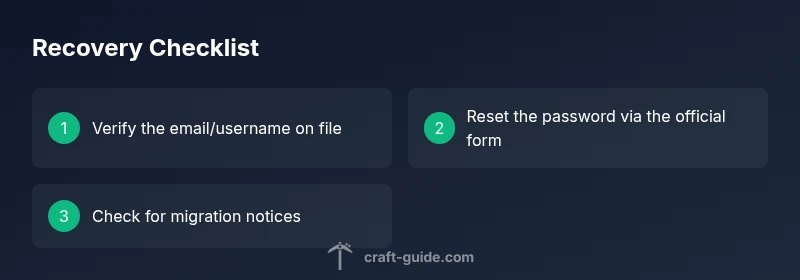
Open the Minecraft launcher or official site and carefully enter the email or username you registered. Use copy-paste to minimize mistakes and compare with any account confirmation emails. If you’re unsure which email is on file, check your email folders for prior Minecraft or Microsoft messages.
Tip: Tip: Keep a single master list of your Minecraft-related emails to avoid future mix-ups. - 2
Reset your password
Go to the official recovery page and request a password reset. Check the associated inbox for a reset link and follow the steps exactly. If you don’t receive the email, check spam folders or request another reset after 15 minutes.
Tip: Tip: Use a strong, unique password for Minecraft and avoid reusing passwords from other sites. - 3
Check for migration notices
If you recently signed in on a new device or platform, you might have migrated to a Microsoft/Xbox identity. Review any migration prompts and confirm you’re using the correct profile. Ensure Java and Bedrock entries are not mixed up.
Tip: Tip: Look for an email about migration in the inbox associated with your Minecraft account. - 4
Use the official recovery form
Access the official account recovery form and fill in all requested details accurately. Include last sign-in dates, purchase information, and linked devices. Submitting complete data improves your chances of a fast resolution.
Tip: Tip: Keep screenshots of recent purchases or licenses handy before starting the form. - 5
Provide ownership proofs
Attach receipts, license keys, or proof of purchase and show that you own the account. If you have a Microsoft-linked profile, include that information too. These proofs help verify legitimacy and speed up restoration.
Tip: Pro tip: You can create a single document with all proofs to paste into the recovery form. - 6
Secure the account post-recovery
After regaining access, enable two-factor authentication, update recovery options, and review connected apps. Set strong passwords and remove any unfamiliar devices from your account.
Tip: Pro tip: Regularly review account activity and enable alerts for sign-in changes.
Diagnosis: User cannot access Minecraft account after entering credentials
Possible Causes
- highIncorrect username or email entered
- highForgot password or expired password
- mediumAccount migrated to Microsoft/Xbox or mixed identity
- lowSecurity lock due to failed attempts or suspected compromise
Fixes
- easyDouble-check email/username and copy-paste to avoid typos
- easyReset password via the official recovery page and check for reset emails
- mediumRun through the Microsoft account recovery flow and verify ownership
- mediumReview security alerts and contact support if you suspect account compromise
People Also Ask
What counts as ownership proof when recovering a Minecraft account?
Ownership proof typically includes purchase receipts, license keys, or confirmation emails from Microsoft/Mojang. If your account is linked to a Microsoft/Xbox profile, include those identifiers and related purchase history. The recovery form guides you on acceptable proofs and how to present them clearly.
Ownership proof usually means receipts or license confirmations. Include any linked accounts and recent purchases to speed recovery.
What if I no longer have access to the linked email address?
If you can't access the linked email, use the account recovery flow to specify a new contact method. You may need to verify identity with other details, such as purchase history or connected devices. Contact support if you cannot complete verification on your own.
If you can't access the email, use the recovery flow to verify identity with other details, or reach out to support.
Can I recover my account if I bought Minecraft on another platform?
Yes. Cross-platform ownership often means you use a Microsoft/Xbox account to sign in. Provide platform-specific purchase details and linked identity information. The recovery process remains the same: verify ownership with provided proofs and follow official channels.
Cross-platform ownership is supported, but you’ll still need to prove ownership with receipts and the tied Microsoft/Xbox account.
Does my account get stolen if I see unusual login alerts?
Unusual login alerts can indicate activity to investigate. Don’t ignore alerts; change your password, review recent sign-ins, and consider enabling two-factor authentication. If you suspect a breach, contact support and follow their guidance.
Unusual sign-in alerts mean verify activity and secure your account; don’t ignore them.
What should I do if recovery attempts fail multiple times?
If recovery attempts fail, stop and revisit the proofs you provided. Ensure accuracy and completeness, then retry through official channels. If repeated failures occur, contact support with a detailed report and ask for human assistance.
If recovery fails, refine your proofs and contact official support for help.
Watch Video
The Essentials
- Verify correct login credentials before attempting recovery
- Use the official recovery flow to prove ownership
- Gather receipts and linked-device information for authentication
- Strengthen security to prevent future lockouts
- Escalate to official support when self-service fails