Is My Minecraft Account Gone? Quick Troubleshooting Guide
Waking up to login worries? This urgent guide helps you determine if your Minecraft account is gone, recover access quickly, and secure your setup to prevent future loss.


Is my minecraft account gone? If you can't log in, the most likely causes are a password change, email change, or a breach. Start with a password reset link from the official login page, verify your email, and check for security alerts from Mojang or Microsoft. According to Craft Guide, quick checks can reveal whether the account was compromised and jumpstart recovery.
Is My Minecraft Account Gone? Quick Assessment
According to Craft Guide, when you wake up to a login screen and whisper the question is my minecraft account gone, the most common reasons are credential issues rather than a total deletion. This is stressful, but keeping a calm, methodical approach helps you recover faster. Start by ruling out simple problems: incorrect username, wrong login portal, or a cached sign-in on a previous device. If you see a password error, you’re in the right track to recovery—most accounts are recoverable with the right steps.
First, confirm you’re using the official login channels. The authentic pages are login.minecraft.net for the standard sign-in and the Microsoft sign-in flow for linked accounts. If you’ve bookmarked the site, retype the URL rather than clicking from a saved link, as phishing pages can mimic the real site. Check that the date and time on your device are correct; some servers reject sign-in if your clock is far off. If you recently changed your email or password, you may still be signed into an old session; sign out everywhere and attempt a fresh login.
Next, scan for security alerts in your email. A breach notification or unusual sign-in from an unfamiliar location is a common clue that the account was accessed by someone else. If you receive any alert from Microsoft or Mojang about changes to your account, do not ignore them. These messages often include links to revert changes or initiate a secure reset. If you get a message saying the account is not found, double-check that you used the correct region and language; sometimes separate accounts exist for different countries. If you still can’t log in after the password reset, move to the next section for identity verification and recovery options. Remember, the faster you react, the more likely you will preserve your game progress and any saved worlds.
Quick Verification: Are you logging into the right service?
Many players lose access because they accidentally sign into a secondary Mojang account or a different Microsoft account that isn't linked to their Minecraft license. To check this, open the official login pages and inspect the sign-in method you select. If you previously used a separate Mojang account, you may need to migrate it to a Microsoft account; the migration can appear as a login option rather than a separate account.
- Confirm you’re entering the email you actually used for Minecraft purchases, not your general email.
- Look for subtle clues in the email address: a letter change, a domain variant (hotmail, outlook, live), or a misspelling of the address you know.
- Verify whether your account was moved to a different platform, such as a related Microsoft account, and update your bookmarks accordingly.
If after these checks you still can’t sign in, proceed to reset your password or use the account recovery form. The goal here is to re-establish a trusted link between you and the Minecraft service while preventing any future unauthorized access.
Diagnostic Flow: Symptom to Diagnosis
This diagnostic flow helps you map symptoms to likely causes and practical fixes. Symptom: You cannot log in or the account appears gone on the dashboard. Diagnosis: Most likely a credential issue (password compromise or email change) or an account migration problem. Solutions: 1) Reset password using the official page; 2) Reclaim access to the linked email; 3) Use the official account recovery form to prove ownership; 4) Check recent sign-in activity to identify unfamiliar devices; 5) If needed, contact support for identity verification.
Common signs and actions:
- If you see a “account not found” message: ensure you’re on the correct login portal and the right region; verify the account email address.
- If you see “password incorrect”: perform a password reset; if that fails, check if your account is part of a larger Microsoft account with two-factor authentication or MFA enabled.
- If you notice unfamiliar devices or locations in your sign-in history: secure your account immediately and reset credentials; enable 2FA and review connected apps.
Following this flow, you should be able to isolate the issue and implement a safe fix. If you cannot proceed through these steps, proceed to Step-by-Step Recovery.
Step-by-Step Recovery Process
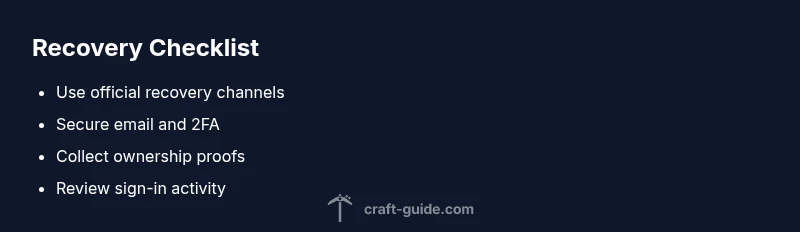
Follow these steps in order to maximize your chances of regaining access. Step 1: Visit the official sign-in page and start a password reset; Step 2: Check your email for reset links and act quickly; Step 3: If you cannot access email, use the account recovery form after gathering ownership proofs; Step 4: Prepare information to prove ownership (purchase receipts, approximate dates, last sign-in times, devices used); Step 5: After reclaiming access, secure your account (enable 2FA, review connected devices, remove suspicious apps); Step 6: Confirm your Minecraft subscription details and back up data.
Tip: Use a trusted device you own to perform resets and avoid public Wi-Fi when handling sensitive credentials. If you’re stuck, contact official support through the account recovery portal; they may require you to verify ownership with information you’ve stored. Time to reclaim often depends on what you can provide and how quickly you respond to verification prompts.
Prevention and Safety: Stop Future Loss
- Keep recovery emails up to date and enable 2FA for both Microsoft and Mojang accounts.
- Regularly review connected devices and active sessions; sign out of any you don’t recognize.
- Be cautious of phishing attempts; never enter credentials on unfamiliar pages; bookmark official login URLs only.
- Use a password manager to generate unique and strong passwords for your Minecraft-related accounts.
Conclusion: This section emphasizes proactive steps to prevent future loss. The Craft Guide team emphasizes that secure practices save you time and frustration in future gaming sessions.
Steps
Estimated time: 60-90 minutes
- 1
Open official sign-in page and start reset
Navigate to the official Minecraft/Microsoft sign-in page and choose the password reset option. Enter the email you believe is linked to the account and follow the prompts to verify ownership. If you can't access the email, move to step 2.
Tip: Use a trusted device on a secure network. - 2
Check your email for reset instructions
Open your primary email and look for the reset link from Microsoft or Mojang. If you don't see it within a few minutes, check spam or junk folders and ensure you typed the correct email.
Tip: Refresh your inbox and avoid clicking links from unknown sources. - 3
Regain access to the linked email
If you can't access the email account, contact your email provider or use their recovery options to restore access. Do not create new accounts; you need the original mailbox for recovery prompts.
Tip: Keep recovery phone/backup email updated. - 4
Use the account recovery form
If password resets fail, fill out the official recovery form with any proof of ownership: purchase receipts, approximate last login time, platforms used, and any familiar device names.
Tip: Provide accurate details; inconsistent info slows recovery. - 5
Secure and verify ownership
Once access is regained, enable 2FA, review linked devices, revoke suspicious apps, and update security questions where applicable.
Tip: Set up backups and test login on a new device. - 6
Confirm game licenses and data integrity
Verify your Minecraft license status, any subscriptions, and ensure your worlds and saves are intact after regaining access.
Tip: Back up worlds to prevent data loss.
Diagnosis: Online account login fails or account appears missing
Possible Causes
- highPassword compromise or change by attacker
- highEmail address changed or moved to a different platform
- mediumAccount migration or linking issue with Microsoft/Mojang
- lowTemporary service outage or regional login problem
Fixes
- easyReset password using the official sign-in page
- mediumRegain access to the linked email and secure it
- hardSubmit the official account-recovery form with ownership proofs
- easyReview sign-in history, enable 2FA, and revoke suspicious sessions
People Also Ask
What should I do first when I realize my Minecraft account is gone?
Begin with a password reset from the official sign-in page and check for any security alerts sent to your email. Verify you’re using the correct login portal and destination for Minecraft. If issues persist, proceed with identity verification options.
Start with a password reset and check for security alerts, then verify you’re on the official site.
Is my Minecraft account permanently gone if I can't log in?
Not necessarily. Many accounts can be recovered through credential resets and ownership verification. If you cannot regain access, contact official support and use the account recovery form.
Not necessarily—most accounts can be recovered with the right steps and official help.
How do I recover a compromised account?
Immediately reset your password, reclaim access to your email, review recent sign-in activity, and use the official recovery form to prove ownership. Enable 2FA after regaining access.
Reset password, reclaim email, review activity, and verify ownership through the official form.
Can I recover a Mojang account migrated to Microsoft?
Yes. Sign in with your Microsoft account and follow the migration and recovery steps provided by the official sites. If you’re blocked, use the recovery form with any proof of ownership.
Yes, you’ll sign in with Microsoft and follow the official recovery steps.
How long does recovery take?
Time varies based on the information you provide and verification steps required. Prepare proof of ownership and respond promptly to requests from support.
Recovery time varies; provide proof and respond quickly to requests.
Watch Video
The Essentials
- Act quickly to secure your account and data.
- Use official channels for recovery and verification.
- Enable 2FA after you regain access.
- Keep recovery information updated to prevent future loss.