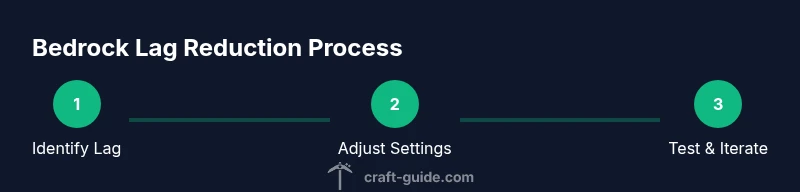
How to Make Minecraft Bedrock Less Laggy
A practical, step-by-step guide to reduce lag in Minecraft Bedrock Edition through settings tweaks, network improvements, and smart hardware checks.


Goal: Learn how to make Minecraft Bedrock less laggy by tweaking settings, networking, and hardware basics. Start with lowering render distance, updating drivers, and using a wired connection, then prune heavy add-ons and background apps. This quick path provides practical, immediate improvements for PC, console, and mobile Bedrock editions. A few minutes of changes can yield noticeable gains.
Understanding Bedrock Lag
Lag in Minecraft Bedrock Edition isn’t a single issue; it’s the result of several overlapping factors: render distance, chunk loading, entity processing, network latency, and device constraints. Players often mistake stutter for low FPS when the root cause is GPU throttling or a flaky connection. According to Craft Guide, the most common lag culprits are high render distance, background processes, and insufficient hardware resources compared to the game’s demands. By identifying which category your issue falls into, you can apply targeted fixes rather than guesswork. This section outlines a diagnostic framework: observe when lag happens (at startup vs during action), determine if it affects solo play or multiplayer, and test with a lightweight world to isolate settings. Understanding these dynamics helps you craft a sustainable plan that reduces lag without sacrificing core gameplay.
Quick Wins You Can Apply Right Now
Even before diving into deep tweaks, several fast wins reliably reduce lag:
- Lower render distance in Video settings to reduce chunk loading pressure.
- Switch Graphics to Fast and turn off Fancy if available.
- Reduce particle count and disable smooth lighting.
- Close background apps and pause cloud sync or downloads.
- Use a wired Ethernet connection instead of Wi‑Fi when possible.
- Restart your router to refresh your network path and reduce jitter.
These steps often yield noticeable improvements in frame rate and input responsiveness, especially on lower-end devices or crowded networks. Craft Guide analysis shows that these optimizations deliver the biggest bang for the least effort, particularly for multiplayer sessions where latency compounds rendering loads.
Optimize In-Game Settings for Performance
Preferred settings for performance focus on minimizing work for the engine while preserving playability. Set Render Distance to a balanced value, Graphics to Fast, and Smooth Lighting to Off or Low. Disable Particles or reduce their density, and consider turning off Biome Blending if the option exists. Enable V-Sync only if you experience screen tearing; otherwise leave it off to avoid input lag. If available, enable Use VBOs to reduce CPU overhead and memory usage. These adjustments help the engine stream chunks more predictably and improve consistency in frame pacing. Test changes in a controlled world to quantify impact before applying across all saved games.
Hardware and Driver Checks
Hardware efficiency matters as much as clever settings. Ensure your GPU drivers are up to date and, on PC, monitor temperatures and throttling behavior during play. If your device runs hot or climbs toward thermal limits, performance will degrade even with optimal settings. Confirm enough free disk space and keep storage health in mind, since slow reads can stall chunk loading. For laptops and compact machines, verify that power profiles are set to a high-performance plan when gaming and that background tasks aren’t stealing CPU cycles. On consoles, ensure the system firmware is current and that storage isn’t full. Regular driver and firmware maintenance can noticeably smooth Bedrock performance over time.
Network and Connection Quality
Network health often dictates Bedrock performance, especially in multiplayer or realms. Use a wired connection whenever possible to reduce wireless interference and jitter. If you’re stuck on Wi‑Fi, minimize interference by placing the router closer to your gaming device and away from metal obstacles. Enable QoS settings on your router to prioritize gaming traffic when the router supports it. Avoid VPNs or proxies that add extra hops to your route. For hosting, ensure your upload bandwidth is stable and reversible, and consider using a wired connection for any devices acting as servers or gateways. A stable network path reduces lag spikes and keeps world loading smooth during raids, builds, and exploration.
World Load and Add-Ons: Modding and Resource Packs
Heavy resource packs, shaders, or large add-ons can dramatically increase lag, even on capable hardware. If you notice lag after installing a new texture pack or mod, temporarily disable or revert it to verify performance gains. Favor lightweight resource packs and opt forBedrock-compatible add-ons with optimized meshes and textures. Moderate chunk loading by removing overly complex redstone contraptions in heavily populated areas to prevent sudden spikes in tile updates. Testing changes in a clean world helps you separate renderer strain from gameplay logic, making it easier to plan incremental upgrades.
Testing and Iteration: How to Measure Impact
Adopt a simple test protocol: pick a small, representative world or test world, perform a fixed route through areas with known lag, and measure frame rate stability and input responsiveness. Keep all other variables constant while you change one setting at a time so you can clearly attribute improvements. Use in-game indicators or external tools to log FPS, latency, and RAM usage during the test. After each change, play for several minutes and compare to the baseline. If a setting produces no improvement or worsens performance, revert and try the next adjustment. This iterative approach helps you reach a balanced configuration that minimizes lag without reducing enjoyment.
Advanced Tips for Persistent Lag
If lag persists despite all standard optimizations, consider deeper architectural adjustments. On PC, ensure the game is installed on a fast SSD for quicker chunk loading and texture streaming. Check that cooling is adequate to prevent thermal throttling, and consider a lightweight performance profile that prioritizes gaming tasks over background services. For multiplayer, evaluate server location relative to players and discuss hosting options with your group. Sometimes, lag is a symptom of external factors like peak traffic hours or regional routing issues, which may require patience or a strategic shift to a closer server or a quieter time window.
When to Seek Help or Upgrade
If you’ve exhausted practical optimizations and still experience frequent lag, it may be time to consider hardware upgrades or alternative hosting solutions. Upgrading a GPU or increasing system RAM can provide headroom for more demanding worlds and mods, while switching to a wired, stable network setup reduces traffic-related delays. For players who host realms or small servers, evaluating your hosting plan or moving to a closer datacenter can yield tangible improvements. Remember, the goal is to achieve consistent gameplay rather than chasing marginal frame rate gains. The Craft Guide team recommends taking a measured approach: document each change, test with a reproducible scenario, and invest in upgrades only when they demonstrably improve your experience.
Tools & Materials
- Stable internet connection(Wired ethernet is preferred when possible; Wi-Fi should be stable and low-latency.)
- Access to Video/Graphics settings in Bedrock(Tune render distance, graphics quality, and effects directly in-game.)
- Updated GPU drivers(Install the latest drivers from NVIDIA/AMD/Intel for PC; check console firmware if applicable.)
- Router with configuration access(Optional for QoS and port-forwarding when hosting or troubleshooting network paths.)
- Lightweight monitoring tools(Use OS-level monitors or built-in game stats to track FPS and RAM usage.)
- Sufficient free storage(Ensure space for world data, logs, and texture packs without slow reads.)
Steps
Estimated time: 45-90 minutes
- 1
Identify lag symptoms
Observe when lag occurs (startup, movement, or in busy areas). Note if it’s present in solo play or only multiplayer. This helps distinguish between render/CPU constraints and network issues.
Tip: Record a short gameplay clip to compare before/after changes. - 2
Lower render distance
Open video settings and reduce render distance to a level that maintains playable visuals. This reduces chunk loading and improves stability on constrained hardware.
Tip: Make a small change first, then test before applying to other worlds. - 3
Switch to performance-friendly settings
Set Graphics to Fast, disable Smooth Lighting, and lower or disable Particles if needed. These changes cut the workload on the rendering pipeline.
Tip: Test one change at a time to isolate impact. - 4
Close background apps
Exit unnecessary programs and pause cloud sync or downloads. Background tasks can steal CPU cycles and memory, causing stutters.
Tip: Use a task manager to identify resource hogs during gameplay. - 5
Update drivers and game version
Ensure the GPU drivers and Bedrock Edition are up to date. Newer updates often include performance and stability fixes.
Tip: Restart after updates to ensure changes take effect. - 6
Check your network path
If multiplayer lag persists, test with a wired connection and minimize routing hops. Consider QoS settings to prioritize gaming traffic.
Tip: If you host, verify upstream bandwidth and consider moving host location. - 7
Test with a clean world
Create a fresh world and disable resource packs to see if lag stems from world data or addons. This isolates performance variables.
Tip: If the clean world runs smoothly, reintroduce packs one by one. - 8
Evaluate hardware upgrade or hosting
If lag remains, assess whether upgrading hardware or switching hosting arrangements is warranted. Do a cost-benefit check based on your play patterns.
Tip: Plan upgrades around the most impactful bottleneck discovered during tests. - 9
Re-test and commit to a baseline
After final changes, play for a longer session to confirm stability. Set a baseline configuration you can return to if issues reappear.
Tip: Keep a simple changelog to track what helped most.
People Also Ask
What causes lag in Minecraft Bedrock Edition?
Lag can stem from render distance, high graphical demands, background processes, and network latency. Identifying the primary cause helps you apply targeted fixes rather than guessing.
Lag in Bedrock comes from render distance, graphics demands, background tasks, or network latency. Pinpoint the main cause to fix it effectively.
Can lag be fixed without changing world quality?
Yes. Start with targeted settings tweaks, update drivers, and improve network stability. If necessary, selectively remove heavy resource packs or mods to regain smooth performance.
Yes. You can fix lag with settings tweaks, updated drivers, and a better network. If needed, remove heavy packs to regain smoothness.
Is lag worse on multiplayer than solo play?
Multiplayer introduces additional load from servers and other players. Start with client-side optimizations, then verify server-side factors like hosting distance and bandwidth.
Yes, multiplayer adds server and network load. Optimize your client first, then consider server hosting factors.
Does closing background apps help?
Yes. Background processes can steal CPU time and memory, causing stutters during gameplay. Closing non-essential apps often yields noticeable gains.
Absolutely. Background apps can slow things down; closing them helps performance.
How do I know if lag is network-related?
Check ping and jitter in-game, test with wired Ethernet, and try a direct route to the server. If latency remains high, investigate router QoS and potential ISP issues.
You can tell if lag is network-related by checking ping and jitter and testing with a wired connection.
Should I use resource packs or shaders?
Resource packs and shaders can dramatically affect performance. Prefer lighter packs and selectively enable shaders when hardware supports them well.
Resource packs and shaders can slow you down; use lighter options and test their impact.
Watch Video
The Essentials
- Start with quick wins to reduce load and stabilize FPS
- Tune in-game settings to balance visuals and performance
- Prioritize network stability for multiplayer lag fixes
- Test changes systematically and document results