How to Keep Minecraft from Minimizing
Learn proven steps to stop Minecraft from minimizing on Windows, macOS, or Linux. This guide covers fullscreen and borderless modes, Do Not Disturb, launcher tweaks, and OS settings for a stable, uninterrupted play experience.


You can keep Minecraft from minimizing by locking the game to a focused display mode (fullscreen or borderless windowed), suppressing OS notifications, and tuning launcher/settings to minimize focus shifts. This approach works across Windows, macOS, and Linux and reduces interruptions during builds, redstone testing, or long survival sessions.
Why Minecraft Minimizes Occurs
According to Craft Guide, Minecraft minimizing is typically a result of window focus shifts and OS-level focus management rather than a bug within the game. When a foreground window loses focus, the operating system may automatically minimize or push the game behind other apps to accommodate notifications or background tasks. This is especially common when you Alt-Tab, press the Windows key, or interact with system alerts while Minecraft is running. Understanding these mechanics helps you craft a reliable workflow that keeps your world, mods, and builds in view. In this section we set the stage for a practical, repeatable approach that works on Windows, macOS, and Linux, so you can keep working on farms, redstone contraptions, or creative builds without constant interruptions.
The Role of Fullscreen and Borderless Window Modes
Fullcreen mode can prevent focus-stealing behavior by dedicating the entire screen to Minecraft, which reduces accidental minimizes caused by clicking outside the game. Borderless windowed mode, on the other hand, preserves the illusion of full screen while allowing quick alt-tabbing. For many players, borderless windowed mode offers the best balance between immersion and accessibility when you need to reference a guide, chat with friends, or test a new mod. This section breaks down how to enable both modes in the Minecraft video settings and launcher options, plus how to switch between them quickly without losing your place in the world.
OS-Level Focus Management: Do Not Disturb and Notifications
Notifications are a common culprit for focus loss. Enabling Do Not Disturb (or Focus Assist on Windows) can dramatically reduce popups that minimize or steal focus from Minecraft. We detail how to configure DND on Windows, macOS, and Linux, and why scheduled quiet times align well with long sessions. Craft Guide analysis shows that pairing Do Not Disturb with borderless mode yields the most stable results, especially during intense redstone builds or long mining runs. Remember to re-enable notifications after you finish if you rely on alerts for other tasks.
Managing Alt-Tab Behavior on Windows
Windows users often report unwanted minimizes after Alt-Tab. To minimize this risk, use borderless windowed mode and consider adjusting Focus Assist settings to sample notifications only during your breaks. We cover practical steps like enabling Focus Assist, choosing priority notifications, and testing your workflow with live tabs open in the background. The goal is to keep Minecraft foreground-ready while still receiving critical system messages when you explicitly permit them.
macOS Tips to Prevent Focus Loss
macOS users can leverage separate desktop spaces and Mission Control to prevent accidental minimizes during focus-heavy play. Keep Minecraft on a dedicated space, disable non-essential notifications, and use the keyboard shortcut for switching desktops to return quickly if you unintentionally switch. This section provides a step-by-step guide to configuring System Preferences, Notifications, and Mission Control to create a stable gaming environment while preserving access to helpful resources and chat.
Linux Tips and Desktop Environments
Linux presents a variety of desktop environments (GNOME, KDE, XFCE) with different focus-handling semantics. We offer environment-agnostic guidance: enable fullscreen or borderless modes in Minecraft, configure Do Not Disturb across your DE, and opt for a window manager setting that minimizes focus changes when you switch tasks. This ensures your Minecraft window remains as stable as possible across commonly used Linux setups.
In-Game Settings and Launcher Tweaks That Help
Beyond OS adjustments, in-game video settings and launcher preferences can reduce focus loss. We discuss enabling fullscreen or borderless modes from the Video Settings, ensuring the game launches with the desired window state, and selecting a launcher option that minimizes foreground interruptions. If you use mods or launchers, verify that they don’t override window states unexpectedly. This section includes a practical checklist to verify all relevant toggles are set.
Testing, Validation, and Troubleshooting
After applying changes, validate by performing a controlled alt-tab exercise and observing whether Minecraft minimizes. If it still happens, revisit each setting in order, reboots, and test with a clean profile. We provide a simple testing protocol and a troubleshooting flowchart, so you can identify the most common cause—be it a background alert, a launcher quirk, or a desktop environment quirk—without guessing.
Common Pitfalls and When to Seek Help
Several known mistakes can undermine your efforts: leaving notifications enabled, using incompatible mods that alter window state, or running an outdated launcher. If the issue persists after following the steps, consider reaching out to the Minecraft community forums or your launcher’s support channels. The Craft Guide approach emphasizes a methodical, incremental process to isolate the cause and apply a targeted fix.
Quick Validation Checklist to Lock In Focus
This final block provides a practical, high-signal checklist you can run before starting a session. Confirm that you are in fullscreen or borderless mode, Do Not Disturb is active, notifications are minimized, your launcher is configured for foreground stability, and you have tested a quick Alt-Tab to verify you can return quickly to Minecraft. With these steps in place, your builds and explorations stay uninterrupted for longer sessions.
Tools & Materials
- Computer capable of running Minecraft(Needs a modern GPU and stable RAM for smooth fullscreen/borderless performance)
- Minecraft launcher(Keep it updated to ensure proper window state handling)
- Operating system with notification controls(Windows, macOS, or Linux; have Do Not Disturb or Focus Assist ready)
- Borderless windowed mode toggle(Accessible in Video Settings or launcher options)
- Fullscreen mode toggle(Typically F11 or in video settings)
- Do Not Disturb/Focus Assist(Useful cross-platform; enables silence during play)
- Optional: Always-on-Top utility (Windows)(Helps keep Minecraft in view when multi-monitor setup is used)
- Keyboard shortcut cheat sheet(Keep handy to quickly return focus to Minecraft)
Steps
Estimated time: 30-60 minutes
- 1
Open in fullscreen
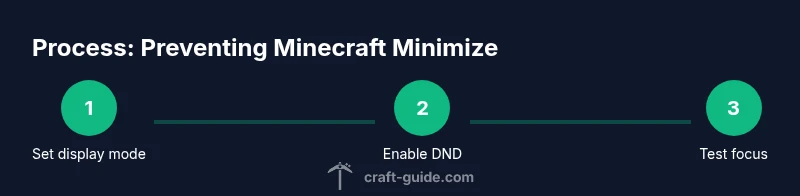
Launch Minecraft and switch to fullscreen mode via the Video Settings. Ensure the game occupies the entire screen to minimize focus shifts from accidental clicks outside the window. This step reduces interruptions caused by stray cursor focus.
Tip: Tip: Press F11 (or the fullscreen toggle) to quickly lock the display. - 2
Enable borderless windowed mode
If fullscreen is too restrictive, switch to borderless windowed mode. This preserves a full-screen look while allowing you to Alt-Tab without minimizing. Verify the setting in Video Settings or launcher options.
Tip: Pro-tip: Borderless mode makes tabbing between resources effortless during builds. - 3
Turn on Do Not Disturb
Activate Do Not Disturb or Focus Assist to suppress pop-ups and non-critical alerts that could steal focus. Configure it for your active play times to maximize uninterrupted sessions.
Tip: Pro-tip: Schedule DND for long play sessions and disable only when you need alerts. - 4
Test focus behavior with Alt-Tab
Perform a controlled Alt-Tab to another window and back. Confirm Minecraft remains visible and does not minimize. If it minimizes, revisit fullscreen/borderless and DND settings.
Tip: Pro-tip: Use a second monitor to practice returning quickly without losing your place. - 5
Adjust focus settings in the launcher
Check if your launcher has options to keep games in foreground or prevent automatic window cycling. Apply any relevant options and test the result.
Tip: Pro-tip: Some launchers offer a 'stay on top' or 'foreground' mode—activate if available. - 6
Consider an Always-on-Top utility (Windows)
If you frequently need to view another reference while playing, a trusted Always-on-Top tool can help keep Minecraft visible. Use responsibly and avoid unstable software.
Tip: Pro-tip: Use reputable utilities from trusted sources and keep them updated. - 7
Update graphics drivers
Outdated drivers can cause window management glitches. Update your GPU drivers from the manufacturer’s site and reboot before testing again.
Tip: Pro-tip: After updating, re-test the same Alt-Tab sequence to confirm stability. - 8
Test on a clean profile
Launch Minecraft with a clean user profile to rule out mods or configs that affect window state. If the issue stops, reintroduce mods gradually.
Tip: Pro-tip: Disable all mods then re-enable in small groups to identify the culprit. - 9
Create a playtime checklist
Document the exact steps you perform before starting, including window mode, DND, and launcher settings. This helps reproduce the success across sessions.
Tip: Tip: Keep a small note handy for quick reference during long builds.
People Also Ask
What causes Minecraft to minimize during a session?
Most minimizes happen when the game loses focus due to Alt-Tab, Windows key presses, or OS notifications. Checking window mode and disabling distractions typically resolves this.
Most minimizes happen when Minecraft loses focus from Alt-Tab or OS notifications. Fix by enabling fullscreen or borderless mode and silencing interruptions.
Is borderless windowed mode better than fullscreen for focus?
Borderless windowed mode provides the best balance between staying in focus and allowing easy alt-tabbing to reference guides or manage other tasks. It maintains the full-screen look while reducing focus steal.
Borderless mode often keeps you in focus while letting you switch tasks quickly. It's usually a better choice for multitasking.
How can Do Not Disturb help during play?
Do Not Disturb silences pop-ups from other apps, which are a common cause of focus loss. Turn it on before you start a session and customize exceptions as needed.
Turning on Do Not Disturb reduces distractions while you play. You can customize which alerts still come through.
Will updating drivers affect window behavior?
Yes. Updated graphics drivers can fix window management glitches and improve stability when switching between apps.
Updating drivers can fix stability issues that cause minimizing when you switch tasks.
What if mods cause the problem?
Some mods alter window state handling. Run Minecraft with a clean profile to determine if mods are at fault, then reintroduce them gradually.
If mods are involved, test with a clean profile first to see if the issue persists.
Can I use an Always-on-Top tool safely?
Yes, but only from reputable sources. Use sparingly and avoid tools that claim to force focus for every app.
An Always-on-Top tool can help in some setups, but choose reputable software and use cautiously.
Watch Video
The Essentials
- Enable fullscreen or borderless windowed mode to reduce focus shifts
- Suppress non-essential notifications during play
- Test focus behavior with deliberate Alt-Tab checks
- Keep launcher settings aligned with foreground stability
- Use a clean profile or minimal mods when diagnosing issues