How to Make Minecraft Borderless Fullscreen
Learn how to make Minecraft borderless fullscreen across Windows and macOS with a practical, beginner-friendly guide. Includes built-in methods, third-party tips, and troubleshooting from Craft Guide.


You can achieve borderless fullscreen for Minecraft by using the game’s built-in fullscreen option and, if needed, a borderless window tool for true edge-to-edge display. This guide covers Windows and macOS methods, with practical checks and troubleshooting from Craft Guide.
What borderless fullscreen means for Minecraft
Borderless fullscreen refers to running Minecraft in a window that fills the screen without visible window borders or the OS taskbar. This setup keeps the game immersive while allowing quick access to other applications through seamless Alt-Tab transitions. For players seeking an uninterrupted view during builds, exploration, or redstone experiments, borderless fullscreen can be a game-changer. According to Craft Guide, implementing borderless fullscreen can reduce on-screen distractions and improve focus during long sessions. In this guide, we’ll explore both built-in options and reliable third-party methods to achieve true edge-to-edge gameplay for how to make minecraft borderless fullscreen.
Why players choose borderless fullscreen for Minecraft
Borderless fullscreen combines the clarity of fullscreen with the flexibility of windowed mode. You get a clean, distraction-free display that still allows rapid switching between Minecraft and other tools like music players, shader editors, or Discord. The approach minimizes border artifacts and helps maintain consistent performance because the game renders directly to a near-full-screen canvas. Craft Guide analyses suggests players notice fewer UI clipping issues and more stable alt-tab behavior when borderless fullscreen is enabled. It’s particularly helpful for creators who stream or record, as it minimizes on-screen chrome and provides a smoother viewing experience.
Platform-specific considerations: Windows, macOS, and beyond
Windows users often achieve borderless fullscreen by combining Minecraft’s fullscreen toggle with a borderless window utility if necessary. macOS users typically rely on the system fullscreen shortcut, with some setups benefiting from borderless tools for true edge-to-edge gameplay. Linux users may need desktop environment tweaks or window manager configurations to mimic borderless behavior. In all cases, the principle is the same: either use Minecraft’s built-in fullscreen mode or pair it with a borderless window approach to remove the frame around the game.
Prerequisites and quick checks before you start
Before attempting to enable borderless fullscreen, ensure you have the latest Minecraft Launcher and Java Edition installed, along with up-to-date graphics drivers for your GPU. Verify your monitor resolution matches your preferred play area to prevent stretched or cropped images. Close unnecessary background applications to reduce input lag and help ensure a stable display when you switch to borderless fullscreen. Craft Guide recommends testing changes in a short, controlled session to avoid long adjustments later.
Method A: Using Minecraft’s built-in fullscreen toggle (fast path)
If you want a quick, built-in approach, start Minecraft and activate the in-game fullscreen option. This method leverages the game’s own rendering pipeline to fill the screen, often removing most borders. If your OS still shows a border, you may be able to maximize immersion by combining this with a no-border window tool. This approach is ideal for players who want a fast, reliable setup without third-party software. Craft Guide notes that many players achieve acceptable borderless results using only the built-in fullscreen toggle.
Method B: Borderless window tools for true edge-to-edge display
For a true borderless windowed experience, use a borderless window utility (such as a reputable borderless tool) and add Minecraft to its program list. This method creates a seamless edge-to-edge window on your desktop while Minecraft remains in windowed mode, allowing reliable Alt-Tab behavior and easier multitasking. Ensure you download from trusted sources and configure permissions in your operating system. Craft Guide observes that borderless window tools provide a consistent, immersive experience across multiple monitors and resolutions.
OS-level tweaks, resolution, and monitor setups
Fine-tuning your OS settings can enhance the borderless experience. Align Minecraft’s window size with your monitor’s native resolution and consider enabling a single-monitor focus if you often switch between apps. On Windows, you might adjust the display scaling and text size to ensure the game renders without blur. On macOS, use Mission Control and system fullscreen as a baseline, then rely on a borderless tool for true edge-to-edge gameplay. These tweaks help avoid gaps, black bars, or mismatched scales when borderless fullscreen is active.
Verification, testing, and common troubleshooting
After enabling borderless fullscreen, test by switching between Minecraft and other programs to ensure borders remain hidden and the display remains consistent. If borders reappear, revisit the tool’s settings or the in-game fullscreen toggle and re-check your resolution alignment. Restart Minecraft if needed, and verify you’re using the intended display. Craft Guide suggests keeping a short checklist: check borders, verify Alt-Tab, test with shaders, and confirm the correct monitor is active.
Tools & Materials
- Computer with compatible GPU(Ensure hardware meets Minecraft demands for smooth rendering)
- Operating System (Windows 10/11 or macOS)(Keep OS updated for best borderless support)
- Minecraft Java Edition(Use the official launcher to start the game)
- Minecraft Launcher(Latest version recommended)
- Borderless window tool (optional)(Examples: Borderless Gaming or similar, trusted source)
- Up-to-date graphics drivers(GPU-specific drivers ensure compatibility)
- A test monitor/resolution setup(Useful if using multi-monitor borderless setups)
Steps
Estimated time: 15-25 minutes
- 1
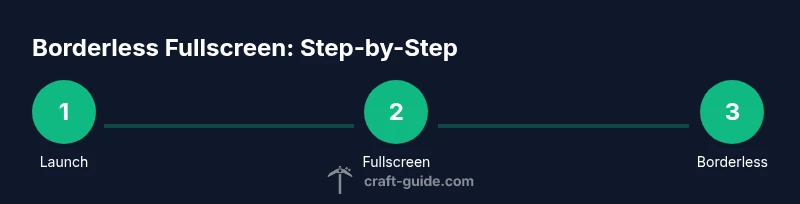
Launch Minecraft and select Java Edition
Open the Minecraft Launcher, select the Java Edition profile, and start a world to verify display changes. This initial action ensures you’re applying the correct game instance for borderless fullscreen adjustments.
Tip: Use a clean desktop and close background apps for smoother performance. - 2
Open Video Settings and enable Fullscreen
In-game, navigate to Options > Video Settings and ensure Fullscreen is enabled. This sets Minecraft to render on a full-screen canvas, a prerequisite for consistent borderless behavior.
Tip: If Fullscreen is already on, toggle it off and on to reset rendering. - 3
Switch to fullscreen mode with the built-in option
Press F11 to switch to fullscreen. This uses the game's native fullscreen mode, which often removes borders and the taskbar depending on OS behavior.
Tip: Test Alt-Tab after toggling to confirm clean transitions. - 4
Install a borderless window tool
If you want true borderless windowed mode, install a borderless window tool and run Minecraft through it. This creates a borderless display while staying in windowed mode for easy multitasking.
Tip: Download from a reputable source and review permissions in your OS settings. - 5
Add Minecraft to the borderless tool and enable borderless
In the borderless tool, add Minecraft to its program list and enable the borderless window for it. This ensures a seamless edge-to-edge display during play.
Tip: Set the tool to auto-start with your OS for consistency. - 6
Test window size and resolution alignment
Position Minecraft on the desired monitor and adjust the window size to match your screen resolution. Borderless tools often honor the current resolution, so alignment minimizes edges.
Tip: Use the same resolution you normally play at to avoid scaling issues. - 7
macOS-specific fullscreen handling
Mac users can use the system fullscreen shortcut to toggle fullscreen while borderless tools are active, preserving immersion with minimal artifacts.
Tip: Hide the dock when testing fullscreen for a cleaner view. - 8
Verify and save your preferred configuration
Run quick test sessions across worlds, alt-tab between apps, and ensure the borderless effect remains stable. Save the configuration so you don’t have to repeat steps.
Tip: If borders reappear, revisit the tool settings and recheck the borderless toggle.
People Also Ask
What exactly is borderless fullscreen for Minecraft?
Borderless fullscreen runs Minecraft in a window that fills the screen with no visible borders, allowing seamless switching to other apps. It combines the immersive view of fullscreen with the flexibility of windowed mode. This setup is especially helpful for creators and multitaskers.
Borderless fullscreen is Minecraft filling the screen without borders, so you can switch to other apps easily without seeing borders.
Do I need third-party software to achieve borderless fullscreen?
Not always. You can start with Minecraft’s built-in fullscreen option, but true edge-to-edge borderless gameplay often requires a borderless window tool. Use third-party software if you want consistent borderlessness across all setups.
You can use the built-in fullscreen, but for true borderless you may need a borderless window tool.
Will enabling borderless fullscreen affect performance?
In most cases, borderless fullscreen does not significantly affect performance, but results vary by hardware and software configuration. If you notice stuttering, update drivers and test with or without borderless tools.
Performance varies; try updating drivers and test both with and without borderless tools.
Does this work on Windows and macOS alike?
Yes, but the exact steps differ. Windows users often use a borderless tool for true edge-to-edge display, while macOS users may rely on the system fullscreen plus optional tools for the best result.
Both Windows and macOS can achieve borderless fullscreen, with platform-specific steps.
Is borderless fullscreen safe for my computer?
Borderless fullscreen is generally safe when using trusted software and proper permissions. Avoid unknown tools, and revert changes if you notice unusual system behavior.
It's safe if you stick to trusted tools and revert if you see issues.
How do I revert to normal fullscreen or windowed mode?
To revert, disable the borderless option in the tool or switch off fullscreen in Minecraft and restore standard windowed mode via your OS or launcher settings. You can re-enable later if needed.
Turn off the borderless tool or toggle fullscreen off in Minecraft to revert.
Watch Video
The Essentials
- Enable fullscreen first, then try borderless options
- Use built-in fullscreen for a quick setup
- Borderless window tools provide edge-to-edge display
- Test across monitors and alt-tab frequently
- Revert to normal if issues arise