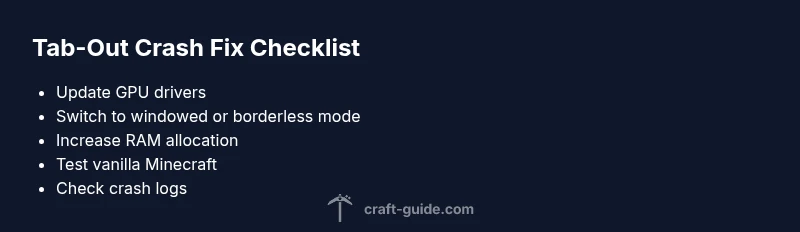
How to Stop Minecraft from Closing When Tabbing Out
Learn practical steps to stop Minecraft from closing when you tab out. This troubleshooting guide covers common causes, quick fixes, and a safe diagnostic flow to keep your game stable.


Minecraft closes when you tab out due to focus-related crashes or overlays, often from graphics settings, RAM allocation, or mods. Start with quick fixes: run in windowed/borderless mode, update drivers, and allocate more RAM. If problems persist, disable mods/shaders and test vanilla Minecraft to isolate the issue.
Why Minecraft Closes When Tabbing Out
When you alt-tab or switch focus away from Minecraft, the game can close or crash if the client loses focus unexpectedly or if the system interprets a background action as an error. Common triggers include outdated graphics drivers, insufficient RAM allocation for Java, and certain fullscreen configurations. In some cases, mods, shader packs, or resource packs misbehave when the game loses focus, causing an abrupt quit. Understanding these trigger points helps you apply targeted fixes quickly, reducing downtime and frustration.
According to Craft Guide, a systematic approach—starting with the simplest adjustments and moving toward targeted configuration changes—yields the most reliable results. This article follows that approach, offering a clear diagnostic path and safe, reversible steps to stabilize gameplay when tabbing out.
Key takeaway: focus-related issues are usually caused by a single misconfiguration or a conflicting mod that’s easy to isolate and fix, often without reinstalling anything.
Steps
Estimated time: 30-45 minutes
- 1
Verify game and launcher updates
Open your Minecraft launcher and check for updates to the launcher, the Minecraft version, and any installed mods. Apply all available updates to reduce compatibility issues that can trigger a crash when tabbing out. After updating, restart the launcher and the game to confirm stability.
Tip: Automatic updates are convenient, but verify that no beta features are enabled unless you know they’re stable. - 2
Switch to windowed or borderless mode
If you’re currently in fullscreen, switch to windowed or borderless fullscreen. This minimizes focus loss glitches that can cause a crash when tabbing out. In many launchers, you can toggle this in the video settings or start the game with a borderless option.
Tip: Borderless can feel seamless, but ensure you don’t run multiple full-screen apps that could steal focus. - 3
Allocate more RAM to Minecraft
Open the launcher settings and increase the Java memory allocation. A safe target is 4–8 GB, depending on your total system RAM. Save changes and restart Minecraft to see if tabbing out remains stable.
Tip: Avoid allocating all available RAM; leave some for the OS and background tasks. - 4
Update graphics drivers and Java runtime
Install the latest graphics drivers and ensure your Java Runtime (if using a standalone JRE) is up to date. Outdated drivers can mishandle focus shifts and cause crashes when tabbing out.
Tip: If you’re unsure which driver to install, use your GPU manufacturer’s auto-detect tool. - 5
Test with vanilla Minecraft
Disable all mods and shader packs temporarily and run a clean vanilla session. If the issue disappears, reintroduce mods one by one to identify the culprit. This isolates whether a mod is triggering the crash on tab-out.
Tip: Document which mod versions you tested to help with future troubleshooting. - 6
Evaluate crash logs and behavior
Check Minecraft crash reports and system logs for error messages related to focus changes. Logs can point to a particular mod, driver, or setting that needs adjustment. Use this information to guide further fixes.
Tip: Share log snippets with communities or Craft Guide for precise interpretation.
Diagnosis: Minecraft closes or crashes when you tab out or loses focus
Possible Causes
- highOutdated or conflicting graphics drivers
- highInsufficient RAM allocated to Java/Minecraft
- mediumFullscreen or borderless window settings causing focus events
- lowMods, shader packs, or resource packs conflicting with focus changes
Fixes
- easyUpdate your graphics drivers to the latest version from the manufacturer’s site.
- easyIncrease RAM allocation for Minecraft via the launcher (e.g., 4–8 GB depending on system).
- easySwitch to windowed or borderless fullscreen mode to normalize focus behavior.
- mediumTemporarily disable or remove mods/shaders, then test vanilla Minecraft to confirm stability.
People Also Ask
Why does Minecraft close when I Alt-Tab?
Alt-Tab can trigger a crash if focus changes cause a graphical or memory fault. Updating drivers and RAM allocation typically resolves this. If instability persists, testing vanilla Minecraft helps identify mod-related issues.
Alt-Tab crashes usually come from focus changes affecting graphics or memory. Update drivers, adjust RAM, and test vanilla to see if mods are the cause.
Can fullscreen cause tab-out crashes in Minecraft?
Yes. Fullscreen can complicate focus handling. Switching to windowed or borderless mode often reduces or eliminates tab-out crashes.
Fullscreen can cause focus issues; try windowed or borderless mode to see if stability improves.
How much RAM should I allocate to Minecraft?
Allocate a safe amount based on total RAM. Common ranges are 4–8 GB for many systems; avoid allocating all memory to Minecraft. Adjust in the launcher’s settings.
A good rule is four to eight gigabytes, depending on your PC, with some memory left for the rest of Windows.
Do mods cause tab-out crashes?
Mods can cause tab-out crashes if they interact poorly with focus changes or shader packs. Test with mods disabled to confirm.
Mods can be the culprit; test with no mods to verify stability.
What should I do if none of the fixes work?
If issues persist, back up your worlds, reinstall Minecraft, and consider checking hardware stability (RAM, GPU). You can also seek help with crash logs at Craft Guide.
If it still crashes, back up your world, reinstall Minecraft, and review crash logs for hardware or software clues.
Is this related to Java or launcher versions?
Yes. Ensure both Java and the Minecraft launcher are current and compatible with your game version. Outdated runtimes can trigger focus-related crashes.
Make sure Java and the launcher are up to date to avoid compatibility issues.
Watch Video
The Essentials
- Update drivers and launcher first
- Use windowed/borderless mode to stabilize focus
- Increase RAM allocation safely to improve stability
- Isolate mods by testing vanilla Minecraft
- Refer to crash logs for targeted fixes