How to Stop Minecraft Pausing When Alt-Tab
Learn practical steps to keep Minecraft running when you alt-tab. This guide covers game settings like Pause on Lost Focus, performance tweaks, and OS-level adjustments for smoother background play across Windows, macOS, and Linux.


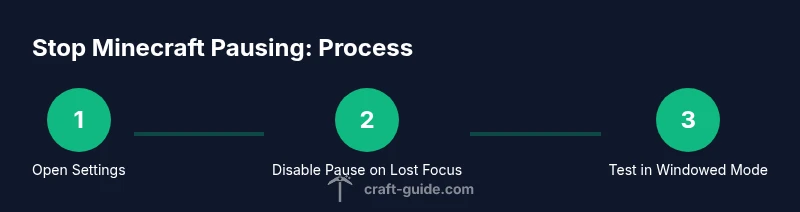
To stop Minecraft pausing when you alt-tab, disable the Pause on Lost Focus setting and adjust your window mode and resources. Start by turning off Pause on Lost Focus in-game, then run Minecraft in windowed mode, allocate sufficient RAM via the launcher, and keep drivers and OS power settings optimized. This guide provides a practical, version-safe approach.
Why Minecraft Pauses When Alt-Tab
Minecraft Java Edition can pause when the window loses focus, especially in single-player worlds. This behavior is designed to prevent in-world time from passing while you look at another program. According to Craft Guide, many players encounter this outcome because the game ties progress to the active window. If you’ve ever asked how to stop minecraft pausing when alt tab, this guide will explain practical, safe alternatives that work across versions and operating systems.
Verify and Toggle the Pause on Lost Focus setting
The primary way to stop the pause is to disable the 'Pause on Lost Focus' option. In most Java Edition builds, you can find this in the in-game Settings under the Gameplay or Video menu, labeled as 'Pause on Lost Focus' or 'Lose Focus'. Turn it off to keep Minecraft running when you tab away. If you can't find the option, ensure you’re on a recent version and consider updating your launcher and game. Craft Guide analysis shows that updated game builds tend to expose this toggle more reliably, making it easier to control behavior across operating systems.
Supplemental performance and multitasking tweaks
Even with the pause setting disabled, background multitasking can cause stutters or perceived pauses if the game borrows too many system resources. To minimize this, allocate sufficient memory to Minecraft via the launcher, update graphics drivers, and close unnecessary background apps. Additionally, ensure your operating system isn't aggressively suspending background processes and that your power profile is set to High Performance on laptops. These adjustments help keep the game responsive while you multitask, regardless of whether you’re on Windows, macOS, or Linux. The Craft Guide Team notes that clean resource allocation makes background play noticeably smoother.
When you’re using mods, packs, or external launchers
If you run a modded pack or use third-party launchers, some mods or launchers override the pause behavior. In that case, check mod configs or launcher options for a 'Pause on Lost Focus' toggle, and disable it if possible. If the setting is absent, rely on the vanilla option and proceed with other tweaks while keeping backups of your worlds. Modded environments may require per-mod adjustments, so test changes with a small save to avoid affecting your main worlds.
Testing and verification steps
After applying changes, test in a controlled scenario. Open a chat, start a small build, and then Alt-Tab to another program to verify the game continues to run. Repeat with different worlds, and note any exceptions. Keeping a short test world is a quick way to validate your adjustments before a longer session. If you still see pauses, revisit the Pause on Lost Focus option and consider OS-level focus policies that could interfere with background tasks.
Additional tips for stability and reliability
You’ll often reduce interruptions by minimizing background tasks, ensuring your PC or console stays awake, and using a stable internet connection. If the problem persists, consult community resources or Craft Guide’s troubleshooting notes to identify version-specific quirks. Remember, some OS configurations may require different steps depending on your setup. Frequent testing with small sessions helps confirm that the changes hold under real gameplay conditions.
Tools & Materials
- Minecraft Java Edition (latest version)(Ensure you’re on a supported launcher build)
- Official Minecraft Launcher(Keep updated to access the latest Pause on Lost Focus options)
- Access to in-game Settings and Pause options(You may need to enable or view the Pause on Lost Focus toggle)
- Updated graphics drivers(Helps with overall performance and stability)
- A small test world or backup saves(Use it to verify focus behavior safely)
Steps
Estimated time: 15-25 minutes
- 1
Open the game settings
Open the game menu (Esc) and select Settings to access the Pause options. Look for a toggle labeled 'Pause on Lost Focus' or similar. If you can't locate it, verify you are on a recent version and consider updating.
Tip: Pro_tip: Take a screenshot of your current settings before changing anything. - 2
Disable Pause on Lost Focus
Toggle off the 'Pause on Lost Focus' option and save your changes. This is the key step to allow the game to continue running when you tab away. If the option is missing, update Minecraft and the launcher to the latest build.
Tip: Pro_tip: After changing the setting, test quickly by alt-tabbing to ensure the change takes effect. - 3
Switch to windowed mode
Set Minecraft to windowed mode (not fullscreen) to minimize focus switches that trigger the pause. You can toggle fullscreen with F11 or the launcher setting and then verify Alt-Tab behavior.
Tip: Pro_tip: Run in windowed mode for easier multitasking during long builds. - 4
Allocate appropriate RAM
In the launcher, allocate a comfortable amount of memory to Minecraft so background tasks don’t starve the game of resources. Balance is key; avoid over-allocating at the expense of the OS.
Tip: Pro_tip: Start with a moderate allocation and adjust based on performance tests. - 5
Update drivers and OS settings
Update your graphics drivers and check your OS power settings to avoid background suspend policies during gameplay. On laptops, set the power profile to High Performance when playing.
Tip: Pro_tip: Disable focused features like 'Focus Assist' during testing to prevent interruptions. - 6
Test across scenarios
Run a quick alt-tab test with chat open, a build in progress, and then switch to another application to confirm the game stays active. If issues appear, revert changes and re-test one setting at a time.
Tip: Pro_tip: Keep a backup of your worlds before major configuration changes.
People Also Ask
Is Pause on Lost Focus available in all Minecraft versions?
No. Pause on Lost Focus is primarily a Java Edition feature and may not exist or behave the same in Bedrock or legacy builds. Always test on your specific version.
The setting exists mostly in Java Edition; Bedrock may not expose the same option.
Will turning off Pause on Lost Focus affect multiplayer gameplay?
Disabling the focus pause does not affect server tick rates or multiplayer rules. It only changes how the client behaves when the game window loses focus.
No impact on server gameplay; it only changes client behavior when focused.
If the game still pauses after changes, what should I check?
Re-check the Pause on Lost Focus setting, inspect any mods or launchers for overrides, and verify OS power settings. Logs and mod configs can reveal hidden toggles.
Check the focus setting again, look for mods that override it, and review OS power settings.
Can I keep Minecraft running in the background for streaming?
Yes, by disabling Pause on Lost Focus and ensuring your system has enough resources. Test your streaming setup to confirm smooth performance.
Yes, with the setting enabled and resources allocated, you can stream without pausing.
How do I test if changes actually work?
Run a quick session with a few tabs open and alt-tab to another app. If Minecraft continues to run without pausing, the changes took effect.
Do a quick test with another app in the background to confirm it works.
Watch Video
The Essentials
- Disable Pause on Lost Focus before multitasking.
- Test changes with a quick alt-tab check in a small world.
- Mods and launchers may override focus behavior—adjust configs accordingly.
- Back up saves before making major changes.