How to Clear Minecraft Launcher Cache: Step-by-Step Guide
Learn how to clear the Minecraft Launcher cache to fix startup issues, refresh settings, and resolve cache-related glitches. This educational guide covers Windows, macOS, and Linux with practical steps, backups, and troubleshooting tips from Craft Guide.


Goal: learn how to clear the Minecraft Launcher cache to fix startup issues, refresh settings, and reduce glitches caused by stale cache. This guide covers Windows, macOS, and Linux, with safe backup tips and practical troubleshooting steps. You’ll learn where to look for cache files, how to clear them safely, and how to verify your launcher loads correctly afterward.
Why Clearing Cache Helps
According to Craft Guide, the Minecraft Launcher occasionally stores temporary data that can become corrupted or out of sync with the game files. Clearing the launcher cache forces the program to rebuild these files from fresh sources, which can resolve startup loops, missing texture packs, or failed profile loads. This process is safer than a full reinstall because it targets only cached data, not your saved worlds or mod configurations. By refreshing the cache, you reduce the chance of stale or incompatible data interfering with normal launches and gameplay.
Cache vs. Reinstall: What’s the Difference
A cache clear removes only the temporary files stored by the launcher, which helps ensure that the launcher can fetch fresh copies of assets, libraries, and metadata. A full reinstall, by contrast, replaces the entire launcher application and may reset your launcher settings. If you’re troubleshooting launch failures, start with a cache clear. If issues persist after clearing the cache, a clean reinstall may be the next best step. Craft Guide analysis shows that most common startup problems are resolved with a cache clean, avoiding the need for a reinstallation.
OS-Specific Paths to Cache Folders
Different operating systems store launcher cache in separate locations. Knowing where to look is key to a safe, targeted reset.
- Windows: You’ll typically find the launcher cache under %appdata%\.minecraft\launcher\cache. Access via File Explorer and enable hidden items if needed.
- macOS: Look in ~/Library/Application Support/minecraft/launcher/cache. Use Finder or Terminal to navigate to the folder.
- Linux: The cache is usually at ~/.minecraft/launcher/cache. Use a file manager or a terminal command to open the directory.
Windows Method: Clear Cache Safely
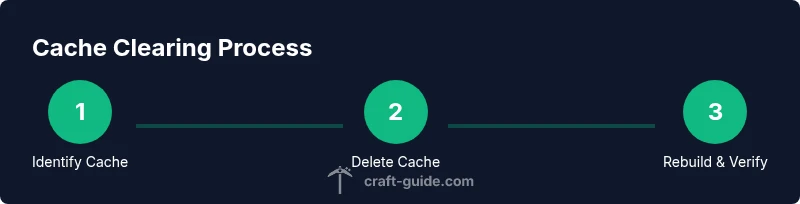
- Exit the Minecraft Launcher and ensure all related processes are closed. 2) Open the Windows File Explorer and navigate to %appdata%\.minecraft\launcher\cache. 3) Select all contents and delete. Do not delete the entire launcher directory. 4) Reopen the launcher to rebuild the cache automatically. Tip: Back up the cache folder before deleting, in case you need to restore any specific cached assets.
macOS Method: Clear Cache Safely
- Quit the Minecraft Launcher. 2) Open Finder and go to ~/Library/Application Support/minecraft/launcher/cache. 3) Delete all files inside the cache directory. 4) Launch Minecraft again to allow the launcher to re-fetch assets. Tip: If you see permission prompts, enter your admin password to proceed.
Linux Method: Clear Cache Safely
- Ensure the launcher is closed. 2) Open your file manager or terminal and navigate to ~/.minecraft/launcher/cache. 3) Remove cached files, keeping the launcher directory intact. 4) Start the launcher to allow automatic regeneration of cache data. Tip: Use a command like rm -rf ~/.minecraft/launcher/cache/* only if you’re confident in the path.
Aftercare: Verifying a Clean Startup
With the cache cleared, start the Minecraft Launcher and watch for a clean loading screen. Check that textures, resource packs, and mod interactions are reloaded correctly. If you see repeated glitches, confirm you’re running the latest launcher version and that Java (if applicable) is up to date. In many cases a cache refresh eliminates the majority of startup hiccups.
Common Pitfalls and Troubleshooting
Avoid deleting the entire minecraft directory, as this could remove worlds and configs. Only target the launcher/cache subfolder. If problems persist after a cache clear, consider performing a clean reinstall of the launcher, ensuring you download the latest version from the official site. The Craft Guide team also recommends verifying your internet connection and temporarily disabling antivirus software that might block asset retrieval during the first launch after a cache clear.
Tools & Materials
- Computer with internet access(To download launcher updates or reinstall if needed)
- Backup storage (external drive or cloud storage)(Back up saves and important config files before making changes)
- Access to launcher cache directories(Windows: %appdata%\\.minecraft\\launcher\\cache; macOS: ~/Library/Application Support/minecraft/launcher/cache; Linux: ~/.minecraft/launcher/cache)
- Text editor (optional)(For inspecting or editing configuration files if needed)
- Administrative privileges(Needed to modify system folders if required by steps)
- Reinstall option (optional)(If cache clear alone fails, you may reinstall the launcher)
Steps
Estimated time: 20-30 minutes
- 1
Prepare by closing the launcher and backing up data
Exit the Minecraft Launcher completely and ensure no related processes run in the background. Create a quick backup of your saves and any important config files so you can restore if something goes wrong.
Tip: Backups prevent data loss if you accidentally remove the wrong files. - 2
Identify the correct cache location for your OS
Open the appropriate cache directory for your operating system. Confirm you are in the launcher/cache folder and not the entire minecraft directory. This ensures you delete only cached files.
Tip: If in doubt, use the exact paths provided in this guide to avoid accidental deletions. - 3
Delete cache contents selectively
Delete all files inside the cache directory. Do not remove the parent launcher folder or other subdirectories outside cache. This triggers the launcher to re-download assets on next launch.
Tip: If you see a pop-up permission request, grant it to proceed. - 4
Restart the Minecraft Launcher
Launch the Minecraft Launcher again. It will rebuild the cache automatically from the game files and server metadata. Expect a fresh asset pack fetch on first startup.
Tip: Monitor the startup; if it stalls, give it a minute to fetch data. - 5
Test with a simple game load
Open a basic world or a test profile to verify that assets load correctly and there are no textures missing. Confirm that the launcher shows updated timestamps for re-downloaded items.
Tip: If resource packs were involved, re-check their compatibility after the cache refresh. - 6
Consider a reinstallation if issues persist
If cache clearing doesn’t resolve the problem, perform a clean reinstall of the launcher from the official source to reset all launcher files.
Tip: Ensure you have the latest version before reinstalling to avoid compatibility issues. - 7
Re-check for updates and verify integrity
After reinstall or cache clear, check for launcher updates, verify Java (where applicable), and ensure your game files are intact. This confirms that there are no lingering issues.
Tip: Run a quick integrity check if your launcher offers one. - 8
Document the result and next steps
Note the outcome of the cache clear and any subsequent actions. If problems recur, seek help with precise error messages and log files.
Tip: Keeping a short log speeds up future troubleshooting.
People Also Ask
Why should I clear the Minecraft Launcher cache?
Clearing the cache removes corrupted or outdated temporary files, allowing the launcher to fetch fresh assets and metadata. This often fixes startup problems, missing textures, and login hiccups without touching your saved worlds.
Clearing the launcher cache fixes startup problems by removing corrupted temporary files without affecting your worlds.
Is clearing cache the same as reinstalling the launcher?
No. Clearing cache targets temporary launcher data, while reinstalling replaces the launcher application itself. Start with a cache clear; a reinstall is a deeper fix if problems persist.
Cache clearing is safer and quicker than reinstalling; reinstall only if issues continue.
Will clearing the cache delete my saves or mods?
No. The cache is separate from your saves and mods. Clearing it only removes temporary launcher data, not your worlds or installed mods.
Your worlds and mods stay intact when you clear the cache.
Can I clear launcher cache on mobile devices?
This guide focuses on desktop launchers. Mobile platforms have different cache locations and procedures, so consult platform-specific instructions.
Mobile devices use different cache paths; this guide is for desktop only.
What if the launcher still has issues after clearing cache?
If problems persist, perform a clean reinstall of the launcher, check for updates, and verify Java or runtime requirements. Review launcher logs for error messages.
If issues persist after clearing cache, reinstall the launcher and check for updates.
How long does the process typically take?
Most users finish in about 15 to 30 minutes, depending on system performance and data size. Allow additional time for backups and potential re-downloads.
Typically 15 to 30 minutes.
Watch Video
The Essentials
- Back up saves before cleaning cache
- Clear only launcher cache folders, not whole game data
- Restart and verify a clean startup after cache refresh
- If issues persist, perform a safe reinstall of the launcher
- Document results for easier future troubleshooting