Can My Computer Run Minecraft? A Practical Test Guide
Learn how to test your PC for Minecraft compatibility with clear, data-driven steps. Coverage includes vanilla, modded, and shader-heavy play, plus troubleshooting and tier-based upgrade paths.


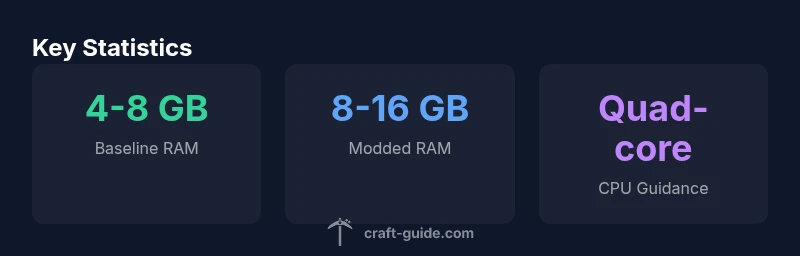
Most mid-range PCs can run Minecraft vanilla Java Edition with basic settings. Ensure at least 4GB RAM, a quad-core CPU, and a modest GPU; 8GB RAM is recommended for smoother vanilla play, and 16GB for modded or shader-heavy setups. Use in-game FPS readouts (F3) and a simple test world to verify performance under typical settings.
Hardware basics: what Minecraft actually uses
Minecraft relies on a mix of CPU power, memory, and GPU capability. The Java Edition leans heavily on single-core or lightly-threaded performance for Java, while newer GPUs help with rendering and shader workloads. RAM capacity determines how large a world you can render, how many entities can exist, and how many mods or texture packs you can run without stuttering. In Craft Guide's analysis, the balance between CPU speed, available RAM, and a capable GPU is the primary driver of smooth gameplay. When you test, start with a modest world and basic settings to establish a baseline before stepping up to heavier scenarios like shaders or many mods.
Tip: Always ensure your system drivers are up to date and that you’re running the latest Java version compatible with your Minecraft edition. This reduces unexpected bottlenecks and helps your tests reflect real gameplay conditions.
CPU, RAM, and GPU: how to interpret requirements
A practical test hinges on three core components. The CPU should be a reasonably modern quad-core or better to handle game logic, world rendering, and background tasks. RAM acts as the workspace for the game, textures, and active mods; running with too little RAM causes stuttering and long world load times. The GPU handles visuals, shaders, and post-processing effects. For vanilla play, a mid-range setup can usually maintain steady 60 FPS at moderate settings. If you enable shaders or heavy mods, you’ll want more RAM and a stronger GPU to avoid frame drops. Craft Guide’s data shows that once you cross into shader-heavy territory, hardware capacity becomes the primary limiter, not the game engine alone.
How to test: Use the in-game F3 HUD to monitor FPS, memory usage, and chunk loading. Create a small but representative test world with a standard set of biomes and buildings to mimic typical play sessions.
Vanilla vs. modded performance: what changes the test
Vanilla Minecraft is relatively forgiving on modern hardware, but performance still varies with render distance, entity count, and world complexity. Modded Minecraft adds RAM overhead from mods, libraries, and optional API layers (Forge, Fabric). Shader packs increase GPU load, sometimes dramatically, while still depending on RAM to hold textures and mod data. Craft Guide’s analysis consistently finds that RAM is the limiting factor for most modded setups, followed by GPU capability for shader workloads. When testing, create parallel scenarios: Vanilla with default settings, Vanilla with modest render distance, and a modded setup with a typical mod list and shader enabled. This approach gives a practical spectrum of expected performance.
Step-by-step testing method
- Update system drivers and ensure Java is current. 2) Allocate RAM strategically—start with 4GB for vanilla, 6-8GB for heavy vanilla, 8-16GB for modded scenarios. 3) Launch Minecraft with a small, representative world. 4) Record baseline FPS (60+ is ideal on 1080p, but targets vary by display). 5) Increase settings gradually: render distance, graphics quality, and shader usage if applicable. 6) Monitor temperatures to confirm the system isn’t throttling under load. 7) Repeat with different worlds to confirm consistency. Craft Guide analyses suggest taking at least three runs under consistent settings for reliable results.
Common bottlenecks and quick fixes
Background processes and antivirus scans can steal CPU time and disk I/O, producing lower FPS. Disable unnecessary startup programs, set Minecraft to a higher priority in Task Manager (careful with stability), and ensure your power plan is set to Balanced or High Performance. Disk speed matters for world loading; if you’re on a traditional HDD, consider defragmentation and ensuring enough free space. In modded setups, some mods have known conflicts or memory leaks; remove or update problematic mods to stabilize performance.
Quick fixes: Update graphics drivers, allocate adequate RAM to Java, reduce background processes, and prune outdated or conflicting mods. Craft Guide’s recommendations emphasize iterative testing: tweak one variable at a time and document the effect on FPS and load times.
Tuning settings for a smoother test
Settings tweaks can yield big gains without new hardware. Lower render distance, turn off fancy graphics, and disable V-Sync if you’re chasing higher FPS during testing. Opt for smooth lighting and reduce animation settings to save GPU power. Mods that add new worlds or extra mobs can dramatically increase memory use, so allocate more RAM if necessary. Shader experiments benefit from higher-end GPU and additional RAM, but ensure you have thermal headroom. Craft Guide notes that systematic, repeatable changes provide the clearest picture of how close your PC is to your target play experience.
How to benchmark: what numbers mean
FPS is the most intuitive measure, but you should also track memory usage and disk I/O. A stable 60 FPS is ideal, but 45-60 FPS can feel smooth on many displays. If FPS dips below 20 for extended periods, you’re likely hitting hardware or configuration bottlenecks. Look for steady memory usage with minimal paging and low CPU throttling. Comparison across settings (vanilla vs. modded, with/without shaders) helps you quantify the impact of each change. Craft Guide’s data indicates that a consistent frame rate across a representative test world is a stronger indicator of real-world performance than a single peak number.
Troubleshooting when tests fail or underperform
If your test results are poor, start with the basics: update drivers, confirm Java/version compatibility, and verify disk health. Next, reduce RAM usage by closing background apps and adjust your world’s render distance. If you’re modding, selectively disable or remove mods known for memory leaks or heavy textures. Consider allocating more RAM only if you have headroom; over-allocating RAM can waste resources and slow system performance. For persistent issues, run a Windows memory diagnostic and check for driver conflicts or overheating.
Building a plan for different PC tiers
Low-end PCs (typical 4GB-8GB RAM): keep vanilla settings, reduce render distance, and avoid shaders; upgrade RAM only if you can do so without compromising other tasks. Mid-range PCs (8-16GB RAM): you can run modded Minecraft with careful RAM allocation and selective mod choice; shaders may be possible with a modest GPU. High-end PCs (>16GB RAM, strong GPU): you can experiment with resource packs, heavy shader suites, and larger mod lists. Craft Guide’s framework suggests designing a test plan that mirrors real gameplay: start with a baseline, then add complexity in controlled steps, and compare performance across vanilla, modded, and shader scenarios.
PC scenarios for Minecraft performance
| Scenario | Recommended RAM | Notes |
|---|---|---|
| Vanilla Minecraft (Java) on desktop | 4-8 GB RAM | Basic settings, moderate render distance |
| Vanilla Minecraft with shaders | 8-16 GB RAM | Higher GPU load; shader quality matters |
| Modded Minecraft (Forge/ Fabric) | 8-16+ GB RAM | Mods increase memory and CPU load |
| Minecraft Bedrock on PC | 2-4 GB RAM | Lower resource requirements; different engine |
People Also Ask
What is the minimum RAM to run Minecraft Java Edition?
RAM needs vary with settings and world size, but a practical baseline for vanilla Java Edition is 4GB, with 8GB recommended for smoother performance in typical play. Modded or shader-heavy play usually requires 8-16GB or more.
For vanilla Minecraft, aim for at least four gigabytes of RAM; eight is better for smooth play, and more RAM helps with mods and shaders.
Does Bedrock Edition run better than Java on the same PC?
Bedrock Edition is generally optimized and can deliver smoother performance on the same hardware, thanks to engine efficiencies. Your experience still depends on settings, GPU, and RAM, especially with add-ons or texture packs.
Bedrock often runs smoother on the same PC due to optimization, but your results depend on settings and hardware.
Will shaders or mods require more RAM and a better GPU?
Yes. Shaders increase GPU load, while many mods raise RAM usage. If you enable shaders or a large mod pack, plan for more RAM and a capable GPU to maintain stable FPS.
Shaders and mods usually mean more RAM and a better GPU are needed for smooth gameplay.
How can I test performance without new hardware?
Use the built-in in-game settings to simulate higher loads: reduce render distance, lower graphics, and disable resource packs. Run multiple test worlds and record FPS to gauge improvement before upgrading.
Try lowering settings and testing on a few worlds to see if performance improves before buying hardware.
What should I do if FPS drops during a test?
Check background tasks, update drivers, and ensure drivers are compatible with your Java version. If mods are involved, remove or update problematic ones and consider increasing RAM if it’s available.
If FPS drops, close background apps, update drivers, and test with fewer mods.
Is my OS or disk speed relevant to Minecraft performance?
Yes. An SSD improves load times and world switching, while a stable OS and updated drivers reduce interruptions. RAM and CPU still drive real-time performance.
Yes—SSD helps load times; keep OS and drivers updated for fewer hiccups.
“Systematic testing reveals how each hardware component influences Minecraft performance; a data-driven approach helps players avoid over- or under-provisioning resources.”
The Essentials
- Start with a baseline and adjust one variable at a time
- RAM is often the bottleneck for modded or shader-heavy play
- Use FPS (F3) readouts and a representative test world to gauge performance
- Update drivers and keep Java compatible with your Minecraft edition
- Build a tiered plan for vanilla, modded, and shader scenarios